Most setup guides treat a higher variant ceiling as permission to put every size, colour and material on one product. That advice fails the moment a theme, an app, a product feed or a sales channel still behaves like the old limits are in force. Product variants on Shopify are a catalogue choice and a compatibility choice at the same time. I would audit the largest product before you add another option, not after a picker starts dropping sizes.
Table of Contents
- Shopify Product Variants and Their Current Limits
- How Each Variant Controls Its Own SKU, Price and Stock
- When to Split
- What Breaks Past 100 and 250 Variants
- Inventory, SEO and Storefront Effects of Variant Counts
- How to Build a Variant Matrix Through the Admin API
- Common Variant Problems and How to Fix Them
- Choose Your Variant Setup and Test It Before Launch
Shopify Product Variants and Their Current Limits
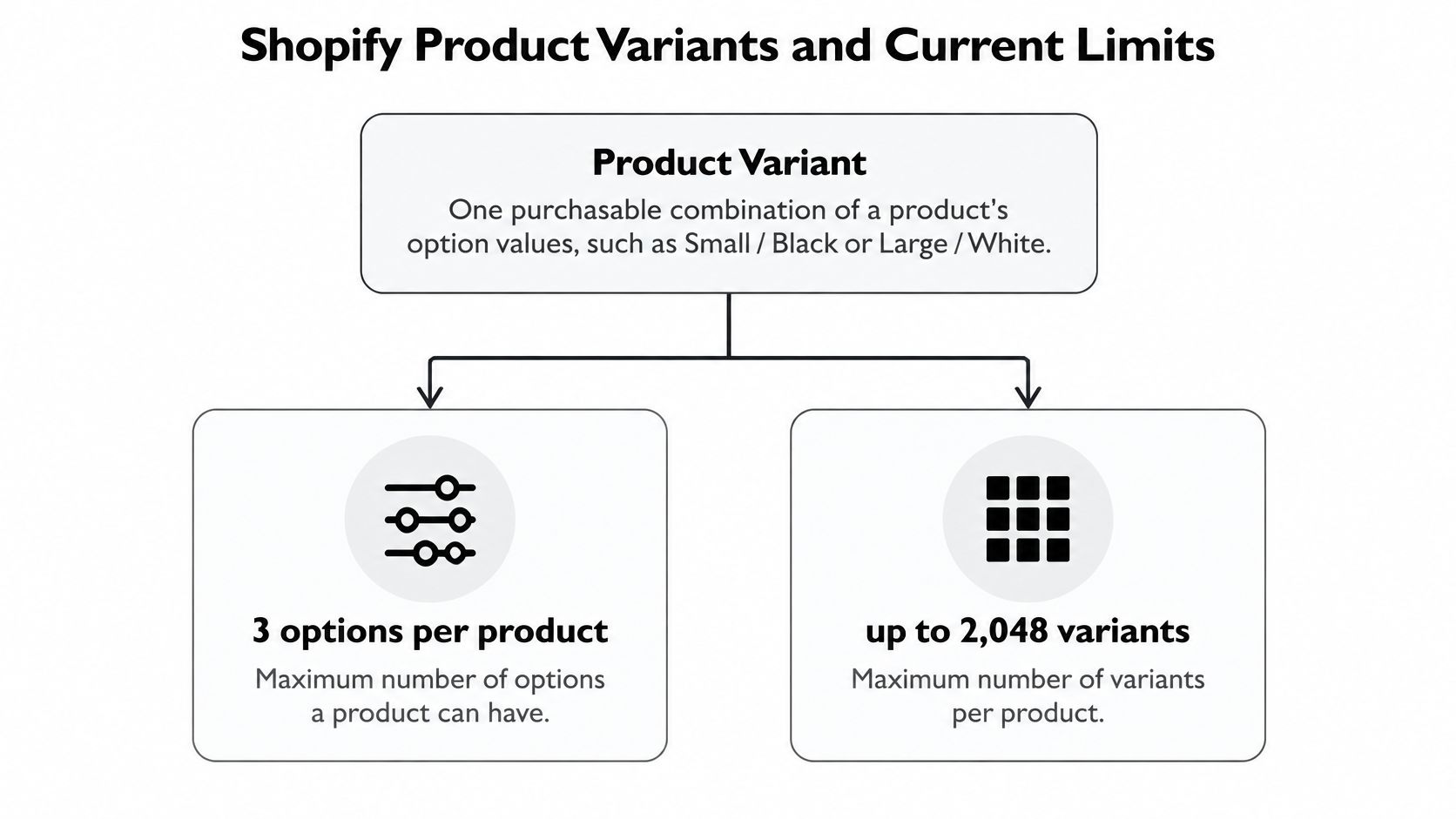
A higher variant ceiling does not make one giant product the right choice. Each product can have up to three options and, by default, up to 2,048 variants, according to Shopify's product variant documentation. Compatibility still depends on the theme, apps, feeds and sales channels that handle those variants.
| Layer or limit | Current value | Notes |
|---|---|---|
| Options per product | 3 | Same in current and legacy documentation |
| Variants per product by default | 2,048 | REST Admin API 2024 documentation listed 100 |
Variants returned by theme product.variants |
250 | Shopify's theme documentation limits this array; larger sets need targeted retrieval |
| Standalone placeholder created at product creation | 1 | Remove it, or keep it and add at most 2,047 more |
| Bulk creation mutation batch | 2,048 | Shopify's productVariantsBulkCreate documentation describes the bulk creation operation |
| Third-party themes, apps and sales channels | Some stop at 100 | Older integrations may retain the legacy REST Admin API limit |
For example, ten sizes, ten colours and ten materials produce 1,000 combinations. That fits Shopify's default product ceiling, but an integration built around the older 100-variant limit may not handle the full set. Test the product through every layer that reads or publishes its variants before relying on the higher ceiling.
Past 2,048 combinations, or when the product needs a fourth option, split the catalogue into separate products. A combined listing can present related products together; a line-item property or app may suit an extra choice that does not need its own price or inventory record. The right structure depends on which systems need to read each choice.
Multiply the option values before adding them in Shopify. Keep one product only when the theme, apps, feeds and channels all support its variant structure.
How Each Variant Controls Its Own SKU, Price and Stock
The product is the shop window. Each variant is the price tag and the stock shelf behind it. Shopify treats every distinct combination, such as a specific size and colour, as its own record. That record is what connects merchandising to SKU, barcode, price, inventory, fulfilment, sales channels, media, subscriptions and selling plans, which the Admin GraphQL productVariant query exposes as filterable fields.
Lower the price of Large / Black and Small / Black stays put. That only works when you treat the variant as its own record, not as a label painted on the product title.
Why titles are a bad join key
Automation that matches on titles or option labels will hit the wrong sibling the day someone renames "Navy" to "Midnight" or reorders options. Stable variant IDs do not move when copy changes. A price rule, a stock push or a chatbot answer should key off that ID, plus SKU, inventory, availability and price.
The same query surface supports pagination and SKU-based search. A sync that assumes one purchasable configuration per product will skip every other size the moment the catalogue grows. Use cursor-based pagination, persist the Shopify IDs in your own database, and only pull the records that changed.
The variant, not the product, is the unit that sells, so model it that way from the start.
If two systems disagree on stock, the failure is usually an ID that was never stored, not a mystery in the warehouse. A clean data sync keeps variant IDs as the join, so a price change cannot leak onto a sibling SKU.
When to Split
Ask one question before you add an option. Does the difference change what the shopper is buying, searching for, or allowed to purchase?
If it only changes size, colour or a minor finish, and the shopper still wants the same product, keep it as a variant. Split when search intent, legal claims, localisation or market availability change. Wide fit and narrow fit are often searched as different products. A children's size with a different age claim is not the same listing as an adult size with the same fabric.
Two paths, side by side
| Criterion | Keep as variants | Split into separate products |
|---|---|---|
| Buying intent | Same product, same shopper | Different need or use case |
| Search intent | One page can serve every option | Options are searched as different products |
| Legal claims or compliance | Same claims apply to every option | Claims, labels or age rules differ |
| Market availability | Published to the same channels and countries | Sellable in one country or channel only |
| Reviews and analytics | One review pool across options | Reviews should stay separate per product |
| Purchase rules | Shared minimums and increments | Different minimums, maximums or multipacks |
| Combination count | Small set and a simple theme or app stack | Hundreds or thousands, or fragile integrations |
Shopify's variant guide lets you publish or unpublish variants independently across sales channels and catalogues, and inventory stays at variant level. A colour you can sell in one country and not another is a market decision. Variant-level quantity rules, including minimums, maximums and increments, matter for wholesale and multipacks. Stuffing every market, pack and material into one product builds a huge catalogue with weak merchandising. Splitting every cosmetic option fragments reviews, analytics and stock workflows.
There is a storefront cost even when the product is legally inside the platform limit. Theme guidance for high-variant products states that Liquid returns a maximum of 250 variants through product.variants, because loading every variant slows rendering once counts grow past that point. A product can still hold up to the platform maximum. A theme that assumes the full set is on the page will miss options or ship a heavy product template. For SEO, a giant client-side selector adds page weight shoppers feel on mobile.
Practical rule: Plan a split only when at least two criteria in the table point the same way.
One odd column is not enough. Two together, such as different search intent plus a different legal claim, are.
What Breaks Past 100 and 250 Variants
The store is only as large as its weakest integration. The catalogue record can accept a huge matrix while a theme, an app or a channel serves a slice of it.
Shopify's help on adding variants warns that some third-party themes, apps and sales channels may not support more than 100 variants, even though the platform allows far more. Separately, Liquid access through product.variants stops at 250. A loop written against that object can drop options, hidden form inputs, inventory logic or structured product data without throwing an error.
What you see in practice is boring and expensive. A size never appears in the picker. A Google feed lists 100 of 400 options. An inventory app updates only the first batch and leaves the rest stale. Checkout then sells a combination the storefront never showed, or refuses one the admin says is in stock.
Four bands to audit
| Variant count per product | What can break | Check before launch |
|---|---|---|
| Up to 100 | Most themes and apps work unchanged | Confirm each integration supports the count |
| 101 to 250 | Some third-party apps, feeds and channels cap at 100 | Test every integration against the largest product |
| 251 to 2,048 | Theme product.variants returns only 250 | Move the theme to targeted retrieval or a paginated picker |
| Over 2,048 or more than 3 options | Not possible in one product | Split the catalogue or use combined listings or line-item properties |
Below 100, most stacks work if you still confirm each app. From 101 to 250, test every integration against the biggest product, because that is where the old third-party cap shows up. Above 250, stop rendering the full set in Liquid and switch the picker to targeted retrieval. Past 2,048 variants, or past three options, the product itself cannot hold the matrix.
A combined listing groups separate products under one storefront page, so each child product stays inside the limits while shoppers still browse them together. A line-item property is a custom field the shopper fills in at checkout, which keeps an over-limit choice usable without inventing another variant.
Run the audit on the largest product before launch. Open the storefront picker, every app, every feed and every channel, then compare the counts you see with the count in Shopify admin. If those numbers disagree, fix the layer that is short before you add more options.
Inventory, SEO and Storefront Effects of Variant Counts
After launch, every variant keeps its own stock count at each location. A product with 1,000 variants is 1,000 stock rows to watch, and a low-stock alert has to be set on the variant, not on the parent.
On the storefront, grey out sold-out options instead of hiding them. Hiding them makes the picker look random and sends shoppers hunting for a size that exists but is gone. A page that renders hundreds of options also drags on mobile, which is where most of the session time sits.
For search, option clicks that create ?variant= URLs can multiply near-duplicate pages. Point combination URLs at the main product with a canonical tag, and noindex only the thin combinations that have no search demand of their own. Check that choice against your product schema so the structured data matches the variant you want indexed.
Say a product has 400 variants and about 60 percent of combinations are sold out. The picker audit should report the live set, about 160 options, not the theoretical 400. That live count is what themes, feeds and schema have to agree on.
How to Build a Variant Matrix Through the Admin API
Product creation does not start from an empty variant list. Shopify automatically makes one standalone variant from the first value of each option. Leave it in place and you either sell a SKU you never planned or you are off by one when you count toward the cap.
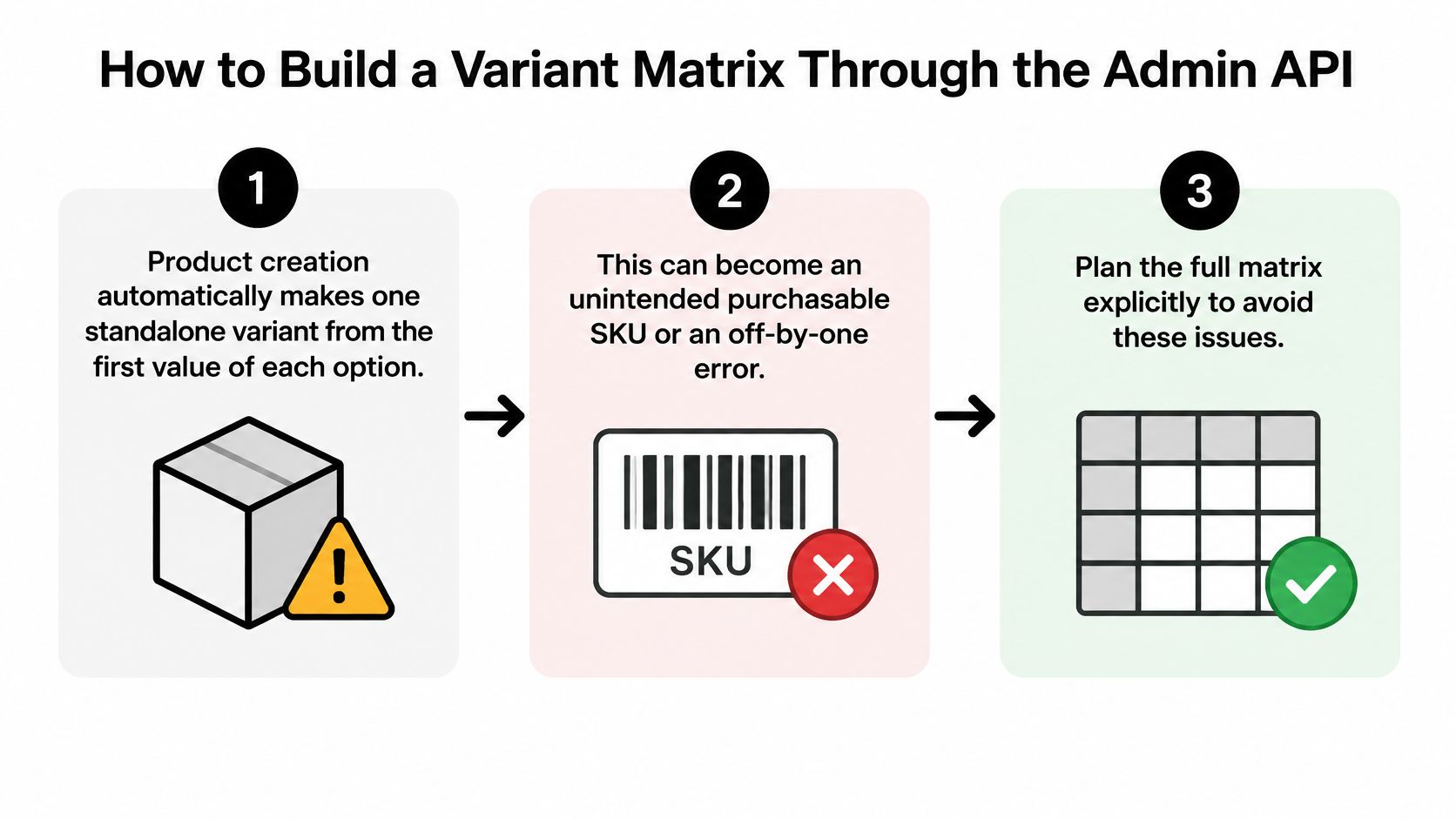
The Product object in the Admin GraphQL API documents the current default of 2,048 variants per product, and the bulk-creation mutation can accept up to 2,048 variants in one operation. The same docs say you either remove the placeholder with the REMOVE_STANDALONE_VARIANT strategy or you keep it and create at most 2,047 additional variants.
The import routine
- Count the matrix first. Multiply the valid values of each option and build the full combination list before any request. A complete matrix can sit over 2,048 even when each option looks modest on its own.
- Reject or partition anything over the cap. Split that set into separate products, or into a planned second product, before you submit. Do not hope the API will trim it cleanly.
- Choose the placeholder strategy on purpose. Create the product with its options, then either remove the standalone variant or keep it and add at most 2,047 more. Skipping this step is how an unintended purchasable SKU lands in the catalogue.
- Send variants with the bulk mutation. One request per variant multiplies round trips and leaves a half-built product if a call fails midway. Bulk mutations keep the import in fewer, larger writes.
- Store the IDs that come back. Write each returned variant ID next to its SKU in your own database. Later price and stock updates should target those IDs, not titles.
- Read the product back. Query with cursor-based pagination and compare the returned count to your matrix. A mismatch means a batch failed or the placeholder is still sitting in the list.
When a batch fails
Respect the API rate limit and retry only the failed batch, not the whole matrix. Retrying everything creates duplicate variants and a second cleanup job. Log the input row, the error and the cursor so the next run starts where the last one stopped.
For size, colour, material or regional setups, this routine is the difference between a clean import and a weekend of manual deletes.
Common Variant Problems and How to Fix Them
Start with the complaint you can see, then match it to the layer that owns the data. Most of these are not random theme bugs.
| Symptom | Likely cause | Fix |
|---|---|---|
| Product page shows only some sizes | Theme loops over product.variants, capped at 250 | Use targeted retrieval or a paginated picker |
| Near-duplicate combination pages in search | Each colour or size indexed as its own page | Canonical to the main product and noindex thin combinations |
| Variant missing in one country or channel | Variant unpublished for that channel | Check channel publishing per variant |
| Sold-out option still accepts orders | Placeholder standalone variant left in place | Remove the placeholder with the bulk strategy |
| Wrong variant changed after bulk update | Updates matched on titles, not IDs | Update by stable variant ID |
| Feed or app shows fewer variants than store | Integration limit of 100 variants | Confirm support or split the product |
| Minimum or increment ignored at checkout | Quantity rule set on the wrong variant | Review purchase rules per variant |
A product page that shows only some sizes is the most common report. The theme is almost always looping product.variants and stopping at the Liquid cap. Switching that picker to targeted retrieval is a theme change, so budget a sprint, not an afternoon.
Search indexing of every colour and size is a template and robots change. Canonical tags and a noindex on thin combinations are usually an hour once you know which URLs have no demand. A variant missing in one country is a per-channel publishing toggle on that variant, also a setting, not a rebuild.
Quick fixes versus rebuilds
A sold-out option that still takes orders is often the standalone placeholder nobody removed. Clearing it with the bulk strategy is a short, careful edit. Do it on a copy of the product first so you do not delete a real SKU.
A bulk price change that hits the wrong sibling is a matching bug. Retarget the job to variant IDs. If the integration cannot store IDs, that is a rebuild of the sync, not a spreadsheet fix.
When a feed or app shows fewer variants than admin, assume a 100-variant cap in that tool until the vendor says otherwise. Confirm support or split the product. A minimum or increment ignored at checkout means the quantity rule sits on a different variant than the one in the cart. Open purchase rules on that exact variant and set the minimum, maximum and increment there. That check takes minutes. Rebuilding a picker that cannot read those rules takes a sprint.
Choose Your Variant Setup and Test It Before Launch
Decide in this order, on the largest product you sell, before the catalogue grows around a bad structure.
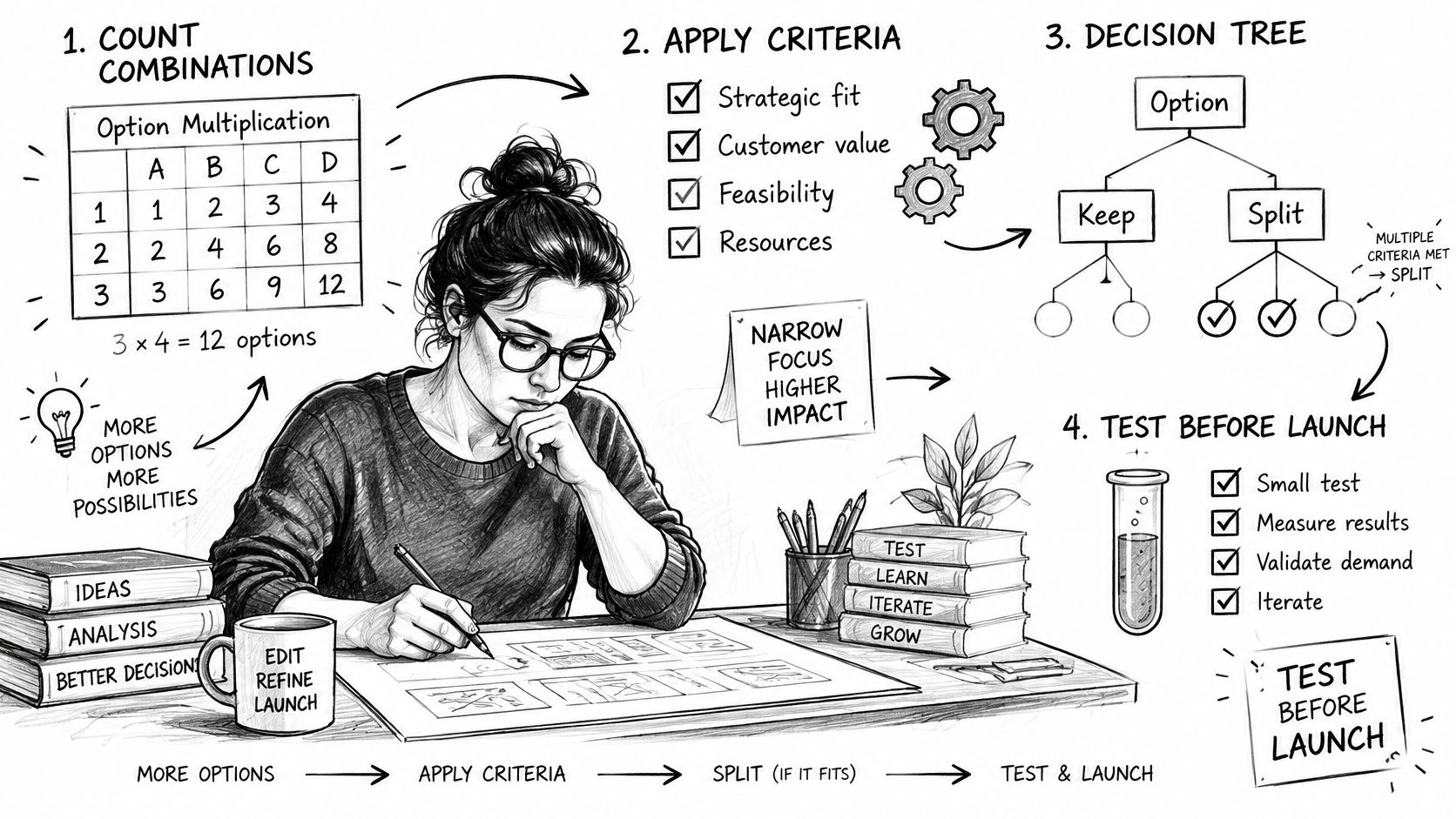
- Count the combinations. Multiply the option values. Write the number down. If it is already near a band boundary, stop adding options until the audit is done.
- Apply the keep-or-split test. If two or more criteria point to a split, plan separate products now. Waiting until reviews and ads pile onto one URL makes the split harder.
- Audit that product across layers. Theme picker, every app, every feed, every channel. The count in each place should match admin.
- Test representative combinations in each market. Cover the smallest option, the largest, a sold-out option and a restricted-quantity option. One happy-path size is not a test.
- Choose the layer you will change. If a theme, app or channel caps at 100 variants and you need more, pick a theme fix, a different app or a custom integration. Do not leave the gap and hope shoppers will not notice.
Variant swatches are part of that storefront test. A swatch that fails to swap the photo, price and stock is the same class of bug as a missing size.
For gaps no public app covers, custom Shopify apps can handle integrations, admin automation and store-specific rules. Fixing an existing Shopify app is the other path when the tool is close and only the variant logic is wrong. Merchants can install any app from the Shopify App Store for free and test it on real products before paying, which is the right way to prove a picker or a feed before you commit.
Run that audit on your largest product this week. A higher ceiling does not make one giant product the right architecture.
Yassine Malti builds custom Shopify apps and fixes existing ones when variant pickers, feeds or admin automation outgrow a public app. If your largest product is already brushing a theme, channel or API limit, that is the work to scope before the matrix gets bigger. Visit Yassine Malti to talk through the audit and the build.
Shopify apps by Yassine Malti
Put this into practice
-

Describer · Product descriptions
Product descriptions written from your own product data · Free: 50 descriptions/month
-

LLMs TXT · llms.txt for AI tools
A short llms.txt of your real store links · Free
-

Blogger · SEO blog posts
An AI blog agent that writes and publishes for you · 50 credits/month free