You publish a theme update, then open a product page to check that the price and size selector still work. Everything looks right, but Search Console reports missing offer data or an invalid price. Your shopify product schema may no longer match what shoppers see, even though the storefront looks unchanged.
Shopify Product Schema: How to Check Structured Data shows you how to inspect a product page, test its markup, and trace errors back to your theme or an app. You check price, availability, and variants before changing code. The goal is accurate product information that Google can process, not simply a test result with no warnings.
Product structured data is machine-readable information that describes your product to search engines, often supplied as JSON-LD, a data format embedded in the page’s code. Many Shopify themes include it, but the fields and variant handling differ. Adding another schema block without checking the existing output can create duplicate or conflicting information.
Start with one live product URL, including a product with multiple variants if you sell them. Shopify product schema testing helps you separate missing required fields from optional recommendations, so you fix the right problem first. Valid markup can support Shopify product rich results, but it does not guarantee that Google displays them or that your page ranks higher.
Table of Contents
- Step 1: Understand what Shopify product schema does
- Step 2: Check whether Shopify already adds product schema
- Step 3: Test a product URL with Google's tools
- Step 4: Verify price, availability, and product variants
- Step 5: Diagnose common Shopify product schema errors
- Step 6: Add or correct product schema in Shopify
- Step 7: Retest changes and monitor product rich results
Step 1: Understand what Shopify product schema does
Before you change your shopify product schema, separate the page shoppers see from the information search engines read. Structured data is machine-readable markup that labels details on your page. It helps a search engine identify a product, its offer, and other attributes without relying only on the surrounding text.
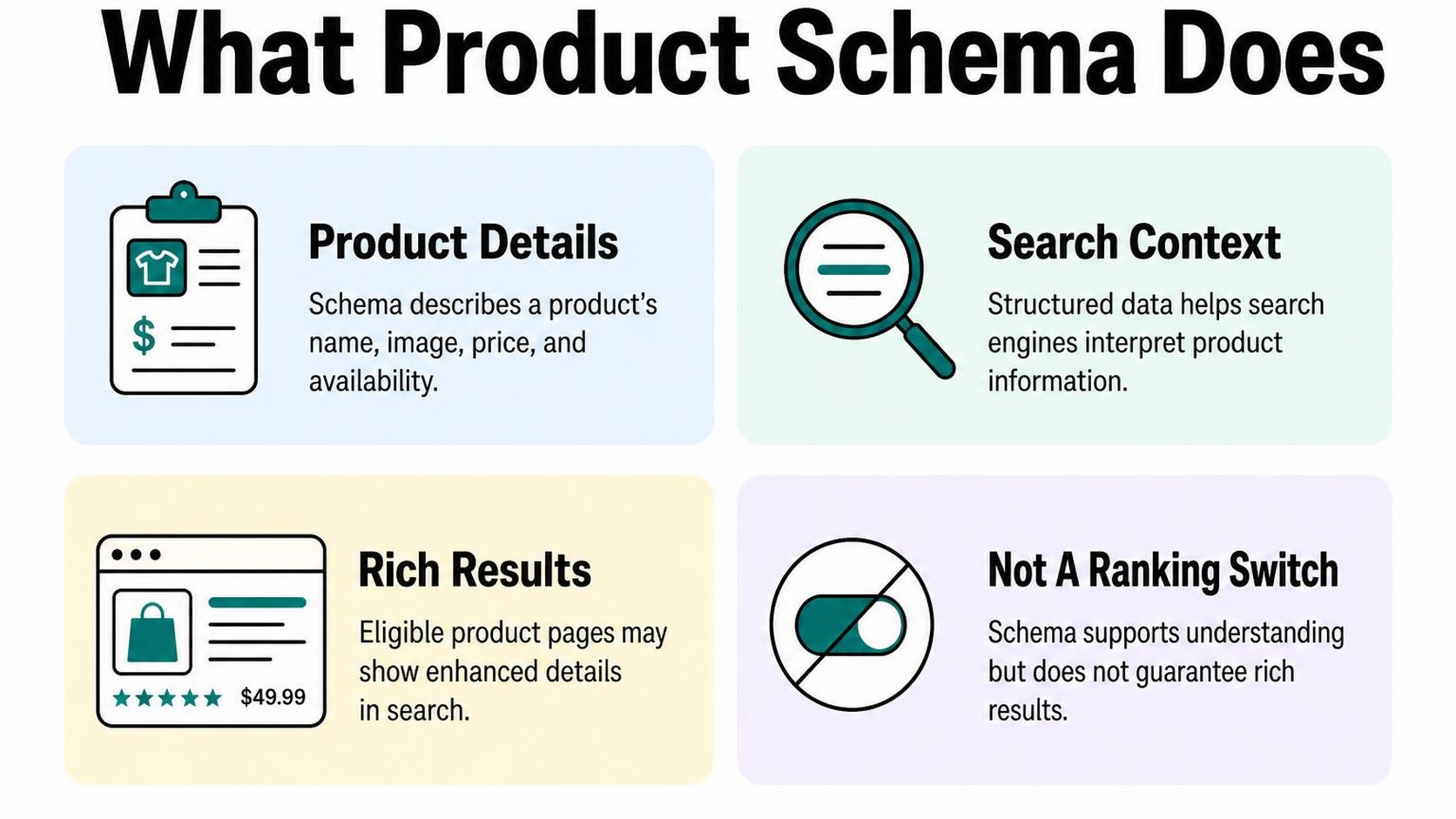
Shopify product structured data is not a second product description or a place to add extra keywords. Its job is to represent the product accurately. If your page sells a cotton shirt for $35 CAD, the markup should describe that shirt and its current offer, not an older price or a different item.
Identify the product details structured data can describe
Product schema is a structured-data type used to describe a product. An associated Offer describes commercial details such as price, currency, and availability. Keeping these roles separate helps you understand why a product name can be correct while its offer data still contains errors.
- Name: Identify the actual product shown on the page, rather than inserting a string of search terms.
- Image: Reference an image that represents the product and that search engines can access.
- Price and currency: Describe the relevant offer with a numeric price and its currency. A correct amount with the wrong currency still misrepresents the offer.
- Availability: Reflect whether the item is in stock, out of stock, or available under another supported condition. Do not mark an unavailable item as available to attract visits.
- Variants: Distinguish options such as size or color when they represent separate variants, especially when their prices, availability, identifiers, or images differ.
For Shopify product schema variants, think about a shirt with an available small size and a sold-out large size. One generic availability value may not accurately describe both offers. Before changing anything, establish which variant or group of variants the page and its markup represent.
JSON-LD is a format that expresses structured data in a script within the page. Shopify product JSON-LD can coexist with other markup formats, so you cannot judge correctness simply by finding one script. Your theme or an installed integration may produce the data; the output still needs to match your storefront.
Know what schema can and cannot do for search visibility
Rich results are enhanced search appearances that can display details beyond a standard title and description. Product markup can make your page eligible for experiences that include price, availability, or other supported information. Eligibility is not a promise that Google displays those details for every search.
Google’s structured data guidelines explain its accuracy requirements and why valid markup does not guarantee a rich result. Passing Shopify product schema testing is therefore a useful checkpoint, not proof of higher rankings or more sales.
Practical rule: Treat schema as an accurate description of your offer, not a shortcut around indexing, useful content, or a working product page. Fix mismatched data before adding optional fields.
Keep this check within your broader Shopify SEO improvement roadmap. Accurate markup supports search visibility, but it does not replace clear product information or fix a page that search engines cannot access.
Step 2: Check whether Shopify already adds product schema
You update your theme and wonder whether you need to add Shopify product schema yourself. Before editing anything, check a published product page: your active theme may already supply the markup, and an installed app may add another version.
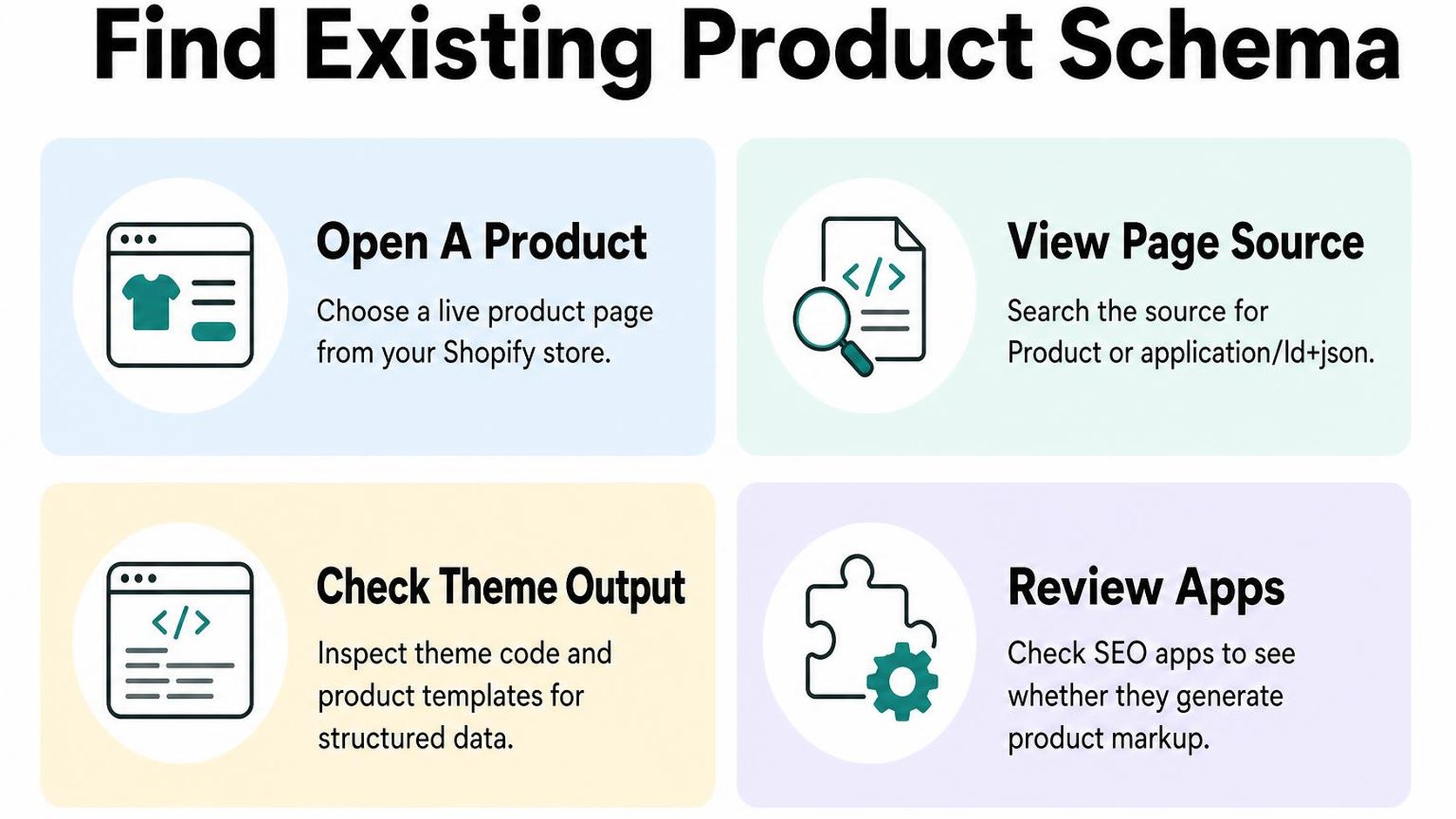
The answer to “does Shopify add product schema automatically” depends on your storefront implementation. Shopify documents that Shopify-supported and Theme Store themes include product microdata by default, but that does not establish which format, fields, or additional scripts your current page contains.
Inspect a live product page before changing your theme
Open a published product URL on your storefront, not just its preview inside the theme editor. Choose a product with a clear price and stock status so you can compare its visible details with the structured data.
Start with View Page Source and search for “schema.org,” “application/ld+json,” and “Product.” Then open your browser’s developer tools and search the Elements panel too: this shows the rendered page after scripts have run, so it can reveal markup absent from the original source.
Microdata is structured data attached to HTML elements through attributes such as itemscope, itemtype, and itemprop. If you find product microdata but no JSON-LD script, do not assume Shopify product structured data is missing.
- Product identity: Check that the marked-up name and URL describe the product you actually opened, rather than a recommendation or another item.
- Offer details: Locate price, currency, and availability where present. Compare them with the selected variant and the visible purchasing options.
- Baseline record: Save the URL, relevant markup, and inspection date before changing anything. This gives you a reference if a theme update changes the output.
Look for JSON-LD and identify which app or theme outputs it
JSON-LD is a structured-data format commonly placed inside a script element whose type is application/ld+json. Shopify product JSON-LD may contain a Product object directly, within an array, or inside an @graph containing several related objects.
Search for every Product entry, not just the first match. Multiple entries are not automatically Shopify product schema errors: they may describe separate variants or related entities, but conflicting descriptions of the same offer need investigation.
To trace the source, search your theme code for application/ld+json, schema.org, or structured_data. Shopify’s structured_data Liquid filter can generate markup, so you may find a filter call rather than a handwritten Product object. Follow references into product sections and snippets without editing them yet.
- Theme output: Match the script’s fields or surrounding code to a theme section or snippet. Comments can provide clues, but they are not proof of ownership.
- App output: Review enabled app embeds and product-template app blocks. If needed, test one setting at a time in a duplicate theme and compare its preview output.
- Unclear ownership: Ask your theme or app support which component generates the markup before removing anything.
Practical rule: Establish what your rendered page already outputs before deciding how to add product schema to Shopify. Adding another script is faster than tracing the existing one, but it can leave you with competing prices or availability values.
Step 3: Test a product URL with Google's tools
Your theme outputs shopify product schema, but you still need to check what Google can read. Use a public product page with a clear price and stock status, then record the URL and test date so you can repeat the check after changes.
Run the page through the Rich Results Test
Open Google’s Rich Results Test, a tool that checks a page for supported structured data and reports eligibility issues. Choose the URL option, paste your live product URL, and run the test. Avoid password-protected storefronts, admin links, and theme-preview URLs: you want to test the page shoppers and Google can access.
Expand the detected product results and select the Product item that matches the product on the page. Depending on the markup, the tool may show product snippets, merchant listings, or both. Inspect each relevant result rather than stopping at the first green message.
- Match the product: Check the name, image, and URL against the visible product. If several Product items appear, inspect each for conflicting details; multiple items are not automatically an error.
- Compare offer details: Check Shopify product schema price and availability against the displayed price, currency, and stock status. For a variant URL, compare the selected variant rather than assuming the default product price applies.
- Review errors: Expand every critical issue and note the affected property. Missing or invalid required data can prevent eligibility for the affected search feature.
- Review warnings: Read non-critical issues separately. They often identify optional data that could improve the result, not a reason to invent reviews, ratings, or identifiers.
- Retest the fix: After publishing a correction, test the same URL again. Then check another product with different conditions, such as a sale price, unavailable stock, or several variants.
Google’s product snippet requirements and monitoring guidance explain required properties, recommended fields, and the associated Search Console reports. Save the issue text rather than treating “Shopify product schema not working” as a diagnosis: the exact field tells you what needs investigation.
Use Search Console to review indexed product results
In your store’s Search Console property, open the Product snippets and Merchant listings reports if they appear. These reports summarize Google’s detected structured data across crawled pages; they are not a complete inventory of every product in your catalog.
Select an issue to view affected example URLs, then inspect a representative page with URL Inspection. Compare Google’s indexed version with a live URL test: a published fix can pass now while the indexed version still reflects an earlier crawl.
- Confirm the scope: Check whether the issue affects one product, a shared template, or a group with similar variants.
- Validate after testing: Once affected pages pass your checks, use Validate fix where available. Allow time for Google to recrawl and update the report.
- Monitor changes: Revisit the reports after theme updates and catalog changes. Use your Shopify SEO checklist to keep this check alongside crawlability and indexing checks.
Practical rule: Passing Shopify product schema testing establishes technical eligibility, not a promise of Shopify product rich results. Fix genuine errors first; do not keep adding markup just because a search result lacks extra product details.
Step 4: Verify price, availability, and product variants
You select a large blue shirt and the price changes, but the structured data still describes the cheaper small shirt. Your shopify product schema may pass a syntax check while giving Google an offer that does not match what a shopper can buy.
Check the default selection and representative variants, including one with a different price and one that is sold out. Focus on Shopify product schema price and availability before adding more fields: extra detail does not fix an inaccurate offer.
Compare structured data with the product page shoppers see
An Offer is the structured data entry that describes purchase details, such as price, currency, and availability. Compare those fields with the visible product price, selected options, and purchase controls on the same page.
Use the same market and currency throughout your check. A storefront showing Canadian dollars and markup describing a US-dollar offer needs investigation; do not compare different regional versions and assume the numbers should match.
| Field | What to compare | Mismatch to investigate |
|---|---|---|
| price | The current purchase price for the represented offer | A previous price or compare-at price appears instead |
| priceCurrency | The currency used for that visible offer | The currency code belongs to another market |
| availability | Whether you can purchase the represented item | A sold-out variant is marked InStock |
| url | The page or variant URL associated with the offer | The URL opens a different selection without clarification |
A discount code entered at checkout is not the same as a sale price already displayed on the product page. Match the offer you actually present, rather than marking up the lowest hypothetical price a shopper might receive.
Inspect rendered Shopify product JSON-LD after the page loads, not just the theme snippet that generates it. Old theme output or a second markup source can leave conflicting prices even when the visible storefront looks correct.
Check variant-specific prices, stock status, and identifiers
A variant is a specific product combination, such as a blue shirt in size large. For Shopify product schema variants, verify that each represented combination keeps its own price, availability, URL, and identifier together.
Google’s product variant documentation explains grouping properties and unique variant identifiers. Grouping related products does not mean you should assign the cheapest variant’s offer to every size or color.
- Price differences: Select a higher-priced variant and confirm its offer uses that price, not the default selection’s amount.
- Stock differences: Compare an available variant with a sold-out one. Check purchasing behavior too, because zero inventory may still allow backorders.
- Identifiers: Match each SKU or genuine GTIN to the correct combination. Do not invent barcode values or reuse one variant’s identifier across the group.
- Selection changes: Open the variant URL directly and inspect the rendered markup. Check whether changing options updates an individual offer or leaves an accurately labeled set of variant offers.
- Conflicting output: If two entries describe the same offer differently, correct the generating sources. Do not add a third entry as a workaround.
Missing variant details can make the represented offer unclear; stale or conflicting values can produce Shopify product schema errors or misleading markup. After correcting the source, repeat the comparison on the live page.
Step 5: Diagnose common Shopify product schema errors
You open a product URL in the Rich Results Test after a theme update, and an error appears beside several warnings. When Shopify product schema is not working, start with the affected item and property—not a replacement script pasted into your theme.
Save the test result and note the URL, selected variant, and reported value. This gives you a baseline so you can tell whether each change fixes the problem or introduces another one.
Separate blocking errors from non-critical warnings
A blocking error makes the affected structured data item ineligible for the corresponding rich result. A non-critical warning usually identifies a recommended property that is missing; the item may still be eligible. Neither a clean test nor a warning-free report guarantees that Google displays a rich result.
Check which search feature the report evaluates before changing anything. Product snippets and merchant listings have different requirements, so use Google’s Product snippet requirements and troubleshooting guidance when diagnosing snippet-related fields.
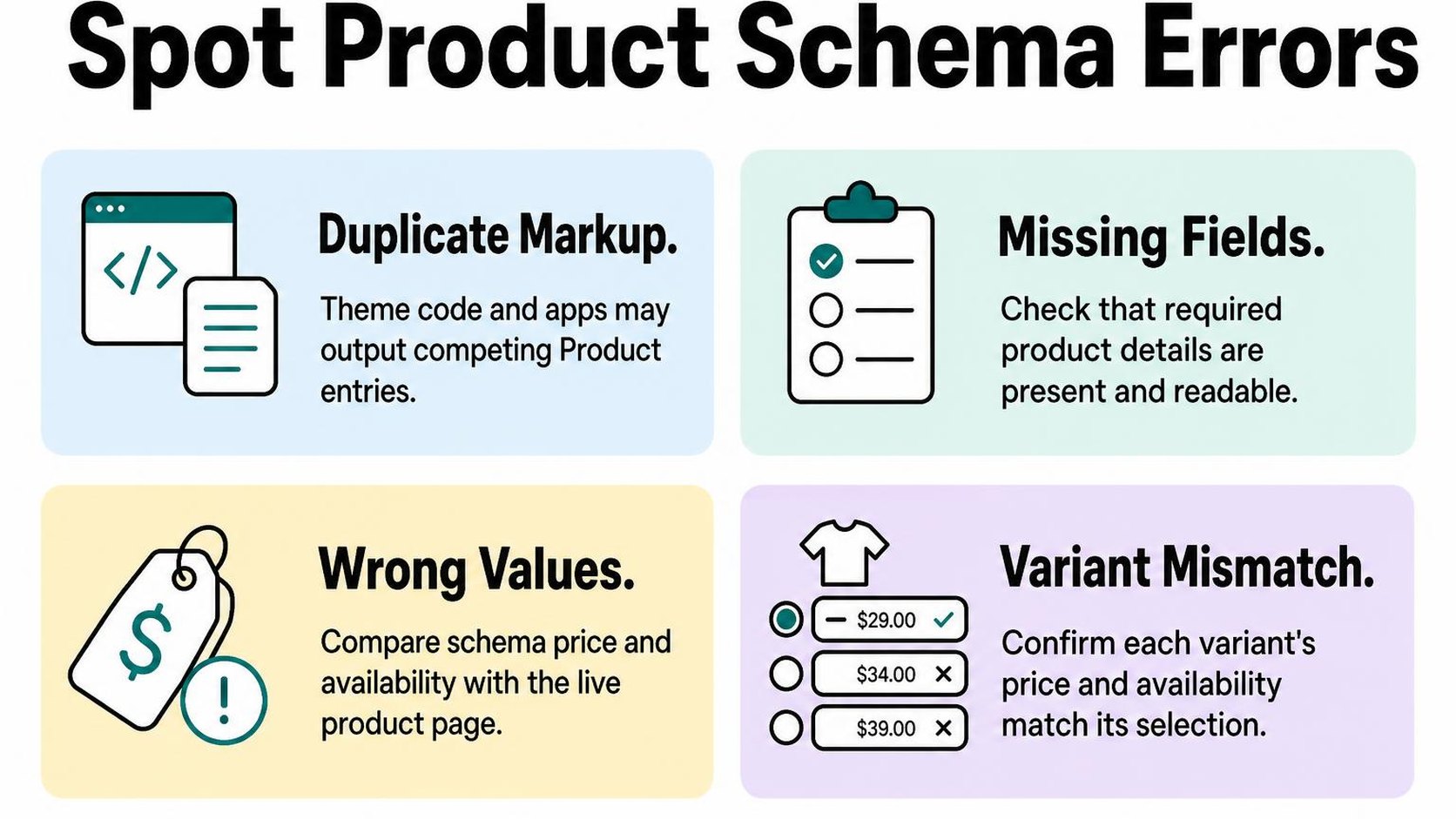
- Required properties: Expand the invalid item and read the exact missing-field message. Follow the requirements for that item and feature rather than assuming every Product needs the same fields.
- Invalid values: Check that price is numeric rather than text such as “From $29,” currency uses a valid three-letter code, and availability uses a supported schema.org value.
- Visible content: Compare the reported offer with what a shopper sees for the tested selection. Investigate stale prices, contradictory stock status, or ratings that do not correspond to the product.
- Recommended details: Add shipping, returns, or other requested information only when it accurately represents your policies. Do not invent data simply to clear a warning.
Keep the investigation focused on the reported entity. If the report flags breadcrumbs instead, use the Shopify structured navigation guidance to investigate that separate markup rather than changing Product fields.
Find duplicate or conflicting Product markup
JSON-LD is a structured data format commonly placed in script elements on your product page. Your theme and an installed integration can both generate it, while other markup may also describe the product.
Multiple Product entries are not automatically an error: they may describe separate variants or related entities. The problem is competing descriptions of the same product or offer, especially when their prices, availability, identifiers, or ratings disagree.
- Locate each source: Search the page source and rendered HTML for Product entries, then trace them to theme snippets, sections, app embeds, or injected scripts.
- Compare matching entities: Use identifiers, URLs, and offer details to distinguish intentional variant entries from duplicate descriptions of the same item.
- Edit one generator: Save a theme backup, then correct or disable the conflicting output at its source. Do not remove unrelated structured data or add another Product script as a patch.
Practical rule: Change one source at a time, retest the same live URL, and compare the result with your baseline before making another edit.
Once the live test reflects the visible product accurately, request validation in the relevant Search Console report. Reporting updates require recrawling; an old error count does not necessarily mean your correction fails.
Step 6: Add or correct product schema in Shopify
Your theme update leaves a product page looking normal, but testing confirms that its price is missing from the markup. Correct your shopify product schema only after you establish what is absent or inaccurate. A missing search enhancement alone is not evidence that you need another script.
Structured data is machine-readable markup that describes your page’s content. Adding it makes product details easier for search engines to interpret, but it does not guarantee Shopify product rich results. Keep the correction limited to the problem your test identifies.
Choose the right implementation path for your theme
If you are asking how to add product schema to Shopify, check your theme’s existing support first. Many Shopify themes already supply product markup, although customizations and older versions can change the output. You do not necessarily need Shopify product JSON-LD if another supported format already describes the product correctly.
JSON-LD is a structured-data format placed inside a script rather than attached to visible HTML elements. It is a common implementation option, not a reason to replace working markup. Choose a path you can maintain through theme updates and product changes.
- Theme-supported correction: Check the theme documentation and ask its support team whether an update or setting addresses the confirmed issue. Prefer a supported fix when it preserves your customizations.
- Carefully reviewed app: Consider an app only if its documented output fills a genuine gap. Confirm whether it can coordinate with existing theme markup, handle your product options, and stop generating markup when disabled.
- Developer change: Use a developer when the correction requires Liquid edits or variant-specific logic. Ask for a documented implementation that uses current product data rather than manually entered prices or stock labels.
For Shopify product schema variants, define what happens when a shopper selects a different size or color. Your implementation needs to describe the relevant offer accurately, including its URL, price, currency, and availability. Do not assume one hardcoded offer covers every option.
Avoid duplicating markup when editing Liquid or using an app
Liquid is Shopify’s template language for generating storefront HTML from store data. A copied schema script can look correct today and become inaccurate after a sale, inventory change, or template update. Ask whoever makes the change how its values stay synchronized with the page.
Do not paste a second Product script into your theme merely because a validator flags a field. Agree on which implementation owns product markup before installing an app or commissioning code. Otherwise, you can introduce conflicting offers while fixing the original omission.
- Match visible details: Check Shopify product schema price and availability against the selected product option, including sale pricing and sold-out states.
- Test representative pages: Include a simple product, a discounted product, and a product with differently priced variants. Validate the published URLs after each deployed change, not just the preview.
- Check rendered output: Repeat Shopify product schema testing after enabling an app or changing its settings. Confirm that the expected markup appears and that no competing product description is introduced.
Practical rule: Treat successful validation as a technical checkpoint, not a promise of search visibility. Google’s structured data guidelines explain the visible-content requirement and why valid markup does not guarantee a rich result.
Step 7: Retest changes and monitor product rich results
Your theme update is live, but Search Console still shows the old product errors. That does not immediately mean your fix failed: Google may not have crawled the changed pages yet. Keep your shopify product schema checks tied to published URLs, deployment dates, and the last crawl rather than treating every unchanged report as a new problem.
Validate representative products after publishing
Keep a small, repeatable test set instead of checking whichever product happens to be open. Include products that exercise different templates and offer states, so a passing result on one page does not hide a problem elsewhere.
Run those live URLs through Google’s Rich Results Test after publishing. Inspect the detected products and offers, not just the headline result, and save the test date alongside the change you made. A clean test establishes a baseline for the next release; it does not verify your entire catalog.
- Core sample: Keep one standard product, one sale product, one unavailable product, and one product with differently priced variants in your testing checklist.
- Variant checks: Open the relevant variant URLs and compare the selected option, visible price, currency, and stock state with the detected offer. Do not assume every variant works because the default selection passes.
- Release record: Note the theme version, changed snippet, or app setting responsible for the update. Save any remaining errors and warnings so you can distinguish an unresolved issue from a newly introduced one.
Prioritize errors that prevent eligibility, then review warnings for useful missing details you can accurately supply. Do not invent ratings, identifiers, or shipping information simply to make a Shopify product schema validator report look cleaner.
Track indexing and keep schema aligned with catalog changes
Use Search Console’s URL Inspection to check the last crawl and indexing status of your sample pages. For a small number of corrected URLs, request indexing when appropriate, then allow time for recrawling and report updates. Repeated requests do not guarantee faster processing.
Review the Product snippets and Merchant listings reports where available. Google’s Product snippet documentation explains how to monitor structured data errors and warnings in Search Console. When the report offers validation for a resolved issue, start it after confirming the deployed fix across affected pages.
- Weekly review: Check for new invalid items and inspect a few affected URLs before making another code change. Compare crawl dates with your release record.
- Catalog triggers: Recheck sale launches, price updates, stock transitions, and variant changes. Your markup needs to keep reflecting what shoppers can actually buy.
- Storefront triggers: Repeat your sample tests after theme releases, template edits, or app changes that affect product output. Schedule a monthly spot check even when no errors appear.
Practical rule: Valid markup makes a page eligible for supported search features; it does not guarantee Shopify product rich results, higher rankings, or an immediate appearance change.
This maintenance routine reflects store work by Yassine Malti, the developer writing this guide.
Put this into practice
Start with the store you already have, then use the guides on the blog for the next page that needs the same treatment.
Shopify apps by Yassine Malti
Put this into practice
-

ALT SEO · Image alt text
AI alt text for every product image · 100 images/month free
-

RANKit · Meta titles & descriptions
AI meta titles and descriptions, sized for Google · 50 meta tags/month free
-

TAGit · Product tags
SEO-friendly product tags, generated in bulk · 50 tags/month free