You replace your product photos, publish a theme update, and open Google Search Console to check whether Google finds the new images. Your product pages appear in search, but the photos seem missing from image results. Before you rebuild anything, check your shopify image sitemap: the image information included in Shopify’s generated sitemap files.
How to Create and Troubleshoot an Image Sitemap for Shopify shows you where Shopify lists product images, how to inspect those entries, and how to submit your sitemap to Google Search Console. You also learn when Shopify’s built-in files are enough, what a separate image sitemap can add, and how to investigate missing images without changing working URLs.
Shopify generates a sitemap index at your store’s /sitemap.xml address, with links to separate sitemap files, including product sitemaps. Those product files include image information, but you should not expect every gallery photo to appear. A sitemap helps Google discover URLs; it does not guarantee crawling, indexing, or placement in image search.
Start by separating a missing sitemap entry from an image Google cannot access. That distinction keeps Shopify image sitemap troubleshooting focused: you check the published product, the image URL, and Google’s access before adding another file or app. Do not delete and reupload your catalog photos just because they have not appeared in search.
Table of Contents
- Step 1: Understand how Shopify includes images in its sitemap
- Step 2: Find and inspect your Shopify image sitemap URL
- Step 3: Prepare product pages so Google can discover their images
- Step 4: Submit the sitemap to Google Search Console
- Step 5: Diagnose a Shopify image sitemap that is not working
- Step 6: Improve image SEO after sitemap checks
- Step 7: Verify fixes and monitor image indexing
Step 1: Understand how Shopify includes images in its sitemap
Before changing your shopify image sitemap setup, separate the sitemap file from the images it describes. Shopify creates and updates sitemap files automatically, so your first job is to understand what is already there—not upload a replacement.
Does Shopify have an image sitemap?
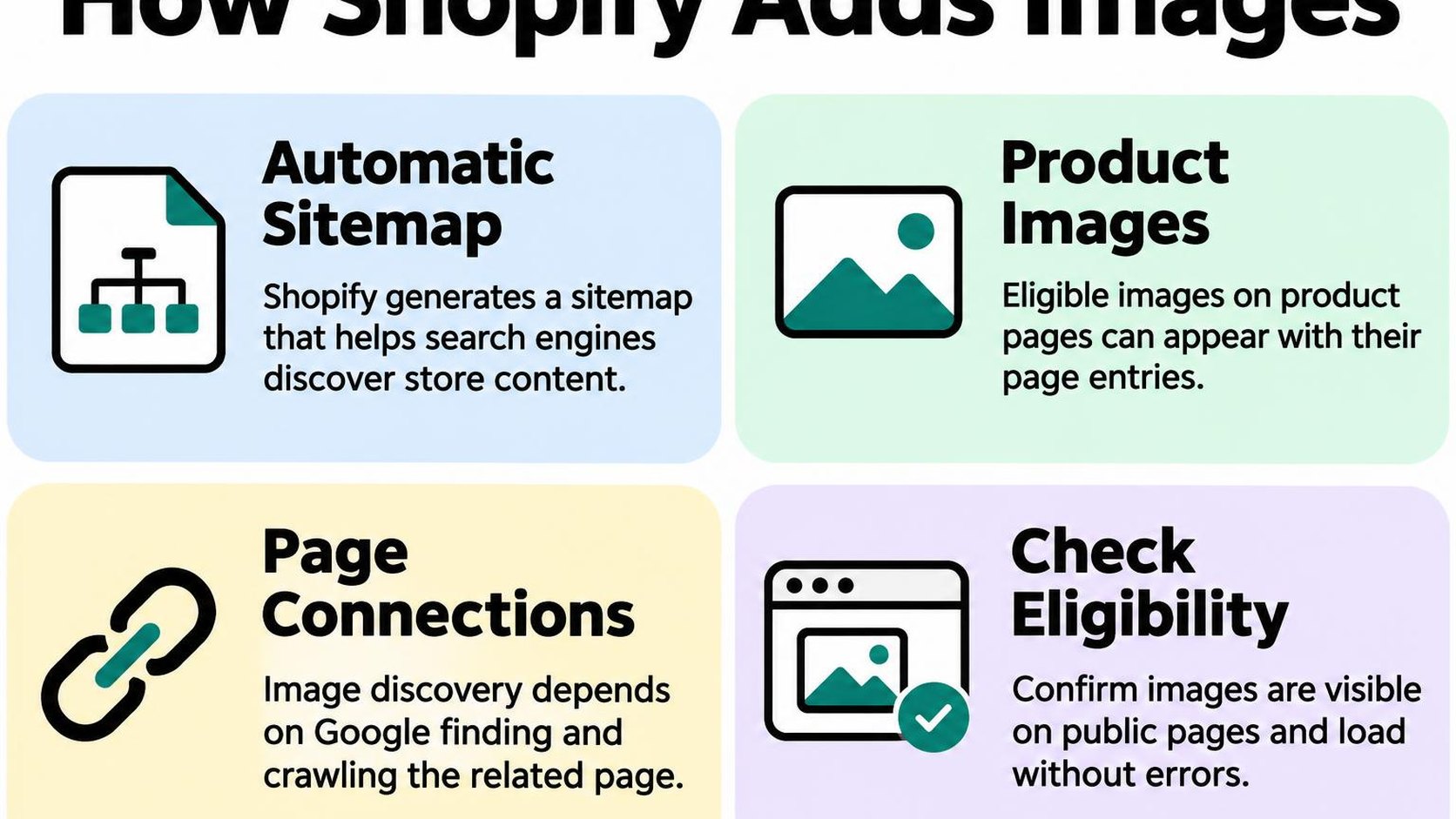
Yes, Shopify includes image information in its generated sitemap system, rather than giving you a separate image-only file to maintain. Your sitemap index is the file at /sitemap.xml that points search engines toward individual sitemap files for products, collections, pages, and blog content.
Open your store’s main domain followed by /sitemap.xml. From there, follow a product sitemap link to see product-page entries and their associated image information. If you need help distinguishing the index from those individual files, review Shopify’s sitemap structure before editing anything.
The Shopify guide to finding and submitting a sitemap confirms that Shopify automatically generates sitemap.xml with links to products, primary product images, collections, pages, and blog posts. For most stores, the answer to how to create an image sitemap for Shopify is therefore simple: use the generated files rather than build another one.
What Shopify sitemap images tell search engines
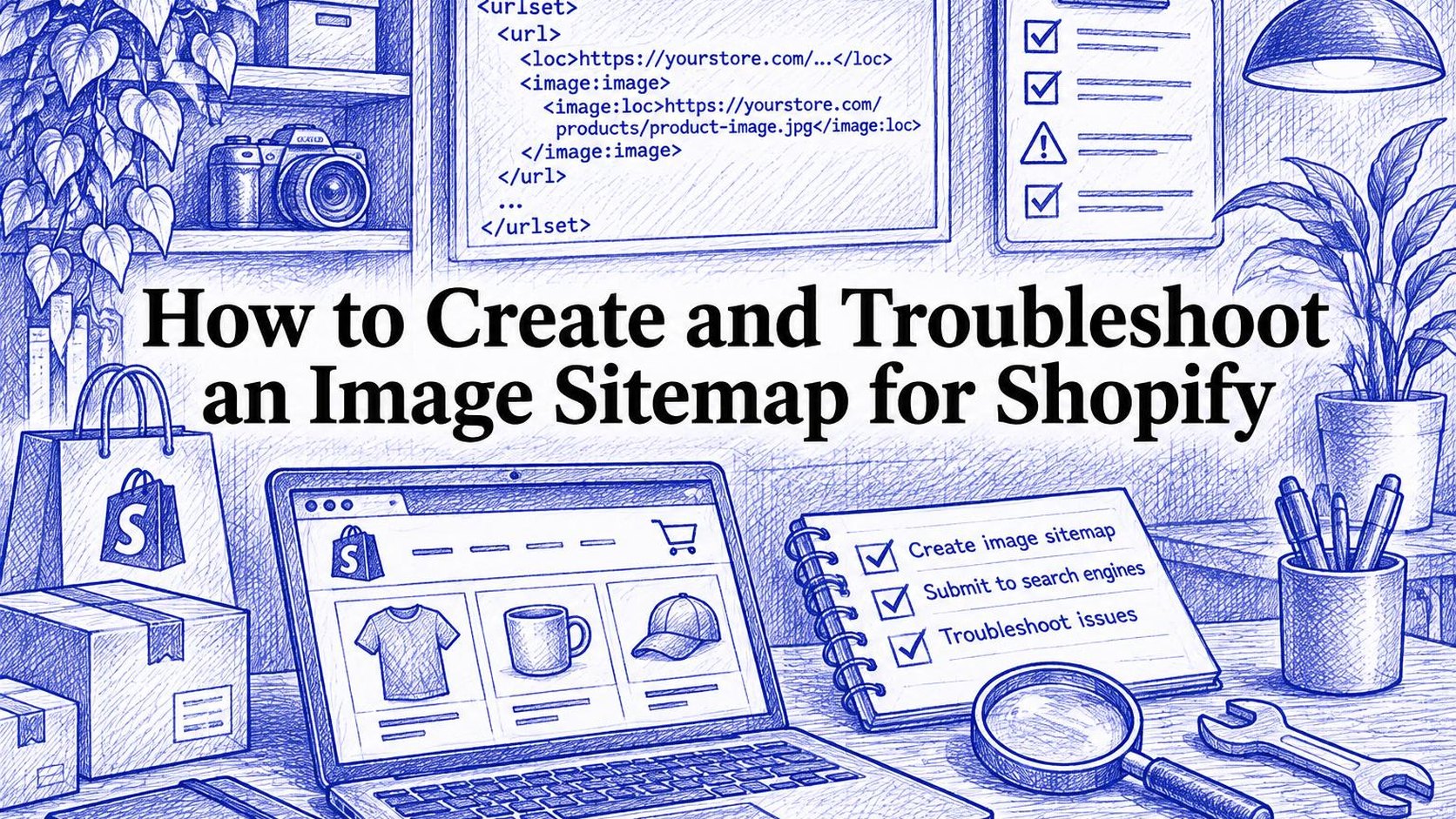
An image sitemap entry associates an image URL with a page URL inside a sitemap. That association helps search engines discover the image and understand which page it belongs to; it does not promise an image-search ranking.
Your Shopify image sitemap URL usually starts with the same /sitemap.xml entry point as your regular sitemap. The image details sit within relevant child sitemap entries, so finding no image URLs in the root file alone does not mean Shopify sitemap images are missing.
- Page location: The product-page URL identifies the landing page associated with the image.
- Image location: The image URL identifies the image resource, which may use a Shopify-hosted delivery domain rather than your storefront domain.
- Coverage: Expect primary product image information, not a guaranteed inventory of every gallery photo, variant image, or decorative theme asset.
- Maintenance: Shopify manages the generated files as your published content changes. Avoid creating a second sitemap just because the root index contains links instead of image entries.
How image discovery relates to product pages
Image discovery means a search engine finds an image URL; indexing means it processes and stores that image for possible search appearances. A sitemap supports discovery, but Shopify product image indexing also depends on whether Google can access the image and understand its surrounding page.
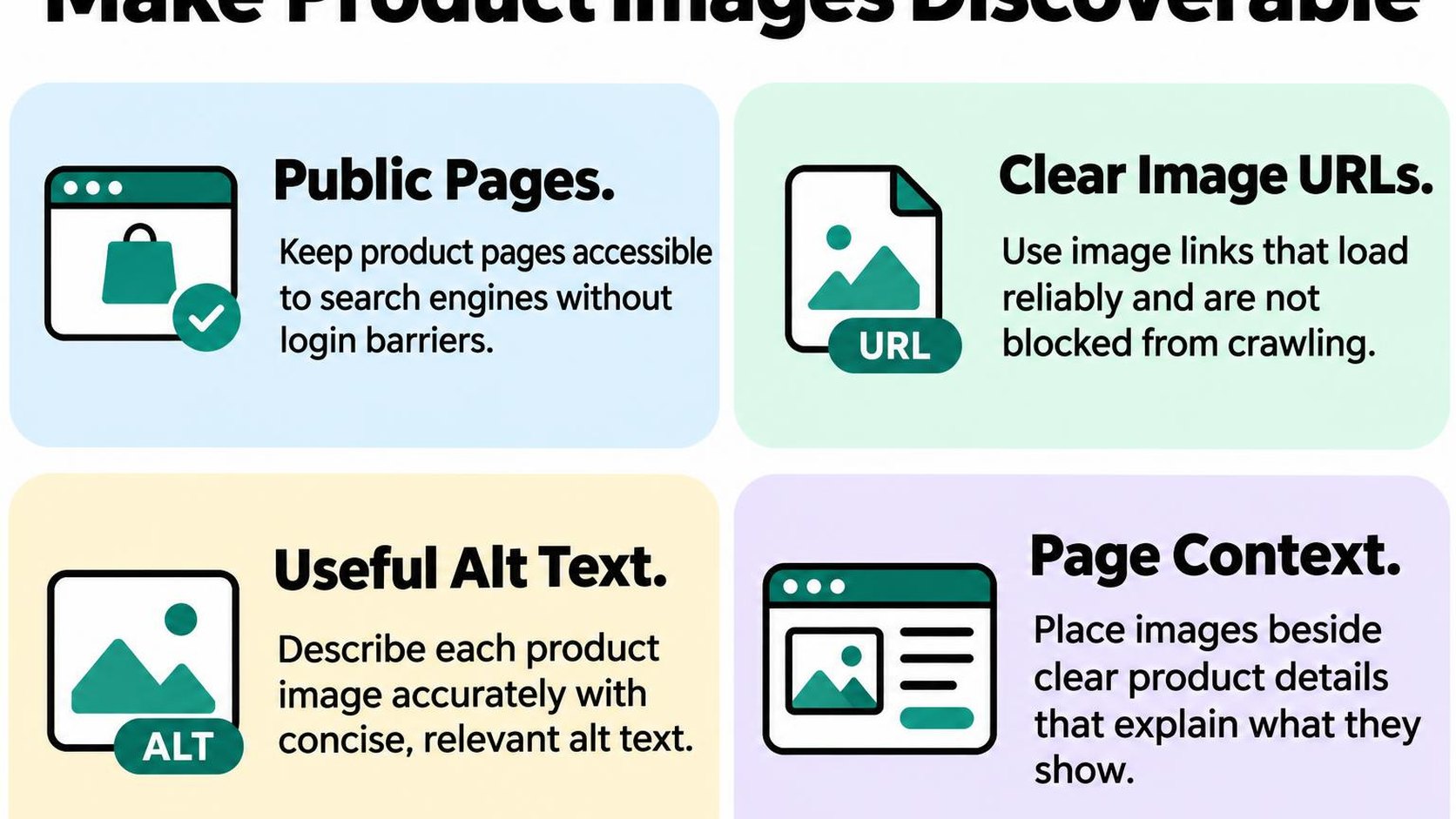
Keep your product page accessible and make the main photo visible in the page content. Clear product descriptions, relevant nearby text, and useful alt text provide context that a sitemap entry alone cannot supply. A password-protected storefront can prevent Google from accessing content even when Shopify generates sitemap files.
Practical rule: Treat your sitemap as a discovery aid, not proof of indexing. Before assuming your Shopify image sitemap is not working, check the relevant product sitemap entry and whether both the product page and its image are publicly accessible.
Step 2: Find and inspect your Shopify image sitemap URL
You open your store’s sitemap and see links to more XML files, not a gallery of product photos. That is expected: your Shopify image sitemap is normally part of the product sitemap structure, rather than a separate file named image-sitemap.xml.
Open the sitemap index
Enter your storefront’s public domain followed by /sitemap.xml in your browser, such as https://your-store-domain.com/sitemap.xml. Use your actual storefront domain, not your Shopify admin address or a product URL.
The file you reach is a sitemap index: an XML file that points search engines to individual sitemap files. According to Shopify’s guide to finding your sitemap, Shopify generates this root file automatically, with links covering products, primary product images, collections, pages, and blog posts.
Your browser may display a plain XML tree or a message saying the document has no style information. Neither means the sitemap is broken; you are inspecting structured data, not a storefront page.
Follow the product sitemap link
Look for a location value containing sitemap_products, then open that complete URL. This is a child sitemap: one of the individual sitemap files listed inside the index. Keep any query parameters in the URL instead of shortening it to a guessed filename.
If the index lists several product sitemap files, inspect the files relevant to your products. A product missing from the first file may appear in another, so checking only one can create a false alarm.
- Locate the product: Use your browser’s Find command to search for a known product handle, such as blue-linen-shirt.
- Identify the page location: Inside that product’s entry, the loc element identifies the product page URL.
- Find the image reference: Look within the same entry for image:image and its nested image:loc element, which contains the image URL.
Shopify sitemap images generally represent primary product images. Do not treat the absence of every gallery angle or variant photo as proof that the sitemap is incomplete or damaged.
Check image URLs and page coverage
Copy the image:loc value for a sample product and open it in a new browser tab. You should reach the image itself, not an error page, sign-in screen, or unrelated redirect. A Shopify CDN hostname is normal; the image does not need to share your storefront’s domain.
XML can display an ampersand as & within a URL. When copying from raw XML, use the decoded URL, with & between query parameters, so you do not mistake XML escaping for an image delivery error.
- Check the match: Confirm that the image belongs to the product named by the surrounding page URL.
- Sample coverage: Check an established product, a recently published product, and a product whose primary image changed.
- Verify missing products: Confirm publication to the Online Store and inspect the other product child sitemaps before assuming a generation problem.
Practical rule: Record the product URL, child sitemap URL, and failing image URL together. This gives your Shopify image sitemap troubleshooting a specific entry to investigate instead of treating the entire sitemap as broken.
Step 3: Prepare product pages so Google can discover their images
Your shopify image sitemap lists a product image, but the product page still opens behind a storefront password. Google needs access to both the page and the image; a sitemap entry cannot remove that barrier.
Before submitting the sitemap again, check what a visitor without a customer account can load. Shopify product image indexing depends on accessible files and pages that give Google useful context.
Keep product pages crawlable and indexable
A crawlable page lets a search crawler access its content. An indexable page is eligible to appear in search results, although eligibility does not guarantee inclusion.
Open a product URL in a private browser window. Confirm that it displays the product without a password, login requirement, error page, or redirect to an unrelated collection. Keep genuine access restrictions where your business needs them, but do not expect restricted products to gain public search visibility.
- Page response: Check that the intended product page returns a normal successful response rather than a missing-page error or redirect loop.
- Crawl controls: Review custom robots.txt rules for accidental product-page blocks. Do not remove rules indiscriminately; identify the rule affecting the URL first.
- Indexing controls: Check for an unintended noindex instruction, especially after a theme edit or an SEO configuration change.
- Internal navigation: Link the product from relevant collections or other useful pages so discovery does not depend entirely on the sitemap.
Use accessible image URLs and useful alt text
Load the product page and check that its main image appears without clicking a gallery control. Your theme should expose product images through standard HTML image elements, not only as decorative backgrounds or content that appears after interaction.
Check image requests for access failures, including expired signed URLs or restrictions introduced by an image-delivery service. A picture that loads in your own browser may still fail for a crawler if access depends on a session or special permissions.
Alt text is a text alternative that describes an image’s meaning or function. Use the product type and visible distinguishing details naturally: “Blue ceramic mug with a curved handle” is more useful than a filename or a string of search terms. Follow this guide to writing descriptive image alt text when reviewing your product gallery.
Keep the product title, description, and nearby image context consistent. Google’s image SEO guidance recommends accessible image elements, useful alt text, and relevant page context. These signals help explain the image; they do not compensate for a blocked file.
Avoid relying on sitemap submission alone
Discovery means Google learns that a URL exists; indexing means Google processes and includes content in its search index. Submitting a sitemap supports discovery, not guaranteed inclusion or rankings.
Use Search Console’s URL Inspection tool on the product page to investigate access and indexing issues. A successful live test helps confirm current accessibility, but it does not prove the product image is indexed.
Practical rule: Fix page access, image delivery, and product context before resubmitting. Repeated submissions cannot make an inaccessible image eligible for search.
Step 4: Submit the sitemap to Google Search Console
You open Search Console, but the sitemap field is empty or shows an old domain. Before submitting your shopify image sitemap, confirm that you are working in the property that covers your live storefront.
Shopify normally provides a sitemap index at https://yourdomain.com/sitemap.xml. Submit that index rather than looking for a separate image-only file or entering individual image addresses.
Verify the correct property
A property is the website or domain you manage in Search Console. Use the property selector at the top left to choose your store, and complete ownership verification if Search Console requests it.
A Domain property covers protocols and subdomains. A URL-prefix property covers only its specified prefix, so https://yourdomain.com/ and https://www.yourdomain.com/ are different scopes. Match a URL-prefix property to the primary domain your Shopify storefront actually uses.
- Check the destination: Open your storefront and note the final address after any redirects. Use that HTTPS hostname for the sitemap submission.
- Confirm access: Make sure your Search Console account has permission to submit sitemaps. Ask the property owner for access if the submission controls are unavailable.
- Keep reporting consistent: Submit under the intended property rather than switching between domain variants when a report looks empty.
If you need help navigating the account first, follow the guide to using Google Search Console before continuing.
Submit the sitemap index URL
A sitemap index is an XML file that lists other sitemap files. Shopify uses it to point Google toward the store’s generated sitemaps, including product sitemaps that can contain image information.
Open Sitemaps in the Search Console sidebar. Under Add a new sitemap, enter https://yourdomain.com/sitemap.xml, replacing the example domain with your primary storefront domain. If the field already displays your site’s prefix, enter only sitemap.xml, then select Submit.
- Use the root index: The usual Shopify image sitemap URL to submit is your store’s /sitemap.xml index, not a Shopify CDN image URL.
- Avoid unnecessary child submissions: Start with the index rather than separately submitting every product sitemap it references.
- Check the response: Confirm that Search Console accepts the submission, then return to the report to review processing.
Review processing status and discovered pages
In the Sitemaps report, select the submitted index to inspect its details and listed child sitemaps. Check the status, last-read information, and discovered-page counts; processing and counts may not appear immediately.
| Report result | What to do next |
|---|---|
| Success | Review child sitemap results and discovered pages. Successful processing does not confirm image indexing. |
| Couldn't fetch | Check the submitted address and whether Google can access the sitemap, including any storefront password restriction. |
| Has errors | Open the details and inspect the affected child sitemap or reported XML issue. |
Use the available page-indexing report link to investigate discovered page URLs. These counts are not a reliable inventory of indexed product images. The Search Console Sitemaps report documentation explains the processing statuses and error details.
Step 5: Diagnose a Shopify image sitemap that is not working
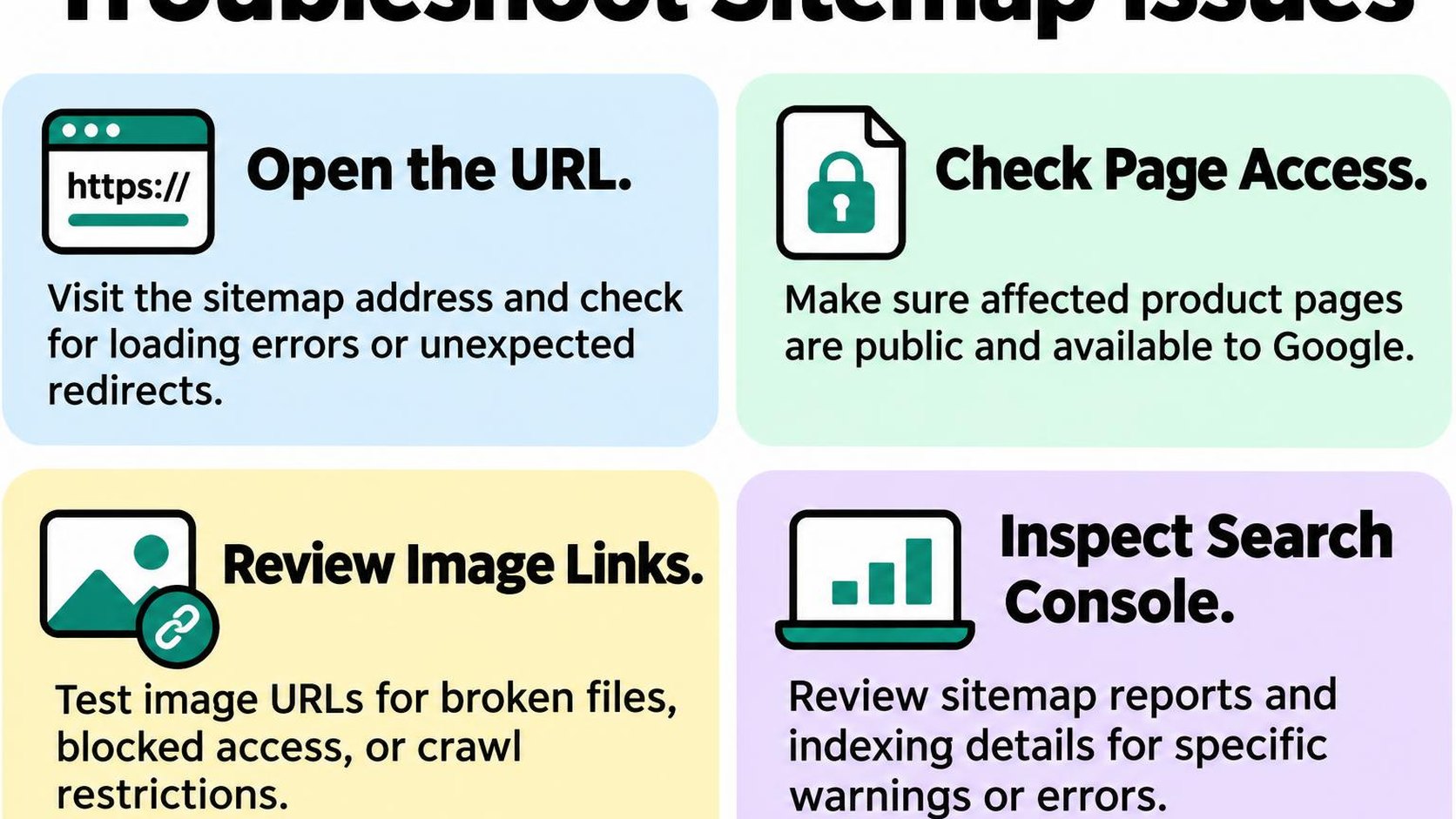
You open a product sitemap and cannot find the photo you just uploaded, or an image address opens an error page. Troubleshoot your shopify image sitemap by checking access first, image references second, and indexing last. Changing filenames or resubmitting repeatedly before identifying the fault can create extra work without fixing discovery.
Check sitemap access, redirects, and response codes
Open the affected child sitemap directly, not just the root sitemap index. Use a browser’s network panel or an HTTP checking tool to inspect the HTTP response code, the status a server returns for a request.
- Access: Test while signed out of Shopify. A storefront password, access challenge, or HTML login page prevents Google from receiving usable sitemap XML, even if the address works in your admin session.
- Redirects: Follow the complete redirect path. A redirect to your preferred domain is not automatically a problem, but a loop, unrelated destination, or chain ending at an error needs fixing.
- Response: Expect a successful response containing XML. A 200 response carrying a storefront page is still wrong; a 404 means the resource is missing, while repeated 5xx errors suggest a server-side problem.
- Structure: Check for broken tags, unescaped characters, or truncated content. For Shopify-managed XML, record the affected URL and response before contacting Shopify support rather than trying to edit a theme template.
Investigate missing images and sitemap image URL errors
If your Shopify sitemap is not showing images, confirm that you are viewing a product child sitemap and searching for the correct product URL. Shopify’s generated sitemap includes primary product images, so an absent gallery photo does not by itself prove the sitemap is broken.
Inspect the image location inside the image entry. Copy that exact address, preserving its query parameters, and open it separately.
- Image response: Confirm that the URL returns an actual image, not an HTML error page. Check whether an old image was deleted or replaced, leaving an outdated reference.
- Crawl access: Check the robots.txt rules on the hostname serving the image as well as access restrictions on the product page. A CDN address is not inherently an error; Google’s image sitemap documentation explains cross-domain image URLs and crawl access requirements.
- Page discovery: Confirm that the published product page displays the intended image through a crawlable HTML image element. Do not assume a visual loaded only after interaction is equally easy for Google to discover.
Separate sitemap problems from indexing delays
Once the sitemap and image URLs are accessible, use URL Inspection on the product page to investigate page-level crawling and indexing restrictions. Its results do not provide a definitive inventory of indexed product images, and a successful live test does not guarantee indexing.
Compare the image-change date with Google’s latest recorded page crawl. If the crawl predates your update, allow time for another crawl rather than renaming images or rebuilding URLs.
Practical rule: Fix reproducible access, XML, and image-response errors first. If those checks pass, treat discovery and indexing as separate stages: sitemap inclusion helps Google find an image, but neither inclusion nor resubmission guarantees that it appears in search.
Step 6: Improve image SEO after sitemap checks
Your sitemap loads correctly, but your product photos still have generic filenames and thin descriptions. Once access and sitemap errors are resolved, strengthen Shopify image sitemap SEO by improving the images and the pages around them.
These changes support image understanding, accessibility, and shopping performance. They do not guarantee rankings or Shopify product image indexing, so prioritize useful catalog improvements rather than repeatedly submitting an unchanged sitemap.
Use descriptive filenames and contextual product copy
For new uploads, choose short filenames that identify what the photo actually shows. A name such as cream-linen-cushion-front.jpg gives more useful context than IMG_4821.jpg without turning the filename into a string of search phrases.
Keep the surrounding product title, description, and variant details consistent with the photograph. If the image shows a brass wall light, explain its finish, dimensions, and installation requirements on the page rather than adding unrelated lighting keywords.
- New images: Use readable filenames with a product type and a distinguishing detail, such as material, color, or viewing angle.
- Existing images: Do not replace working assets solely to rename them. A replacement can change the image URL and create unnecessary maintenance.
- Page context: Describe the actual product and answer buying questions. Avoid copying the same generic paragraph across every variant.
Google’s image SEO guidance explains how filenames, page context, and descriptive alt text help Google understand images. Treat those elements as complementary signals, not substitutes for crawlable product pages.
Optimize image dimensions and loading performance
Match image dimensions to the largest useful display size in your theme, including product zoom. Uploading a huge source file for a small card offers little benefit, but excessive compression can hide texture, stitching, or other purchase-critical details.
Check representative product pages on mobile after changing image settings or updating your theme. Shopify can deliver resized images through its image CDN, but your theme still needs to request appropriate sizes and reserve space for them.
- File weight: Compress oversized images, then inspect fine details before applying the same settings across your catalog.
- Loading priority: Avoid lazy-loading the main above-the-fold product image. Defer lower gallery images where your theme supports it.
- Visual stability: Preserve image dimensions or aspect ratios so product information does not jump while photos load.
Make image accessibility part of catalog maintenance
Alt text is a text alternative that conveys an image’s purpose or content when someone cannot see it. For a product photo, describe the visible product and any meaningful detail that distinguishes that view; do not paste the full product title into every image field.
ALT SEO: AI Alt Text Generator writes descriptive alt text in bulk or automatically for new uploads. Review generated descriptions for incorrect colors, materials, and features; automation does not verify product facts or guarantee indexing.
Practical rule: Whenever you replace a photo or change a variant, review its alt text, nearby copy, mobile display, and loading behavior together. Describe meaningful images, avoid keyword stuffing, and keep purely decorative images out of repetitive screen-reader descriptions.
Step 7: Verify fixes and monitor image indexing
You fix a blocked image or replace a broken URL, but Search Console still shows the previous crawl. Before changing anything else, verify what Google can access now and what its reports reflect from earlier visits. A working shopify image sitemap supports discovery; it does not guarantee that every product photo appears in Google Images.
Inspect representative product URLs
Choose a small sample: a best-selling product, a recently added product, and a product affected by the original problem. Inspect the product page URLs in Search Console rather than treating an image file as a page that needs its own indexing request.
Compare the indexed information with a live test. The indexed result reflects Google's recorded version; the live test checks current access but does not confirm that Google has indexed the updated page or its images.
- Page status: Check whether the product page is indexed, whether crawling is allowed, and whether Google selects the expected canonical URL—the preferred version of that page.
- Rendered content: Where the inspection tools provide tested HTML or a screenshot, check that the main product image appears and its URL is present in an image element.
- Follow-up request: After a meaningful fix, request indexing for a few affected product pages if appropriate. Do not repeatedly submit unchanged pages.
Recheck sitemap processing and image availability
Open the Sitemaps report and check the submitted Shopify sitemap URL, its status, and its last read date. A Success status means Google processes the sitemap; it is not a count of indexed product images. Use Google's explanation of sitemap statuses and processing errors to distinguish a fetch failure from an XML parsing problem.
Next, open the relevant product sitemap and test a sample of its image URLs. A photo loading in your signed-in browser is useful evidence, but it does not prove that Google's crawler has access.
- Sitemap access: Confirm that the root sitemap and relevant child sitemap load publicly without a password challenge or server error.
- Image response: Confirm that each sampled URL returns the intended image, not an error page, expired resource, or unexpected redirect destination.
- Crawl controls: Check restrictions on the image host as well as the storefront. A publicly visible product page does not cancel a crawling block on its images.
Track changes before making further edits
Keep a dated record of the affected product URLs, image URLs, fixes, and verification results. Review the same sample over the following weeks, allowing for uneven recrawling rather than expecting an immediate change.
- Indexing checks: Revisit product-page inspection results and crawl dates; do not mistake page indexing for confirmed image indexing.
- Search performance: Filter Search Console performance by Image search and compare impressions and clicks over consistent periods. No impressions alone does not prove an image is excluded.
- Next action: Change theme or sitemap behavior only when a repeatable access, rendering, or processing problem remains.
Practical rule: Verify access, record the fix, and monitor the same URLs before introducing another variable.
Yassine Malti is the developer writing this guidance from hands-on store work.
Put this into practice
Start with the store you already have, then use the guides on the blog for the next page that needs the same treatment.
Shopify apps by Yassine Malti
Put this into practice
-

ALT SEO · Image alt text
AI alt text for every product image · 100 images/month free
-

RANKit · Meta titles & descriptions
AI meta titles and descriptions, sized for Google · 50 meta tags/month free
-

TAGit · Product tags
SEO-friendly product tags, generated in bulk · 50 tags/month free