Your Shopify products are live, your sitemap is submitted, and Google still seems to be ignoring a collection you need customers to find. Then impressions dip, an indexing warning appears, and it's tempting to rewrite every product title.
Learning how to use Google Search Console starts with separating those signals. A weak search snippet, an app-injected noindex tag, and a product variant consolidated under another canonical need different fixes. Treat Search Console as a diagnosis system, not a dashboard you check for reassuring green marks.
Table of Contents
- Which Search Console Report Answers Your Question
- How to Verify Your Shopify Store and Submit a Sitemap
- Separating Real Ranking Changes From Reporting Noise
- Finding Product Pages Worth Fixing in Performance Data
- Fixing Missing Pages With URL Inspection and Indexing
- Core Web Vitals and Mobile Fixes for Shopify Themes
- Your 30-Day Search Console Routine
Which Search Console Report Answers Your Question
| Report and location | Question it answers | Check first |
|---|---|---|
| Performance, Search results | Which products and pages earn Google clicks, and is visibility rising? | Clicks, impressions, CTR, average position |
| Page indexing, Indexing > Pages | Which URLs hasn't Google indexed, and why? | Excluded and error URLs grouped by reason |
| URL inspection, search bar at top | Is this page indexed, and which canonical does Google use? | Indexing verdict and Google-selected canonical |
| Sitemaps, Indexing > Sitemaps | Did Google read my sitemap and discover URLs? | Submission status and discovered URLs |
| Core Web Vitals, Experience | Which templates give real visitors a poor experience? | Poor and Needs improvement URL groups |
| Mobile usability, formerly under Experience | Do pages break on phone screens? | This report is retired; test layouts directly and with browser tools |
| Crawl stats, Settings | How does Googlebot request my site? | Requests, response codes, host status, and property availability |
You won't necessarily see every report in every property. Crawl stats sits under Settings; use a Domain property for the broadest view of your store's hosts.
The Google Search Console getting-started guide describes Performance as evidence of how your pages appear in Google Search, with query, page, country, and date breakdowns. Turn on clicks, impressions, click-through rate, and average position, then use device and search-appearance filters when they help isolate the question.
Impressions measure appearances, not visits. Clicks show traffic generated from Google Search, not every session your store receives. Average position is an aggregate, not a fixed ranking that every shopper sees.
Ask one question per report. If you don't know where the problem is yet, start with Performance and identify the affected pages before changing anything.
How to Verify Your Shopify Store and Submit a Sitemap
Establish ownership of the right property
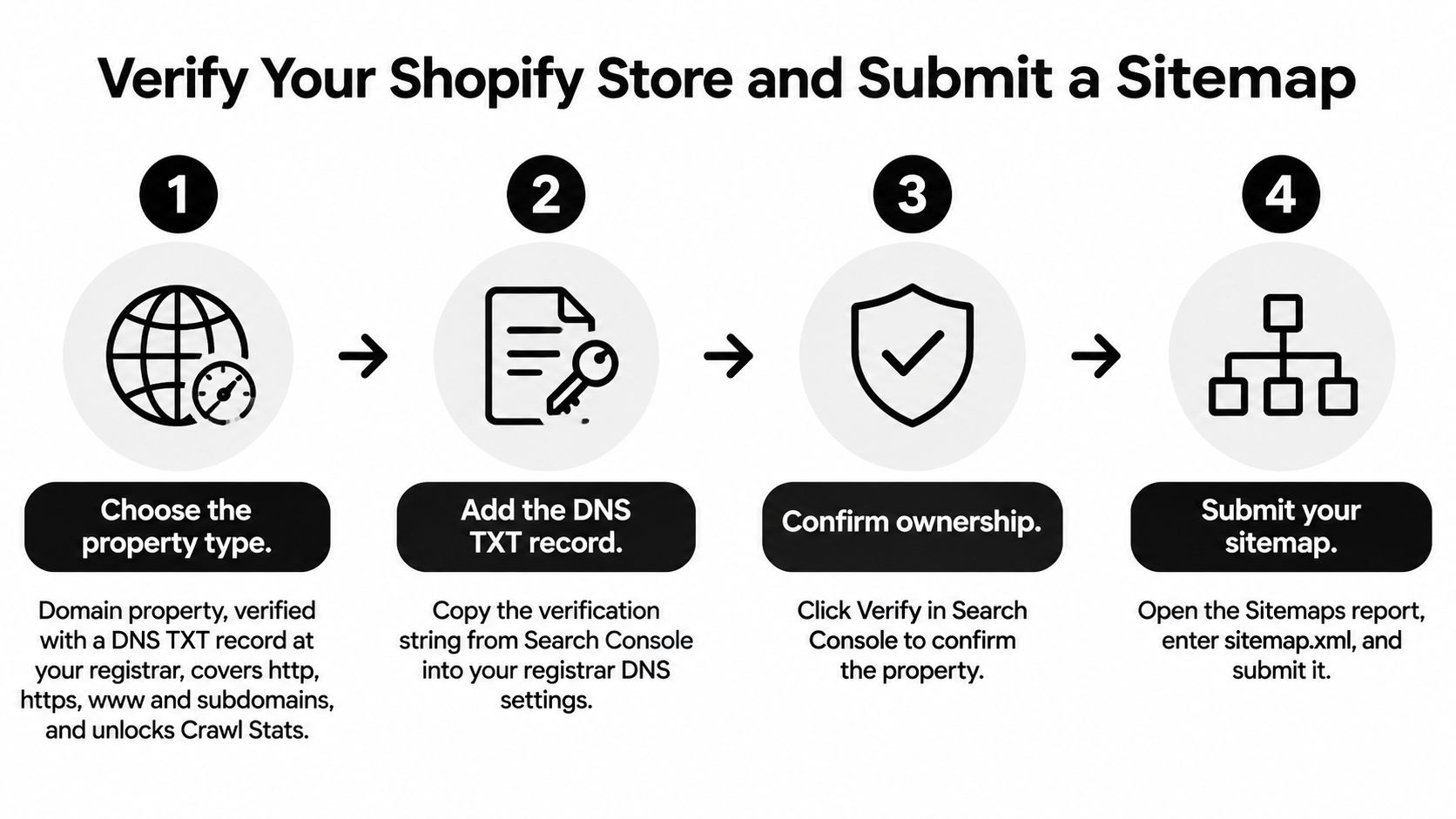
Choose a property type. For a Shopify store using a custom domain, I'd choose a Domain property. It covers the domain's protocols and subdomains, while a URL-prefix property covers only the specified prefix.
Complete ownership verification. Follow Search Console's DNS verification flow for a Domain property. For a URL-prefix property, HTML-tag verification is another option: place the supplied verification tag inside the theme's
<head>, not in a product description or page body.Check the customer-facing domain. Open your storefront from Shopify's domain settings and confirm that customers land on the primary domain you intend to measure. Check alternate store addresses too, including the store's
myshopify.comaddress.
Keep verification separate from theme experimentation. If you use an HTML tag, replacing the theme can remove it unless you preserve the verification method.
Use this visual checklist while completing ownership and sitemap submission.
Submit the file Shopify maintains
Open Indexing > Sitemaps, enter
sitemap.xmlin the submission field, and submit it. Shopify generates a sitemap index with child files for the store's eligible content, so you normally don't need an app to build another sitemap.Check the submission result. Success means Google could process the sitemap, not that every listed URL is indexed. Don't compare the discovered count directly with your product count: the sitemap can include collections, pages, and articles as well.
Add colleagues through Settings > Users and permissions. Give people their own access instead of sharing the owner's login.
If products appear missing, check publication status, storefront availability, password protection, and the relevant child sitemap before editing theme code. The Shopify sitemap guide explains how to inspect the generated files.
Save a usable measurement baseline
Once Performance has enough history, save your filters and export a baseline. Google's Performance report documentation recommends examining a 3–6 month range and notes that interface tables display a maximum of 1,000 rows.
Treat exports as samples rather than a complete search-query ledger. Privacy-related query omissions can prevent table totals from reconciling with chart totals, so preserve chart-level results alongside exported rows.
Separating Real Ranking Changes From Reporting Noise
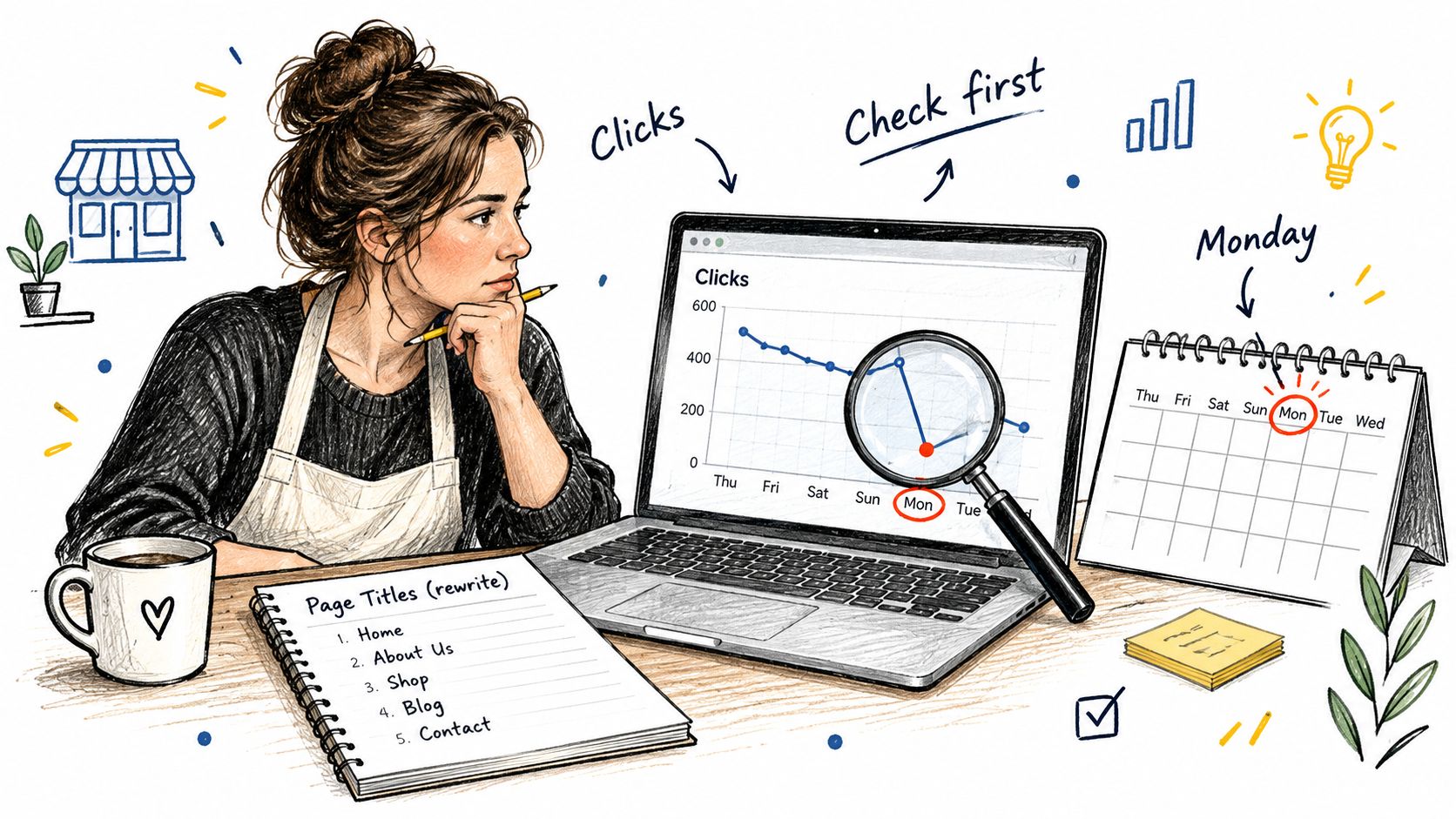
Your Performance chart drops sharply on Monday, and you start rewriting titles before breakfast. Pause: a reporting interruption, a changed filter, and an actual visibility loss can produce similar-looking charts.
Use the chart to identify what changed before deciding what to fix.
Separate reporting from rendering
Check Search Console's notices and reporting annotations, then compare the same search type, country, device, and date coverage. An incomplete recent period shouldn't be compared with a complete earlier period.
Next, inspect an affected product. Google's JavaScript SEO documentation distinguishes crawling, rendering, and indexing: Google may render a page after fetching its initial HTML.
That distinction matters when a Shopify app inserts descriptions, navigation links, or structured content through JavaScript. Compare the initial source with the tested page's rendered HTML in URL Inspection. Look for the actual product description and collection links, not merely a visually complete screenshot.
For a visual walkthrough alongside your own checks:
Record changes before assigning causes
Don't assume every impression represents the same search experience. Check the search-appearance filters available in your property, and distinguish any available AI-feature visibility reporting from ordinary result comparisons rather than assuming a dedicated report exists for every store.
- Theme releases: Record changes to product templates, navigation, and collection grids.
- App changes: Note installations, removals, and settings that alter rendered content.
- Commercial changes: Log price, availability, and merchandising edits beside SEO work.
A shared change log won't prove causation, but it will stop you attributing every movement to the last title you edited.
Finding Product Pages Worth Fixing in Performance Data
Say a product has plenty of impressions but few clicks, while a smaller collection attracts fewer appearances and a healthier share of visits. The product deserves investigation first, but a low click-through rate alone doesn't prove its title is bad.
CTR is clicks divided by impressions. Compare the product with pages serving similar queries and appearing in comparable positions. A broad informational query and a branded product query shouldn't share the same target.
Build a shortlist from pages, then inspect queries
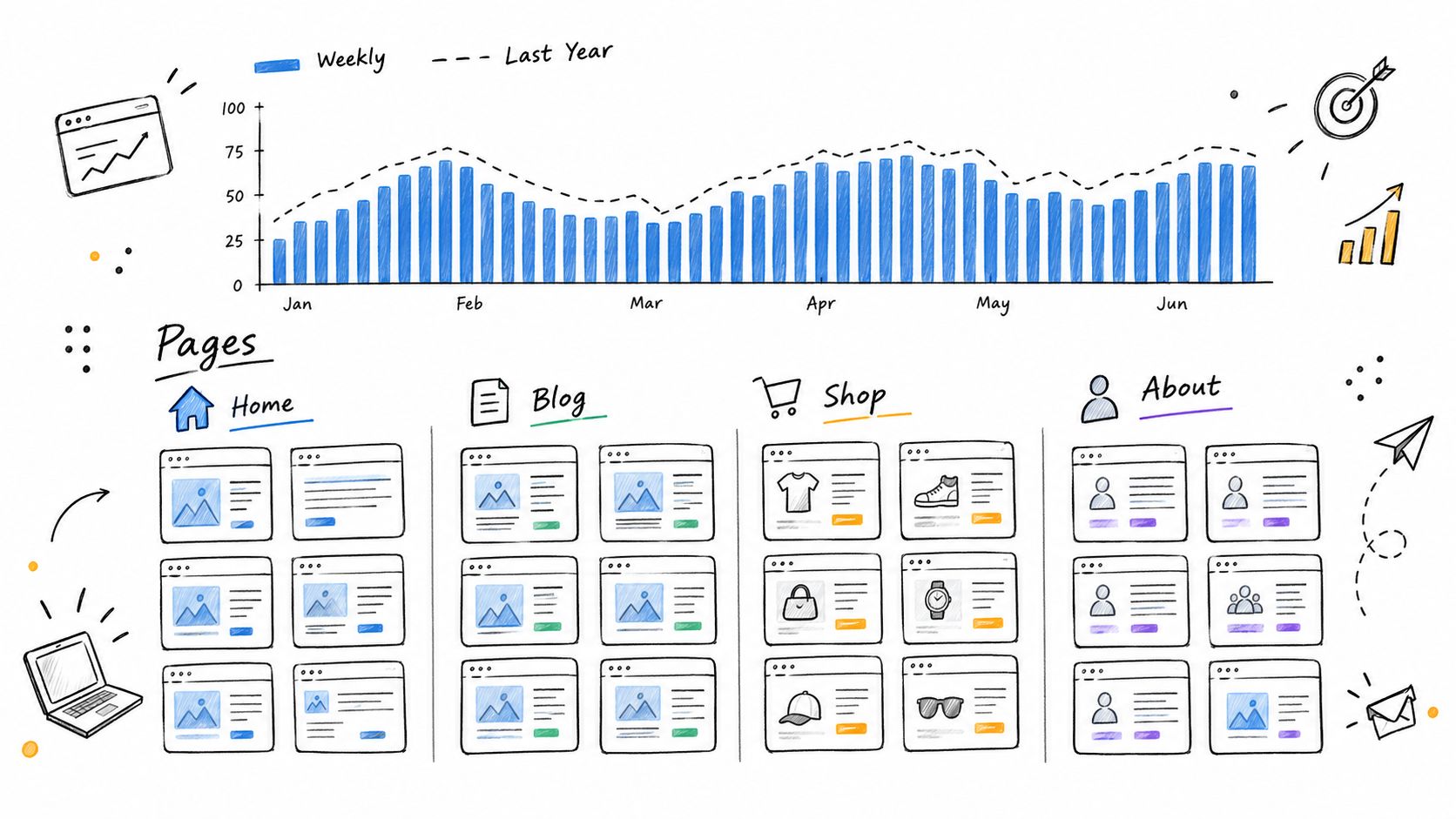
In Performance > Search results, select a substantial date range and compare equivalent periods. Use weekly or monthly views to reduce daily distraction, and compare a matching seasonal period when your store sells weather-dependent or holiday products.
Open the Pages tab and identify URLs with substantial exposure but disappointing clicks. Select a page, then switch to Queries without clearing the page filter.
Read the query list as a description of what shoppers expected:
- Specific product demand: A shopper searching for a particular model needs a matching product page with clear specifications and availability.
- Category demand: A broader buying query may belong on a collection with useful filters and relevant inventory.
- Research demand: A comparison or care question may need an article rather than a product description stretched into a tutorial.
A collection isn't automatically weaker than a product page. For a query covering several styles or materials, it may be the more useful destination.
Use the chart comparison to assess direction, then inspect the affected page type.
Change the snippet without changing the promise
For a suitable product, edit its search engine listing in Shopify. Put the distinguishing product type, material, use, or model into the title where it reflects the page's actual content. Write a description that helps the shopper choose, rather than repeating a string of near-identical keywords.
Don't paste the highest-impression query into every title. Check whether the page genuinely satisfies that query and whether stock, price, or shipping limitations make the result less attractive.
RANKit AI Meta Tags Generator for Shopify offers individual and bulk generation using product images, titles, and descriptions, with customizable prompts and multilingual support. It's an option for drafting catalog changes, but review generated wording for accuracy before applying it broadly.
A more clickable promise is only useful if the landing page keeps it.
Finish by checking country and device segments. A store can gain exposure in countries it doesn't serve, or lose mobile clicks while desktop stays steady. Record the edited URL, the query group, and the filters, then assess the change over several weeks rather than chasing daily keyword movement.
Fixing Missing Pages With URL Inspection and Indexing
Paste the exact affected URL into the inspection bar. Read the indexing verdict, last crawl information, user-declared canonical, and Google-selected canonical before deciding that Google has made a mistake.
A Shopify URL containing a variant parameter may correctly consolidate into the main product URL. Likewise, a collection-context product URL can resolve to a canonical product address without needing its own search listing.
Match the status to a testable cause
The causes below are starting hypotheses, not diagnoses based on status text alone.
| Status | Likely Shopify cause | First action |
|---|---|---|
| Crawled - currently not indexed | Thin product copy, duplication, or weak internal linking | Improve unique content and collection links; test before requesting indexing |
| Discovered - currently not indexed | Low crawl priority among many similar URLs | Improve internal discovery and avoid generating unnecessary URL sets |
| Duplicate, Google chose different canonical | Variant, filtered, or collection-context URL consolidated elsewhere | Compare both canonical choices before changing the theme |
| Excluded by noindex tag | Theme condition or app setting left active | Confirm intent; remove an unintended directive and run Test live URL |
| Blocked by robots.txt | A path blocked through robots rules | Keep intentional blocks; otherwise correct the rule and retest |
| Server error (5xx) | Temporary storefront, infrastructure, or app-related failure | Check whether the error persists, then re-inspect |
For noindex, inspect both rendered output and template logic. A condition in theme.liquid, a product template, or an app embed can affect a whole class of pages. Don't remove every indexing directive globally just because a valuable product was caught by one.
Validate the fix before requesting another crawl
According to Google's URL Inspection documentation, crawling can take a few days to a few weeks, indexing requests don't guarantee inclusion, and repeatedly submitting the same URL doesn't accelerate crawling.
Run Test live URL after the repair. Confirm that Google can access useful content and that the intended canonical remains in place.
Practical rule: Fix the shared cause before submitting individual URLs. An indexing request won't repair a broken template.
A redirect or intentional canonical consolidation can legitimately reduce indexed URL counts. Use the Shopify URL redirects guide when an old product address should lead shoppers to a replacement.
For a suspected store-wide problem, compare the affected URL class with a stable earlier period. Google's technical requirements guidance supports combining indexing and crawl evidence rather than treating every excluded URL as an error. Check recent app changes and sitemap freshness, then validate representative URLs.
Core Web Vitals and Mobile Fixes for Shopify Themes
| Metric | Good result |
|---|---|
| LCP, loading | Main content becomes visible promptly |
| INP, responsiveness | The page responds promptly to interaction |
| CLS, layout stability | Content stays in place while the page loads |
Use the numerical boundaries displayed in the current report and its linked metric explanations. Core Web Vitals uses real-user experience, so a successful lab test won't instantly change the field-data classification.
Fix the template behind the URL group
Open Experience > Core Web Vitals, switch between mobile and desktop, and select a Poor or Needs improvement group. Identify whether product, collection, or home-page URLs dominate before opening the theme editor.
Then investigate the shared template:
- Images: Use responsive sizing and appropriate source dimensions. Don't lazy-load the main above-the-fold product or hero image indiscriminately.
- App scripts: Check reviews, chat, pop-ups, and recommendation widgets that load even where shoppers don't use them.
- Fonts and layout: Reduce unnecessary font variants and reserve space for images, banners, and embedded widgets.
Test changes in a duplicate theme before publishing. Removing a review widget may improve loading while weakening purchase confidence, so investigate conditional loading before deleting functionality.
NZ Apps' guide to evaluate key website performance metrics provides broader context for assessing performance beyond a single score.
Test phone layouts directly
The retired Mobile usability report isn't a current diagnostic screen. Use browser device emulation, PageSpeed Insights, and a real phone to check menus, variant selectors, cart drawers, and checkout entry points.
Look for overlapping controls, unreadable text, horizontal scrolling, and banners covering purchase buttons. The mobile-site SEO guide can help organize those checks.
Keep the repair focused: a product-template issue calls for a template change, not separate edits to every product.
Your 30-Day Search Console Routine
Use the opening month to establish a repeatable process, not to promise a ranking deadline.
Follow a weekly diagnosis loop
Give each week one question to answer, so the routine surfaces problems instead of becoming another dashboard glance.
- Week 1, coverage: Open Page indexing and sort exclusions by reason. Note which "Duplicate" or "Alternate page with proper canonical" entries involve products or collections, and inspect one URL per cluster to confirm the canonical choice is intentional.
- Week 2, demand: In Performance, filter to product and collection URLs and compare the last full week with the one before it. Pages losing impressions across several queries need a technical check before any snippet work.
- Week 3, experience: If a theme release or app update shipped, review the Core Web Vitals groups and retest menus, variant selectors, and the cart drawer on a real phone.
- Week 4, decisions: Revisit every page changed during the month, compare its clicks and position against the pre-edit period, and carry unresolved template issues into the next cycle.
Run the Week 3 checks after any theme release, regardless of where it falls in the calendar.
Keep promotion separate from technical diagnosis
If you're exploring community-led acquisition, Bazzly's Reddit SEO tactics for SaaS offers an adjacent perspective, though SaaS promotion isn't a substitute for fixing Shopify crawlability or product relevance.
Escalate persistent template-wide failures, migration problems, and domain-change issues to a developer or technical SEO specialist. If a page has indexed cleanly for weeks and still earns no impressions, the page-selection criteria from the Performance section will tell you whether it deserves more work before you escalate.
Yassine Malti builds SEO-focused Shopify apps and custom automations for on-page optimization and store workflows. If Search Console has exposed a recurring catalog or template problem, visit Yassine Malti to explore ready-made apps or discuss a bespoke solution for your store.
Shopify apps by Yassine Malti
Put this into practice
-

RANKit · Meta titles & descriptions
AI meta titles and descriptions, sized for Google · 50 meta tags/month free
-

ALT SEO · Image alt text
AI alt text for every product image · 100 images/month free
-

TAGit · Product tags
SEO-friendly product tags, generated in bulk · 50 tags/month free