You update your Shopify theme, then open Search Console and find several URLs for the same product. One includes a collection path, another has tracking parameters, and Google reports a different canonical than you expect. Before you add another snippet, check the shopify canonical tags already in your storefront: your theme may already output the signal you need.
How to Set Canonical Tags on Shopify Without Creating Duplicates shows you how to inspect your page source, understand Shopify’s default output, and correct a tag that points to the wrong URL. You also learn when to leave product and collection URLs alone, and how to test a theme change before publishing it.
A canonical tag is an HTML element that identifies the preferred URL for a page when similar versions exist. It gives search engines a signal, not a command, and it does not redirect shoppers. Shopify supplies a canonical URL through Liquid, but your theme controls how that value appears in the page source.
The tradeoff is straightforward: a targeted correction can clarify your preferred URL, while a second, conflicting tag can create ambiguity. Start by checking what your live store outputs. Do not paste canonical code into your theme or point every collection page to one URL just because a report mentions duplicate content.
Table of Contents
- Step 1: Identify duplicate URL patterns before changing anything
- Step 2: Check whether Shopify already outputs canonical tags
- Step 3: Confirm the canonical URL matches the page you want indexed
- Step 4: Fix a wrong canonical target at its source
- Step 5: Add or adjust a canonical tag in Liquid only when necessary
- Step 6: Validate canonical changes with crawls and Search Console
- Step 7: Keep canonical signals consistent as your catalog changes
Step 1: Identify duplicate URL patterns before changing anything
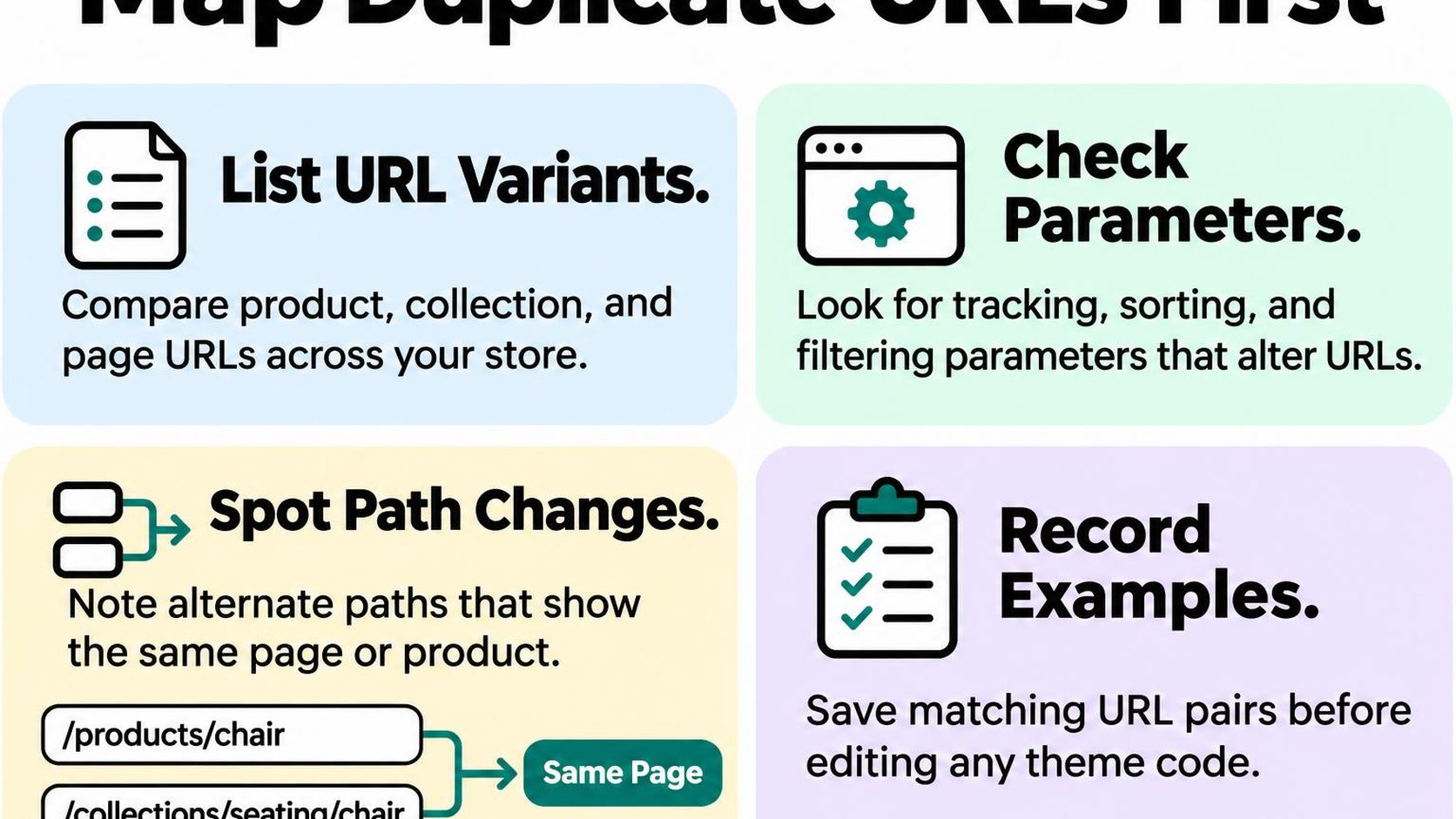
Start with a URL inventory, not a theme edit. Before changing your shopify canonical tags, find out whether Google encounters several addresses for one page or genuinely different pages that happen to look alike.
A canonical tag identifies the preferred URL for duplicate or substantially similar content. It helps search engines consolidate signals, but it does not remove pages, redirect shoppers, or guarantee which URL Google selects.
List the URLs that show the same or substantially similar content
Choose one product that appears in several collections, then open it from each collection and from your storefront search. Copy the resulting addresses into a spreadsheet alongside examples from Search Console’s Page indexing report.
Record the complete URL, including everything after the question mark. Use the same process for collection pages, especially when sorting, filtering, or campaign links change the address.
- Product paths: Compare /products/linen-shirt with /collections/summer/products/linen-shirt.
- URL parameters: Capture tracking parameters such as ?utm_source=newsletter and selection parameters such as ?variant=123456.
- Alternate pages: Look for separately created products, collections, or landing pages that repeat the same offer and copy.
- Existing signals: Record each page’s current canonical target if available. Leave unknown values blank rather than guessing from the address.
For a broader inventory process, use this Shopify duplicate-content audit to organize the pages you need to review.
Separate normal Shopify URL variations from true duplicate pages
A second address does not automatically mean you need a second canonical rule. Shopify’s documentation for collection-context product links explains how the within filter creates collection-based paths to product content, introducing alternate URLs for the same product.
Shopify canonical tags and URL parameters need the same careful review: a tracking code usually leaves the content unchanged, while a filter or pagination parameter can change what shoppers see. Do not classify every parameterized URL as an identical copy.
| Pattern | What to check |
|---|---|
| Product reached through a collection | Whether both paths display the same product |
| Tracking parameter | Whether only the attribution changes |
| Filtered or paginated collection | Whether the visible product set changes |
| Separate product handle | Whether it represents a distinct product or an accidental copy |
Practical rule: Group URLs by their main content and purpose, not just by a shared title, image, or URL prefix.
Choose the preferred URL for each group
For each genuine duplicate group, record one preferred Shopify canonical URL. For a product available through several collection paths, that is normally its direct /products/product-handle address without tracking parameters.
Choose a working, indexable URL that represents the content you want shoppers to find. Do not point every collection variation at the base collection without checking whether it serves a distinct search need.
- Preferred address: Record the full HTTPS URL on your intended storefront domain.
- Reason: Note why the other addresses belong in this group.
- Next action: Flag conflicting canonicals, inconsistent internal links, and accidental copies separately.
Keep intentional language and regional pages separate during this first pass. Your inventory identifies candidates for consolidation; it is not permission to canonicalize every similar-looking page together.
Step 2: Check whether Shopify already outputs canonical tags
You open a product after a theme update and see several URLs leading to the same item. Before adding Shopify canonical tags, check what your live storefront already outputs. Adding another tag can create conflicting instructions instead of fixing duplicates.
A canonical tag is a link element in the HTML head that identifies the preferred URL for a page. Shopify themes commonly output it by default, so your first job is verification, not editing.
Inspect the rendered page source for the canonical link element
Open a public product page in your browser, right-click, and choose View Page Source. Search for canonical, then locate the link element with rel="canonical" and read its href value.
You should find something like <link rel="canonical" href="https://your-store.com/products/product-handle"> inside the head. Check the actual element, not just a matching word inside a script or comment.
- Page source: Check the HTML delivered to your browser. Search through every match to see whether more than one canonical link appears.
- Developer tools: Open Inspect, select Elements, and search for the same link element inside the head. This shows the current document, including changes made by JavaScript.
- Differences: If source contains one target but Elements shows another, record both. A script may be changing the tag after the page loads.
Where are canonical tags in Shopify? The output belongs in the page head; the Liquid that generates it commonly sits in layout/theme.liquid or a snippet included there. Shopify’s SEO metadata documentation shows the canonical link markup using the globally available canonical_url object.
Compare the canonical target with the page's preferred URL
Copy the href value and compare it with the preferred address you recorded earlier. Check the HTTPS scheme, storefront domain, language or market path, and product or collection handle. Open that target separately to confirm it loads the intended content without redirecting elsewhere.
A Shopify canonical tag pointing to the wrong URL is not fixed by placing a second tag beside it. Identify whether the existing value comes from the theme, a customization, or a script before changing anything.
Practical rule: Expect one canonical link with one intended target. A different address can be correct for a duplicate path, but an unrelated product, broken URL, or unexpected domain needs investigation.
Check representative products, collections, and pages
Repeat the check across templates rather than trusting one homepage result. Shared theme code often covers several page types, but template-specific customizations can introduce exceptions.
- Products: Test a direct product URL and a collection-context product URL. Check whether both identify the intended direct product address.
- Collections: Test a main collection, a filtered or sorted view, and a paginated page. Do not assume every variation should point to the first collection page.
- Other pages: Sample a standard page and a blog article. Include localized storefront URLs if you use them.
- Parameters: Add a tracking parameter to a test URL and inspect the canonical again. Record unexpected targets rather than adding blanket parameter-removal rules.
Keep a short record of the tested URL, canonical target, and any missing or duplicate tags. This gives your next edit a specific problem to solve.
Step 3: Confirm the canonical URL matches the page you want indexed
Your product opens correctly, but its canonical points to an old domain or a different collection. Validating shopify canonical tags means checking the destination, not just confirming that a tag exists.
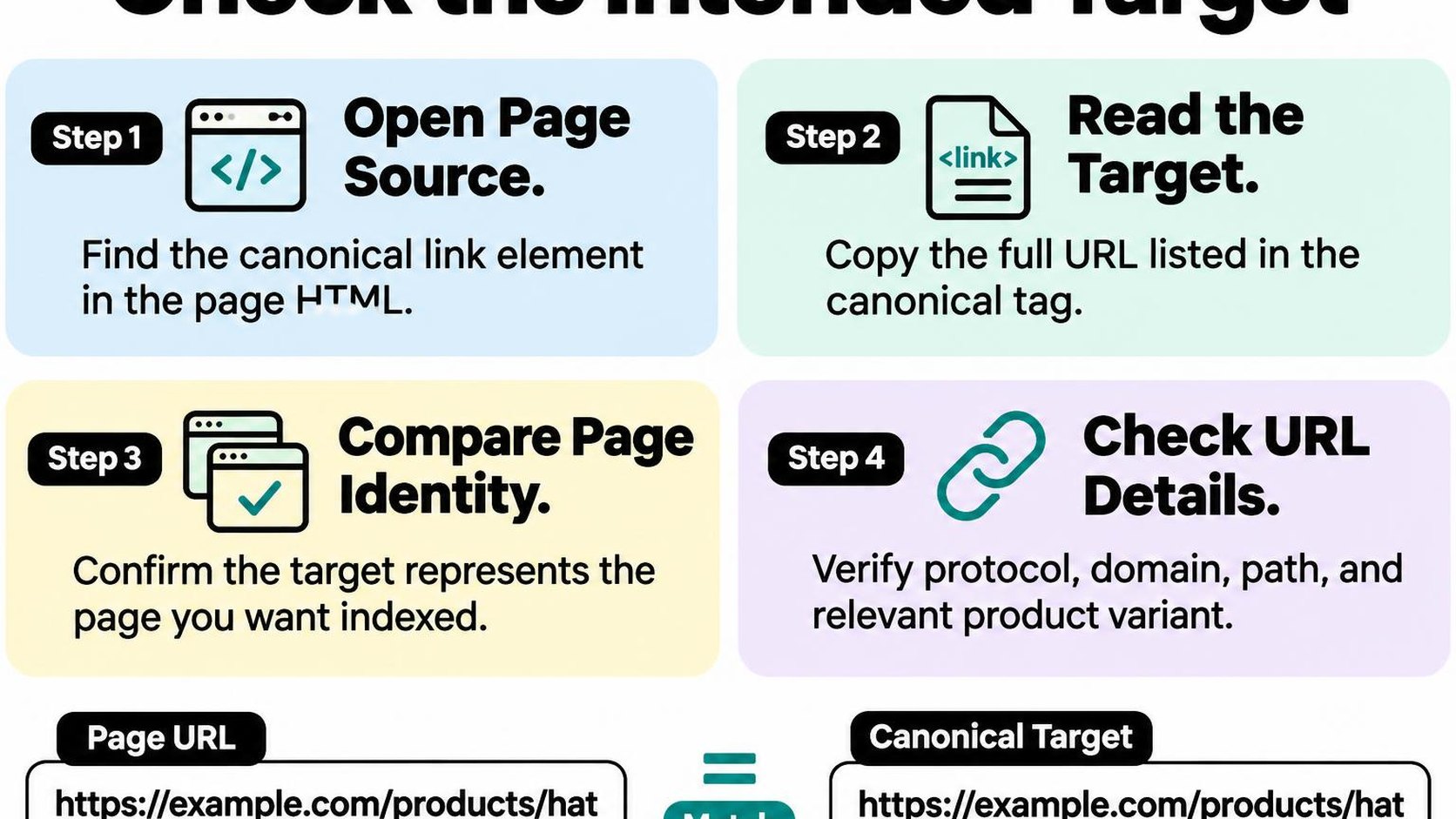
A canonical target is the preferred URL you identify for indexing when multiple addresses show substantially the same content. Compare each target with the page you actually want shoppers to find in search.
Verify the domain, protocol, path, and trailing-slash behavior
Open the canonical target directly. It should return a working, indexable page rather than redirecting, showing a missing-page error, or blocking indexing. A Shopify canonical URL that looks plausible can still identify the wrong resource.
Check that the hostname matches your intended storefront domain and that the protocol is HTTPS. For international storefronts, do not automatically replace localized URLs with your primary market’s address.
- Domain: Confirm that the target uses the intended customer-facing domain, not an obsolete domain.
- Path: Match the product or collection handle to the content on screen. A similar name does not make another page an equivalent destination.
- Trailing slash: Open both slash and non-slash versions. If one redirects, use the final destination consistently in canonicals and internal links.
Use these canonicalization fundamentals to distinguish duplicate addresses from pages that deserve separate indexing. Do not change URL formatting simply to make every address look identical.
Check product pages with collection-based paths and variants
A product reached through a collection can use a path such as /collections/summer/products/linen-shirt while the direct address is /products/linen-shirt. Shopify documents that its within filter creates collection-context product URLs, which can introduce alternate paths for the same content.
For the same product content, confirm that both routes identify the intended direct product address. A Shopify canonical tag for product pages should not point to the collection itself: that page lists products rather than representing this item.
| Visited URL pattern | Target to validate |
|---|---|
| /products/linen-shirt | The preferred direct product URL |
| /collections/summer/products/linen-shirt | The same direct product URL |
| /products/linen-shirt?variant=123 | Usually the base product URL |
| /collections/summer?page=2 | The page-two URL when it shows a distinct product set |
A selected size or color usually does not need its own indexed parameter URL. If you intentionally create separate product pages for distinct search needs, review those pages individually rather than consolidating them because their names overlap.
Review collection pages and their pagination or filter parameters
Shopify canonical tags for collection pages need to preserve meaningful differences. Pagination divides a collection across numbered pages; page two can show products absent from page one, so it is not automatically a duplicate.
Sorting usually rearranges the same products, while filters can create narrower selections. Decide whether a filtered view is merely a browsing aid or an intentional search landing page before changing its canonical.
Practical rule: Remove tracking and alternate-path noise only when the remaining URL represents equivalent content. Do not strip every parameter or force every collection page to page one.
If a canonical points elsewhere, confirm that the destination genuinely represents the source content before editing theme logic. The shortest URL is not always the right one.
Step 4: Fix a wrong canonical target at its source
After a theme update, a product page may start naming your homepage or an unrelated collection as its preferred URL. When shopify canonical tags point to the wrong destination, find what generates that value before adding another tag to override it.
A canonical element is a link in the document head that identifies the preferred URL for the page. Adding a second one does not reliably cancel the first; it can leave search engines with conflicting instructions.
Check theme code and apps that modify the document head
First, record the affected page URL and the incorrect canonical destination. View the page source and search for “canonical,” then inspect the rendered document head in your browser’s developer tools to check whether scripts change or add an element after loading.
In your theme code, start with layout/theme.liquid and follow any snippets that output head metadata. Search for “canonical,” hard-coded domains, and conditions based on product, collection, or request values. Review settings for installed tools that manage head metadata, without changing several settings at once.
- Theme output: Identify which layout or snippet produces each canonical element and whether it uses a fixed URL or conditional replacement.
- Script changes: If the source and rendered head differ, investigate scripts or integrations that modify metadata.
- Affected scope: Check whether the problem appears on one template, all product pages, or only particular URL paths.
Remove conflicting or duplicate canonical elements
Keep one clear canonical element in the head. If your theme already outputs the correct value, remove the extra customization at its source rather than adding JavaScript to delete it after the page loads.
Shopify’s theme metadata documentation shows the standard canonical implementation using the globally available canonical_url Liquid object. That is the starting point for ordinary theme output, not a reason to replace every custom rule without checking its purpose.
If a custom rule causes the wrong target, correct or remove that rule. Avoid replacing it with the current browser URL verbatim, which can preserve tracking parameters, or forcing every product and collection page to one destination.
Practical rule: Fix the code or setting that creates the incorrect element. A second canonical, a blanket redirect, or a sitemap edit is not a substitute for removing the conflict.
Test the change on a copy of the theme before publishing
Duplicate your live theme before editing and make the smallest change on that copy. Preview the affected page, a normal product page, a collection page, and a URL containing parameters. For each, confirm that the head contains one canonical and that its destination represents the intended content.
A theme copy does not necessarily isolate store-wide settings or external scripts. Check the scope before disabling anything, and avoid testing global changes on your live storefront without a rollback plan.
After publishing, repeat the checks on public URLs without theme-preview parameters. Confirm that canonical destinations load successfully and agree with your internal links; search-engine reports can take time to reflect the correction.
Step 5: Add or adjust a canonical tag in Liquid only when necessary
You open your theme code because a product page has no canonical tag, or its tag points to an unrelated collection. Edit Shopify canonical tags only after you identify which code produces the problem and confirm the intended destination. Adding another tag without tracing the existing output can make the conflict harder to resolve.
Locate the theme's head markup and existing canonical logic
In Shopify admin, go to Online Store, then Themes, and open Edit code from the relevant theme's menu. Keep a dated backup before making changes, even if the correction looks like one line.
Start with layout/theme.liquid and find the opening <head> and closing </head> tags. Search the theme for canonical_url and rel="canonical"; follow any snippet references inside the head rather than assuming the layout contains all the logic.
- Existing output: Identify whether the layout prints the tag directly or delegates it to a snippet.
- Conditional branches: Check whether product, collection, or other template conditions change the destination or suppress the tag.
- Other sources: If the rendered page contains a tag you cannot find in theme files, investigate injected output before adding one manually.
Use Shopify's canonical URL object where it fits the template
The canonical_url object is Shopify's globally available Liquid value for the current page's canonical URL, as described in the Shopify canonical_url documentation. When that value matches the intended destination, use it instead of reconstructing a URL from the request path.
If the shared head genuinely lacks a canonical tag, the standard Liquid markup is:
<link rel="canonical" href="{{ canonical_url }}">
Place that line inside the HTML head, not in the product description or a section that renders in the body. If an existing canonical line is incorrect, adjust that output rather than placing this line beside it.
- Missing tag: Add the standard line only after confirming no other component supplies it.
- Incorrect override: Remove or narrow the faulty condition when Shopify's default value already represents the intended page.
- Custom destination: Document why the default is unsuitable and which templates the exception affects before writing custom logic.
Avoid hard-coded URLs and duplicate tags
A hard-coded URL is a fixed address written directly into the theme. It can become incorrect after a domain change, a product handle update, or a change in your market setup. A shared tag pointing every page to one product or the homepage is not a duplicate-content fix.
Custom logic also needs boundaries. Rules that strip every parameter, collapse every collection page, or force every market onto one domain can combine pages that should remain distinct.
Practical rule: Prefer the standard object when it produces the right destination. Use a custom exception only when you can explain which URLs it affects and why those pages share the same primary content.
Use theme preview to inspect the rendered result before publishing. Keep the patch small enough to reverse, and remember that a future theme update can replace or reintroduce canonical logic.
Step 6: Validate canonical changes with crawls and Search Console
You publish the theme change, but an affected product URL still appears separately in Search Console. That does not immediately mean your shopify canonical tags are wrong: first confirm what your live store outputs, then check when Google last crawled the page.
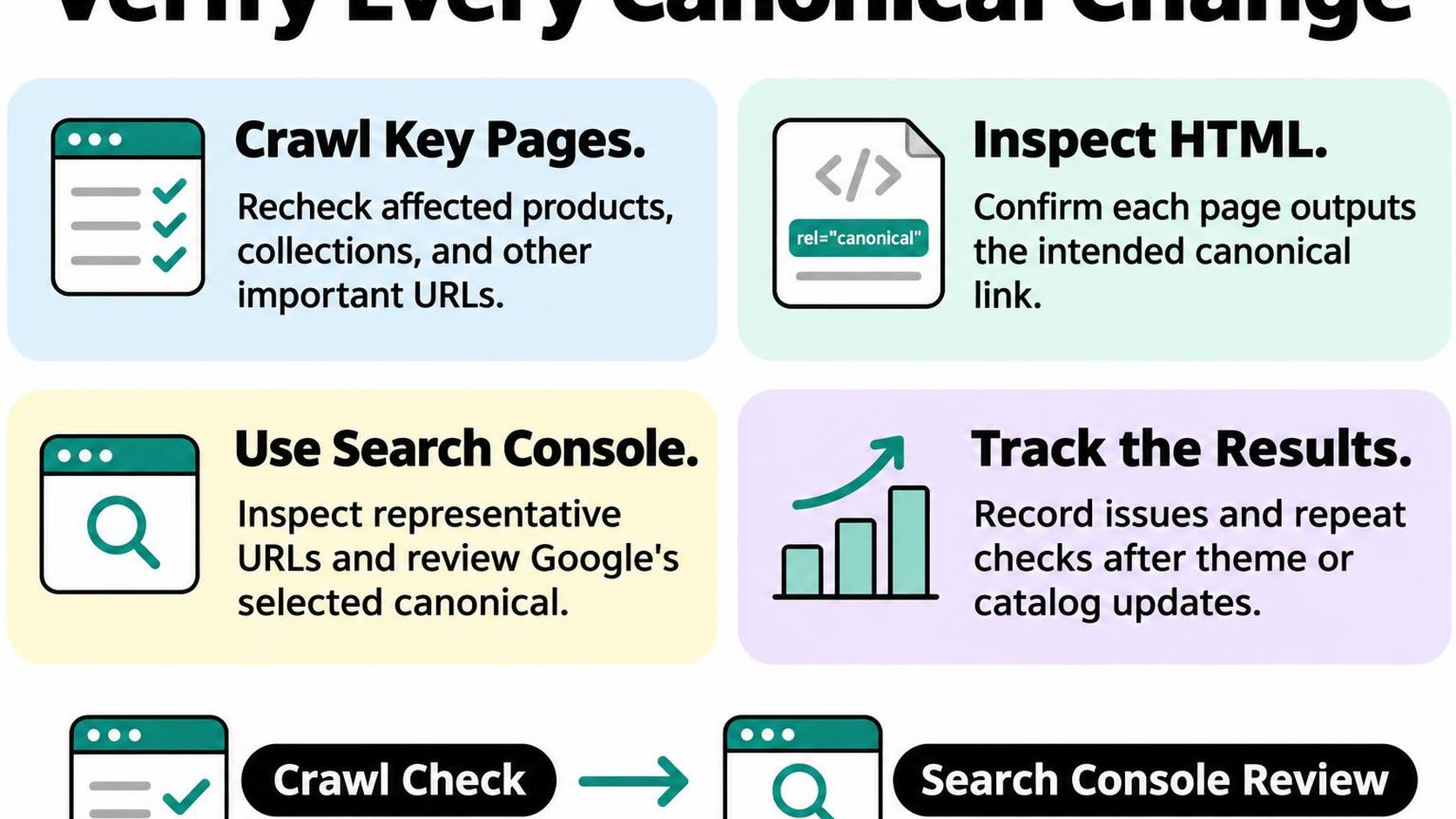
Validation has two parts: your intended canonical must appear consistently, and Google must process the updated signals. A correct tag alone does not guarantee that Google selects your preferred URL.
Recheck rendered source and crawl a sample of affected URLs
Open the published storefront rather than relying on the theme preview. Check the HTML source returned by the server, then inspect the rendered document to catch scripts or app code that insert another canonical.
To check canonical tags in Shopify, search for rel="canonical" and confirm that the page contains one canonical link inside the head. Its destination should be the intended absolute HTTPS URL, not a preview address, an old domain, or an unrelated page.
- Sample coverage: Test a direct product URL, a collection-context product URL, a collection page, and parameter URLs affected by your change. Include market-specific versions if your store uses them.
- Destination health: Confirm that each canonical target returns HTTP 200, permits crawling, and has no noindex directive. Avoid targets that redirect or point onward to another canonical.
- Signal consistency: Crawl the sample and compare canonical destinations with internal links and sitemap entries. Do not keep directing shoppers and crawlers toward unnecessary alternate URLs.
Keep the sample small enough to inspect manually, then expand the crawl if the results disagree. One correct product page does not validate every template.
Compare the declared canonical with Google's selected canonical
Your declared canonical is the preferred URL you specify. The Google-selected canonical is the URL Google chooses to represent a group of duplicate or substantially similar pages.
Inspect an affected URL in Search Console and open its page indexing details. Compare the user-declared canonical with the Google-selected canonical, where available, and note the last crawl date. Use these Google Search Console checks to keep your review consistent across the sample.
A live test helps check current accessibility and fetched output, but it does not predict Google's eventual canonical selection. The indexed inspection data may still reflect the version crawled before your change.
Practical rule: If Google selects another URL, investigate before editing again. Check content similarity, redirects, internal links, sitemap inclusion, and whether the intended destination is indexable.
Monitor indexing reports after the change
Record the publication date, affected URL patterns, and expected canonical destinations. Request indexing for a few important changed URLs if needed; repeated requests do not accelerate crawling.
Recheck after Google recrawls the affected pages. Updates can take days or weeks, and reporting may lag behind crawling, so avoid treating next-day results as a verdict.
Watch for unexpected exclusions of your preferred URLs rather than trying to eliminate every duplicate report. An alternate URL excluded because Google accepts the intended canonical can be the correct outcome. If preferred pages remain excluded after recrawling, revisit the conflicting signals instead of adding more canonical tags.
Step 7: Keep canonical signals consistent as your catalog changes
You publish a new collection, replace a discontinued product, or update your theme, and URLs that looked correct last month start sending mixed signals. Maintaining shopify canonical tags means making a small set of checks part of those changes, rather than waiting for another duplicate-content report.
The goal is consistency: your canonical destination, internal links, redirects, and sitemap URLs should support the same preferred page where applicable. Do not force genuinely different pages onto one canonical URL just to reduce the number of URLs Google sees.
Add canonical checks to product and collection publishing workflows
Add a canonical check to your existing publishing checklist. Open the published page, inspect its HTML source, and confirm that it outputs one canonical tag pointing to the intended, accessible destination.
For a Shopify canonical tag for product pages, check both the direct product URL and a collection-context route if your theme generates one. They can display the same product, so your navigation should not unnecessarily promote competing paths.
- Products: Check a newly published product and a product with variants. Confirm that tracking or variant selections do not unexpectedly change the preferred destination.
- Collections: Give distinct collections their own preferred URLs. Do not canonicalize every collection to a broader category simply because products overlap.
- Internal links: Use the preferred URLs in menus, collection cards, and editorial links you control. Keep those destinations consistent with eligible URLs in your sitemap.
Review URL changes, theme updates, and new filtering features
Treat URL changes as a coordinated update, not just a handle edit. When an old page is permanently replaced, check that its redirect reaches the intended replacement directly and that the replacement does not canonicalize back to the retired address.
Duplicate your theme before changing its code, then test the updated theme before publishing. Theme changes or installed integrations can introduce a second canonical tag or apply a rule too broadly.
- Handle changes: Update important internal links to the new destination rather than relying on redirects indefinitely.
- Theme releases: Sample product, collection, and content templates. Include any custom template with separate metadata logic.
- Filtering features: Test sorting, filters, and pagination separately. Do not assume every parameterized URL represents identical content or should point to the first collection page.
Practical rule: A filter that changes the product selection needs a deliberate indexing decision. A canonical tag is not a substitute for deciding which collection experiences deserve searchable landing pages.
Use a short recurring audit checklist
Run a small monthly sample and repeat it after significant catalog or storefront changes. Keep the sample stable so you can spot regressions, then add URLs affected by the latest release.
- Availability: Confirm preferred destinations load successfully and remain indexable.
- Agreement: Compare canonical destinations with internal links, redirects, and sitemap entries where applicable.
- Coverage: Include a bestseller, a new product, a collection, a parameterized URL, and a recently renamed page.
- Ownership: Assign one person to record failures and verify the fix before the next release.
Yassine Malti writes these maintenance steps as a developer drawing on hands-on store work.
Put this into practice
Start with the store you already have, then use the guides on the blog for the next page that needs the same treatment.
Shopify apps by Yassine Malti
Put this into practice
-

ALT SEO · Image alt text
AI alt text for every product image · 100 images/month free
-

RANKit · Meta titles & descriptions
AI meta titles and descriptions, sized for Google · 50 meta tags/month free
-

TAGit · Product tags
SEO-friendly product tags, generated in bulk · 50 tags/month free