You upload new product photos to Shopify, check the mobile layout, and publish the page. The images look right, but their descriptions still say “IMG_4821” or repeat the product name across every angle. Your shopify image alt text needs to explain what each photo shows, not just fill an empty field.
How to Write SEO-Friendly Alt Text for Shopify Product Images shows you how to describe product photos clearly, add or edit those descriptions in Shopify, and handle variants without copying the same wording everywhere. You get practical examples and a way to review bulk edits before generic text spreads across your catalog.
Alt text is a text alternative for an image that helps people understand its content when they cannot see it. Screen readers can announce it, and search engines can use it alongside the surrounding page content to understand an image. For a product photo, describe the visible details that matter: the item, its color, and the angle or feature shown.
The tradeoff is detail versus noise. “Black leather ankle boot, side view with silver buckle” gives useful information; a string of search phrases does not. Include a keyword when it accurately names what is visible, but do not force it into every image. Clear descriptions support accessibility and image relevance; they do not guarantee higher rankings.
Table of Contents
- Step 1: Understand what Shopify image alt text does
- Step 2: Identify the useful details in each product image
- Step 3: Write concise, natural alt text for each image
- Step 4: Apply alt text consistently to product variants
- Step 5: Add or edit alt text in Shopify
- Step 6: Scale catalog updates with an alt-text workflow
- Step 7: Audit examples and maintain alt text over time
Step 1: Understand what Shopify image alt text does
You open a product’s media preview and find an alt text field beside a photo of your best-selling bag. Before filling it, decide what a shopper needs to understand from that specific image. Shopify image alt text describes the photo’s useful information; it is not another place to paste your sales pitch.
Define alt text for Shopify images
Alt text is a text alternative attached to an image in the page’s HTML. It gives people who cannot see the photo a way to understand its content or purpose. Depending on the browser, it can also appear when an image fails to load.
A screen reader typically announces an informative image’s alt text when a shopper reaches it. If the description says only “IMG_4821,” the shopper gets a filename instead of product information. If every photo repeats “leather shoulder bag,” the shopper cannot distinguish the front view from a close-up of the strap.
For Shopify product image alt text, describe what makes that view useful. A front photo might need the product type, colour, and visible shape. A detail photo might need the fastening, texture, or feature that the shopper is inspecting.
- Front view: “Tan leather shoulder bag with a curved flap and brass clasp” identifies the main visible features.
- Detail view: “Close-up of the bag’s adjustable strap and brass buckle” explains what this additional photo contributes.
- Variant view: “Navy canvas tote with cream handles” distinguishes the pictured colour rather than describing every available option.
Do not add claims the image cannot demonstrate, such as “the most durable bag” or “perfect for every occasion.” Keep promotional promises in the product copy, where you can explain and support them.
Separate accessibility benefits from SEO benefits
Shopify image alt text for accessibility helps a shopper understand visual information while navigating your store. Useful descriptions can communicate differences between product views that nearby text does not cover. They do not replace clear product details, accessible controls, or a theme that works with a keyboard.
The SEO benefit is different. Google’s image SEO guidance explains that Google uses alt text alongside computer vision and page content to understand an image. A relevant description provides context, but adding it does not guarantee rankings, image-search visibility, or sales.
Should Shopify image alt text include keywords? Include a product term when it accurately names what the photo shows. “Black ceramic coffee mug with a rounded handle” reads naturally; repeating “coffee mug” several times does not make the description more useful.
Practical rule: Describe the image for a shopper first. Keep a keyword only when it helps identify the visible product or detail, and remove any phrase added solely to chase rankings.
Treat alt text as one part of your ecommerce SEO best practices, not a substitute for useful product pages. The tradeoff is straightforward: enough detail to explain the photo, without making someone listen to a paragraph of repeated sales copy.
Step 2: Identify the useful details in each product image
You open a product gallery and find a front shot, a side shot, and a close-up of the fastening. Each photo shows the same item, but each gives your shopper different information. Before writing shopify image alt text, inspect those differences rather than pasting the product title into every image.
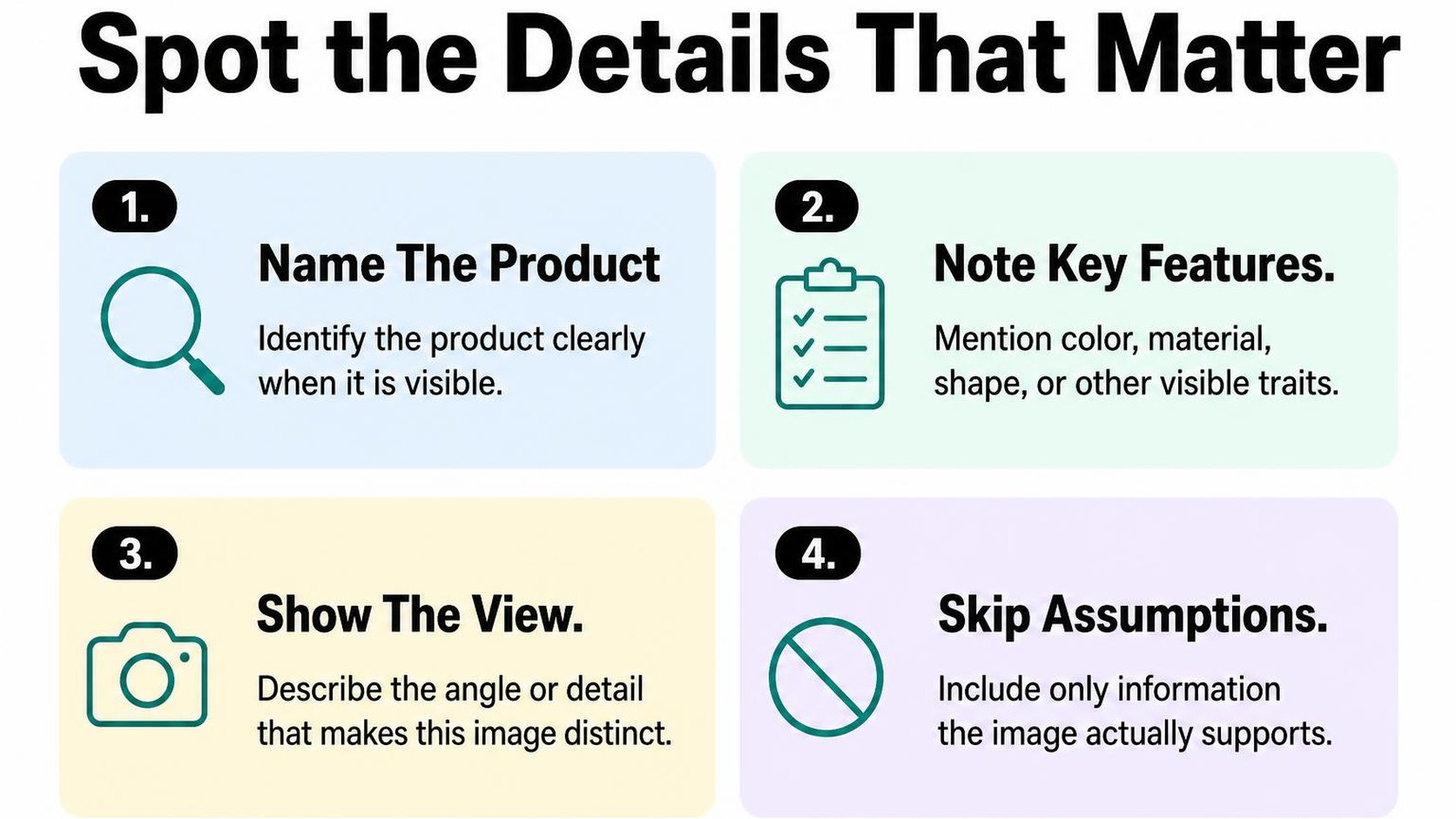
Your task is to identify what the photo contributes to the product page. A useful description names the item and captures the view or feature that makes this image worth showing. Leave out details that require a specification sheet rather than a look at the photo.
Describe the product and the visible view
Start with the product type: backpack, dining chair, ankle boot, or coffee mug. Then identify whether the image shows the whole item, a particular angle, or a close-up. A detail view is a photo focused on one part of the product, such as a zipper, seam, or handle.
For a backpack gallery, “Blue backpack viewed from the front” and “Back of blue backpack showing padded shoulder straps” communicate different information. Repeating “Adventure Travel Backpack — Blue” for both images loses that distinction. Use the title as a reference for the product name, not as a ready-made description.
- Product type: Name the item in familiar language instead of relying on a collection name or model code.
- Visible view: Identify the front, back, side, interior, or close-up when that distinction helps explain the photo.
- Relevant feature: Note the open lid, folded frame, adjustable strap, or other feature the image clearly demonstrates.
- Scene context: Mention a person holding or wearing the item when that helps communicate fit, scale, or use.
For Shopify product image alt text, put the item before secondary scene details. “Black shoulder bag worn across the body” is more useful than describing the model’s surroundings when the photo’s purpose is to show how the bag sits.
Include distinguishing details only when they are visible
Add color, pattern, shape, or construction details when they help distinguish this image from another. A striped shirt and a plain shirt need different descriptions; two identical front shots do not need artificially different wording. For Shopify alt text for product variants, check that the description matches the pictured option, not the default selection.
Be cautious with material claims. A photo may show a woven texture or a glossy surface, but appearance alone does not establish organic cotton, genuine leather, or stainless steel. Prefer “Tan tote bag with woven texture” when the material is uncertain, rather than guessing a fiber or manufacturing process.
Practical rule: Ask what a shopper can learn from this particular photo. Keep the details that answer that question, and remove claims that the image cannot support.
The tradeoff is specificity without speculation. “Side view of white sneaker with perforated panels” gives a concrete description; “Breathable, lightweight sneaker for all-day comfort” turns visible details into unverified benefits. Keep those sales claims out of the image description.
Step 3: Write concise, natural alt text for each image
You open a product’s media gallery and find several images with empty descriptions. Before you fill them, give each image a clear purpose: show the product, explain a detail, or demonstrate how someone uses it. Your shopify image alt text should communicate that purpose without reading like a search query.
Alt text is a text alternative that communicates an image’s essential information or function. Write it for someone who cannot see the image, then check whether a relevant search phrase fits naturally.
Use a simple description-first formula
Start with this formula: product or subject + action or view + one useful detail. You do not need every part in every description. “Blue ceramic mug with curved handle” may say enough, while a demonstration needs an action: “Hand pouring tea from a glass teapot into a cup.”
Put the subject first and keep the sentence easy to understand. For Shopify product image alt text, a short phrase often works better than a full sentence. Stop when the shopper has the information the image adds; do not pad the description to reach a particular length.
- Product photo: “Black backpack with front zip pocket” identifies the subject and a visible feature.
- Detail photo: “Close-up of backpack front pocket zipper” explains what this image contributes instead of repeating the main photo’s description.
- Usage photo: “Person wearing a black backpack over both shoulders” describes the scene without adding a claim about comfort.
- Natural target phrase: Use “ceramic coffee mug” if that accurately names the pictured item. Skip “best coffee mug online” because it describes a sales pitch, not the image.
If your product terminology feels awkward, apply the same plain-language approach used for writing clear product descriptions. Keep the naming consistent, but do not copy the product description into the alt field.
Avoid keyword stuffing and unnecessary phrases
Should Shopify image alt text include keywords? Yes, when the keyword accurately describes the subject and sounds natural. “Ceramic coffee mug, coffee cup, kitchen gift, buy mugs” gives a shopper less useful information than one clear description.
Remove routine openings such as “image of” or “picture of.” Keep a format word only when it matters, such as “Diagram showing how the lid locks.” Do not add prices, shipping offers, or your store name unless they are essential to understanding the image’s purpose.
Decorative and redundant images need a different decision. The W3C guide to image text alternatives explains that decorative images use an empty alt value and that an image’s context determines the right alternative. Do not assume every product photo is decorative just because a nearby heading names the product.
Practical rule: Describe meaningful images; use an empty alt value for purely decorative images or images that add nothing beyond nearby text. Check the rendered theme output: an empty alt attribute is not the same as a missing attribute. If an image acts as a link or button, its accessible alternative must communicate the action or destination.
Step 4: Apply alt text consistently to product variants
You select the blue jacket on your product page, but the gallery still shows the black version. If your shopify image alt text says “Blue waterproof jacket,” the description now contradicts the photograph. Describe the image that actually appears, not the option you hope it represents.
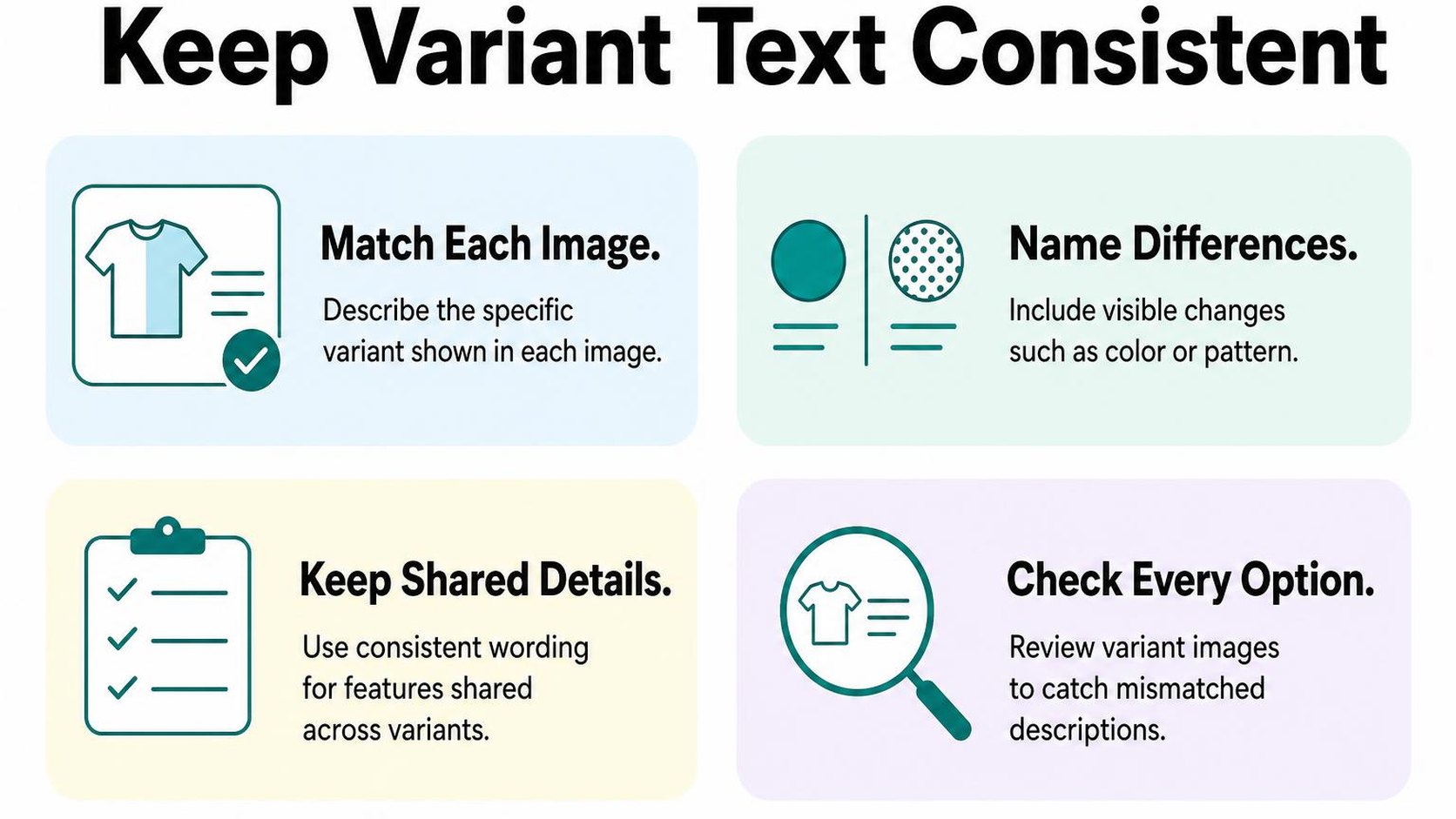
A variant is a product option combination, such as a particular color and size. For Shopify alt text for product variants, distinguish visible differences without inventing details from variant names. Consistency means applying the same description method, not forcing every image to have unique wording.
Describe meaningful visual differences between variants
Start with the product, then add the visible feature that separates this photograph from the others. Color, pattern, finish, shape, and camera angle often help a shopper understand the difference. Include a size only when the image communicates it through a label, measurement, or clear comparison.
These Shopify image alt text examples use the same structure while describing different photographs. Each adds a useful distinction rather than a longer string of product keywords.
- Color: “Navy linen shirt, front view with white buttons” distinguishes it from the cream shirt photographed in the same pose.
- Pattern: “Canvas tote with green stripes and natural cotton handles” identifies the pattern rather than relying on a variant name such as “Coastal.”
- Finish: “Brushed brass cabinet handle, close-up of textured surface” explains the visible finish rather than repeating a collection name.
- Size comparison: “Small and large ceramic planters side by side” describes the comparison shown, without claiming exact dimensions that the photograph does not provide.
Check the assignment as well as the wording. Shopify’s instructions for assigning images to variants explain that each variant can have one assigned image, which appears as its preview when selected. After assigning it, test the storefront to confirm that the selected option and displayed photograph agree.
Keep identical views from becoming repetitive
When several sizes share one photograph, keep its description accurate for every size. “Black cotton T-shirt, front view” works for a shared image; “Extra-large black cotton T-shirt” is misleading unless that size is actually established in the photograph. Do not treat a size selector as evidence of what the image depicts.
Identical photographs can use identical alt text. You do not need synonyms, extra keywords, or variant codes to make each description different for Shopify alt text SEO. Different views, however, deserve descriptions that identify their useful detail.
- Shared photograph: Retain the same accurate description across variants that use the same view.
- Different angle: Change “front view” to “back view showing adjustable strap” when the photograph reveals that feature.
- Missing variant photo: Keep the existing image description truthful and add the missing photograph when possible; do not rename a black product image “blue.”
Practical rule: Write what changes in the photograph, not merely what changes in the selector. Preview each option after editing, and fix mismatched image assignments before adding more descriptive wording.
Step 5: Add or edit alt text in Shopify
You have descriptions ready, but your product gallery still contains blank or outdated image fields. Start with one product so you can confirm where Shopify saves your changes before updating shopify image alt text across your catalog.
Single-image edits give you control over each photograph. Bulk workflows save time, but they also spread mistakes faster when descriptions are matched to the wrong images.
Update alt text for an individual product image
In your Shopify admin, open Products and select the product you want to update. In its Media section, select the image to open the media preview, then choose the option to add or edit alt text.
Enter your description in the alt text field and save it. If the preview shows a separate close control, close it after saving, then reopen the image to confirm that the description remains in place.
- Choose the right image: Check the full-size preview rather than relying on a small thumbnail. Similar gallery images can show different details.
- Replace outdated wording: Remove descriptions inherited from an old photograph or product name. Describe the image currently attached to the product.
- Save and verify: Confirm the saved value before moving to the next image. Do not assume that closing the preview saves an unfinished edit.
- Check the storefront: Preview the product page after editing. If you inspect its HTML, confirm that the relevant image’s alt attribute contains the intended description.
For the current desktop and mobile paths, follow Shopify’s instructions for adding alt text from the product media preview. Button labels and placement can change, so use the current interface rather than an older screenshot.
Review the current options for bulk editing
Bulk editing means updating multiple image descriptions through one workflow instead of opening every image individually. Before planning a Shopify bulk edit image alt text task, check which fields your current admin interface actually exposes.
Do not assume the product bulk editor includes image-level alt text just because it lets you edit other product fields. For a larger catalog, compare the available routes before making changes.
| Workflow | Best use | Main check |
|---|---|---|
| Product media preview | A few images or careful corrections | Save and reopen each edited image. |
| Product CSV | Many product-image descriptions | Match each Image Alt Text value to the correct image row. |
| Custom API workflow | Repeatable updates managed by a developer | Verify file identifiers, permissions, and results on a small batch. |
For CSV changes, export your products first and keep an untouched backup. Work from the exported structure, update the image alt text column, and test a small import before applying the same process catalog-wide.
Review the import options carefully, especially any setting that overwrites existing products. Keep unrelated fields unchanged and check the resulting images and descriptions after the test.
Practical rule: Test a few products, verify the saved descriptions, and only then expand the batch. A successful import message does not prove that every description belongs to the right photograph.
Step 6: Scale catalog updates with an alt-text workflow
You upload a new collection, then notice that some images have useful descriptions while others have filenames or outdated colors. A repeatable shopify image alt text workflow helps you close those gaps without replacing accurate descriptions across your entire catalog.
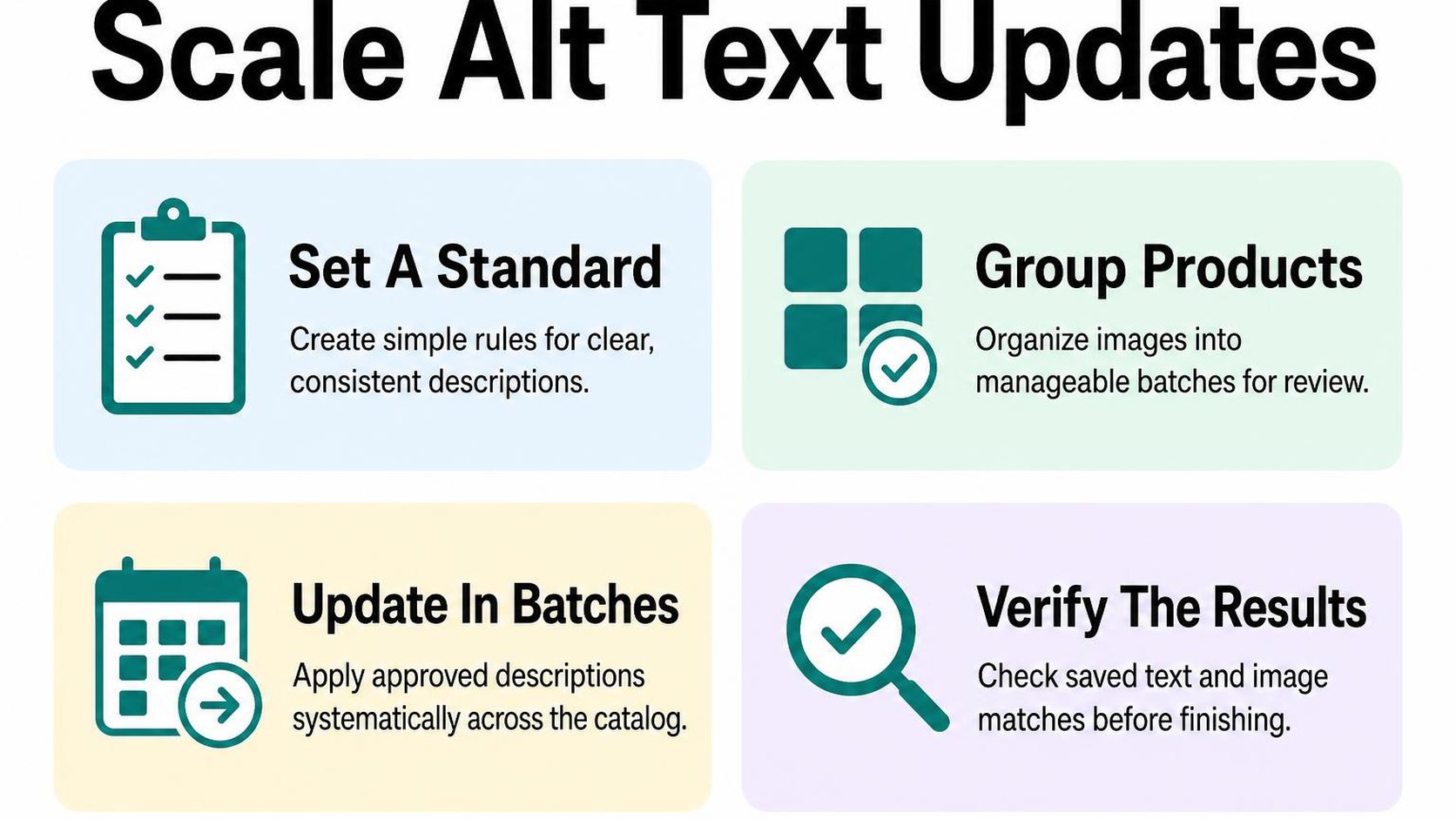
Separate images that need attention from images that already work. Bulk generation saves drafting time, but it also spreads mistakes quickly if you skip review.
Prioritize high-value product images
Start with products that receive traffic, generate sales, or feature in an upcoming campaign. Within those products, review the main image first, followed by variant photos and detail shots that help shoppers understand the item.
Keep a simple queue with the product, image, existing description, proposed description, and review status. Assign someone to approve changes, and reserve a separate status for images that need product information before anyone can describe them accurately.
- Missing descriptions: Address empty fields and filename-style text on informative product photos before polishing descriptions that already communicate the image.
- Variant differences: For Shopify alt text for product variants, verify the pictured color, pattern, or finish rather than copying the same description across every option.
- Useful details: Give close-ups descriptions that explain their purpose, such as a zip fastening or woven texture. Do not repeat the main image description when the photograph shows something different.
- Protected work: Keep reviewed descriptions out of routine regeneration unless the image or product changes. Record exceptions so future uploads follow the same rules.
If image updates sit alongside other catalog improvements, use the Shopify SEO solutions page to explore support for that broader work. Keep the image queue focused: changing titles, descriptions, and alt text together makes errors harder to trace.
Generate and review descriptions before publishing
ALT SEO: AI Alt Text Generator uses OpenAI to write descriptive, keyword-aware alt text in bulk or automatically for new uploads. It can reduce repetitive drafting, but it cannot replace your review of what the photograph actually shows.
Treat generated text as a draft, including text created automatically for new uploads. Set a review checkpoint before launch where possible; for images already live, check generated changes promptly rather than assuming automation guarantees accuracy.
- Accuracy: Compare each description with its image. Remove invented materials, incorrect quantities, unsupported claims, and product features that are not visible.
- Accessibility: Put the essential visual information first. Follow W3C’s guidance on concise, purpose-led text alternatives rather than padding every description to a fixed length.
- Keywords: Include the product term when it naturally identifies the subject. Do not insert search phrases, promotional language, or lists of synonyms.
- Ongoing ownership: Make review part of every collection launch and image replacement. Track pending descriptions so automatic uploads do not create an invisible backlog.
Practical rule: Automate the first draft, not the approval. If you cannot confirm a detail from the image and reliable product information, leave it out.
Step 7: Audit examples and maintain alt text over time
You replace a product photo, but its old description still names the previous colour. Your shopify image alt text now tells a different story from the image a shopper sees. Finish your audit by checking real examples, then build those checks into your upload routine.
Compare weak and useful product image descriptions
Review descriptions beside their images, not as a spreadsheet of text alone. These Shopify image alt text examples show how the same product needs different wording depending on the view. Use them as patterns, not templates you paste across your catalogue.
| Image | Weak description | Useful description |
|---|---|---|
| Front view of a backpack | Best backpack travel bag | Navy backpack with a front zip pocket |
| Close-up of the same backpack | Navy backpack | Close-up of the backpack’s zipper pull and stitching |
| Side view of a shoe variant | Running shoe red | Side view of a blue running shoe with a white sole |
| Photo of a dinnerware set | Beautiful dinnerware collection | Four white dinner plates stacked beside four matching bowls |
The useful versions distinguish the images without turning each description into a product pitch. For Shopify alt text for product variants, check the pictured option rather than copying the currently selected variant name. A shared gallery image may show several options or a different colour.
Should Shopify image alt text include keywords? Include a product term when it identifies what appears in the image, but do not force a target phrase into every gallery view. Google’s image SEO guidance explains how alt text and surrounding content help it understand images; repeating search phrases is not a substitute for describing the photo.
Check accuracy after product or image changes
Keep a short change log: a record of which images need another review after a catalogue update. Record the product, affected image, reason for review, and person responsible. This gives your team a manageable queue instead of requiring a full catalogue audit after every upload.
- New uploads: Review each image before publishing the product. Check that front, rear, detail, and lifestyle views receive descriptions suited to their different purposes.
- Changed variants: Recheck colour names, visible patterns, and the image assigned to each changed option. Test the storefront selection so the description matches the image shoppers actually receive.
- Updated photography: Compare replacement images with existing text. A tighter crop may remove a feature that the old description still mentions.
- Theme changes: Sample a product page after an update. Confirm that the rendered image retains its intended alt attribute rather than assuming the saved admin value appears correctly.
- Monthly spot checks: Review a small sample of recent uploads and high-traffic products. Track recurring mistakes and adjust your upload checklist.
Practical rule: Treat an image replacement as a description review, even when the product itself stays the same.
These checks reflect the store work that informs how developer Yassine Malti writes about Shopify image maintenance.
Put this into practice
Start with the store you already have, then use the guides on the blog for the next page that needs the same treatment.
Shopify apps by Yassine Malti
Put this into practice
-

ALT SEO · Image alt text
AI alt text for every product image · 100 images/month free
-

RANKit · Meta titles & descriptions
AI meta titles and descriptions, sized for Google · 50 meta tags/month free
-

TAGit · Product tags
SEO-friendly product tags, generated in bulk · 50 tags/month free