You publish a new collection, then notice that dozens of product photos have no alt text and several large images load slowly on mobile. You search for Shopify image SEO apps, but the listings blur together: bulk editing, AI descriptions, compression, and promises about rankings. Before you install anything, you need to know which problem you are actually trying to fix.
Shopify Image SEO Tools: Features to Look for Before You Install explains how to compare those features against your catalog and workflow. You get a practical way to assess bulk controls, text quality, image compression, theme compatibility, and pricing, without paying for features you do not need.
Start by separating two jobs. Alt text is a text alternative that describes an image for people who cannot see it and helps search engines understand its content. Compression reduces image file size, which can help pages load faster. A Shopify app for image alt text may handle the first job without touching the second, so do not assume every image tool does both.
The best image SEO apps for Shopify fit the work you need to repeat, whether that means reviewing descriptions for new arrivals or updating thousands of existing photos. Automation saves time, but inaccurate descriptions and overcompressed product details create new problems. Look for preview controls, selective updates, and clear limits rather than a promise of higher rankings.
Table of Contents
- 1. Start with the image SEO jobs your store needs
- 2. Check whether alt text features fit your catalog
- 3. Compare image compression and speed controls
- 4. Inspect bulk workflows, permissions, and rollback
- 5. Use this feature checklist to compare apps
- 6. Verify claims with a small, measurable test
- 7. Choose the app that matches your next SEO task
1. Start with the image SEO jobs your store needs
Before comparing Shopify image SEO apps, check a few product pages on your phone and review their image descriptions in your admin. A missing description, a slow-loading photo, and a distracting background are three different problems. One app may address several of them, but its feature list needs to explain each job separately.
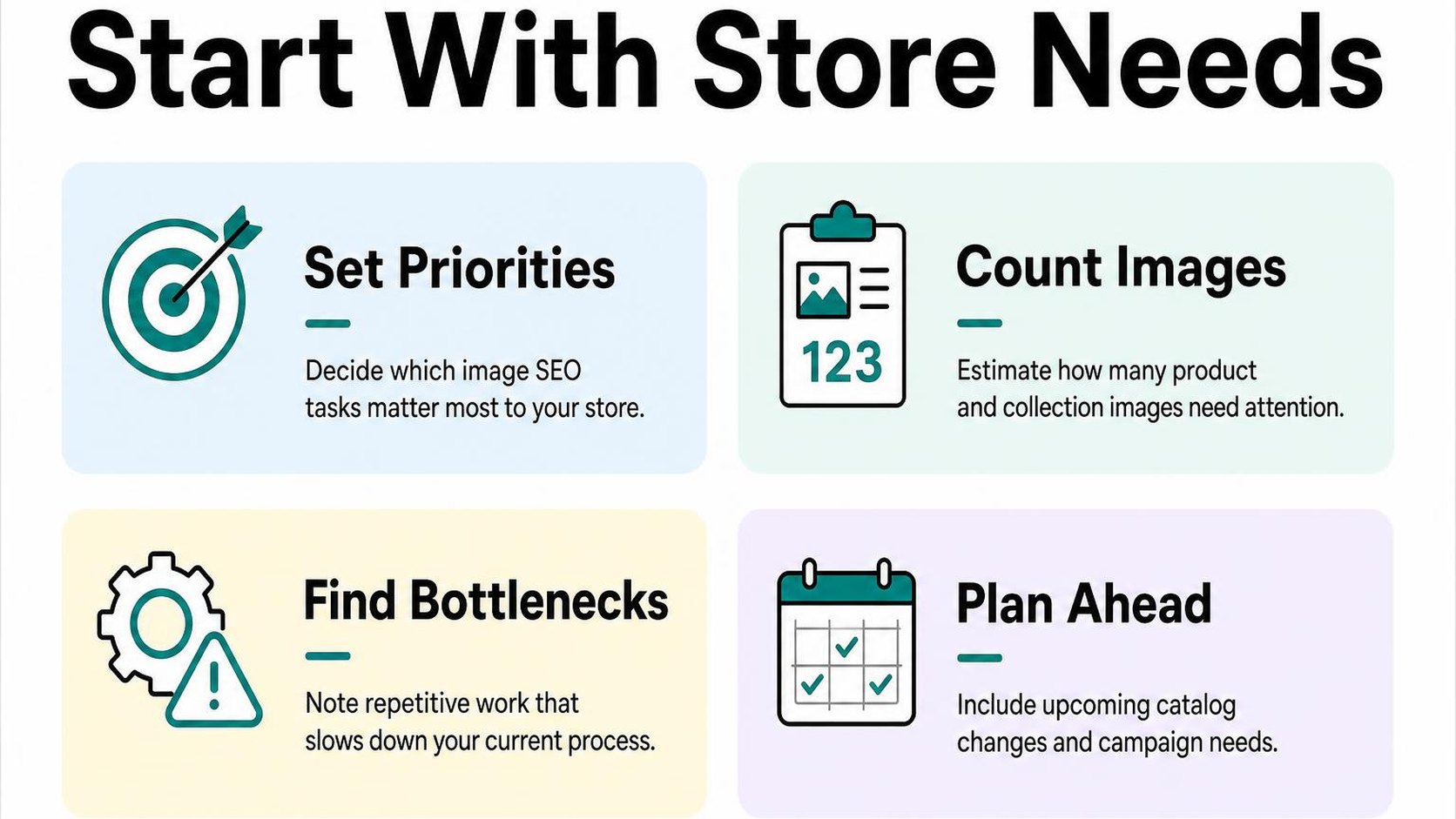
Your starting point is a small sample: a bestseller, a product with several variants, and a recently imported item. Look for missing text alternatives, unnecessarily large files, and photos that make the product difficult to judge. This gives you a buying checklist instead of another subscription you cannot evaluate.
What image SEO tools can and cannot do
If you are asking what does a Shopify image SEO app do, the answer depends on which parts of your images it changes. Some tools write descriptions or rename files; others reduce file sizes or flag missing information. Those actions can support image discoverability and page performance, but they do not guarantee rankings or traffic.
Alt text is a text alternative that communicates an image’s relevant content or function when someone cannot see it. It supports accessibility and helps search engines understand image content. Google’s image SEO guidance explains how descriptive, context-appropriate alt text helps it understand images; that is not a promise that adding keywords moves your product page up the results.
A Shopify image SEO app with bulk alt text can save time across a large catalog, but speed creates a review tradeoff. A generated description may mistake a material, miss a distinguishing detail, or repeat text that adds no value. Sample the results before applying changes across every product.
Practical rule: Choose a tool for a measurable task, such as correcting missing product-image descriptions or reducing image download size. Do not choose it because its listing promises better rankings without explaining what changes.
Separate alt text, compression, and image editing
Image compression reduces the data needed to store or deliver an image, sometimes at the cost of visible detail. Image editing changes the appearance of the photo, such as its crop, background, or brightness. Neither task replaces an accurate text alternative.
- Alt text: Describe the product details that matter in context, such as the back view of a jacket or a close-up of its fastening. Avoid keyword lists and details you cannot verify from the image or product information.
- Compression: Target heavy image downloads while preserving enough detail for shoppers to inspect the product. Compare before-and-after quality, especially for fabric texture, small lettering, and fine jewelry.
- Visual editing: Improve consistency and clarity without changing what you sell. Removing a distracting background can help shoppers assess a product, but it does not make an inaccurate description accurate.
For a broader checklist, use these Shopify image SEO fundamentals to connect image descriptions with delivery and page context. When comparing Shopify image optimization apps, buy coverage for the gaps you actually find. Do not assume a tool that edits photos also compresses them or writes accessible descriptions.
2. Check whether alt text features fit your catalog
You upload a new collection, but its product photos still have empty descriptions. When comparing Shopify image SEO apps, check how each handles both your existing catalog and the next batch of uploads.
Alt text is a text alternative that helps people using screen readers understand an image’s purpose or content. For product photos, it should communicate useful visual information, not turn every image into another place to repeat your target keyword.
Bulk editing and automatic alt text for new uploads
A Shopify image SEO app with bulk alt text can reduce repetitive work across hundreds of photos. Before running it across your store, test a small collection containing different products, variants, and camera angles.
Check what counts toward the app’s usage allowance and whether you can process only images with missing alt text. Filling gaps is different from overwriting descriptions your team has already reviewed.
- Batch selection: Look for controls that let you choose which products or images to process. Confirm whether existing descriptions stay untouched unless you explicitly replace them.
- New-upload workflow: Ask when automatic generation runs and which upload methods it covers. Test a manual upload and your usual import process rather than assuming both trigger the same behavior.
- Failure handling: Check whether you can identify skipped images, retry failed jobs, and see which descriptions actually save to Shopify.
- Cost visibility: Confirm whether regenerating a description consumes additional credits, especially when you regularly replace seasonal photography.
ALT SEO: AI Alt Text Generator writes descriptive, keyword-aware alt text for product images in bulk or automatically for new uploads. That covers description generation, not image compression, and generated wording still needs checks for accuracy.
Review controls for product-specific descriptions
A Shopify alt text generator app should leave you in control of the final wording. Look for an editing workflow that shows the photo beside its proposed description, so you can catch mismatched colors, invented materials, or descriptions copied across different views.
Automation saves time, but reviewing everything individually can erase that saving. Prioritize your test batch, best-selling products, and images where a wrong detail could mislead a shopper.
- Distinct views: Check whether front, back, detail, and lifestyle photos receive meaningfully different descriptions rather than the same product title.
- Verified attributes: Reject guesses about fabric, dimensions, included accessories, or performance claims. Product information can supply context, but the description must still fit the image.
- Manual overrides: Confirm that you can correct generated text and prevent later automation from replacing approved edits.
Practical rule: If the description could fit every photo in the collection, it probably needs more image-specific detail. If it includes something you cannot verify, remove that claim.
Use these guidelines for writing useful product image alt text when reviewing your test batch. Choose the workflow that produces accurate, maintainable descriptions—not simply the largest number of completed fields.
3. Compare image compression and speed controls
You install a theme update, open a product page on your phone, and watch the main photo arrive late. Before comparing Shopify image SEO apps, check whether the delay comes from oversized images, the theme’s loading behavior, or scripts competing for bandwidth.
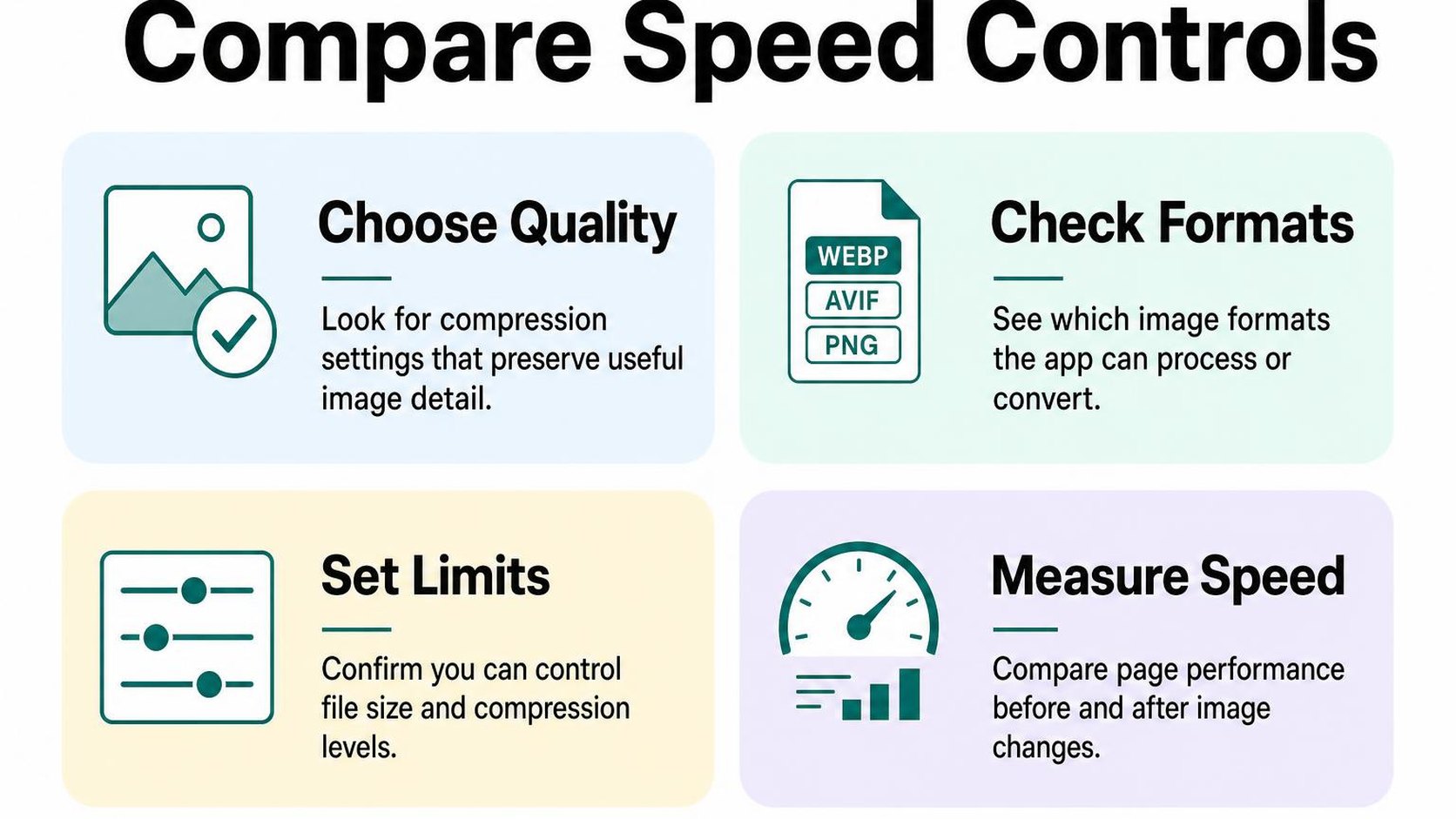
Shopify image optimization apps do not all change image files or delivery. An app that writes alt text may leave file size untouched, so look for explicit compression and resizing controls rather than assuming “image SEO” includes them.
Compression, resizing, and format support
Compression reduces an image’s file size; lossy compression removes some image information, while lossless compression preserves it. Smaller files can download faster, but aggressive settings can blur fabric texture, distort gradients, or make packaging text harder to read.
Resizing changes pixel dimensions, which is a different job from compression. Check whether the app changes your source files, adjusts the sizes your theme requests, or only reports oversized images. Shopify already handles parts of image delivery, so ask what the app adds to your existing setup.
- Visible quality: Compare processed images with originals at normal viewing size and in product zoom. Include jewelry, textured clothing, transparent backgrounds, and photos with small printed details where relevant.
- Dimensions: Confirm that smaller files still support your largest product display and zoom requirements. Do not shrink every source image to the width of a mobile screen.
- Format support: Check which file types the app accepts, changes, and preserves. If it advertises WebP or AVIF, establish whether it converts originals or helps deliver those formats to compatible browsers.
- Delivery controls: Ask whether the app changes responsive image sizes or loading behavior. Your main product image should not wait for a shopper to scroll before loading.
As web.dev’s image performance guidance explains, smaller image payloads and suitable formats can reduce download time and potentially improve Largest Contentful Paint. That does not mean a smaller file automatically fixes a slow product page.
Original backups, quality settings, and rollback
Rollback means restoring the files and settings you use before an optimization runs. Confirm that original-file backups exist, how long they remain available, and whether you can retrieve them after cancelling a subscription.
A quality slider is useful only if you can preview its effect and reverse mistakes. Avoid a catalog-wide job until you understand whether restoration covers image files alone or also includes filenames, image assignments, and any theme changes.
- Representative test batch: Choose several product pages with different photo types, gallery lengths, and image dimensions. Include a collection page so you also test grids.
- Controlled comparison: Record image transfer size, loading measurements, and visual quality before and after processing. Use the same device, connection conditions, and pages across repeated tests.
- Recovery check: Restore one test image before processing the full catalog. Verify the restored file and storefront display rather than relying only on a success message.
Practical rule: Keep a change only when it reduces image weight without losing useful product detail. Follow a process for improving Shopify page speed safely, and do not treat a better speed score as a ranking guarantee.
4. Inspect bulk workflows, permissions, and rollback
A bulk job replaces carefully written descriptions across your catalog, and the progress bar shows only “complete.” Before choosing a Shopify image SEO app with bulk alt text, check whether you can inspect the proposed edits, control their scope, and identify exactly what changes.
Speed saves time only when you can catch mistakes before they spread. Treat these Shopify image SEO app features as operational safeguards, not optional extras.
Preview changes before applying them storewide
A dry run shows proposed changes without saving them. Look for a preview that displays the image, its product context, the current alt text, and the replacement together, rather than a detached list of generated sentences.
Check whether the tool distinguishes missing alt text from existing descriptions. Filling gaps is a different task from rewriting text you already review, especially when similar photos show different colors, materials, or product angles.
- Batch selection: Require filters for specific products, collections, or missing alt text. Confirm the selected image count before starting, and make sure “select all” does not silently expand beyond your filtered results.
- Overwrite controls: Keep existing text unless you deliberately choose to replace it. Look for a way to exclude individual images and preserve intentional empty alt text where appropriate.
- Progress reporting: Expect separate counts for queued, updated, skipped, and failed images. A usable job history shows when the run starts, what it targets, and which changes actually save.
- Error handling: Check whether you can retry failed items without processing successful ones again. Ask what happens if you close the browser, lose connection, cancel the run, or reach a usage limit.
Practical rule: Approve a small alt text batch first. If the preview invents product details or repeats the same description across different views, adjust the instructions or correct the text before expanding the job.
Check access, data handling, and uninstall behavior
Permissions define which store data an app can read or change. Compare each requested permission with the work you expect it to perform; an unexplained request deserves a question before installation, not an assumption that it is necessary.
Shopify’s app installation guidance explains how to review requested data access and privacy policies. For AI-generated text, also establish which image data, product details, and prompts leave your store, who processes them, and how long they remain stored.
- Data practices: Look for clear retention and deletion terms, named processing providers, and an explanation of whether your content is used to train models. Ask for clarification when the policy is vague.
- Reversal: Require saved previous values or an export that maps each original description to the correct product and media record. Confirm whether restoring a batch overwrites later manual edits.
- Manual correction: Verify that you can edit individual results in Shopify and stop scheduled jobs from replacing those corrections. An export without a workable restore process is only a record.
- Uninstall behavior: Ask whether saved alt text remains, whether scheduled processing stops, and whether any theme cleanup is required. Do not assume removing the app reverses its edits.
5. Use this feature checklist to compare apps
You have a shortlist of Shopify image SEO apps, but each listing counts features differently. One includes alt text generation, another emphasizes compression, and a third charges separately for bulk processing. Compare them against your image workload rather than the longest feature list.
The best image SEO apps for Shopify fit the work you actually need to finish. A small catalog with occasional launches needs different controls from a store adding hundreds of product photos every week.
Match features to store size and image volume
Count your existing images, typical monthly uploads, and images that need corrections. Separate a one-time cleanup from ongoing maintenance: paying for continuous automation makes less sense when your catalog rarely changes.
Use this checklist to compare Shopify image SEO app features during a trial. Mark each row as essential, useful, or unnecessary before checking whether an app provides it.
| Feature | What to test | When it matters most |
|---|---|---|
| Alt text | Does the description identify the actual photo without invented details or repeated keywords? | Your product images lack accurate descriptions. |
| Compression | Does file size fall without visible damage to texture, labels, or fine detail? | Large image downloads slow key storefront pages. |
| Bulk operations | Can you filter by product, collection, or missing alt text before processing? | You need to correct a large existing catalog. |
| Automation | Can you target new uploads without repeatedly processing unchanged images? | Your team adds product photos frequently. |
| Review controls | Can you preview a small batch and approve only acceptable results? | Your photos need precise material, variant, or usage descriptions. |
Compression reduces an image’s file size; alt text describes its content or purpose. These solve different problems, so do not assume a Shopify app for image alt text also improves download speed.
Test representative photos, including packaging, lifestyle scenes, and close-ups. A Shopify image SEO app with bulk alt text saves handling time only if its results need little correction; otherwise, you move the bottleneck from writing to reviewing.
Compare pricing, limits, and support
Calculate the cost of your initial cleanup and a normal month separately. Credits are processing units whose meaning varies by app: one may cover an image, a generated description, or another operation. Check what consumes them before comparing plan prices.
- Billing unit: Confirm whether retries, regenerated descriptions, and multiple operations on the same image consume additional credits.
- Processing limits: Check batch caps, monthly allowances, queue times, and what happens when you reach a limit halfway through a launch.
- Automation cost: Verify whether scheduled processing requires a higher plan and whether you can pause it during a large import.
- Support access: Look for documented contact channels and response expectations. Ask a specific question about your workflow before committing.
- Trial evidence: Record processing time, correction time, output quality, and total cost for the same sample across your shortlist.
Choose the lowest-cost plan that meets your required checks, not the cheapest advertised starting price. Extra features justify their cost only when they remove a real task without creating more review work.
6. Verify claims with a small, measurable test
You install an app, process your product photos, and see search traffic rise the following week. That sequence does not prove the app causes the increase: promotions, seasonal demand, and other store changes can move the same numbers.
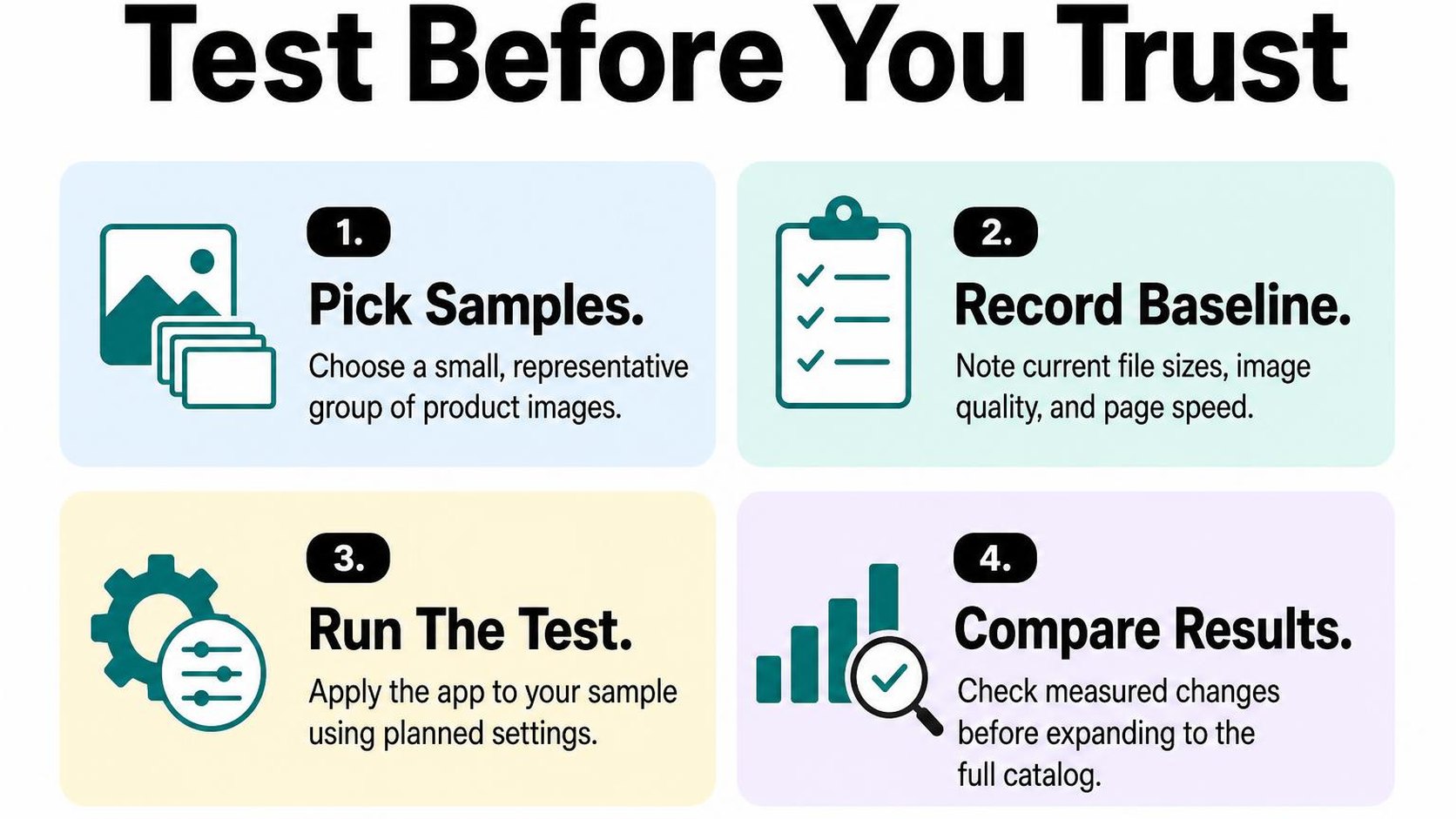
Test Shopify image SEO apps on a limited set before granting them a catalog-wide workload. The tradeoff is a slower rollout, but you get evidence of useful changes without spreading inaccurate descriptions or damaged images across your store.
Audit a sample of product images first
Choose 10 to 20 products that represent your catalog: similar-looking variants, detailed materials, packaging shots, and lifestyle photos. Save the original files and existing alt text, and record which images the app can change.
Alt text is a text alternative that communicates an image’s relevant content or function. For product photos, check that it describes what is actually visible rather than copying the product title or adding promotional claims. Google’s image SEO guidance explains how descriptive, context-appropriate alt text helps it understand images.
- Accuracy: Compare each generated description with the photo. Reject invented materials, incorrect colors, unsupported product attributes, and keyword lists.
- Context: Check the rendered page, not just the app dashboard. A close-up of a clasp needs different wording from the main product view; decorative images may need empty alt text.
- Visual quality: If compression or resizing is included, compare originals and processed images on mobile, desktop, and product zoom. Inspect small lettering, texture, transparency, and color edges.
- Scope and recovery: Confirm that only selected images change and that you can restore files and text. Keep automatic processing paused until you approve the sample.
Do not accept every suggestion because it reads smoothly. A fluent description that identifies the wrong variant creates more review work and gives shoppers misleading information.
Track accessibility, image performance, and search signals
Record a baseline, the measurements you collect before making changes, for the same product pages and images. Keep your theme, promotions, and other SEO edits as stable as practical, and note anything that changes during the test.
- Accessibility: Check whether meaningful product images have useful text alternatives in the storefront’s rendered HTML. Use a screen reader spot check to assess whether descriptions make sense in the page’s reading order.
- Image performance: Compare delivered image sizes and page-loading measurements under consistent test conditions. Alt text alone does not reduce image download size, so expect speed gains only when delivery or files change.
- Search signals: Monitor relevant page impressions, clicks, and Image search performance in Search Console over several weeks. Small samples and low traffic make short-term changes difficult to interpret.
Practical rule: Image SEO apps do not guarantee rankings. Expand the rollout when your sample shows accurate text, preserved image quality, and manageable corrections—not because a brief ranking increase follows installation.
Keep a similar group of products unchanged as a rough comparison where practical. It cannot isolate every cause, but it helps you distinguish a useful operational improvement from a store-wide traffic swing.
7. Choose the app that matches your next SEO task
You open an app listing because your latest product upload leaves dozens of photos without useful descriptions. Before you install, name the problem you need to fix: Shopify image SEO apps cover different jobs, and a longer feature list does not necessarily shorten your workload.
Choose around the work waiting in your catalog, not a promise of better rankings. A focused tool makes sense when one task consumes your time; a broader solution earns its place only when you actually use its additional features.
A quick decision path for common store needs
Start with the change you want to make this week. Then check whether the app gives you enough control to make that change without disturbing work you already approve.
- Missing image descriptions: Choose a Shopify app for image alt text when your main problem is descriptive coverage. Look for product context, editable suggestions, and controls that preserve existing text. Generation saves drafting time, but you still check whether each description matches the actual photo.
- A large catalog backlog: Choose a Shopify image SEO app with bulk alt text when individual edits take too long. Require selection controls so you can target a collection or new upload rather than overwrite your entire catalog. Check whether the app distinguishes missing text from text you deliberately leave empty.
- Heavy image files: Compare Shopify image optimization apps that address file size, format, or delivery workflows. Check how originals are retained and what happens to fine product details. An alt text generator does not compress files, and smaller files do not replace accurate descriptions.
- Several recurring tasks: Consider a broader solution only when its extra features replace work you already do. Check permissions, billing limits, and overlap with installed tools. Do not pay for duplicate automation simply because it comes in the same package.
The best image SEO apps for Shopify are the ones that fit your catalog and review capacity. A tool that handles fewer jobs with clear controls can be a better fit than one that changes several parts of your store at once.
Set a review schedule after installation
Assign someone to review generated changes before you turn on ongoing automation. If you manage the store alone, put that review beside your regular product-publishing work so it does not become another forgotten dashboard.
- After each import: Check new descriptions against the uploaded photos. Correct invented materials, colors, quantities, or product uses before those errors spread across similar items.
- Each week: Review exceptions, failed jobs, and unexpected overwrites. Adjust selection rules when the same correction keeps appearing.
- Each month: Compare the work completed with the bill and the time you spend fixing output. Keep features that reduce a real workload; disable automation that creates more review than it saves.
Practical rule: Automate the repetitive draft, not the final judgment. Keep generated changes reviewable, and pause a workflow when you cannot explain what it changes.
Yassine Malti writes this guidance as a developer working on real Shopify store tasks.
Put this into practice
Start with the store you already have, then use the guides on the blog for the next page that needs the same treatment.
Shopify apps by Yassine Malti
Put this into practice
-

ALT SEO · Image alt text
AI alt text for every product image · 100 images/month free
-

RANKit · Meta titles & descriptions
AI meta titles and descriptions, sized for Google · 50 meta tags/month free
-

TAGit · Product tags
SEO-friendly product tags, generated in bulk · 50 tags/month free