You replace your product photos with sharper versions, then open the collection page on your phone. The images look better, but the first row takes longer to appear, and you have no clear way to tell whether Google understands what each photo shows. Shopify image SEO means balancing those needs: helping shoppers see your products quickly while giving search engines useful context.
Shopify Image SEO: Optimize Product Photos for Search and Speed shows you how to optimize images for Shopify without sacrificing the details shoppers need before buying. You work through descriptive filenames, image dimensions, compression, format choices, and alt text, then check how your product pages load. You also learn where Shopify handles delivery automatically and where your uploads and theme settings still need attention.
Start with your busiest product and collection pages rather than editing every image at once. A large lifestyle banner creates a different loading problem from a small product thumbnail, so the same export settings rarely suit both. Avoid shrinking every file until it looks soft; shoppers still need to inspect texture, labels, and finishes.
Treat alt text as a short description that communicates an image’s content when someone cannot see it, not a place to repeat keywords. Pair accurate descriptions with appropriately sized files, then test the result on mobile before applying the same changes across your catalog.
Table of Contents
- Step 1: Audit your product images and set a baseline
- Step 2: Choose the right image format and dimensions
- Step 3: Compress product photos without sacrificing clarity
- Step 4: Name image files clearly before uploading
- Step 5: Add useful alt text to product images
- Step 6: Improve image loading speed on product pages
- Step 7: Check image discovery and maintain your optimization checklist
Step 1: Audit your product images and set a baseline
Before changing files or theme settings, record what your shoppers currently receive. Your Shopify image SEO audit needs two views: the original product photos in your catalog and the images your theme actually delivers on a product page.
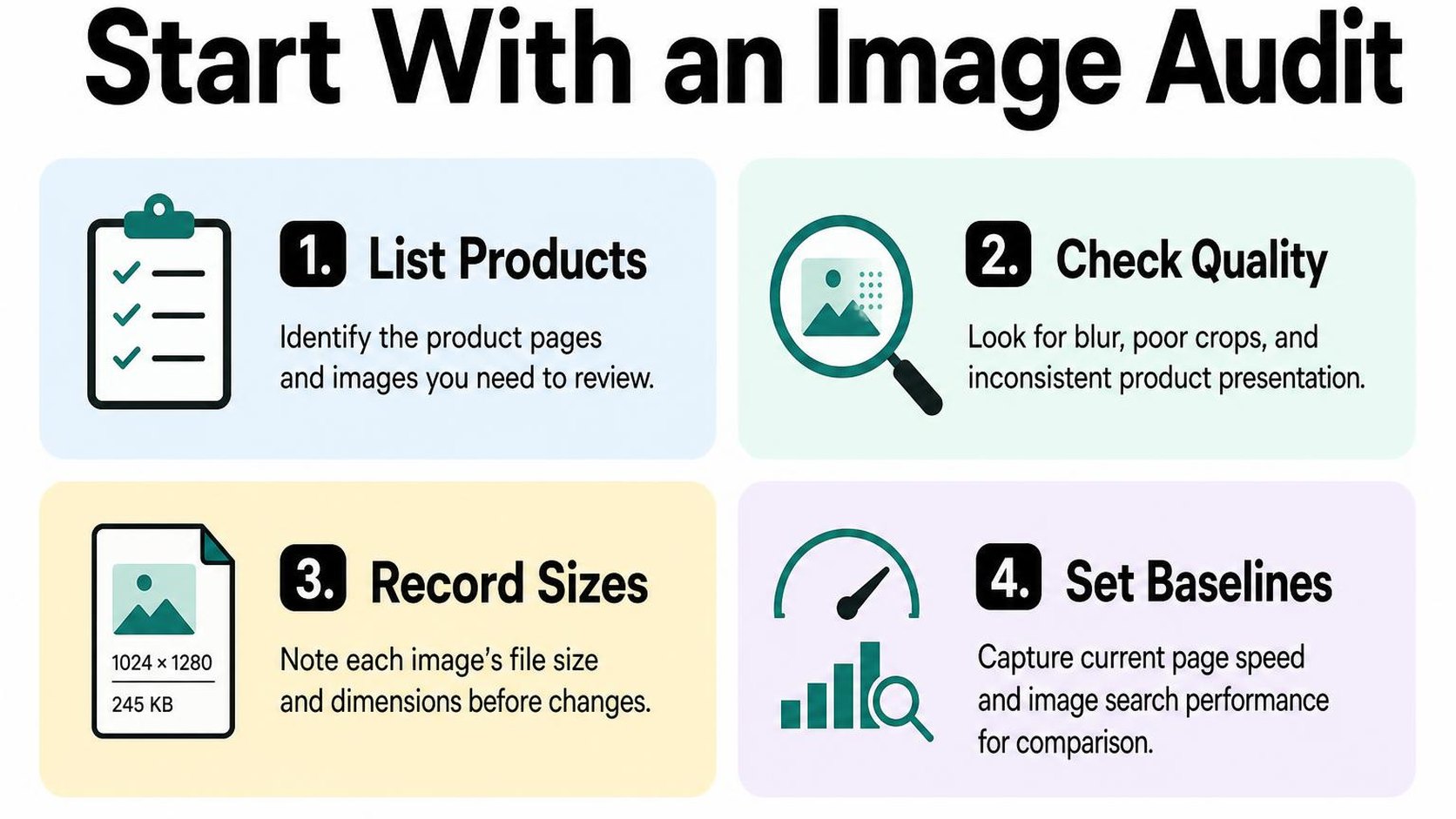
Start with five to ten representative products: a bestseller, a product with many photos, one with zoom details, and a few pages with low search traffic. Keep this sample unchanged so you can compare results after each adjustment.
Check image quality, dimensions, and file weight
Create a spreadsheet with one row per image. Record the product URL, image filename, gallery position, pixel dimensions, original file size, and existing alt text. Add a separate column for visible problems such as blur, awkward cropping, inconsistent backgrounds, or unreadable packaging.
File weight means the amount of data an image contains, usually measured in kilobytes or megabytes. Distinguish the uploaded original from the image downloaded by a browser: Shopify can deliver resized versions, so a large upload does not automatically mean every shopper downloads that original.
- Quality: Inspect the main photo on mobile and desktop, then test zoom. Flag images that look soft or fail to show details shoppers need to judge the product.
- Dimensions: Record width and height in pixels alongside the displayed size. A wide source photo may be useful for zoom but unnecessary for a small gallery thumbnail.
- Downloaded weight: Open your browser’s developer tools, select the Network panel, filter for images, and reload. Record the transferred size and delivered dimensions of the largest image requests.
- Search context: Flag generic filenames and missing or inaccurate Shopify image alt text for later editing. Do not rename or replace everything before you capture the baseline.
Treat Shopify image file size optimization as a balance between useful detail and unnecessary downloads. Do not impose one file-size target on thumbnails, hero photos, and zoom images with different jobs.
Measure product-page loading performance
Test each sample URL in PageSpeed Insights using the mobile report first. Largest Contentful Paint (LCP) measures when the largest visible image or text block appears; identify that element rather than assuming it is your main product photo.
Run three tests per URL and record the median result, keeping the device category and testing conditions consistent. Use a small baseline table like this:
| Measurement | Record before changes |
|---|---|
| Page and conditions | URL, date, mobile or desktop, theme version |
| Loading result | Median lab LCP and identified LCP element |
| Image requests | Largest image transfer and total image transfer |
| Layout stability | Visible image shifts and reported CLS |
Check Shopify’s Web Performance dashboard for real-visitor trends too. Shopify’s performance testing guidance recommends combining real-user monitoring with lab tests; they answer different questions, so keep their results separate.
Practical rule: Prioritize images that are both unnecessarily heavy and visible early. A large photo far down the gallery usually deserves less attention than an oversized main image delaying the first screen.
Use your Shopify SEO improvement roadmap to place these fixes alongside other store priorities. Keep this baseline untouched for your later comparison.
Step 2: Choose the right image format and dimensions
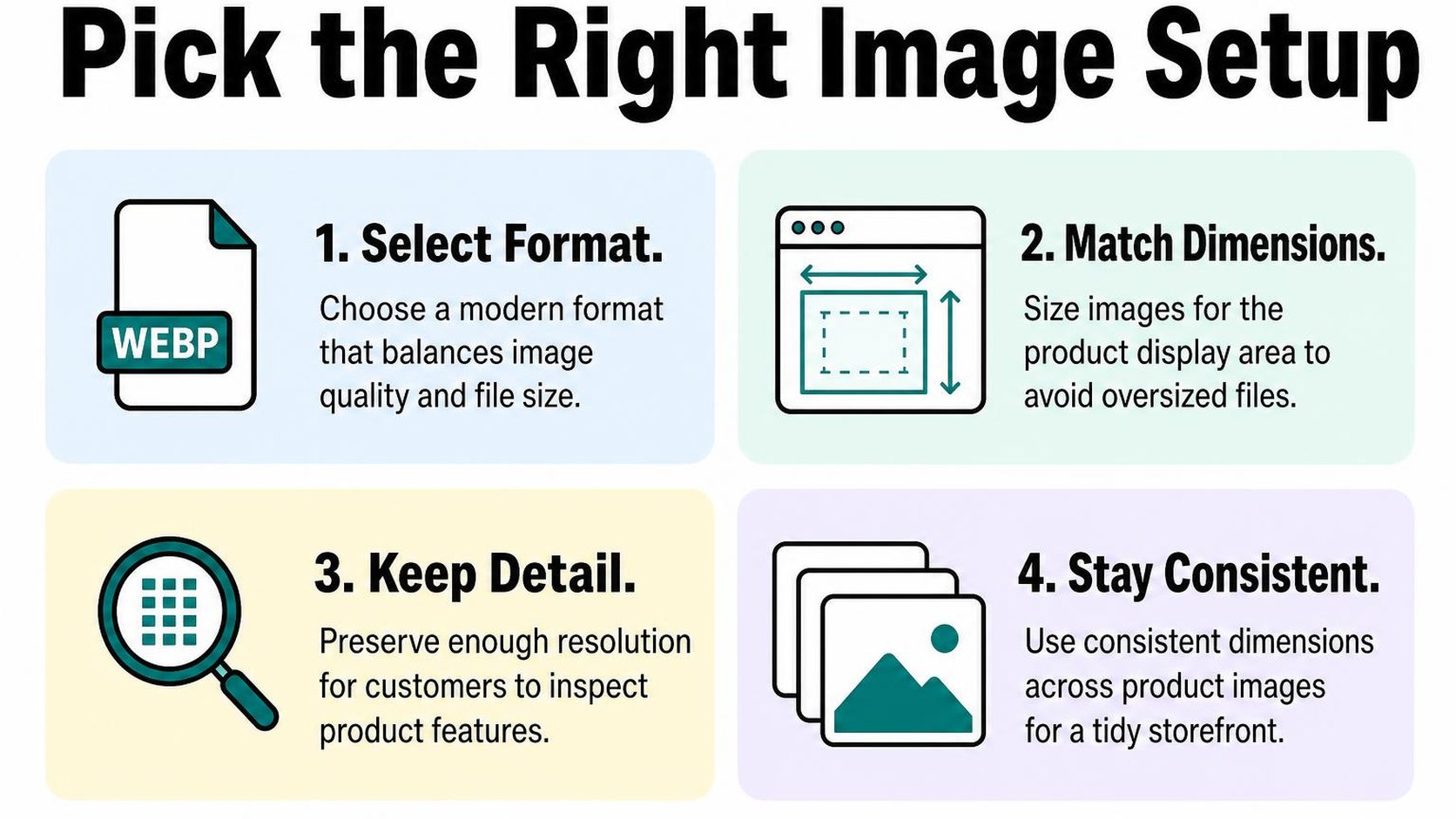
Your product photo looks sharp in the editor, but the mobile product page downloads a version far larger than its gallery needs. This part of Shopify image SEO starts with two decisions: choose a format that suits the image, then size it for the largest useful display.
Keep an untouched original outside Shopify so you can export new versions later. Do not repeatedly compress the same edited file; each lossy export can remove detail you cannot recover.
Match the format to the image
The best image format for Shopify products depends on what the image contains. Photography needs smooth color transitions, while graphics may need crisp edges or a transparent background.
- JPEG: Use it for most product photography with an opaque background. It usually provides a practical balance between file weight and detail, but excessive compression can blur fabric texture, fine lettering, and jewelry edges.
- PNG: Choose it when you need transparency or when a simple graphic loses clarity as a JPEG. Avoid using PNG for every full-size lifestyle photo; photographic PNG files can be unnecessarily heavy.
- WebP and AVIF: Treat these as delivery options, not a reason to convert your entire library manually. Shopify can serve modern formats to compatible browsers, so your uploaded file format does not always match the format shoppers receive.
According to Shopify’s guidance on image uploads and automatic format selection, its CDN selects an available format, including WebP or AVIF, when the visitor’s browser supports it. That automatic conversion helps, but it does not replace checking your source image’s dimensions and visible quality.
Compare an export with your original at the size shoppers actually view, including zoom. For Shopify image file size optimization, reduce quality gradually and stop before product details become misleading; a lighter image is not useful if shoppers cannot judge the material or finish.
Resize images for their display area
Pixel dimensions describe an image’s width and height in pixels, rather than its file weight in kilobytes. Check the product gallery, collection cards, mobile layout, and zoom before choosing an export size.
If a gallery displays a photo at 800 pixels wide, a 1600-pixel-wide source can support that view on a screen with twice the pixel density. Zoom may justify a larger source, but uploading a 5000-pixel-wide image for a small card adds no useful detail to that card.
Use the guide to resize images while preserving quality when preparing your exports. Keep product framing consistent, and avoid stretching a small image to reach a larger target.
Responsive images let the browser choose among image sizes for the current display. Check that your theme requests smaller variants for cards and mobile screens; shrinking a huge download with layout styling alone does not reduce its transfer size.
Practical rule: Export for the largest genuine viewing need, then verify that each placement downloads an appropriately sized version. If every placement requests the same oversized file, correct the theme’s image sizing rather than sacrificing detail everywhere.
Step 3: Compress product photos without sacrificing clarity
Your product photo loads faster after compression, but the fabric weave now looks soft when a shopper opens zoom. For shopify image seo, a smaller file only helps if the image still shows what someone needs to judge the product.
Image compression reduces the data needed to store an image. Lossy compression removes some image information, while lossless compression reduces file size without discarding it. Your goal is a lighter download, not the smallest possible file.
Reduce file size while checking visual quality
Start with three representative photos: a simple product on a plain background, a detailed close-up, and a lifestyle shot. Keep untouched originals so you can export again without repeatedly compressing an already degraded file.
For repeatable Shopify image file size optimization, keep the dimensions fixed while testing compression. This separates the effect of compression from resizing and makes each comparison useful. Quality settings vary between tools, so treat a number such as 80 as a starting point, not a universal standard.
- Record the baseline: Note the original file size, pixel dimensions, format, and export settings. Give test versions clear names so you can identify the approved export.
- Export two candidates: Create one moderately compressed version and one more compressed version from the same original. Compare their file sizes before judging whether the extra reduction is worthwhile.
- Compare side by side: View each candidate against the original at the same scale. Inspect both the intended display size and a 100% view, where one image pixel maps to one screen pixel.
- Upload a small batch: Test the preferred versions on a draft product using your storefront theme. Check the product gallery and zoom on mobile and desktop before changing the rest of your catalog.
According to Shopify’s image upload guidance, its CDN automatically selects an available format, including WebP or AVIF when the browser supports them. You do not need to force every source image into one format; choose an export that preserves the photo’s appearance and verify the storefront result.
Keep important product details visible
Check the features that influence a purchase, not just the overall silhouette. Jewelry needs clean edges around clasps and stones; clothing needs visible stitching and texture; packaging needs readable labels. Compression that hides these details makes a lighter image less useful.
Inspect color against the original on the same screen, with the same brightness and viewing conditions. Watch for flat areas becoming blotchy, gradients developing visible bands, or colored edges bleeding into the background. Keep export color settings consistent so you do not mistake a color-management change for compression damage.
Open the actual storefront zoom and inspect the detail shoppers use to assess quality. If fine print or texture breaks down, return to the original and reduce compression. Allow detailed close-ups to weigh more than simple gallery shots rather than enforcing one file-size ceiling across every photo.
Practical rule: Approve the lightest version that preserves meaningful detail, color, and usable zoom. Save its settings for similar photos, but check each batch before publishing.
Step 4: Name image files clearly before uploading
Your compressed product photos are ready, but the export folder still contains files called IMG_4821.jpg and final-edit-2.jpg. Before uploading them, give each file a name that identifies the product and the view. This small part of Shopify image SEO makes your media easier to manage and gives search engines a useful clue about the image.
A descriptive filename identifies what a picture shows using a few relevant words. It does not replace alt text, product copy, or a clear photograph, and it does not make an image load faster.
Use concise, descriptive file names
Start with the product type or recognizable model name, then add the attributes that distinguish this photo. Color, material, pattern, and viewing angle are useful when they accurately describe what appears in the image. Leave out attributes that do not help identify it.
For example, rename IMG_4821.jpg to linen-shirt-sage-front.jpg if the photo shows the front of a sage linen shirt. Name its companion image linen-shirt-sage-back.jpg rather than repeating the same filename with an unexplained number.
- Product: Use a clear noun such as linen-shirt, ceramic-mug, or leather-wallet instead of a generic word such as item.
- Visible distinction: Add sage, striped, or brass when that detail separates the image from another product or variant.
- View: Finish with front, back, side, or stitching-detail when the gallery contains different angles or close-ups.
- Formatting: Use lowercase letters and hyphens between words for a readable convention. Keep the correct file extension rather than changing it to suggest another format.
Google’s image SEO guidance recommends short, descriptive filenames. Treat Shopify image naming for SEO as a way to describe the photo, not as a place to repeat every search phrase you want the product to rank for.
Keep names accurate and consistent
Choose one naming order before processing the rest of your folder. A product-color-view pattern works for many catalogs; a model-material-view pattern may suit yours better. Consistency helps you spot missing angles and mismatched variants before they reach a product page.
Check each name against the actual image, not just the product spreadsheet. If several sizes share the same photograph, adding a size to every filename can imply a distinction the photo does not show. Likewise, avoid claims such as organic, waterproof, or handmade unless they accurately describe the product.
Rename files before upload as part of your export workflow. Do not delete and re-upload an established image solely to replace an imperfect filename without considering where it is already used. The modest descriptive benefit rarely justifies creating unnecessary media-management work.
Practical rule: Read the filename without opening the photo, then open it to check your prediction. If the product, variant, or angle differs from what you expect, correct the name before uploading.
Keep your original files separately, and apply the same convention to each new batch. Prioritize accurate, readable names over long strings of keywords.
Step 5: Add useful alt text to product images
You open a product with six photos, but every image has the same description—or no description at all. This part of Shopify image SEO helps you distinguish those views for shoppers who cannot see them and gives search engines useful context.
Alt text is a text alternative that describes an image’s relevant content. It supports accessibility and image understanding; it does not compress your photos or make the page load faster.
Describe what each image shows
Start with the product, then add the visible details that distinguish that photograph: color, angle, material, or a particular feature. Describe the image in its product-page context rather than trying to fit your entire product title into every field.
For a backpack, “Olive canvas backpack, front view with two buckle pockets” is more useful than “Best backpack travel bag buy online.” A second photo might need “Rear view of olive backpack showing padded shoulder straps,” not a copy of the first description.
- Be specific: Describe the visible product and the details that matter in that view. Include a model name when it helps identify the item, not simply because it appears in your keyword list.
- Stay concise: Use a short phrase or sentence. Avoid opening with “image of” or “picture of” unless the image type itself matters.
- Match the evidence: Do not invent fabric composition, certifications, dimensions, or performance claims from appearance alone.
- Separate the views: Give close-ups, rear views, and lifestyle photos descriptions that reflect their different information. Do not force artificial differences between identical images.
Does image alt text help SEO on Shopify? It helps search engines understand image content, but adding keywords does not guarantee rankings. Your priority is a useful description, with relevant search language included only when it accurately fits.
For more examples, follow the guide to write SEO-friendly product image alt text and compare its patterns with your own product photos.
Add or update alt text in Shopify
You can edit Shopify image alt text directly in the product editor. Start with your best-selling products and images that explain a purchase decision, then work through the remaining catalog.
- Open the product: In your Shopify admin, go to Products and select the product you want to update.
- Select the image: In the Media section, click the product image to open its preview.
- Edit the description: Select Add alt text or Edit alt text, enter your description, and save it.
- Check the remaining views: Repeat for each image, checking that every description matches the correct photo and variant.
Shopify’s instructions for adding media alt text recommend brief, descriptive wording, generally 125 characters or fewer. Treat that as a useful writing target rather than a reason to remove an essential detail.
Practical rule: Read the description without looking at the photo. It should communicate the image’s useful information without sounding like a search query or a sales pitch.
Step 6: Improve image loading speed on product pages
You open a product page on your phone, but the main photo stays blank while thumbnails load below it. That is a Shopify image SEO problem worth checking before you compress another file: the theme may request the wrong image first or download more pixels than the screen needs.
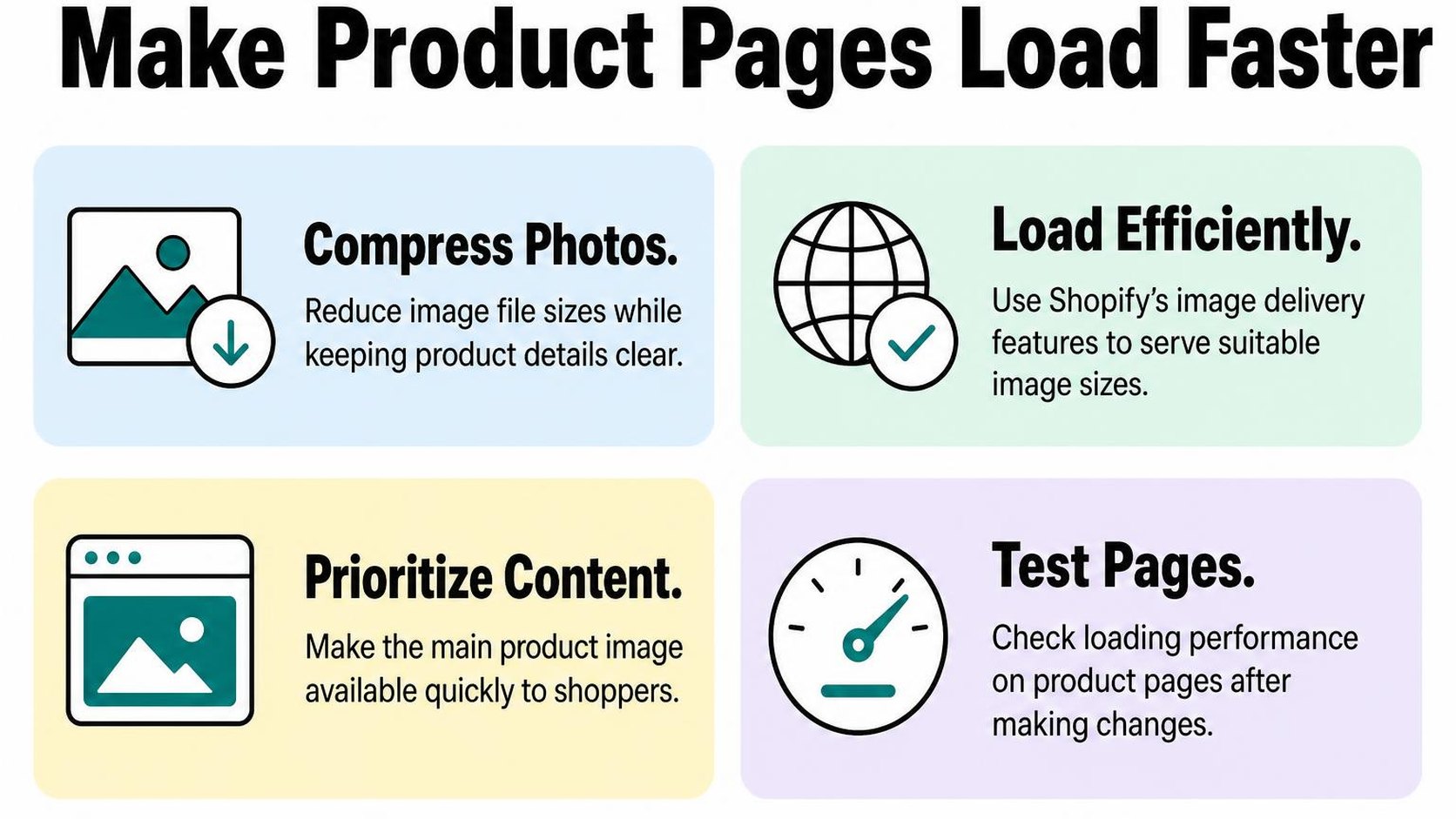
Focus on getting the first useful photo visible quickly without making zoom, variant selection, or gallery navigation harder to use. Smaller downloads help, but removing detail shoppers need creates a different problem.
Review image loading behavior and page layout
Check a published product page with several photos, not just your simplest listing. In your browser’s developer tools, open the Network panel, filter for images, and reload with the cache disabled to see which files arrive first and how much data they transfer.
Largest Contentful Paint (LCP) measures when the largest visible image or text block appears. Your main product photo may be that element, so delaying it can leave shoppers waiting even when smaller page elements appear quickly.
- Prioritize the first photo: Do not lazy-load the main image visible when the page opens. Ask your theme developer to check its loading priority rather than setting every gallery image to high priority.
- Defer offscreen photos: Use lazy loading, which delays image loading until images approach the viewport, for lower-page content. Confirm that gallery navigation still brings the next photo into view promptly.
- Match downloads to display size: Check that your theme supplies responsive image options instead of sending a desktop-sized photo to every phone. Keep a higher-resolution version available where zoom needs it.
- Reserve image space: Give photos dimensions or a stable aspect ratio so the product title and purchase controls do not jump as images load.
Shopify’s theme performance guidance recommends responsive sizing and eager loading for the LCP image, with high fetch priority when appropriate. Make these changes in a duplicate theme before publishing.
| What you notice | What to check | What to preserve |
|---|---|---|
| Main photo appears late | Lazy loading and request priority | Fast access to the first useful view |
| Phone downloads a large image | Responsive image sizes | Clear detail at the displayed size |
| Purchase controls move during loading | Reserved gallery dimensions | Stable layout across variants |
Test changes on mobile and desktop
To check how to improve Shopify image loading speed, compare the same product URL before and after each change. Use PageSpeed Insights or Lighthouse for controlled checks, then review Shopify’s Web Performance dashboard for real-visitor trends after publishing.
- Keep conditions consistent: Run several tests with the same device profile and compare typical results, not your single best score.
- Check real interactions: On a phone and desktop, switch variants, swipe through photos, open zoom, and add the product to your cart.
- Inspect visual quality: Look at labels, stitching, textures, and other purchase-critical details. Reverse compression or sizing changes that make them unclear.
- Verify the tradeoff: Keep a change when loading improves without broken galleries, layout jumps, or missing detail. A higher score alone does not confirm a better shopping experience.
Step 7: Check image discovery and maintain your optimization checklist
You publish lighter product photos, but Google still shows an older image—or no image at all. Your final Shopify image SEO check separates what you control, such as accessible images and useful descriptions, from what Google decides to crawl and index.
Verify image indexing and sitemap discovery
A shopify image sitemap is not a separate file you normally need to build. Shopify automatically generates and updates your sitemap, including product entries with associated image information, at your store’s /sitemap.xml address. That does not mean every gallery image appears there or gets indexed.
Open that address on your primary domain, follow the product sitemap references, and inspect a few active product entries. Check that their image references point to current, publicly accessible photos rather than removed assets.
Submit the main sitemap URL in Google Search Console if you have not already. Use URL Inspection on representative product pages to check page discovery and indexing; an indexed product page does not confirm that every image on it appears in Google Images.
| Check | What it tells you |
|---|---|
| Sitemap opens successfully | Your discovery file is accessible. |
| Product entry includes an image | That image is listed for discovery. |
| Product page is indexed | The page is indexed, not necessarily its images. |
For gallery photos beyond the sitemap entry, check that your theme exposes images through crawlable HTML image elements, not only background styling. Google’s image SEO guidance explains crawlable image markup and sitemap discovery, alongside descriptive filenames and contextual alt text.
Practical rule: A sitemap helps discovery; it does not guarantee crawling, image indexing, or rankings. Fix accessibility and crawlability problems before repeatedly requesting indexing or replacing photos.
Repeat checks when products or themes change
Keep this Shopify image SEO checklist with your product publishing process. Repeat it after bulk uploads, product imports, gallery changes, and theme updates, when an otherwise correct setup can lose descriptions or serve unnecessarily large files.
- Alt text: Describe the visible product and distinguishing details. Keep Shopify image alt text accurate for each view, and remove keyword lists or descriptions copied onto unrelated photos.
- File names: Give new uploads short, descriptive names, such as black-leather-crossbody-bag-front.jpg. Do not delete and reupload an established image solely to improve its filename.
- Formats: Match your source format to the photo’s needs, including transparency where necessary. Check the delivered image rather than assuming the uploaded extension determines what each browser receives.
- Compression: Reduce unnecessary bytes while preserving readable labels and purchase-critical detail. Avoid repeatedly compressing an already degraded source file.
- Page speed: Keep a dated baseline for representative product pages. After changes, investigate oversized downloads, layout shifts, or delayed main-image loading rather than chasing a score alone.
- Sitemap discovery: Confirm that newly published products appear in Shopify’s automatically maintained sitemap. Investigate missing entries without manually rebuilding the file.
This checklist reflects the store work behind the guidance from developer Yassine Malti.
Put this into practice
Start with the store you already have, then use the guides on the blog for the next page that needs the same treatment.
Shopify apps by Yassine Malti
Put this into practice
-

ALT SEO · Image alt text
AI alt text for every product image · 100 images/month free
-

RANKit · Meta titles & descriptions
AI meta titles and descriptions, sized for Google · 50 meta tags/month free
-

TAGit · Product tags
SEO-friendly product tags, generated in bulk · 50 tags/month free