You publish a theme update, open a product page on your phone, and wait while the main image loads. Your next speed test looks worse, even though the store looks better. Shopify page speed SEO becomes a practical tradeoff: you want faster pages without removing the content, images, or navigation that help shoppers and search engines understand your products.
How to Improve Shopify Page Speed Without Hurting SEO walks you through testing your store, finding the biggest delays, and making changes in a safe order. You learn how to improve Shopify page speed by resizing images, reviewing app scripts, and adjusting your theme without stripping out useful product information or breaking links.
Start with the pages customers actually use, not a single homepage score. Core Web Vitals are measures of loading performance, responsiveness, and visual stability that reflect parts of the visitor experience. A higher test score can signal progress, but it does not guarantee better rankings, and removing a helpful feature just to raise that score can hurt sales.
The goal is Shopify speed optimization without hurting SEO, not the lightest possible page at any cost. Keep product details accessible, preserve descriptive image text, and check each change on mobile before moving on. You need a repeatable way to spot improvements and catch regressions, rather than several untested fixes applied at once.
Table of Contents
- Step 1: Measure your Shopify store’s speed before making changes
- Step 2: Prioritize Core Web Vitals that affect the shopping experience
- Step 3: Optimize Shopify images without weakening image SEO
- Step 4: Reduce theme code and render-blocking assets carefully
- Step 5: Audit Shopify apps and third-party scripts for speed costs
- Step 6: Improve mobile page speed and verify the full customer journey
- Step 7: Maintain speed gains with a repeatable testing routine
Step 1: Measure your Shopify store’s speed before making changes
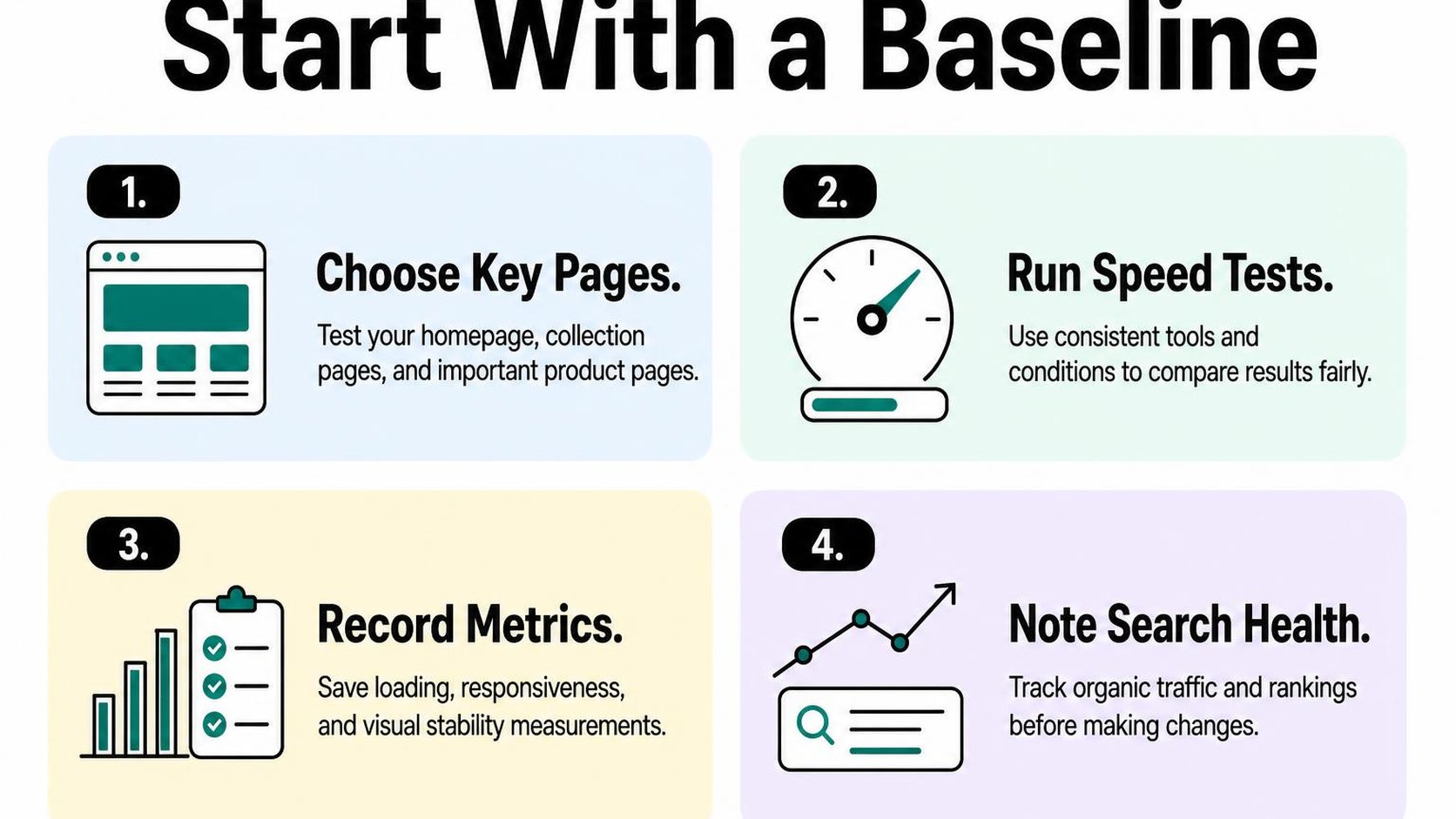
Start your Shopify page speed SEO work with a baseline, not a theme edit. Record how your live store performs today so you can tell whether each change actually helps shoppers or simply produces a better test score.
Test key templates on mobile and desktop
Open PageSpeed Insights and test your live homepage, a representative collection, and a representative product page. Choose pages shoppers actually visit, including one with heavier features such as variant selectors, reviews, or collection filters.
Run each URL three times on mobile and three times on desktop, then record the middle result for each device. Keep the exact URLs, test tool, and storefront state consistent; do not compare a password-protected theme preview with your published storefront.
- Homepage: Include your usual hero image, promotional sections, and navigation rather than a stripped-down test page.
- Collection: Choose a populated collection that represents your normal product grid, filters, and image load.
- Product: Test a frequently visited product with typical media and purchase options; add another URL if a different template behaves very differently.
- Conditions: Note the date, published theme version, active promotions, and whether a consent banner or popup appears.
Keep mobile and desktop results separate because their test conditions differ. Prioritize mobile findings when most of your shoppers use phones, but check desktop before calling a change successful.
Separate lab scores from real-user data
Lab data comes from a simulated page load under controlled conditions and helps you investigate specific delays. Field data reflects visits from real users, whose devices, networks, and interactions vary.
Google’s PageSpeed Insights documentation explains its lab and real-user reports. Check whether the field report covers the exact URL or the wider origin, meaning your store’s domain, before treating it as evidence about one product page.
Practical rule: Use lab tests to diagnose a change immediately, then use field data to check whether shoppers experience an improvement. Do not treat a higher Lighthouse score as proof of better rankings or faster experiences for every visitor.
Field data usually represents a rolling 28-day period, so it does not reset after a theme update. If your store lacks enough traffic for a report, record that limitation instead of substituting a lab score for real-user evidence.
Record a baseline for Core Web Vitals
Core Web Vitals measure loading, responsiveness, and visual stability. Record the available field values below, along with their reporting scope and device type.
| Metric | What you record | Good target |
|---|---|---|
| Largest Contentful Paint (LCP) | Main content loading time | 2.5 seconds or less |
| Interaction to Next Paint (INP) | Responsiveness to interactions | 200 milliseconds or less |
| Cumulative Layout Shift (CLS) | Unexpected layout movement | 0.1 or less |
These field targets apply at the 75th percentile of visits, not to every individual load. Standard Lighthouse navigation tests do not measure INP; keep their Total Blocking Time diagnostic separate.
Save lab reports alongside this baseline and note which element drives LCP. Pair the record with your Shopify SEO checklist so later speed changes do not quietly remove useful content or navigation.
Step 2: Prioritize Core Web Vitals that affect the shopping experience
Your product photo appears late, the size selector pauses after a tap, or a promotional banner pushes the Add to cart button down. These are the problems to prioritize in Shopify page speed SEO, rather than chasing a higher score without knowing what improves for shoppers.
Google confirms that Core Web Vitals contribute to its ranking systems, but good scores do not guarantee top rankings. Faster pages support the shopping experience; they do not replace relevant product information, crawlable navigation, or content that answers the search.
Understand LCP, INP, and CLS
Use the metrics in your baseline to identify the kind of friction you need to fix. Each points to a different shopping problem, so one improvement does not necessarily solve all three.
- Largest Contentful Paint (LCP): This measures when the largest visible image or text block renders. On a product page, a delayed main product photo can leave shoppers waiting to inspect what you sell.
- Interaction to Next Paint (INP): This measures responsiveness to interactions. A variant selector that responds slowly can make shoppers wonder whether their size selection registered.
- Cumulative Layout Shift (CLS): This measures unexpected layout movement. A review widget or banner that loads without reserved space can move a button just as someone tries to tap it.
Keep the diagnosis specific. A large image may explain slow loading, but compressing it does not necessarily fix a delayed filter interaction or a shifting review block.
Find the slowest templates and page elements
Group affected URLs by template: homepage, collection, product, and article. Then inspect representative pages with different features, such as a product with video, a collection with filters, and an article with embedded content. A shared template problem often deserves attention before an isolated page issue.
For each example, connect the reported issue to a visible element or action. Identify the LCP element in your diagnostic report, reproduce delayed interactions, and watch for movement as banners, fonts, and widgets appear.
- Loading: Check whether the main image arrives late, competes with other downloads, or waits for a slideshow to initialize.
- Responsiveness: Test variant changes, collection filters, and cart drawers while the page loads. Look for script work that blocks feedback after a tap.
- Stability: Watch image containers, announcement bars, and review sections for unexpected movement. Check whether their space is reserved before content arrives.
Test on mobile as well as desktop. Use the mobile SEO guidance to keep navigation and content usability in view while diagnosing smaller-screen problems.
Set realistic improvement priorities
Start with issues that affect busy landing pages and essential buying actions. Fixing a shared product template can help more shoppers than polishing a rarely visited article, but traffic alone should not hide a broken purchase interaction.
Practical rule: Prioritize a reproducible problem that blocks viewing, choosing, or buying. Change one cause at a time, retest the same journey, and monitor field results as fresh visits accumulate.
Do not remove product descriptions, internal links, or useful images just to improve a lab score. Reduce unnecessary work while preserving the information shoppers and search engines need.
Step 3: Optimize Shopify images without weakening image SEO
You replace a heavy product photo, and the page loads faster—but the fabric texture now looks blurred when a shopper zooms in. Shopify page speed SEO means reducing unnecessary image weight while keeping the detail shoppers need and the descriptions that help explain each image.
Resize and compress images for their display dimensions
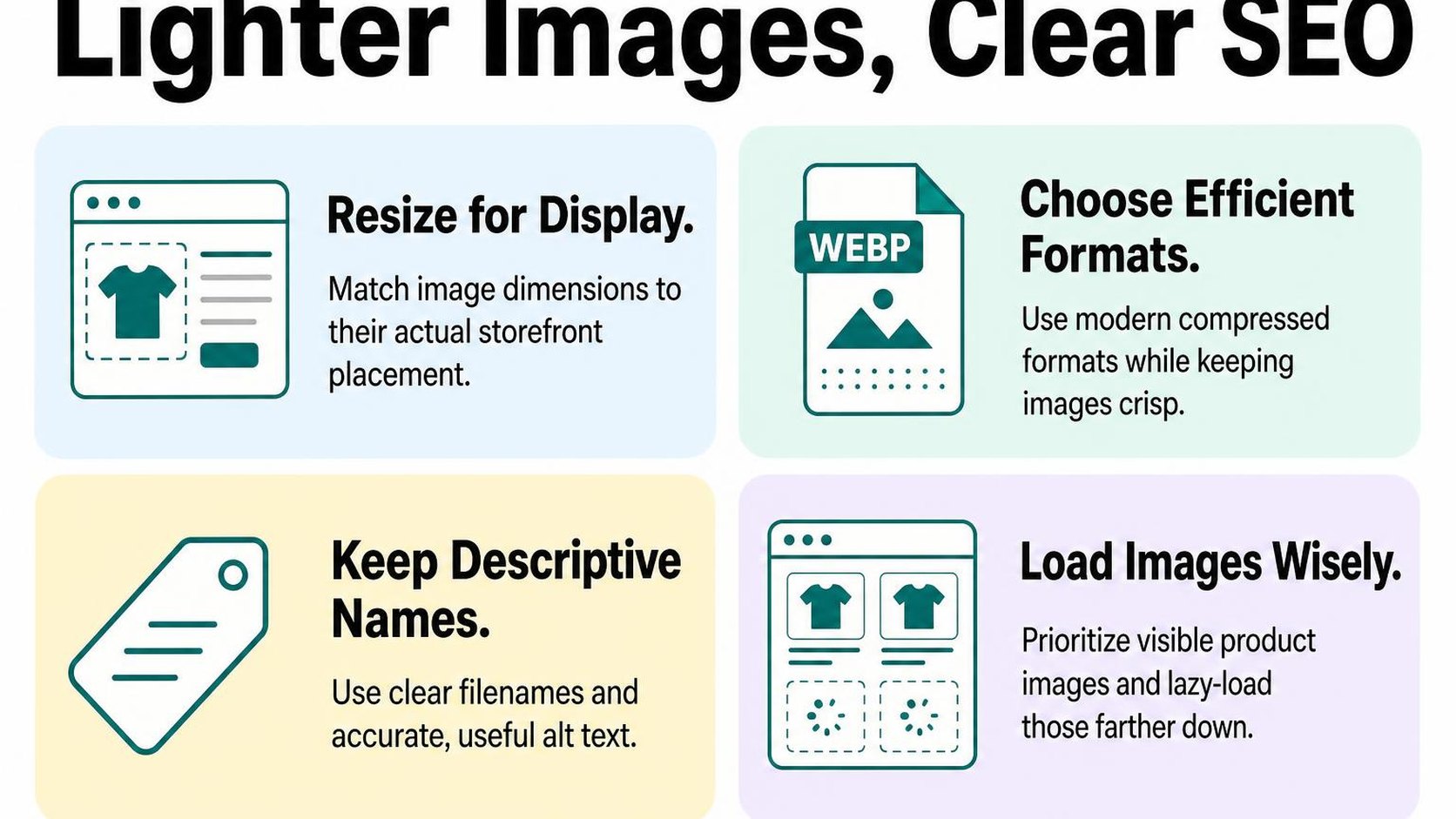
Check how wide each image appears in your theme before resizing the original. A collection thumbnail and a full-width product gallery have different requirements, so avoid applying one export size across your entire catalog.
Responsive images let the browser choose an image size suited to the screen and layout. Your theme should request appropriately sized Shopify image variants rather than send the full-resolution original to every phone. Allow enough resolution for sharp high-density displays and any product zoom feature you offer.
- Measure first: Check the largest displayed size on desktop and mobile, including gallery expansion or zoom.
- Compress gradually: Reduce file weight, then inspect stitching, text, edges, and gradients at the sizes shoppers actually use.
- Preserve layout: Keep image dimensions or a consistent aspect ratio in the theme so surrounding content does not jump during loading.
- Prioritize the opening image: Avoid lazy-loading the main above-the-fold product or banner image. Lazy-load images farther down the page instead.
Choose suitable formats and avoid oversized uploads
Use JPEG for photographic source files when transparency is unnecessary, and reserve PNG for images that genuinely need transparency or lossless detail. Avoid exporting every product photo as a large PNG simply because your design tool defaults to it.
Shopify handles browser-compatible delivery: its image upload guidance explains automatic delivery of supported formats, including WebP and AVIF. You do not need to manually convert every source file into several modern formats.
Keep high-quality originals in your own archive, then upload versions sized for your storefront’s largest useful display. Do not replace everything at once: test one product and one collection first, checking mobile downloads, desktop clarity, and zoom. A smaller upload alone does not fix a theme that requests unnecessarily large images.
Practical rule: Choose the smallest delivered image that still looks clear for its intended use. Do not sacrifice product detail for a higher speed score, and do not assume a lighter file automatically improves rankings.
Keep descriptive filenames and useful alt text
Alt text is a text alternative that describes an image’s meaning or purpose when someone cannot see it. Write a concise description of the actual product view, such as “Navy linen shirt with button cuffs, back view,” rather than repeating a target keyword across every photo.
For new uploads, use readable filenames such as navy-linen-shirt-back.jpg. Keep existing useful alt text when replacing files, and check the saved image afterward; replacement workflows can require you to enter it again.
Do not reupload an established image solely to rename it: that can change its URL without improving the shopping experience. Use the guide to Shopify image SEO and speed to review filenames and descriptions alongside performance, rather than treating them as competing tasks.
Step 4: Reduce theme code and render-blocking assets carefully
A theme update leaves you with two sliders, an old tracking snippet, and a product page that responds slowly on mobile. For Shopify page speed SEO, remove overhead without deleting the content and controls that shoppers and search engines need.
Duplicate your theme before editing, record baseline results for key page types, and change one thing at a time. A duplicate theme protects theme files, but it does not isolate every app setting or tracking configuration.
Remove unused theme features and duplicate scripts
Start with features you can identify: an unused homepage carousel, a discontinued popup, or code left behind by a removed integration. Disable the relevant section or app embed first, then check whether its assets still load. Hiding an element with CSS does not necessarily stop its scripts from downloading.
Compare theme files, app embeds, and tracking settings before removing a suspected duplicate. Two requests with similar names do not prove that one is unnecessary; they may serve different functions.
- Confirm ownership: Identify what adds each script and which storefront feature depends on it. Ask your developer about unfamiliar code rather than deleting it by filename.
- Remove at the source: Use the feature’s settings where possible. For leftover code, remove only the confirmed include and associated assets after backing them up.
- Protect SEO content: Keep product descriptions, headings, internal links, canonical tags, and structured data intact. Do not remove useful content just to shrink the page.
Review fonts, CSS, and JavaScript loading
Render-blocking assets are files that delay the browser from displaying page content while it processes them. Shopify’s theme performance guidance explains how to reduce blocking CSS and JavaScript. Your goal is to load essentials early and move optional work out of their way.
Reduce font families and unused weights before changing font-loading rules. A fallback font can display text sooner, but different letter widths can shift headings and buttons when the chosen font arrives.
- CSS: Keep styles needed for the initial layout available early. Remove rules only after checking other templates, breakpoints, and interactive states; apparently unused styles may belong to an unopened menu.
- JavaScript: Defer nonessential scripts when their dependencies allow it. Do not apply async or defer indiscriminately: changing execution order can break variant selection, cart updates, or tracking.
- Scope: Load feature-specific assets only on templates that need them, after confirming that shared components do not depend on those files elsewhere.
Retest storefront behavior after each change
For Shopify Core Web Vitals optimization, repeat the same mobile tests on your homepage, a collection, and representative product pages. Compare several runs under similar conditions instead of treating one higher score as proof.
Check menus, search, filters, variant changes, add-to-cart, cart drawers, and the checkout handoff. Confirm that descriptions, links, canonical tags, and structured data remain present, and check for new layout shifts or browser errors.
Practical rule: Keep a change only when it improves loading without breaking shopping behavior or removing SEO-critical information. If something fails, revert that change before testing the next one.
Step 5: Audit Shopify apps and third-party scripts for speed costs
Your product page opens, then a chat bubble appears and a review widget pushes the buy button down. For Shopify page speed SEO, audit what those tools load before deciding which ones to remove. An installed app is not automatically a storefront slowdown, and a small script can still interrupt shopping.
Inventory apps, pixels, chat widgets, and embeds
Build a list of everything that adds storefront code, including theme app embeds, manually pasted snippets, advertising pixels, review widgets, and external media. Record its purpose, owner, and where it runs. Check both your installed apps and theme settings: neither list alone captures every integration.
A pixel sends event data for measurement or advertising; a storefront widget adds something shoppers can see or use. Some integrations do both, so removing one can affect more than its visible feature.
- Business role: Note whether the tool supports purchases, customer support, consent, attribution, or optional merchandising.
- Loading scope: Record whether it runs across your store or only where its feature is needed.
- Cleanup needs: Check for duplicate installations and leftover snippets, following removal instructions rather than deleting unfamiliar code.
Identify scripts that delay or shift visible content
Use browser developer tools to inspect network requests and performance recordings on a representative mobile product page. Look for scripts that download early, occupy the browser while shoppers interact, or insert content above existing elements. A large file deserves investigation, but size alone does not prove it causes the delay.
According to Google’s explanation of PageSpeed Insights lab and field data, lab tests help diagnose controlled loading behavior, while field data reflects real users. Use repeatable lab runs for immediate comparisons; do not expect aggregated field results to change immediately after an edit.
| Observed cost | Possible cause | Test to run |
|---|---|---|
| Main image appears late | Early third-party work competes for resources | Disable one optional integration in a test theme and compare loading |
| Buy button shifts downward | A widget inserts content without reserved space | Reserve widget space and compare layout stability |
| Variant selection responds slowly | Script execution occupies the browser | Compare interaction recordings with the suspected feature disabled |
Remove or defer only what testing shows is safe
Save a baseline, duplicate your theme, and change one integration at a time. Repeat several mobile runs using the same pages, device settings, consent state, and test conditions. Keep a record of loading metrics and shopping behavior, not just the overall score.
Deferring means postponing execution rather than removing a script. Use supported settings or ask the integration developer about loading optional features on interaction; arbitrary delays can miss events or leave controls unresponsive. Theme previews also do not isolate every app or pixel setting, so confirm the scope before making changes.
Practical rule: Keep a change only after checking purchases, consent choices, analytics events, advertising attribution, and visible content. Do not delay consent controls or essential sales features merely to improve a test score.
Remove redundant tools first. If a useful widget remains costly, restrict where it loads or replace its implementation before abandoning the workflow it supports.
Step 6: Improve mobile page speed and verify the full customer journey
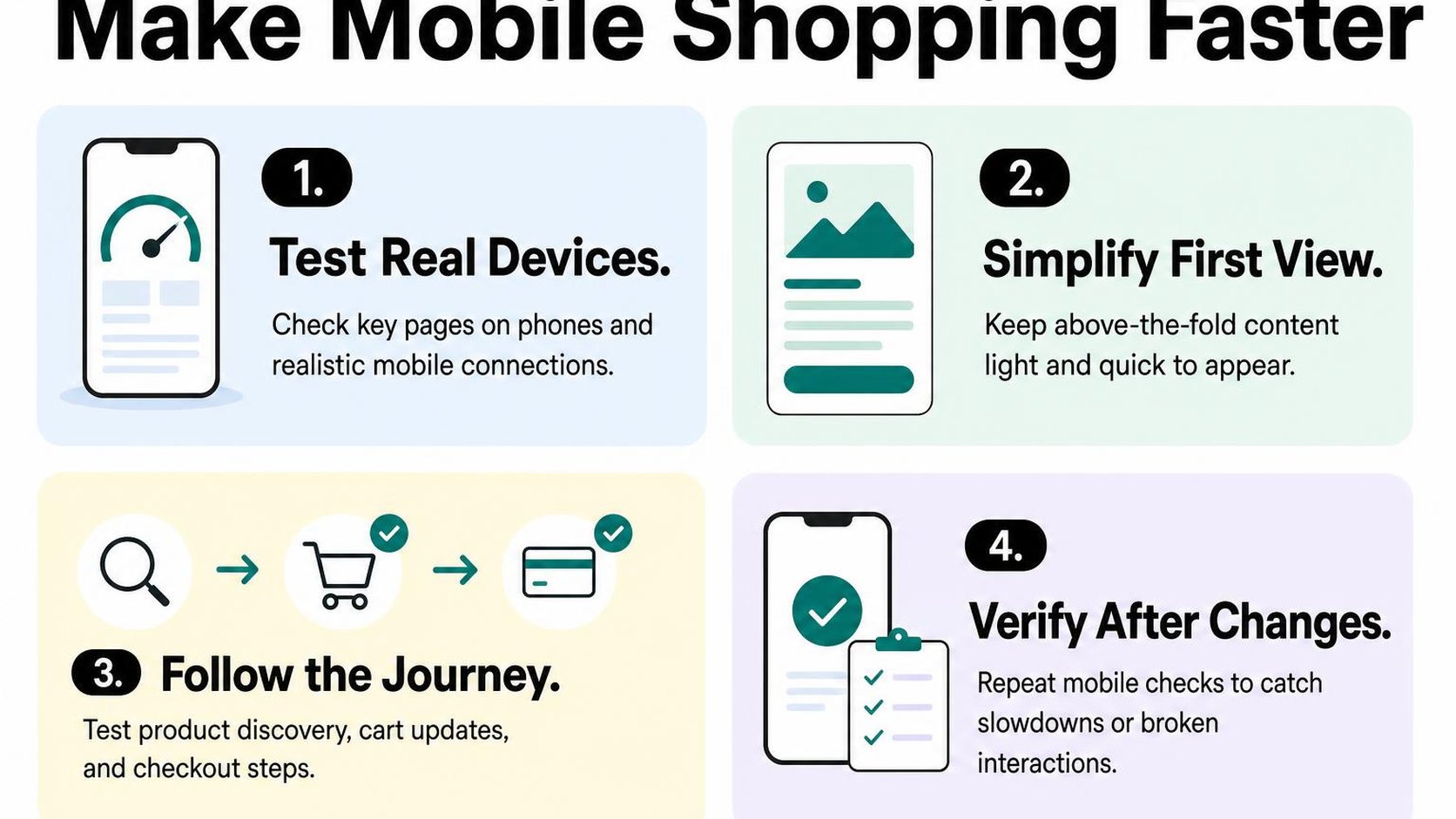
Your product page loads faster after a theme change, but a shopper taps a size and nothing happens. Shopify page speed SEO work is not finished until the mobile journey works from the first landing page through checkout. Test the published experience on a real phone, not just a desktop browser narrowed to a smaller window.
Check mobile layouts, menus, and product media
Open your homepage, a collection, and a product page on both a typical mobile connection and a slower one. Start with a fresh visit so cached files do not hide a slow first load. Check whether the main content appears promptly and stays in place as images, fonts, and banners load.
For Shopify mobile page speed SEO, keep useful content and navigation available while reducing their delivery cost. Do not remove product details, descriptive image text, or collection links simply because a lighter page earns a better score.
- Navigation: Open the menu, expand categories, use search, and follow a collection link. Confirm that overlays close and do not trap scrolling or cover essential controls.
- Product media: Swipe the gallery, zoom an image, and play any product video. Keep image dimensions reserved so loading media does not push the size selector or purchase button out of reach.
- Product selection: Choose different sizes, colours, and unavailable variants. Confirm that prices, availability, images, and the selected variant update correctly.
- Readable content: Check headings, descriptions, delivery information, and return details. Collapsible sections should open reliably without requiring a second tap.
Test cart and checkout interactions
Add a specific variant to the cart, change its quantity, remove it, and add it again. Check that the cart drawer and cart page show the same item, price, and quantity. A fast button animation does not prove that the cart actually updates.
Continue into checkout and check shipping options, discount entry, and available payment methods. Where practical, complete a controlled test order using an appropriate test setup, then verify order details. Do not expose test payment settings to live shoppers.
Practical rule: Keep a speed change only when shoppers can still select the right product, understand the total, and complete the purchase. Treat broken interactions as a release blocker, even when the performance score improves.
Compare field data after changes reach shoppers
Field data measures experiences from real visitors rather than a single controlled test. According to Google’s explanation of PageSpeed Insights lab and field data, the report combines controlled Lighthouse testing with real-user Chrome UX Report data. Use the lab results to investigate immediate regressions and field results to assess what shoppers experience.
Record the deployment date and revisit the same page types as new visits enter the reporting window. Field reports do not reset when you publish a change, so early results can still include the previous version. If a page lacks sufficient data, do not treat that absence as a passing result.
Compare loading, responsiveness, and layout stability alongside mobile add-to-cart and checkout completion rates. Traffic sources, promotions, and device mix can change those outcomes too. Shopify page speed score improvement is useful evidence, but it is not proof that rankings or sales improve.
Step 7: Maintain speed gains with a repeatable testing routine
You publish a campaign banner on Friday, then notice slower product pages on Monday. Treat Shopify page speed SEO as an ongoing maintenance task: every theme release, tracking script, and promotional widget can change what shoppers experience.
Your routine should catch regressions without turning every small update into a full audit. Set a short release checklist, review trends weekly, and reserve deeper investigation for changes that persist or interrupt shopping.
Retest after theme, app, or campaign changes
Keep a fixed set of URLs: your homepage, a collection, a typical product, and a product with heavier media or variant options. Check the same mobile test settings each time so your comparisons stay useful.
A regression is a measurable loss of performance or functionality after a change. Save a pre-release baseline, then retest the published version; a theme preview alone does not confirm how your live storefront behaves.
- Release checks: Test after theme updates, app installations or removals, consent-banner changes, and campaign launches.
- Shopping checks: Open navigation, select variants, add a product to the cart, and start checkout on a real phone.
- SEO checks: Confirm that headings, product copy, internal links, image descriptions, and canonical tags remain intact.
- Recovery checks: Keep the previous theme available and record how to reverse script or setting changes separately.
Track performance alongside organic and conversion metrics
Use a weekly review to connect speed changes with business results without assuming one causes the other. Record organic landing-page clicks, product-page engagement, add-to-cart rate, and completed purchases alongside your performance trend.
Compare similar periods and annotate sales, stockouts, pricing changes, and advertising launches. A faster page with fewer purchases needs investigation, not an automatic rollback; unavailable sizes or a changed offer may explain the drop.
- Performance signal: Look for repeated slowdowns across your saved URLs rather than reacting to one unusual run.
- Search signal: Check whether affected organic landing pages lose clicks or develop indexing issues after the release.
- Business signal: Separate mobile from desktop and review counts as well as rates, especially when order volume is low.
Practical rule: Keep a speed improvement only when essential content and shopping functions still work. Do not remove useful product information or break consent controls to improve a test result.
Document fixes and assign an owner
Create a shared change log with the release date, affected templates, test URLs, before-and-after results, and rollback instructions. Assign one person to review it, even when an agency or contractor makes the changes.
Preserving Shopify speed optimization without hurting SEO depends on this handoff. Your next campaign should start with known constraints, not another search for which script changed.
- Owner: Name the person responsible for testing and approving each release.
- Schedule: Run release checks immediately and a brief trend review every week.
- Escalation: Investigate repeat slowdowns and reverse changes promptly when they break buying or hide essential content.
Yassine Malti writes as a developer working on stores, with the focus on changes you can test, maintain, and reverse.
Put this into practice
Start with the store you already have, then use the guides on the blog for the next page that needs the same treatment.
Shopify apps by Yassine Malti
Put this into practice
-

ALT SEO · Image alt text
AI alt text for every product image · 100 images/month free
-

RANKit · Meta titles & descriptions
AI meta titles and descriptions, sized for Google · 50 meta tags/month free
-

TAGit · Product tags
SEO-friendly product tags, generated in bulk · 50 tags/month free