You publish a new collection, add it to your Shopify menu, and wait for shoppers to find it. Meanwhile, an older blog post still sends visitors to a sold-out product, and your bestselling product page offers no route to matching accessories. A shopify internal linking check helps you spot these gaps before you add more content.
How to Build an Internal Linking Strategy for Shopify shows you how to connect products, collections, and blog posts with links that make sense for the shopper’s next step. You learn where to add them, how to write useful link text, and how to check that each destination still works. The aim is a clearer path through your store, not a link in every sentence.
Internal links connect one page on your store to another. They help shoppers discover relevant items and help search engines find pages and understand their relationships. Your menus provide the main routes, while links inside descriptions, collection copy, and articles provide context that navigation alone cannot.
Start with the pages that matter most to your business, then connect them only where the destination answers a likely question or supports a purchase decision. More links mean more upkeep, especially when products disappear or collections change. Avoid forcing unrelated recommendations into useful copy just to increase the count.
Table of Contents
- Step 1: Map your Shopify store’s pages and priorities
- Step 2: Build a clear hierarchy from navigation to key pages
- Step 3: Link collections and products with useful context
- Step 4: Add contextual links to Shopify blog posts and pages
- Step 5: Add internal links in Shopify and check how they work
- Step 6: Audit link coverage, broken links, and page depth
- Step 7: Maintain your linking plan as the catalog changes
Step 1: Map your Shopify store’s pages and priorities
Before you change menus or edit descriptions, map the pages your shoppers can visit. Your shopify internal linking plan starts with knowing which pages exist, which ones matter, and which ones belong together.
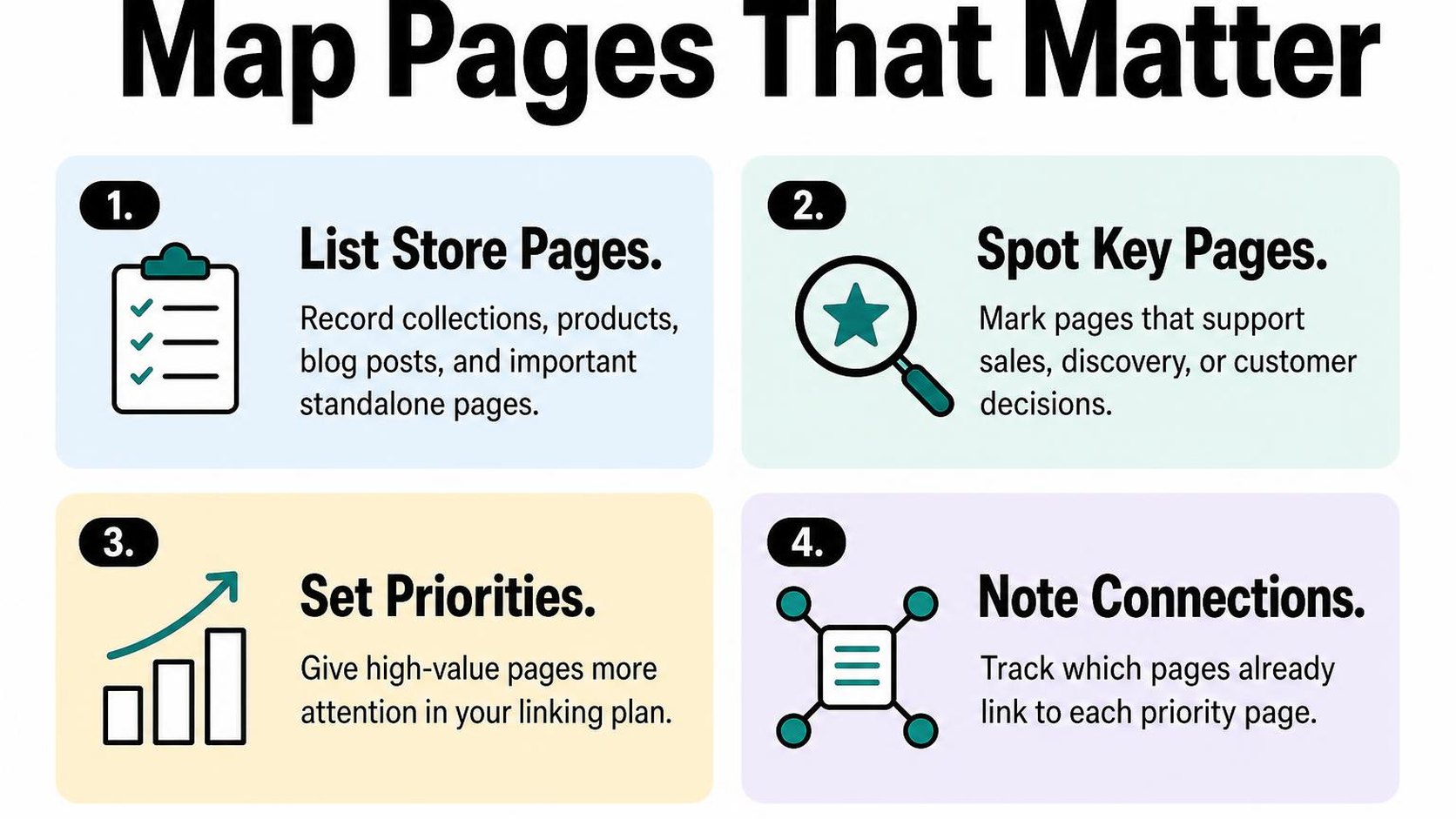
Use a spreadsheet rather than a redesign brief. The goal is to choose useful destinations before you decide where to add links.
List your products, collections, pages, and blog posts
Create a page inventory: a working list of your store’s URLs, their purpose, and their current status. Start with published products and collections, then add informational pages and blog posts from your Shopify admin.
Record the main URL you want shoppers to reach for each page. Keep draft, discontinued, and redirected destinations marked separately so they do not become accidental link targets.
- Page details: Record the URL, page title, page type, and whether the page is available on your online store.
- Shopper purpose: Note whether the page helps someone browse a category, compare options, buy a product, or answer a question.
- Existing routes: Record known links from menus, collection descriptions, product descriptions, and blog posts. Mark anything you have not checked as unknown.
- Next action: Label each page keep, improve, consolidate, or investigate. Do not delete a useful page just because it currently receives little traffic.
Choose priority pages based on search intent and business value
Search intent is the task someone wants to complete when they search. A shopper searching for “linen bedding” may need a collection, while someone searching for “how to wash linen sheets” needs a guide before a product recommendation.
Choose a small first batch of priority destinations using relevance, availability, and business value. A collection with dependable stock and clear demand usually deserves attention before a seasonal product that will disappear next week.
- Demand: Check Search Console for relevant queries and impressions. Treat those signals as evidence of interest, not a guarantee that more links will improve rankings.
- Commercial value: Consider sales, margin, stock stability, and whether the page helps shoppers choose between products.
- Page readiness: Fix thin or confusing destinations before sending more shoppers to them. Use the guide to optimize collection pages for organic traffic when a priority collection needs work.
Practical rule: Give stronger internal links to pages that satisfy a real shopper need and support your business. Do not make every page a priority or send every link to your highest-priced product.
Group related pages into clear topic clusters
A topic cluster groups pages around a shared shopping need. For a linen bedding range, your cluster might include the bedding collection, sheet sets, pillowcases, a sizing page, and a washing guide.
Assign each page a main cluster in your spreadsheet, then note useful connections across clusters. This makes Shopify blog internal linking purposeful: a care guide points toward relevant bedding, not an unrelated bestseller.
- Main destination: Choose the collection or guide that best introduces the topic.
- Supporting pages: Group products, comparisons, and help pages that answer the next likely question.
- Missing connections: Flag relevant pages with no obvious route between them. These become your first linking opportunities, not instructions to connect everything.
Step 2: Build a clear hierarchy from navigation to key pages
A shopper lands on your homepage, opens the menu, and sees a mix of products, seasonal offers, and company information. If the route to your main ranges is unclear, your shopify internal linking needs a stronger hierarchy, not simply more links.
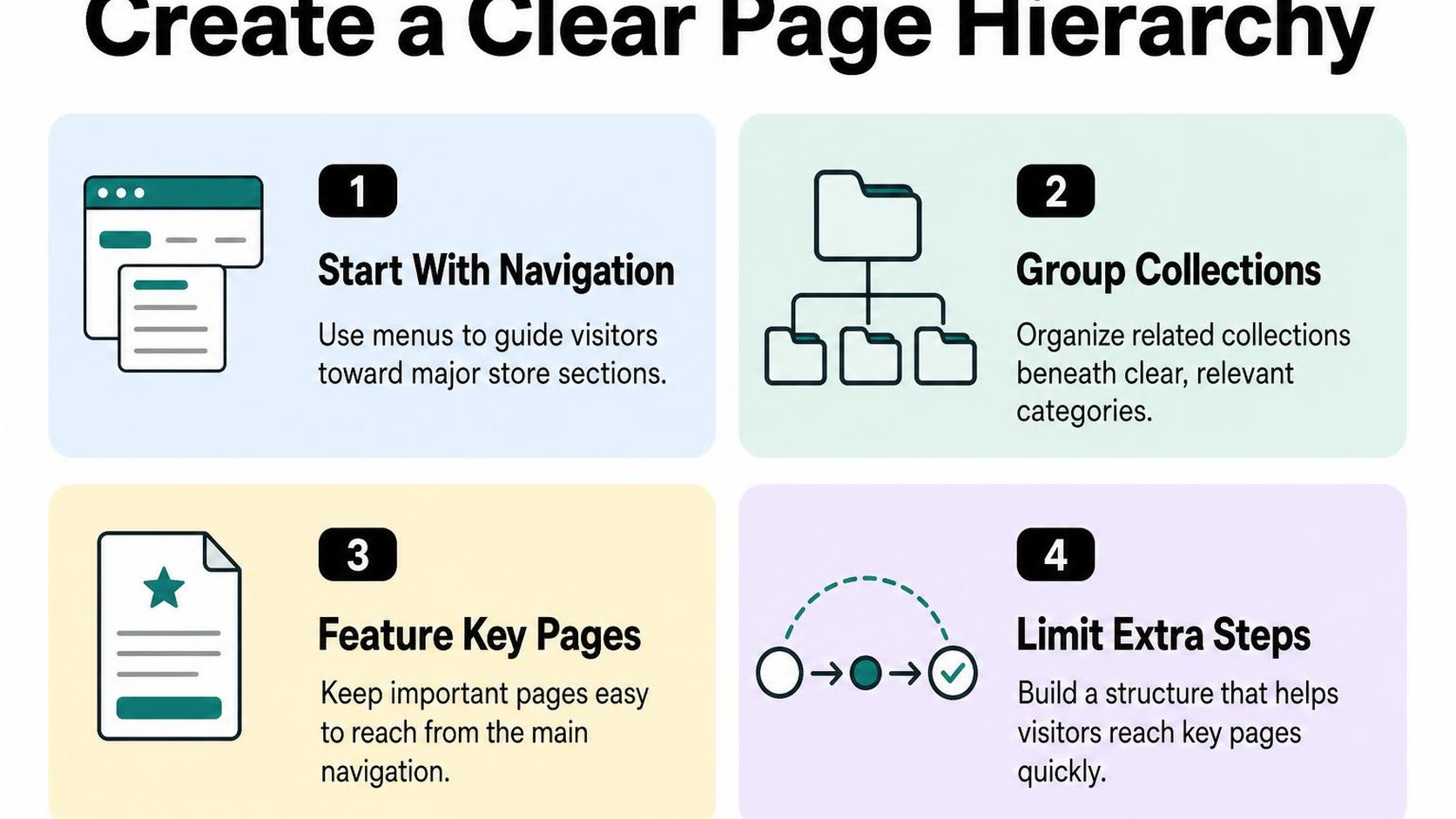
Build a predictable route from your homepage to collections, then to relevant products. This gives shoppers a way to browse and search engines clear paths to discover your catalog.
Connect the homepage to primary collections
Your primary collections are the main shopping categories that organize your catalog around customer needs. For a bedding store, these might be sheets, duvet covers, and pillowcases rather than campaign names that require explanation.
Add these destinations to your main menu and relevant homepage sections. In the theme editor, check where each collection tile or button leads; a tile labeled “Linen sheets” should open that collection, not a general catalog page.
- Main menu: Use familiar category names that help shoppers predict what they will find.
- Homepage sections: Feature core collections with descriptive links, especially when images alone leave the destination unclear.
- Seasonal promotions: Give temporary offers space without replacing every permanent route into your catalog.
The tradeoff is visibility versus clutter. Keep your core ranges easy to find without turning the homepage into a directory of every collection.
Use menus and breadcrumbs to show page relationships
Organize your Shopify menus so broad categories lead to narrower choices. A “Bedding” menu can contain “Sheets” and “Duvet covers,” while each collection provides links to its products.
Breadcrumbs are navigation links that show a page’s place within your store, such as Home, Bedding, then Linen Sheets. Check your theme’s options before adding custom code, and use this guide to Shopify breadcrumb navigation to review how those paths work.
A product can belong to several collections, so test its breadcrumb trail when you arrive from different collections. Do not assume the product URL alone creates the navigation hierarchy you want shoppers to see.
- Menu labels: Name the destination directly rather than using vague labels such as “Explore.”
- Breadcrumb destinations: Confirm each parent link opens a relevant, available page.
- Mobile navigation: Test expandable menus on a phone so subcategories remain accessible without hover interactions.
Keep important pages reachable in a few clicks
Click depth is the number of link clicks needed to reach a page from your homepage. Shopify’s guidance on organizing your store structure recommends keeping pages within three clicks where possible.
Use that as a practical target, not a reason to squeeze every product into your menu. Follow the actual route on desktop and mobile, starting from the homepage without using search or a saved URL.
- Priority collections: Reach them directly from the main menu or a visible homepage section.
- Key products: Make them discoverable through relevant collections, not only search results.
- Deep pages: Add a useful intermediate collection or contextual link when the route becomes unnecessarily long.
Practical rule: Shorten the path when it helps shoppers make their next choice. Do not flatten a useful category structure just to remove one click.
Step 3: Link collections and products with useful context
A shopper opens your hiking boots collection but needs socks that prevent rubbing. If the only route to socks runs through your main menu, you leave that shopper to work out the next step. Useful shopify internal linking connects those choices where the need appears, without turning every description into a directory.
Add links between related collections
Start with collections that serve the same task, occasion, or buying decision. On a hiking boots collection, a short sentence about pairing boots with hiking socks gives shoppers a relevant next destination. A link to unrelated clearance homeware does not, even if that collection needs more traffic.
To add the link in Shopify, open the collection in your admin and edit its description. Select the words that describe the destination, use the editor’s insert-link control, and enter the collection URL. Save, then check the live collection: your theme needs to display that description for shoppers to see the link.
- Adjacent needs: Connect collections such as duvet covers and fitted sheets when shoppers commonly need both.
- Useful alternatives: Link lightweight rain jackets to insulated waterproof jackets when warmth changes the buying decision.
- Placement: Keep introductory links brief so they do not push the product grid far down the page, especially on mobile.
Connect product pages to relevant collections and complementary products
For internal linking for Shopify product pages and collections, give each link a distinct job. A collection link helps shoppers browse alternatives; a complementary product link helps them complete a purchase. On a ceramic planter page, “Explore indoor plant pots” offers alternatives, while “Add the matching 15 cm saucer” points to an accessory.
Add a short sentence in the product description using Shopify’s link control, or use a product-recommendation section your theme supports. Check that automated recommendations actually complement the item. Another planter may be a useful alternative, but it is not necessarily something the shopper needs alongside the first one.
- Collection destination: Choose the closest relevant collection rather than sending every product to your full catalog.
- Compatibility: Link accessories only when size, fit, material, or model requirements match.
- Availability: Replace links to discontinued products with suitable alternatives rather than leaving shoppers at a dead end.
Write descriptive anchor text that sets clear expectations
Anchor text is the visible wording of a link. It should tell shoppers what they will find before they follow it. Use “Shop wide-fit walking shoes” rather than “See more,” and use a specific product name when linking to an individual item.
Google’s link best practices recommend concise, descriptive anchor text. Keep the wording natural within the sentence instead of repeating the same search phrase across every product description.
Practical rule: Add a link when it answers a likely next question: “What else fits?”, “What goes with this?”, or “Where can you compare alternatives?” Remove it when its only purpose is to add another link.
Finally, follow each link on your live storefront. Confirm that its destination matches the wording and that the link is easy to notice on mobile.
Step 4: Add contextual links to Shopify blog posts and pages
A shopper reads your guide to choosing a hiking backpack, but reaches the end without seeing where to compare the sizes you sell. This part of your shopify internal linking strategy connects useful advice with a relevant next step, without turning every paragraph into a sales pitch.
Contextual links sit within content that explains why the destination matters. Add them to buying guides, tutorials, care instructions, and evergreen pages where a reader needs more detail or a suitable product.
Link informational posts to relevant products and collections
Start with posts that already attract readers and discuss a problem your products solve. Match each recommendation to the passage around it: a paragraph about backpack capacity can lead to a size-based collection, while instructions for replacing a buckle can lead to that exact replacement part.
Choose a collection when readers still need to compare options. Choose a product when the advice depends on a particular item, compatibility requirement, or feature. Sending every reader straight to a bestseller skips the decision your article is supposed to help them make.
- Buying guides: Link a comparison or selection passage to the collection that contains the options you describe.
- How-to posts: Link a tool or accessory at the step where readers need it, rather than listing unrelated products underneath.
- Evergreen pages: Connect material guides and care pages to applicable collections, but keep policy instructions focused on completing the task.
In the Shopify content editor, select the relevant words and use the insert-link control to add the destination. Preview the saved page to check that the link appears within the intended sentence.
Connect related blog posts into topic clusters
A topic cluster is a group of connected articles that answer different questions about one subject. For a backpack store, a central choosing guide can connect to articles about torso measurement, packing, and waterproofing.
Link the choosing guide to each supporting article where it introduces that question. Then add a route back from the supporting article when readers need the broader comparison. This gives Shopify blog internal linking a clear structure without making every article link to every other article.
As you optimize Shopify blog posts, review older articles alongside new ones. A newly published sizing guide needs links from existing relevant posts, not just links pointing out to them.
Place links where they naturally help readers take the next step
Put the link beside the explanation that creates the need for it. A reader learning how to measure a torso benefits from the measurement tutorial there, not from a detached list of links before the introduction.
There is no fixed quota to hit. Google’s guidance on link placement and wording says there is no magical ideal number of links per page. A short care page may need fewer destinations than a detailed buying guide.
Editing check: Read the paragraph without following its links. If it no longer answers the question, restore the explanation; a link should supply useful depth, not replace the answer.
Step 5: Add internal links in Shopify and check how they work
You save a product description with a link to your sizing guide, but tapping it on the storefront does nothing. This is where your Shopify internal linking strategy needs a practical check: confirm that the link saves correctly, points to the right page, and works in your theme.
Edit links in Shopify’s product, collection, page, and blog editors
Open the content you want to edit in your Shopify admin. Product and collection descriptions, page content, and blog post bodies use rich-text editors where you can select text and insert a link.
- Products: Go to Products, open the product, and select the relevant words in its description. Use the insert-link control to add a care guide, compatible accessory, or relevant collection URL.
- Collections: Go to Products, then Collections, and open the collection. Add a contextual link in its description, but check that your theme actually displays that description.
- Pages: Find Pages using the admin navigation or search, then open your sizing, delivery, or other information page. Link the words that describe the destination.
- Blog posts: Find Blog posts, open the article, and insert links into the relevant passages. Save your changes before testing the storefront.
When deciding where to add internal links on a Shopify store, distinguish content links from navigation. Edit menus separately under Content, then Menus; your theme controls where those menus appear.
Use the correct destination and confirm the link is clickable
A relative URL is an address without the domain, such as /collections/rain-jackets. You can use it for a destination on the same storefront, or use its full public HTTPS address; never paste an admin editing URL or a temporary preview link.
Copy the address from the live destination and check its product, collection, page, or blog path. For stores with multiple languages or market subfolders, confirm that the link preserves the intended shopping experience rather than sending every visitor to the default storefront.
- Visibility: Confirm that the destination is available on the Online Store channel where applicable and is not hidden or scheduled for later publication.
- Saved markup: If the words look linked but do nothing, reopen the editor and check that a destination remains attached. Styled or underlined text alone is not a link.
- Changed handles: If the URL has changed, update the source link directly. Check any redirect separately rather than assuming it exists.
Practical rule: Open the saved storefront page and follow the link yourself. An editor preview does not prove that shoppers can reach the destination.
Test links on mobile and desktop, including menu and breadcrumb links
Test the live page on a desktop browser and a phone. Tap the linked words, open mobile menus, and follow breadcrumbs, the navigation trail that leads back through the store hierarchy.
If Shopify internal links are not working, compare another link in the same area. A single failure often points to an incorrect address; several unresponsive links can indicate a theme overlay or script problem.
- Mobile checks: Check whether sticky banners, popups, or nearby controls block taps.
- Navigation checks: Confirm menu destinations and breadcrumb paths lead to relevant, available pages.
- Theme checks: Reproduce the issue in a theme preview before changing code. Do not remove navigation to hide a broken interaction.
Step 6: Audit link coverage, broken links, and page depth
You remove a discontinued collection, but an older buying guide still sends shoppers to its missing URL. A shopify internal linking audit helps you find these dead ends and spot useful pages that your navigation barely exposes.
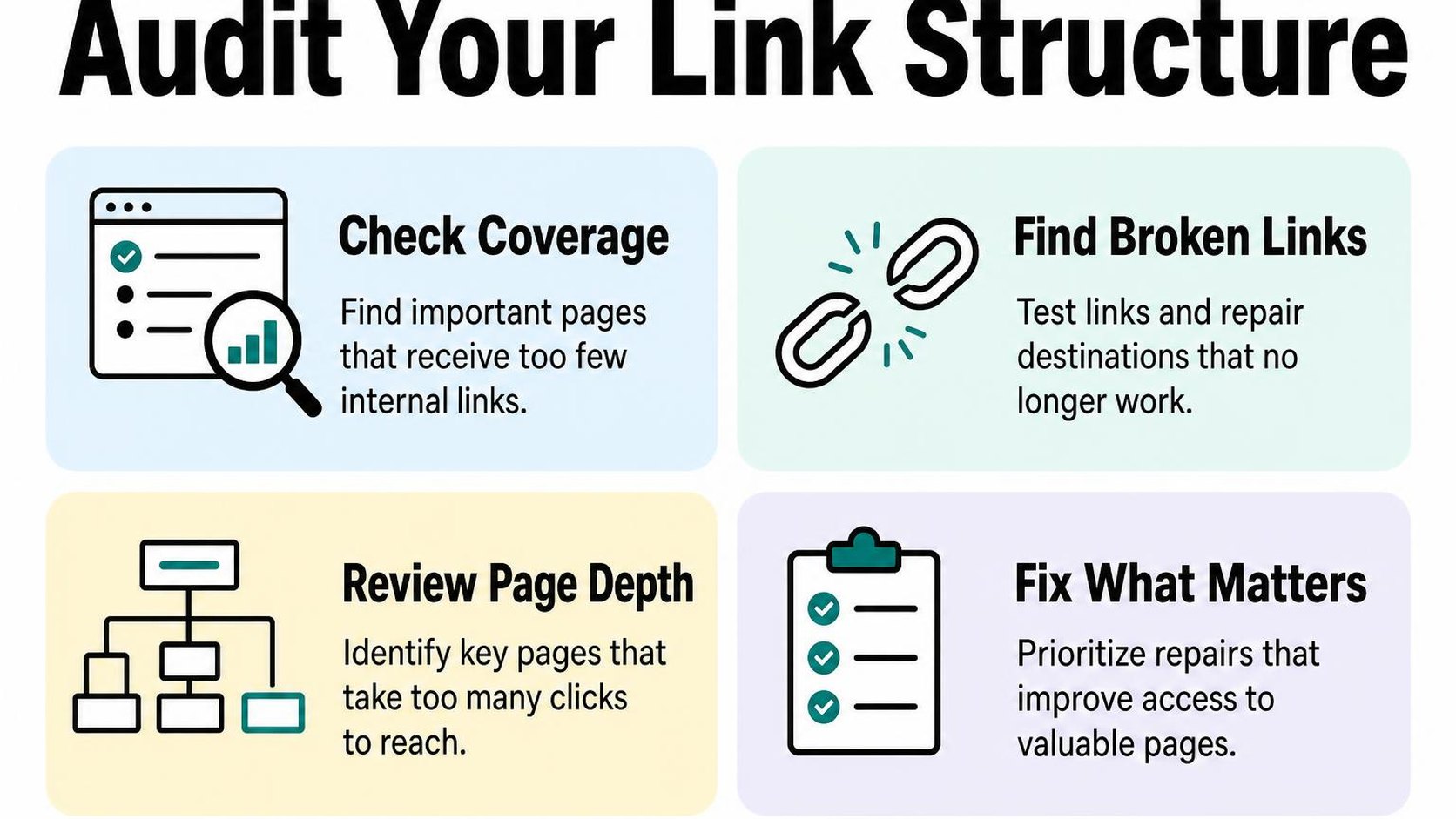
Run the audit after major catalog or navigation changes, then repeat it on a schedule that matches how often your store changes. Prioritize problems that interrupt shopping before polishing links on low-traffic archive pages.
Crawl the store and identify broken internal URLs
Use a website crawler that reports destination status codes, linking source pages, and crawl depth. Start from your homepage, follow internal links, and export the results so you can group problems by destination rather than fix the same URL repeatedly.
Filter for broken internal links, links to pages that return an error instead of the intended content. Also review redirects and failed requests, but confirm the result before changing anything: a temporary server error or blocked crawler does not always mean shoppers encounter a missing page.
| Finding | Priority | Action |
|---|---|---|
| Menu or buying-guide link returns 404 | High | Replace it with a relevant live destination or remove it. |
| Internal link passes through a redirect | Medium | Update the source link to the final intended URL. |
| Destination returns a temporary error | Verify first | Retest the URL and investigate persistent failures. |
Keep a redirect when an old URL has a genuine replacement, but update internal links too. Do not send every deleted product to the homepage; a working destination can still be irrelevant.
Find important pages with few or no incoming links
Compare the crawl with your published products, collections, pages, and blog posts. A homepage crawl cannot discover a truly unlinked page, so use your Shopify inventory or sitemap to identify URLs missing from the crawl.
An orphan page has no crawlable internal links pointing to it. Check whether each missing URL is published and intended for discovery before treating it as a problem.
- Coverage: Add relevant links to priority collections and products from useful, established pages.
- Context: Check whether incoming links come from relevant guides or collections, not just repeated footer navigation.
- Depth: Review crawl depth, the shortest number of link hops from your crawl’s starting page. Reduce unnecessary hops to important destinations.
For Shopify blog internal linking, connect a buying guide to the collection or products it genuinely helps readers choose. Do not add unrelated links simply to eliminate an orphan-page warning.
Use a sensible link count based on page purpose and reader needs
A large collection page naturally needs more product links than a short care guide. When you ask how many internal links a Shopify page should have, assess its job rather than apply one quota across every template.
Google’s link best practices explain that there is no magical ideal number of links per page. Review relevance, descriptive link text, and whether shoppers can recognize their next step.
Practical rule: Keep links that help readers browse, compare, or act. Remove redundant or distracting links, not useful navigation just to lower a count.
Step 7: Maintain your linking plan as the catalog changes
You rename a collection, retire a product, or publish a buying guide, but older pages still send shoppers along yesterday’s route. Keep your shopify internal linking plan tied to those changes rather than treating it as a finished setup.
Use a small tracking sheet with the source page, destination, reason for the link, and last review date. Focus on important shopping paths first; maintaining every link equally takes time away from pages that help shoppers choose.
Update links when products or collections are renamed or removed
A title change does not necessarily change a Shopify URL. Check the page’s URL handle before editing links, then update the visible link text wherever the old name becomes confusing.
When a URL changes, create or verify a 301 redirect, a permanent forwarding rule from the old address to the replacement. Update internal links to point directly to the new destination instead of relying on that redirect indefinitely.
- Renamed pages: Check menus, collection descriptions, product copy, and blog posts for outdated names and addresses.
- Removed products: Link to a genuine replacement when one exists. Otherwise, remove the recommendation or rewrite it around a useful collection.
- Seasonal collections: Keep an evergreen destination when the same shopping need returns. Do not redirect every discontinued page to your homepage.
Review priority pages after publishing new content
After publishing a guide, check which existing pages should introduce it and which shopping pages it should support. A new article needs relevant routes into it, not just links pointing out of it.
Review your priority collections alongside the new content. If a guide answers a common sizing or compatibility question, add it where that question interrupts a purchase, provided the destination remains useful and current.
- New buying guide: Connect it to relevant collections and add a link from an established article on the same topic.
- New product range: Update older recommendations so shoppers can reach the current assortment without following outdated comparisons.
- Changed priorities: Reassess links when stock availability or merchandising priorities shift. Do not promote unavailable products simply because they once sold well.
Track crawl errors and organic performance over time
Run a crawl after major catalog changes and schedule a monthly review. To find broken internal links on Shopify, inspect links returning missing-page errors and record the source pages that need editing.
Use Search Console to review indexing issues and compare organic clicks and impressions for priority pages over comparable periods. Crawl findings show technical problems; search performance shows trends, but neither proves that a link change alone causes a traffic increase.
- Weekly: Check links affected by product removals, collection changes, and newly published content.
- Monthly: Review broken destinations, redirecting links, and priority pages missing relevant incoming links.
- After repairs: Test the affected path on your storefront and record the review date.
Practical rule: Make link checks part of publishing and catalog updates, not a cleanup task reserved for falling traffic.
Yassine Malti is the developer writing this guidance from store work.
Put this into practice
Start with the store you already have, then use the guides on the blog for the next page that needs the same treatment.
Shopify apps by Yassine Malti
Put this into practice
-

ALT SEO · Image alt text
AI alt text for every product image · 100 images/month free
-

RANKit · Meta titles & descriptions
AI meta titles and descriptions, sized for Google · 50 meta tags/month free
-

TAGit · Product tags
SEO-friendly product tags, generated in bulk · 50 tags/month free