You publish a new collection, update your theme, and open Search Console to find that several product pages still have generic titles. Meanwhile, new product images arrive without useful alt text, and last season’s descriptions remain unchanged. Shopify SEO automation helps you handle repeatable work, but it also makes a weak template spread faster across your catalog.
Shopify SEO Automation: Tasks to Streamline and What to Review Manually shows you which tasks suit rules or bulk generation, where approval steps belong, and which decisions need your judgment. You get a practical way to automate Shopify SEO tasks without treating every product page as interchangeable.
Start with work that follows a clear pattern: drafting meta descriptions from verified product details, flagging missing image descriptions, or checking pages for empty title fields. These tasks reduce repetitive editing, but a completed field does not necessarily help a shopper or match a search query. An automated description can still invent a material, miss a product’s main use, or repeat the same promise across dozens of pages.
Your review time belongs where mistakes carry more weight: choosing target queries, checking factual claims, approving redirects, and deciding whether similar pages serve different needs. The aim is a smaller, more reliable review queue—not a store that publishes every generated change unchecked.
Table of Contents
- What Shopify SEO automation can and cannot do
- Automate routine Shopify SEO tasks safely
- Build a Shopify SEO workflow automation process
- Automate meta tags on Shopify with quality controls
- Apply Shopify product SEO automation without losing accuracy
- Use Shopify image SEO automation with accessibility in mind
- Set review rules and improve your automation over time
What Shopify SEO automation can and cannot do
Shopify SEO automation means using rules, templates, scheduled checks, or generated drafts to handle recurring search optimization work. You give the workflow a defined job, such as identifying missing metadata, rather than asking it to decide your entire search strategy.
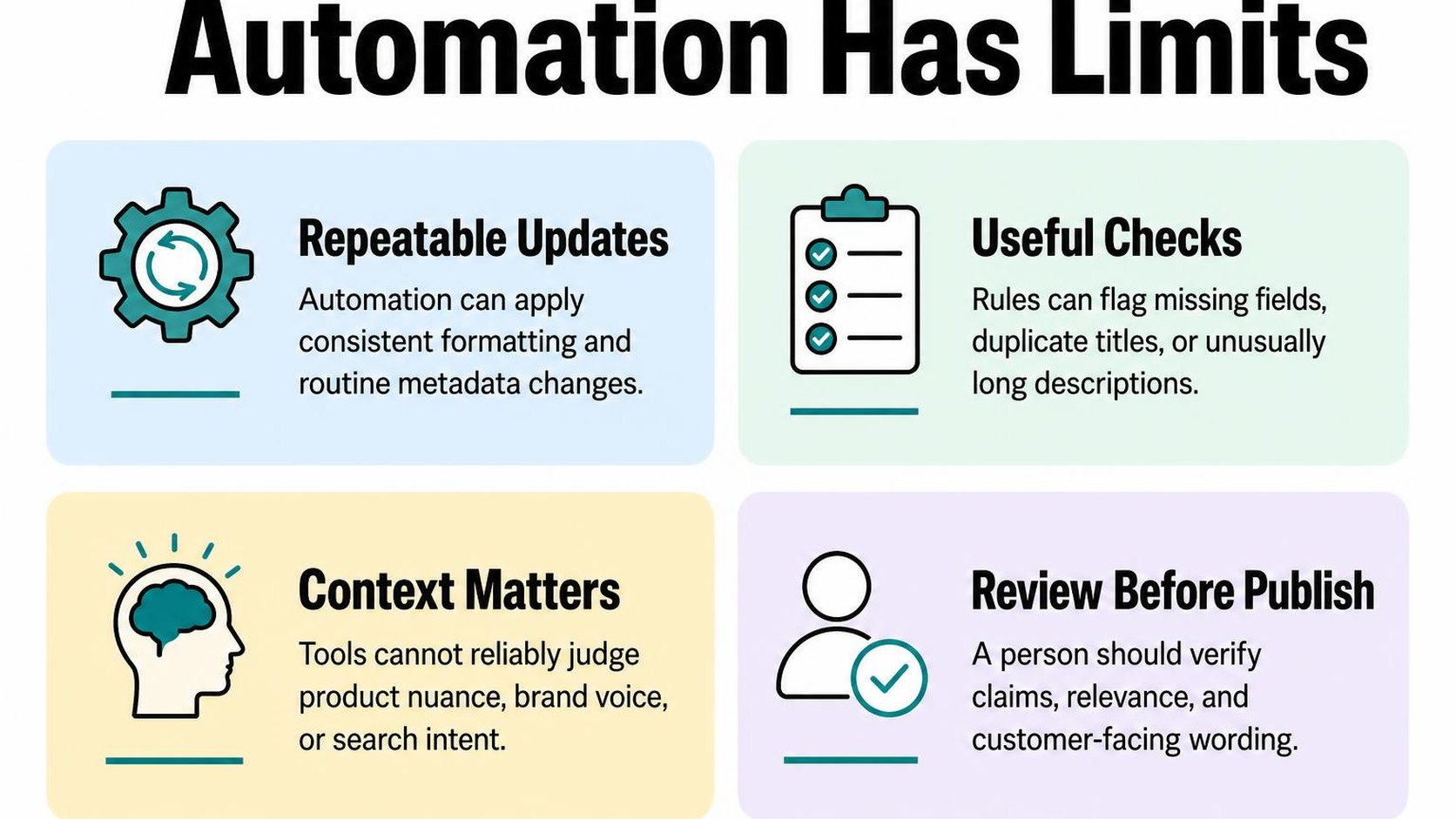
Can SEO be automated on Shopify? Yes, parts of it can. Automation reduces repetitive editing and helps you catch omissions, but it cannot guarantee rankings or decide which pages deserve your next hour of attention.
How automation supports a repeatable SEO workflow
A repeatable SEO workflow follows the same steps whenever a product launches or changes: check the inputs, prepare updates, review exceptions, and verify the published result. That consistency matters when several people edit your catalog or hundreds of products share a template.
For Shopify product SEO automation, start with reliable product data. A title template can combine the product name, material, and size, but missing or inaccurate attributes produce weak output at scale. Automating a bad input does not fix it.
- Find omissions: Flag products with missing meta descriptions, empty image alt text, or incomplete specifications so you have a defined review queue.
- Prepare drafts: Generate metadata or image descriptions from verified product details, then hold uncertain cases for approval.
- Repeat checks: Run checks after catalog imports or theme changes instead of relying on someone to remember every step.
- Separate exceptions: Route products with missing attributes, unusual variants, or sensitive claims to manual review before publishing changes.
Some repeatable work already happens inside Shopify. Its documentation explains that Shopify automatically generates your sitemap, which lists links to products, collections, pages, and blog posts. You still need to check submission and indexing reports; having a sitemap does not mean every listed page appears in search.
If you need to connect these tasks to a broader store audit, the Shopify SEO solution guide gives you a wider view of the work. Choose the workflow first, then decide which steps need automation.
Why strategy and judgment still need a human
Automation can identify pages with similar titles, but you decide whether those pages serve different shopper needs. Two nearly identical products may need clearer differentiation, while an overlapping collection may need a different purpose rather than another batch of rewritten metadata.
Your Shopify SEO tasks to do manually include choosing target searches, checking factual claims, and deciding whether a page answers a buying question. A generated description can sound complete while leaving out compatibility, care instructions, or sizing details that determine whether someone buys.
Practical rule: Automate work when the correct result follows a clear rule. Require human review when the result depends on shopper intent, product truth, or a decision that affects valuable URLs.
Review a small batch before expanding a workflow across your catalog. Check the live page as well as the saved fields, and compare performance over time without treating every traffic change as proof that automation helped or hurt. The aim is fewer repetitive mistakes, not unattended SEO.
Automate routine Shopify SEO tasks safely
You import 200 products, and the titles, descriptions, and images all need attention before launch. Shopify SEO automation can handle repetitive field updates and flag missing information, but it needs clear rules about what it can change and what stays untouched.
Start with draft generation and scheduled checks rather than automatic publishing. You save time without letting one weak template spread inaccurate claims or identical copy across your catalog.
Metadata and product content at catalog scale
Metadata templates are reusable patterns that combine verified product fields into page titles and meta description drafts. A title pattern might use product type, material, and brand, but it needs a fallback when a field is missing. Otherwise, you publish awkward fragments or titles that say little beyond the product name.
To automate meta tags on Shopify safely, group products by category before applying a pattern. A replacement part needs compatibility details; a shirt needs different information. Use the approach to optimizing Shopify meta tags at scale to plan those patterns without forcing every product into the same wording.
- Choose reliable inputs: Pull from approved product titles, specifications, and metafields. Leave unsupported benefits, certifications, and delivery promises out of generated copy.
- Protect existing work: Fill empty fields first, exclude manually approved pages, and save previous values so you can restore them if a batch fails review.
- Check exceptions: Flag missing attributes, duplicate drafts, and unusually long text. Treat length checks as editing prompts, not guarantees about how a search result displays.
- Separate content from facts: Generate readable product-description drafts from supplied information, but check dimensions, materials, compatibility, and care instructions before publication.
Google explains that page-specific meta descriptions can be generated programmatically, particularly for large database-driven sites. Search snippets still depend primarily on page content and can vary by query, so a saved description does not guarantee the exact text shoppers see.
Image alt text, redirects, and recurring checks
Shopify image SEO automation works best when it describes the actual image rather than recycling the product title. Alt text is a text alternative that communicates an image’s purpose or content when someone cannot see it. Draft descriptions in batches, then check variant colors, viewing angles, and images that contain important text.
Redirects need a different safeguard: a destination that serves the same shopper need. You can prepare redirect imports from an approved old-to-new URL map, but do not send every discontinued product to your homepage or assume every reported broken URL needs a redirect.
- Monitor routinely: Schedule checks for broken internal links, missing metadata, and unexpected changes to important pages. Send exceptions to a review queue rather than triggering automatic rewrites.
- Validate redirects: Check source paths, destination relevance, and redirect chains before importing changes; test valuable URLs afterward.
- Keep an audit trail: Record changed fields, affected URLs, and update dates so you can investigate problems without guessing which workflow caused them.
Publishing safeguard: Let routine checks run unattended, but require approval for changes that alter product facts, established copy, or URL destinations.
Build a Shopify SEO workflow automation process
You add a new collection, and dozens of products need search metadata before launch. Shopify SEO automation helps you handle that repeated work, but the process needs clear boundaries: which pages qualify, which facts supply the text, and who approves the result.
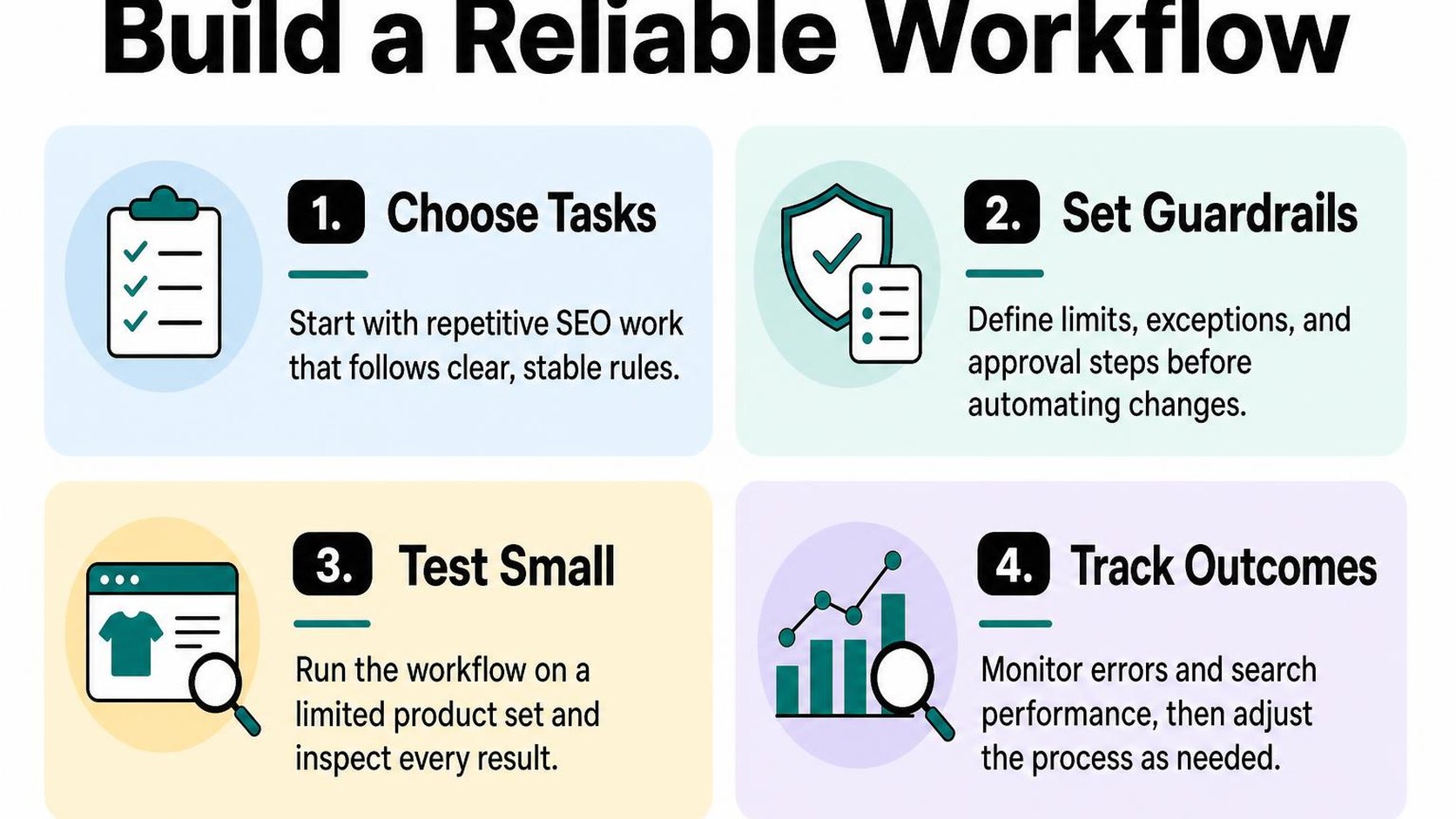
Start with one task rather than connecting every SEO field to an automatic update. A narrow workflow makes mistakes easier to spot and lets you measure whether automation actually saves review time.
Choose a task and define its rules
Select a task with consistent inputs and an output you can check quickly. Drafting missing meta descriptions for one product category is easier to control than rewriting every product page, because you can define what a useful description includes.
A trigger is the event that starts the workflow, such as a product becoming ready for publication. Pair it with eligibility rules so an unrelated inventory update does not generate fresh copy for an established page.
- Scope: Include only products in your chosen collection with a blank meta description and complete product details. Exclude bestsellers and pages with carefully edited copy from the first run.
- Inputs: Use verified fields such as product type, material, size, and intended use. If required information is missing, leave the item pending instead of asking the system to invent it.
- Approval point: Save generated text for review before publication. Give one person responsibility for checking accuracy, distinct wording, and whether the text helps a shopper choose.
Test changes before applying them across the store
Choose a small, varied sample: a straightforward product, one with several variants, one with sparse information, and one with a long name. Ten representative products often reveal more useful problems than ten nearly identical ones.
Compare the drafts with the actual product pages, not just the source spreadsheet. When you automate meta tags on Shopify, check that similar products still receive meaningfully different descriptions; Shopify’s guidance on adding SEO keywords recommends unique, descriptive metadata for individual pages.
Practical rule: Expand only when the sample passes your checks without repeated corrections. If reviewers keep fixing the same issue, change the rule or improve the source data before processing more products.
Keep the test batch separate from the next rollout. Increase coverage gradually, and confirm that your process leaves existing approved text untouched rather than treating every populated field as permission to overwrite it.
Track outcomes and revise the workflow
Measure operational results first: time spent per batch, approval rate, and the reasons drafts fail review. A workflow that generates text quickly but creates hours of corrections is not yet saving work.
For search performance, compare affected pages over time in Search Console, allowing for recrawling and normal demand changes. Impressions, clicks, and click-through rate provide context, but a short-term increase does not prove that your automation caused it.
- Weekly review: Inspect a fresh sample and group recurring problems, such as missing specifications or repetitive phrasing.
- Revision decision: Tighten eligibility rules when inputs are unreliable. Expand to another category only when the current workflow consistently produces useful, accurate drafts.
Automate meta tags on Shopify with quality controls
You add forty products, then notice their search listings all start with the same phrase. Shopify SEO automation saves typing, but repeated wording makes different pages sound interchangeable. To automate meta tags on Shopify reliably, define what each page should communicate before generating a batch.
Set page-specific rules for titles and descriptions
A title tag names a page for browsers and search engines; a meta description summarizes it and may supply text for a search snippet. Neither field should promise something your page does not deliver. Start with verified product information, not instructions to make every item sound exceptional.
Give each page type a separate pattern. Product titles need a recognizable item name and a useful distinguishing detail; collection titles need the category shoppers expect. Descriptions should explain what you sell and why that particular page fits the search, without repeating a store-wide sales pitch.
| Page type | Generation rule | Manual review trigger |
|---|---|---|
| Product | Use the product name plus a verified material, size, or use. | The draft invents a specification or confuses variants. |
| Collection | Name the category and reflect its actual selection. | The wording promises products the collection does not contain. |
| Guide | Describe the question answered and the scope covered. | The draft sounds like a product listing rather than advice. |
RANKit AI Meta Tags Generator generates product SEO titles of 50–60 characters and descriptions of 120–160 characters using product images, copy, vendor, and type. Those target lengths help standardize drafts, but they do not guarantee how Google displays them. You still need to check facts, page fit, and unsupported claims.
Check accuracy, duplication, and search intent
Search intent is the task behind a shopper’s query, such as finding a specific replacement part or comparing materials. A generated title can contain the right keyword yet describe the wrong task. Edit it when it misrepresents the product, hides the distinguishing detail, or makes an informational page sound transactional.
- Accuracy: Check materials, compatibility, quantities, and offers against the visible page. Remove shipping or discount promises unless they remain valid for that audience.
- Duplication: Compare drafts across similar products. If only the SKU changes, add a meaningful difference rather than rotating generic adjectives.
- Readability: Put the useful information first. Do not sacrifice clarity to fill a character target or repeat a keyword.
Google explains that page-specific descriptions can be generated programmatically, but snippets primarily come from page content and can vary by query. Treat your description as a relevant candidate, not a guaranteed search-result message.
Practical rule: Approve wording only when you can verify every claim on the destination page. If missing product data prevents an accurate draft, fix the source information instead of approving a polished guess.
After publication, use the steps for using Google Search Console to review performance to inspect page and query patterns. A weak click-through rate warrants investigation, not an automatic rewrite: ranking position and query relevance also affect clicks.
Apply Shopify product SEO automation without losing accuracy
You import a supplier’s latest catalog, and dozens of product pages arrive with thin descriptions and inconsistent specifications. Your shopify seo automation workflow can turn those records into drafts, but it can also spread one incorrect material or compatibility claim across the store.
The useful division is simple: automate the assembly of known facts, then review what those facts mean for the shopper. Faster publishing helps only when the page describes the item you actually sell.
Use product data as a source, not a substitute for verification
Start with a source of truth: the approved product information your drafts must follow. This can include Shopify product fields, structured metafields, verified supplier specifications, and your own measurements. A supplier’s promotional paragraph is not automatically reliable just because it appears in your import.
When you automate SEO for Shopify product pages, separate required inputs from optional details. If a required field is missing or conflicting, send the product to a review queue instead of letting the generator fill the gap.
- Approved facts: Supply materials, dimensions, care instructions, included accessories, and compatibility details from verified records. Keep units consistent so the draft does not confuse inches with centimeters.
- Generation boundaries: Tell the workflow not to infer certifications, country of origin, performance guarantees, or suitability for children. An empty field means “unknown,” not permission to guess.
- Distinct information: Build each description around meaningful differences, such as capacity, fit, or intended use. Changing a color name in otherwise identical copy does not explain why a shopper should choose that item.
- Traceable changes: Keep the previous description and record which products receive updates. Test a small batch before applying the same instructions to your whole catalog.
This approach reduces repetitive writing without removing editorial responsibility. Do not add length merely to make similar products appear different; a concise, accurate explanation is more useful than invented distinctions.
Review claims, variants, and search intent
Open the draft beside the actual product record and storefront variant selector. Check whether the wording describes every option or accidentally presents one variant’s features as universal. A “leather strap” claim fails when half the available options use nylon.
Then check search intent, the need behind the shopper’s query. Someone searching for a replacement bottle lid needs fit details and compatible models before brand storytelling. Someone comparing insulated bottles needs capacity, dimensions, and verified insulation information.
Practical rule: Approve a product description only when you can identify the source for each factual claim and the purchase question each paragraph answers.
Review the live page too: headings, descriptions, specifications, and selected variants should agree. Baymard’s research on insufficient product descriptions shows why product-specific detail matters for shoppers evaluating an item.
Use human review for safety statements, compatibility, and ambiguous supplier data. For routine updates, check changed fields and sample unchanged content; if a sample reveals errors, stop the batch and fix the inputs before publishing more pages.
Use Shopify image SEO automation with accessibility in mind
You upload a new product gallery, and every image arrives with a camera filename and no description. Shopify image SEO automation helps you draft missing descriptions at scale, but each draft still needs to match the photograph rather than repeat the product title.
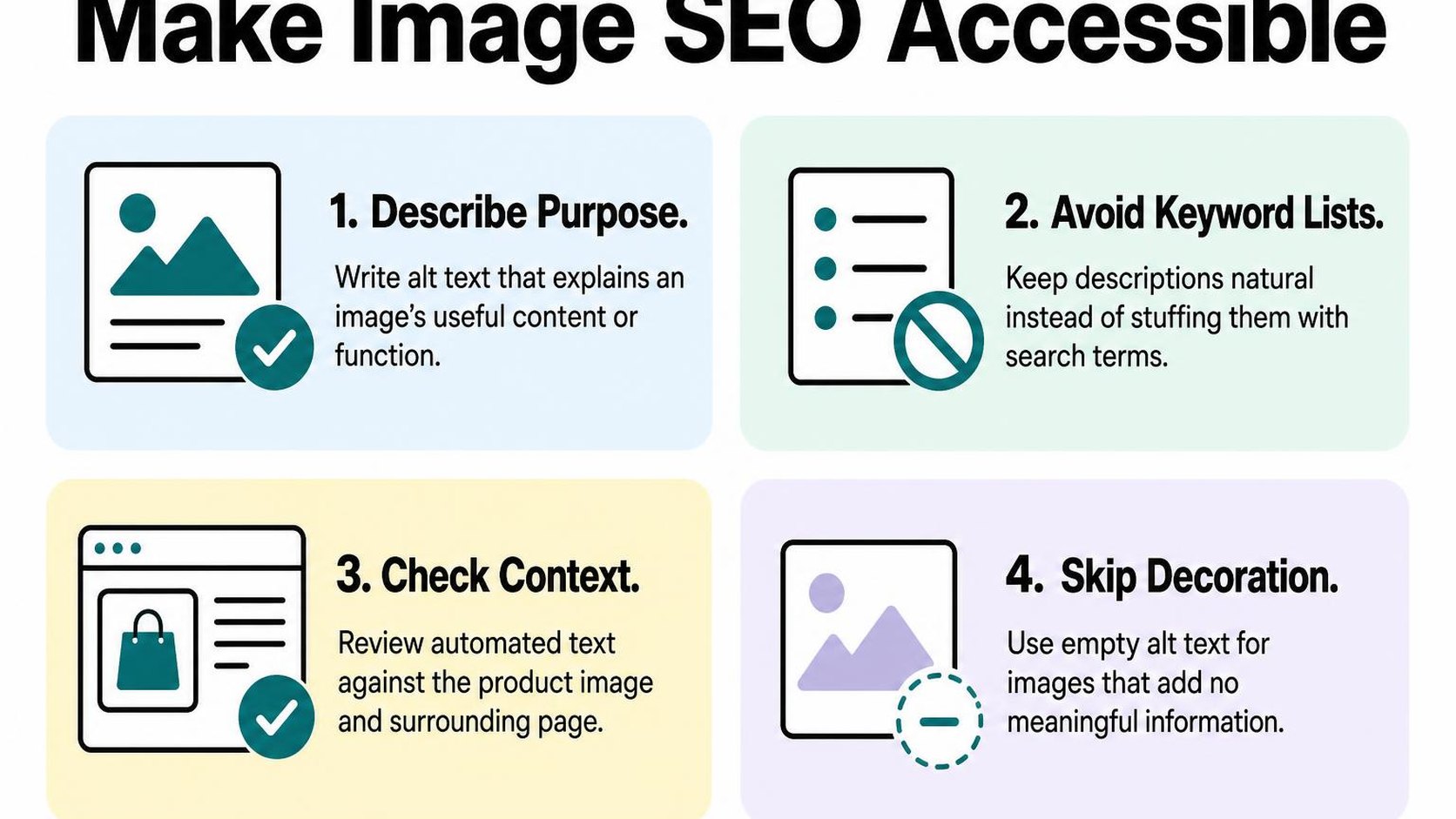
Alt text is a text alternative that communicates an image’s relevant meaning when someone cannot see it. It supports accessibility and helps search engines understand images, but it is not a place to insert every keyword you want a product to rank for.
Generate descriptive alt text from image context
Use the image itself as the main input, with the product name and selected variant as supporting context. Product data can help identify an item, but it should not introduce features, materials, or claims that the photograph does not establish.
For a bottle gallery, “Blue insulated bottle shown from the front” and “Close-up of the bottle lid’s carrying loop” describe different views. Repeating “Best insulated water bottle for hiking” across both images replaces useful information with a sales phrase.
- Subject: Identify the product or detail shown, using its familiar name rather than a string of catalog attributes.
- Visible differences: Include color, angle, pattern, or a relevant component when those details help distinguish one image from another.
- Image context: Describe a lifestyle scene when it matters, such as a shoulder bag worn across the body to show its position.
- Batch boundaries: Start with one product group, review the output, and preserve existing descriptions that someone has already checked.
Keep drafts concise without treating a fixed character count as the goal. A simple front view needs less explanation than an image showing how several parts fit together.
Manually check meaning, accessibility, and exceptions
Review generated text beside the actual image, not just in a spreadsheet of product names. A description can sound plausible while naming the wrong variant, inventing a material, or describing an accessory that is not included.
Also check how the image functions on the live page. The same graphic may communicate product information in one location and serve only as decoration in another, so one reusable description does not always fit every placement.
- Decorative images: Purely decorative flourishes generally need an empty alt attribute so assistive technology can skip them. Check the theme’s rendered output rather than assuming a blank admin field produces that result.
- Linked images: When an image is the only content of a link, its text alternative should communicate the destination or action. Review the surrounding link text before adding redundant wording.
- Charts and instructions: Size charts, diagrams, and assembly graphics often need accessible text elsewhere on the page, not an entire explanation squeezed into alt text.
- Uncertain details: Correct color mismatches and remove guessed identities, materials, certifications, or performance claims. Escalate unclear images for manual editing.
Practical rule: Automate the first draft, then ask whether someone who cannot see the image receives its relevant meaning. If the text merely repeats marketing copy, revise it before publishing.
After a theme update, sample product galleries again. Confirm that approved descriptions still appear on the intended images and that decorative or repeated elements do not create unnecessary noise.
Set review rules and improve your automation over time
A bulk update finishes, but your best-selling collection now has a generic title and several products share the same description. Shopify SEO automation needs review rules that catch costly mistakes without making you reopen every page.
Set those rules before the next batch runs. Decide what can publish automatically, what stays in draft, and which changes require approval regardless of how confident the output sounds.
Prioritize high-impact pages for manual review
Start with pages that already bring organic traffic, generate revenue, or support an upcoming launch. Include collections that help shoppers reach important products, even when those collection pages record few direct sales.
An approval threshold is a condition that determines whether an automated change can publish or needs review. Use conditions you can verify, such as missing product attributes, repeated titles, unsupported claims, or changes to a priority page. A fluent sentence is not evidence that the content is accurate.
- Require approval: Review changes to your highest-revenue products, main collections, and pages with substantial organic traffic before publishing.
- Allow limited publishing: Start with small batches on lower-risk pages where source data is complete and the same rules already pass manual checks.
- Escalate exceptions: Hold content that invents specifications, changes product meaning, duplicates another page, or removes information shoppers need.
- Keep a recovery path: Save previous values and record which pages change, when they change, and which rule produces the update.
The tradeoff is speed versus exposure: stricter approval slows publishing but limits the damage from a faulty template. Do not relax your rules simply because a batch contains hundreds of products; reduce its size instead.
Use a recurring checklist to catch errors and changes
Check each new batch, then schedule a weekly exception review and a monthly performance review. Repeat your checks after theme updates, navigation changes, migrations, or changes to the data feeding your automation.
Keep the checklist short enough to use consistently. Shopify SEO workflow automation works better when every flagged issue has an owner and a clear next action.
- Inspect published output: Sample changed pages across product types and templates. Check visible copy, page titles, descriptions, links, and whether approved edits appear where expected.
- Check discovery: Review Search Console indexing reports and inspect important URLs when unexpected exclusions appear. Confirm that navigation still connects shoppers and crawlers to priority products.
- Compare performance: Track impressions, clicks, click-through rate, and organic conversions for changed pages against their previous performance and an unchanged comparison group.
- Adjust one rule: When errors repeat, fix the source data, prompt, or template before expanding the batch. Retest a small sample and document the result.
Practical rule: Treat performance changes as a reason to investigate, not proof that your automation causes them. Check seasonality, stock availability, promotions, and indexing before rewriting another batch.
Give search engines time to recrawl changed pages, and avoid judging results from a few days of sparse traffic. Keep useful changes, reverse harmful ones, and expand automation only when accuracy stays consistent.
These review habits reflect the store work behind this guidance from developer Yassine Malti.
Put this into practice
Start with the store you already have, then use the guides on the blog for the next page that needs the same treatment.
Shopify apps by Yassine Malti
Put this into practice
-

RANKit · Meta titles & descriptions
AI meta titles and descriptions, sized for Google · 50 meta tags/month free
-

ALT SEO · Image alt text
AI alt text for every product image · 100 images/month free
-

TAGit · Product tags
SEO-friendly product tags, generated in bulk · 50 tags/month free