You open Search Console after a catalog update and see product pages earning impressions but few clicks. In Shopify, several search listings still use supplier names, outdated offers, or the same description across dozens of products. Your Shopify meta tags need attention, but editing every page individually takes time you also need for orders and merchandising.
How to Optimize Shopify Meta Titles and Descriptions at Scale shows you how to prioritize pages, write useful search previews, and apply changes across a growing catalog. You learn where to edit these fields, how to handle products, collections, and your homepage differently, and what to check before publishing bulk updates.
Your meta title is the HTML title that search engines may use as a result’s headline. Your meta description is a short summary they may use beneath it. Google can rewrite either, so treat your Shopify SEO title and Shopify meta description as clear suggestions, not guaranteed search-result copy.
Scaling this work means setting rules without making every page sound identical. Start with pages that already attract search impressions, keep each promise specific to the page, and review a small batch before changing hundreds of listings. Aim for readable wording rather than rigid Shopify meta title length or Shopify meta description length targets; character counts alone do not guarantee that your text displays in full.
Table of Contents
- Step 1: Audit your Shopify meta tags before making changes
- Step 2: Set a clear format for Shopify SEO titles and descriptions
- Step 3: Edit meta titles and descriptions in Shopify
- Step 4: Write page-specific meta tags for products and collections
- Step 5: Bulk edit Shopify meta titles and descriptions safely
- Step 6: Check how your updated snippets appear in search
- Step 7: Build a repeatable meta tag workflow for future catalog changes
Step 1: Audit your Shopify meta tags before making changes
Before you replace titles across your catalog, record what each page currently uses and why it deserves attention. Your meta title is the page title supplied in its HTML; your meta description is a short summary that search engines may use in a search snippet.
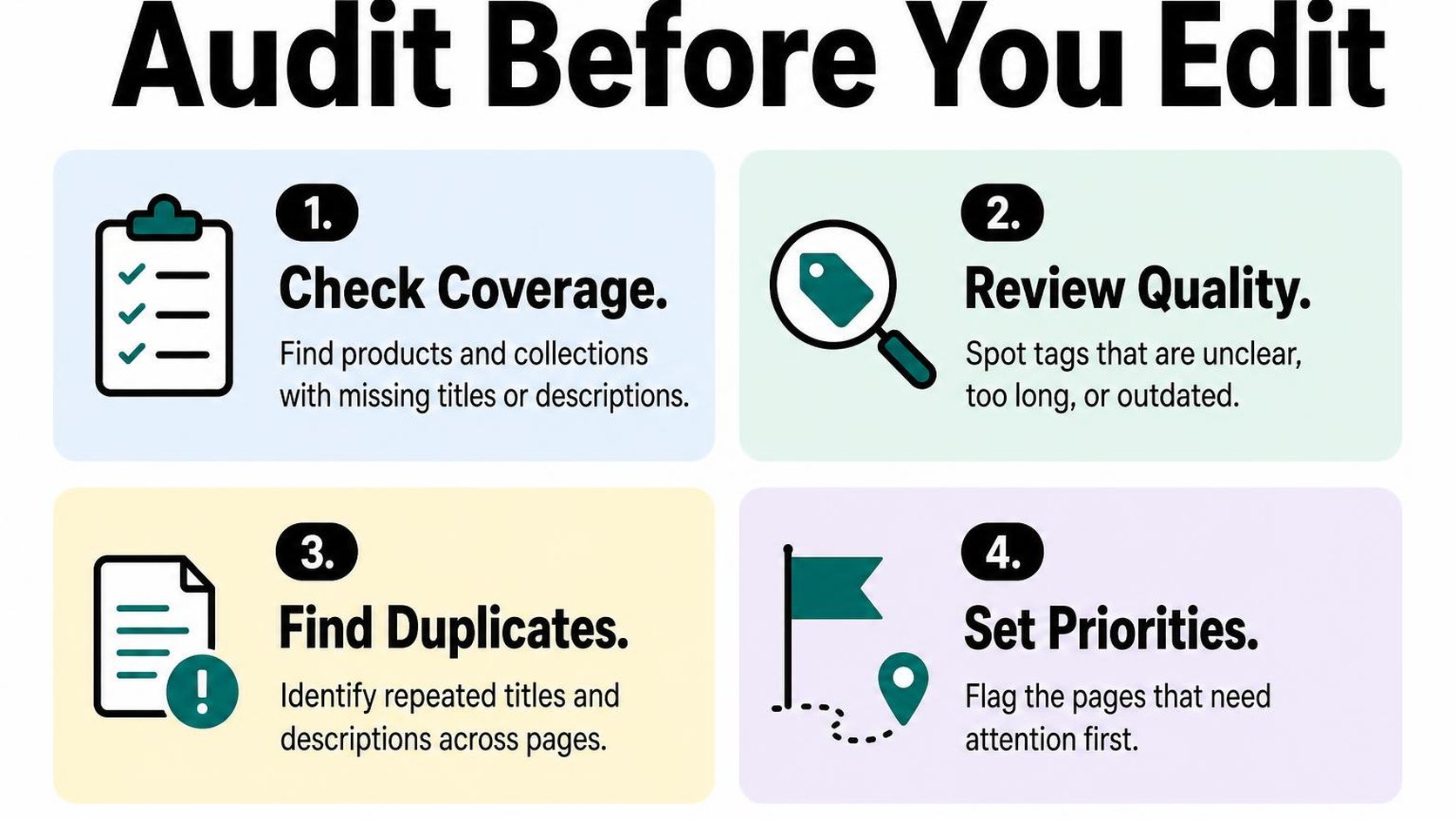
Auditing first takes longer than starting a bulk edit immediately, but it protects useful copy and gives you a baseline. Do not treat every missing description or low-click page as equally urgent.
Inventory pages that need unique search snippets
Create a spreadsheet with one row per indexable URL, meaning a page you want search engines to include in results. Record page type, current title, current description, target query, organic clicks, impressions, click-through rate, average position, and available revenue data.
Use the same reporting period across Search Console and Shopify analytics, such as the last 90 days. Keep organic landing-page performance separate from total product sales: a bestseller is commercially important, but its sales do not prove that organic search brings those customers.
| Page type | What to inventory | What raises priority |
|---|---|---|
| Homepage | Brand name, main offer, current positioning | Strong branded impressions with outdated messaging |
| Products | Product name, distinguishing details, availability | Revenue contribution and relevant search impressions |
| Collections | Category intent and actual assortment | Commercial queries with visibility but weak clicks |
| Blog posts | Topic, search intent, linked shopping destinations | Existing traffic or queries connected to your products |
For Shopify meta tags for collections, check whether the wording describes the category rather than one featured item. For products, identify meaningful differences such as material, model, or use case instead of adding every variant attribute.
Place this audit within your Shopify SEO improvement roadmap so metadata work does not displace fixes for inaccessible pages or broken navigation.
Find duplicate, missing, or outdated titles and descriptions
Compare the inventory with each page’s current search engine listing fields, using a crawl or export where available. Flag empty fields separately from rendered titles: an empty custom SEO field does not necessarily mean the live page has no title.
- Duplicates: Group identical titles and descriptions, then check whether different pages genuinely serve different search needs. Shared branding is normal; identical product copy often hides useful distinctions.
- Missing details: Flag titles that omit the product or category and descriptions that say little beyond your store name.
- Outdated claims: Mark expired promotions, discontinued ranges, old delivery promises, and category wording that no longer matches your assortment.
- Search opportunity: Prioritize relevant pages already earning impressions, especially commercially valuable pages appearing near the first page of results. Compare click-through rates within similar positions and query types.
Check the saved metadata before assuming a different Google snippet signals an error. Google’s snippet guidance explains that snippets primarily come from page content and can change with the search query.
Practical rule: Start with pages where business value, search visibility, and a clear metadata problem overlap. Save the original copy before editing, and leave accurate, distinctive listings alone until you have evidence they need work.
Step 2: Set a clear format for Shopify SEO titles and descriptions
You open ten product listings and find ten different writing styles: brand-first titles, unfinished phrases, and descriptions copied from product specifications. Before changing Shopify meta tags in bulk, set a format that keeps the writing consistent without making every page sound identical.
Your framework needs room for the page topic, a useful difference, and an accurate reason to visit. Treat it as a writing brief, not a sentence you duplicate across your catalog.
Choose a title structure that leads with the page topic
A title tag is the HTML title that helps identify a page to browsers and search engines. Your Shopify SEO title should name what the shopper finds first, then add a meaningful detail, with your brand last when space allows.
For Shopify meta tags for products, use the product type or recognizable product name plus a distinguishing attribute. For collections, describe the shared category rather than listing individual products. Your homepage can lead with your brand when that matches how customers search for your store.
- Product format: Product name or type + key attribute | Brand. Example: “Linen Duvet Cover – King, Natural | North Thread.”
- Collection format: Category + useful qualifier | Brand. Example: “Washable Linen Bedding | North Thread.”
- Homepage format: Brand + core offer. Example: “North Thread | Linen Bedding & Bath Essentials.”
Keep attributes only when they help distinguish the page. Do not force size, color, material, and several keyword variations into every title; that makes similar products harder to scan.
Write descriptions that explain value and invite clicks
A meta description is a short summary that search engines may use beneath a result’s title. Write your Shopify meta description around what the shopper gets, which detail supports that value, and what they can do next.
For the duvet cover, try: “Choose breathable linen bedding with a relaxed finish. Explore the king-size duvet cover in natural, with matching pillowcases available separately.” This names the product, gives a concrete benefit, and clarifies what is included without inventing an offer.
- Lead with relevance: Confirm the product or collection and the need it serves.
- Add evidence: Include a verified material, fit detail, compatibility note, or available selection.
- Invite the next step: Use wording such as “Compare sizes” or “Explore colors” only when the page supports that action.
Practical rule: Reuse the structure, not the finished sentence. If a description fits twenty unrelated products unchanged, replace generic claims with details from the actual page.
Use length ranges as guidance, not ranking rules
As a drafting target, aim for roughly 50–60 characters for titles and 140–160 characters for descriptions, including spaces. These ranges are not ranking requirements or guaranteed display limits: available space varies with device, layout, and letter width.
Check Shopify’s search listing preview, then review representative results on mobile and desktop when they appear. Put essential information first rather than padding short copy or cutting a useful product name just to meet a character count.
Expect some variation: Google’s title-link guidance explains how titles are generated from several page signals. Keep your saved title, visible heading, and page content aligned instead of treating the preview as a promise.
Step 3: Edit meta titles and descriptions in Shopify
You open a product and see a useful product name, but its search preview still contains an old promotion. Update your Shopify meta tags in the search engine listing editor rather than changing the visible product name just to fix the search listing.
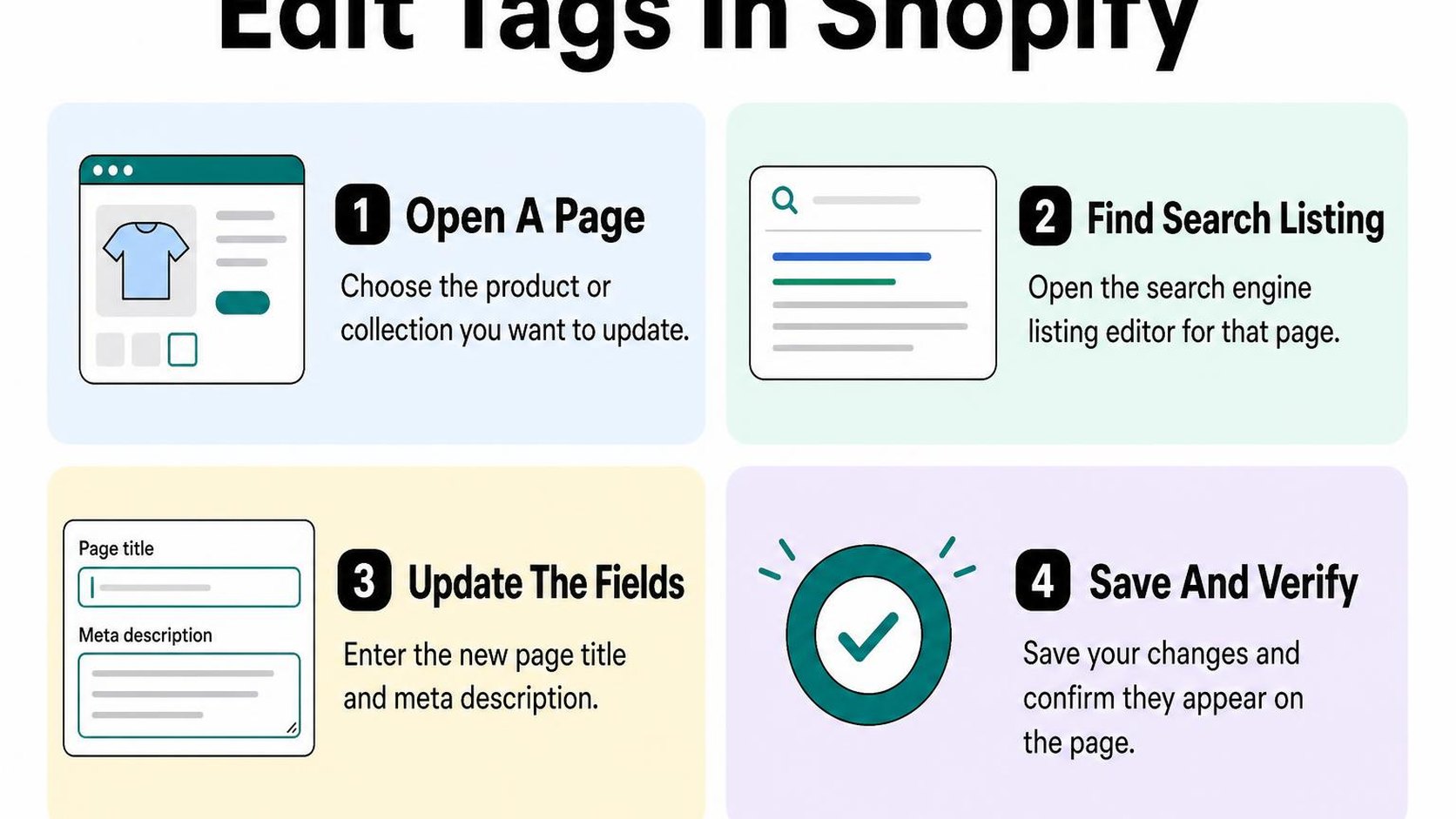
Work through a small batch first. This gives you a chance to check your wording and confirm that you are editing the right fields before repeating the process across your catalog.
Open the search engine listing editor for a page
Open the product, collection, page, or blog post in your Shopify admin. Find the Search engine listing section, usually near the bottom, and select its edit control, which may appear as a pencil icon or an Edit link.
The Page title field controls the SEO title saved for that URL. The Meta description field saves a short summary for search engines; neither field requires you to paste HTML into your page content.
- Title: Enter the approved wording in Page title, keeping the product or page identity clear.
- Description: Replace outdated or generic copy in Meta description with a summary of what the visitor finds.
- URL handle: Leave this unchanged when you are only updating metadata. A title correction does not require a new URL.
These fields are separate from custom data fields. If you need to distinguish the two before editing, Shopify metafields explained covers how metafields store additional information for your store.
Update the homepage, products, collections, and blog posts
Where to add meta tags in Shopify depends on the page type. Use these admin routes, then open the relevant listing editor; the homepage uses a separate preferences screen.
| Page type | Admin route | Fields to edit |
|---|---|---|
| Homepage | Online Store → Preferences | Homepage title and meta description |
| Product | Products → select a product | Search engine listing: Page title and Meta description |
| Collection | Products → Collections → select a collection | Search engine listing: Page title and Meta description |
| Blog post | Content → Blog posts → select a post | Search engine listing: Page title and Meta description |
| Standard page | Content → Pages → select a page | Search engine listing: Page title and Meta description |
If your navigation differs, use the admin search to find Pages or Blog posts. For Shopify meta tags for products, describe the specific item; for collections, describe the range and the reason to browse it.
Your homepage title should identify your store and its main offering. Keep blog-post metadata focused on the question or task the article actually answers, not a storewide sales message.
Preview changes and save each listing
Review the search listing preview after editing both fields, then select Save. Reopen the record to confirm that your changes persist before moving to the next page.
Practical rule: Check the page identity, offer accuracy, spelling, and URL before saving. Do not change a correct URL handle or visible heading simply to make the preview look different.
The preview helps you catch mistakes; it does not guarantee the wording shown in search. Saving updates Shopify immediately, but search engines need to revisit the page before their results can reflect your changes.
Step 4: Write page-specific meta tags for products and collections
Your catalog contains twenty linen shirts, but every search listing says “Premium clothing at great prices.” Those Shopify meta tags give shoppers no reason to choose one item over another. Start with a consistent structure, then change the details that help someone decide whether each page matches their search.
Match product titles to the item and its distinguishing details
Search intent is the task a shopper wants to complete with a search. Someone searching for “women’s relaxed linen shirt” needs a different promise from someone searching for “linen clothing.” For Shopify meta tags for products, name the item first, then add a verified detail such as material, fit, capacity, or compatibility.
Use long-tail keyword research to identify specific phrases that match your product facts. Keep only the details that distinguish the item; adding every variant and feature makes your Shopify SEO title harder to scan.
- Title: “Women’s Relaxed Linen Shirt | Northline” identifies the product without repeating the same keyword.
- Description: “Choose a relaxed linen shirt with a button front and breathable woven fabric. Compare available colors and check the size guide.” gives a concrete reason to visit.
- Accuracy: Mention free shipping, certifications, or delivery speed only when the offer applies to that item and remains current.
Describe collection intent and the range shoppers will find
Shopify meta tags for collections should help shoppers evaluate a selection rather than sell one item. Identify the category, then explain the useful range: styles, materials, sizes, applications, or price levels actually represented on the page.
Check the collection before drafting its description. A collection named “Small Space Desks” should contain desks suited to that use, not unrelated office furniture added just to expand the assortment.
| Page | Title example | Description focus |
|---|---|---|
| Product | Compact Oak Writing Desk | Northline | That desk’s dimensions, material, and storage. |
| Collection | Small Space Desks | Northline | Available desk styles and dimensions to compare. |
| Homepage | Northline | Furniture for Smaller Homes | The store’s core offer and main categories. |
Reusable structures make larger catalogs manageable, but identical descriptions erase useful differences. Write a separate collection introduction on the page that supports the same promise rather than relying on metadata alone.
Keep homepage messaging focused on the store's main offer
For Shopify meta tags for homepage messaging, lead with your store name and a clear description of what you sell. Use the description to explain who the assortment serves and what makes browsing worthwhile, without listing every department.
A furniture store serving apartment dwellers might describe compact furniture for living, dining, and working in smaller homes. Avoid claims such as “the best furniture online” that give shoppers no concrete way to judge the offer.
Practical rule: Read the three page types side by side. Your product promises a specific item, your collection promises a useful choice, and your homepage promises a coherent store. If their descriptions are interchangeable, rewrite them before expanding the batch.
Step 5: Bulk edit Shopify meta titles and descriptions safely
You have dozens of products with supplier titles and descriptions that say almost nothing about the item. Updating Shopify meta tags in batches saves time, but a weak pattern can spread the same mistake across your catalog.
Start with one product group rather than the entire store. Save the current values before editing so you can restore individual fields if your first batch needs correction.
Choose Shopify's bulk editor or a dedicated workflow
Match the method to the number of pages and the amount of judgment each page needs. Manual editing suits exceptions; bulk editing suits structured changes; generation suits drafting product-specific fields from reliable source information.
| Method | Use it for | Main limit |
|---|---|---|
| Manual editing | Priority pages and unusual products | Slow across a large catalog |
| Shopify bulk editor | Editing selected products through SEO title and description columns | You still write and check the values |
| Focused automation | Drafting metadata for many products | Inaccurate inputs can produce inaccurate claims |
For products, select a batch in Shopify, open the bulk editor, and add the SEO title and SEO description columns. Keep homepage and collection changes in a separate workflow rather than assuming a product batch updates every page type.
RANKit AI Meta Tags Generator generates product SEO titles targeting 50–60 characters and descriptions targeting 120–160 characters, using product images, copy, vendor, and type. That handles drafting, not verification: you still need to check specifications and promises, and those character targets do not guarantee how Google displays the result.
Prepare reusable patterns without making every snippet identical
A metadata pattern is a reusable structure with fields that change for each page. For a product title, try “[Product name] – [Defining attribute] | [Brand]” only when every included attribute is accurate and useful.
Give each description a distinct reason to visit. A waterproof backpack might emphasize its verified capacity and closure, while a leather tote might emphasize its dimensions and internal pockets. Do not substitute adjectives into one generic sentence and call it page-specific writing.
- Required inputs: Use the actual product name, material, size, intended use, or another verified differentiator.
- Conditional phrases: Include shipping, availability, or warranty details only when they apply and you can keep them current.
- Missing information: Omit an unsupported detail or flag the product for review instead of letting generation fill the gap.
Review generated fields before publishing changes
Generate a small pilot batch first. Compare each field with the product page, checking model numbers, materials, compatibility, and any claims such as “organic” or “waterproof.” Never treat an image alone as proof of a certification or performance rating.
Check for repeated titles, awkward truncation risks, and descriptions that promise features missing from the page. Keep a record of changed products and previous values, then expand the batch only after correcting the pattern.
Practical rule: Approve the source facts before approving the wording. A polished description with an invented benefit is still a bad update.
Step 6: Check how your updated snippets appear in search
Your updated Shopify meta tags are saved, but the search result still shows older wording or a different description. Check what your store publishes before changing the fields again: saving metadata, having it recrawled, and seeing it displayed in search are separate events.
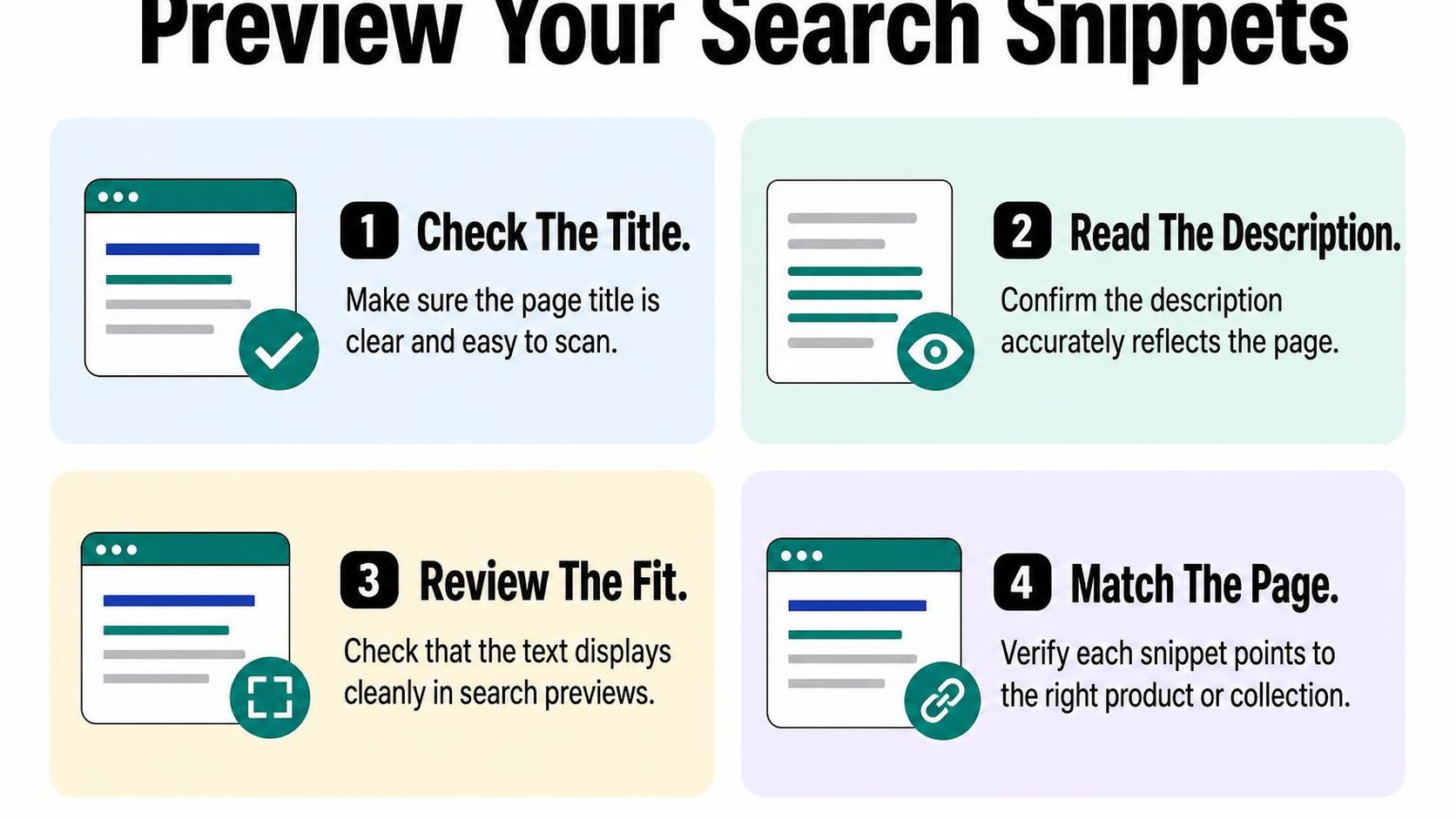
Verify saved fields and page-level relevance
Reopen a sample of edited products, collections, and your homepage settings. Confirm that each saved Shopify SEO title and Shopify meta description matches the intended page, then inspect the live page source for the title element and meta description.
Include a few pages from every batch, especially products with similar names or variant details. If the saved fields and live source disagree, investigate your theme or another metadata integration before rewriting the copy.
- Published values: Check that the live source contains the intended title and description, without duplicate or conflicting entries.
- Page relevance: Match the wording to the visible product, collection, price conditions, and availability. A collection title should describe the assortment, not promise a specific item that is no longer listed.
- Search appearance: Search for a few representative queries and record the displayed title and snippet. Treat this as a spot check, not a complete view of what every shopper sees.
Google does not have to display your saved description. Its guidance on how search snippets are generated explains that snippets primarily come from page content and can vary by query; the meta description may be used when it describes the page better.
Monitor impressions, clicks, and click-through rate
In Search Console, open the Search results performance report and filter for the pages you changed. Record the update date and compare equivalent periods, such as 28 days before and after, allowing time for recrawling and enough impressions to make the comparison useful.
Click-through rate (CTR) is clicks divided by impressions. Review it alongside clicks, impressions, average position, and the queries that bring shoppers to each page; a higher CTR alone does not establish that your rewrite improves results.
- Keep comparisons consistent: Use the same country, device, search type, and page filters across both periods.
- Check query changes: Separate branded searches from broader product searches where practical. A different query mix can change CTR without any improvement in wording.
- Record other changes: Note promotions, stock changes, page edits, and ranking shifts that could explain the result.
Revise snippets when search intent or offers change
Review pages when seasonal demand changes, an offer expires, or search queries reveal a different buying need. Update the visible page content as well as the metadata when the underlying information changes; do not promise free delivery or availability that the page cannot support.
Test one wording approach on a small group before expanding it. If traffic is limited, extend the observation period rather than declaring success from a handful of clicks.
Practical rule: Treat each snippet update as a test of relevance and appeal, not a guaranteed ranking improvement. Keep accurate wording when the data is inconclusive, and revise when a clear mismatch appears.
Step 7: Build a repeatable meta tag workflow for future catalog changes
You add a new collection, publish next season’s products, and leave last month’s delivery offer in a search description. Keeping Shopify meta tags accurate becomes easier when metadata is part of your publishing process rather than a separate cleanup project.
Use a short checklist with a named owner, clear review triggers, and a record of approved changes. The goal is not to rewrite every snippet each month; it is to catch missing, duplicated, or outdated wording before it spreads across your catalog.
Assign ownership and review rules for new pages
Choose one person to approve metadata, even if several people create products and collections. In a small store, you can fill both roles, but keep drafting and approval as separate checklist items so a rushed launch does not skip review.
Define a publishing gate as the checks a page must pass before you mark it ready. Apply it to new pages and substantial catalog edits, not every punctuation change.
- Owner: Assign the product editor to draft metadata and a designated reviewer to approve accuracy, wording, and page relevance.
- Required fields: Check that the Shopify SEO title and Shopify meta description describe the specific page, rather than repeating a generic store slogan.
- Distinct wording: Compare similar products and collections. Keep useful shared details, but identify the feature, material, size, or shopping purpose that separates each page.
- Claim checks: Confirm prices, discounts, delivery conditions, and availability against the live page. Leave unstable promises out when nobody owns their removal.
- Change record: Save the URL, previous wording, approved replacement, editor, and date in a shared sheet. Keep a recoverable copy before bulk updates.
Set Shopify meta title length and Shopify meta description length as review prompts, not automatic pass-or-fail rules. A shorter, specific description is more useful than text padded to reach a character target.
Schedule checks for seasonal products and changing offers
Add metadata review to the calendar you already use for launches, promotions, and merchandising. Review Shopify meta tags for products when their defining details change, and review Shopify meta tags for collections when their assortment or shopping purpose changes.
Start with a weekly exception check and a monthly review of priority pages. Adjust that schedule to your catalog activity; a stable store needs fewer checks than one that changes offers every week.
- At launch: Review new and materially changed pages before promoting them. Include the homepage when a campaign changes its main message.
- At campaign close: Remove expired offers from metadata and visible content together. Give every time-sensitive claim an expiry date and an owner.
- Each month: Check priority URLs for blanks, duplicate wording, and outdated details. Review the remaining catalog in rotating batches rather than rewriting everything.
- After bulk changes: Inspect a sample of live pages against the approved sheet. Check more pages if the sample exposes a repeated error.
Practical rule: Keep accurate metadata unchanged unless the page, offer, or shopper’s need changes; automation should reduce repetitive work, not remove review.
Use this checklist alongside the practical guidance from Yassine Malti, the developer writing from store work.
Put this into practice
Start with the store you already have, then use the guides on the blog for the next page that needs the same treatment.
Shopify apps by Yassine Malti
Put this into practice
-

RANKit · Meta titles & descriptions
AI meta titles and descriptions, sized for Google · 50 meta tags/month free
-

ALT SEO · Image alt text
AI alt text for every product image · 100 images/month free
-

TAGit · Product tags
SEO-friendly product tags, generated in bulk · 50 tags/month free