You open Search Console after a theme update and find product URLs marked “Blocked by robots.txt.” Your first instinct is to remove the rule and ask Google to crawl everything again. Before you change shopify robots.txt, check which URLs are affected: a blocked filter URL and a blocked product page need different responses.
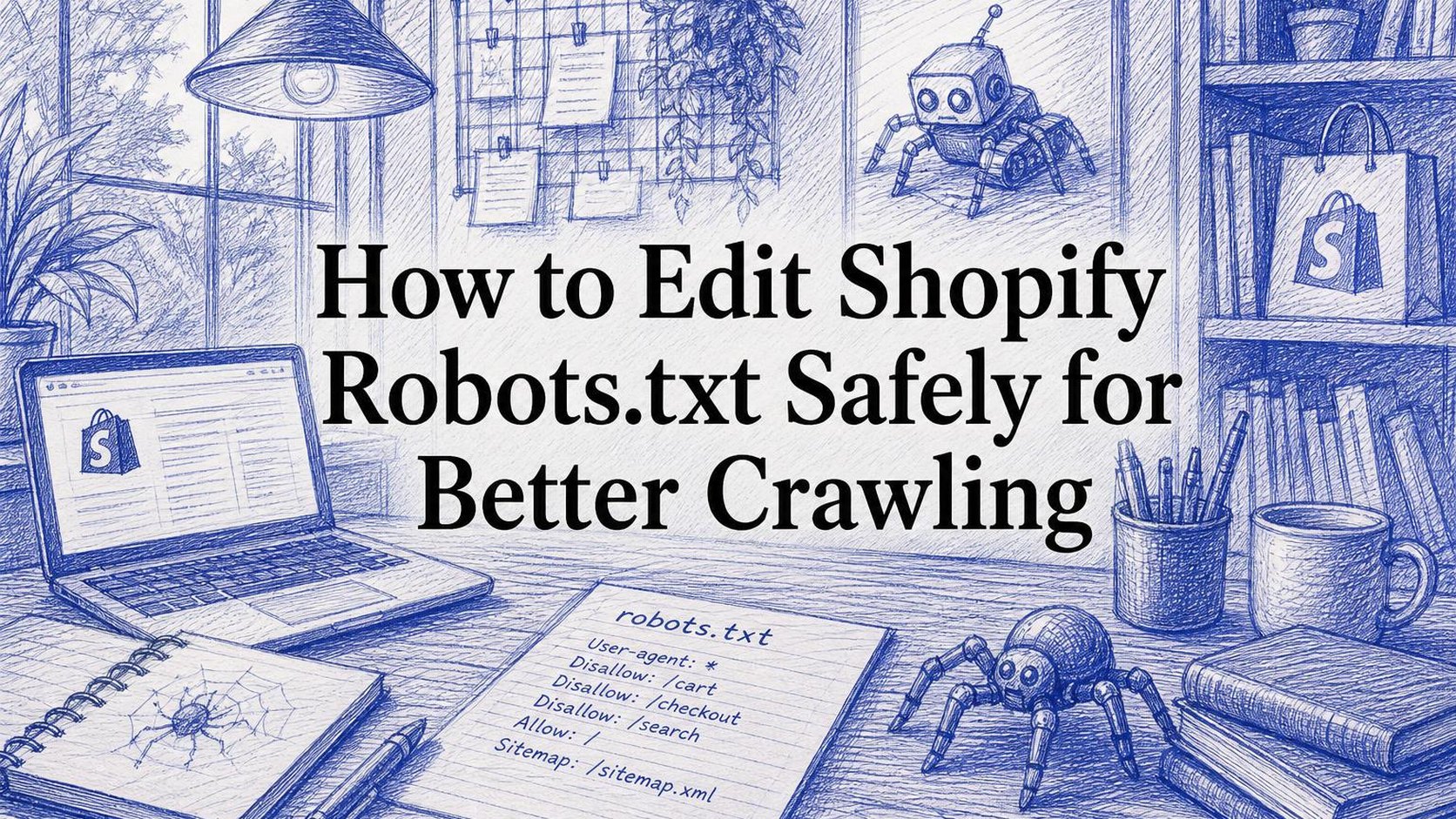
How to Edit Shopify Robots.txt Safely for Better Crawling shows you how to review Shopify’s default rules, make a targeted change through the robots.txt.liquid template, and test the result before you leave it live. You also learn when a crawl restriction helps and when it can keep search engines away from pages you want shoppers to find.
A robots.txt file gives supported crawlers instructions about which paths they may request; it does not reliably remove URLs from Google’s index or protect private information. Shopify supplies default rules, so customization is an exception rather than a routine SEO task. Removing restrictions without checking their purpose can expose more duplicate or low-value URLs to crawling.
Start by opening your store’s /robots.txt address and comparing its rules with the affected URLs in Search Console. Keep a copy before editing, change only what you can explain, and avoid replacing Shopify’s defaults with a generic template. The goal is to keep useful pages accessible without inviting unnecessary crawling.
Table of Contents
- Step 1: Find your Shopify robots.txt file and understand its purpose
- Step 2: Audit your current Shopify robots.txt rules before changing anything
- Step 3: Decide which URLs should be blocked from crawling
- Step 4: Customize Shopify robots.txt.liquid with a controlled change
- Step 5: Add Shopify robots.txt disallow rules precisely
- Step 6: Publish the change and test Shopify robots.txt
- Step 7: Maintain a safe robots.txt change process
Step 1: Find your Shopify robots.txt file and understand its purpose
Before you change shopify robots.txt, open the version your store currently serves. You need to see the published instructions, not assume that a theme update has changed them or that every blocked URL represents an SEO problem.
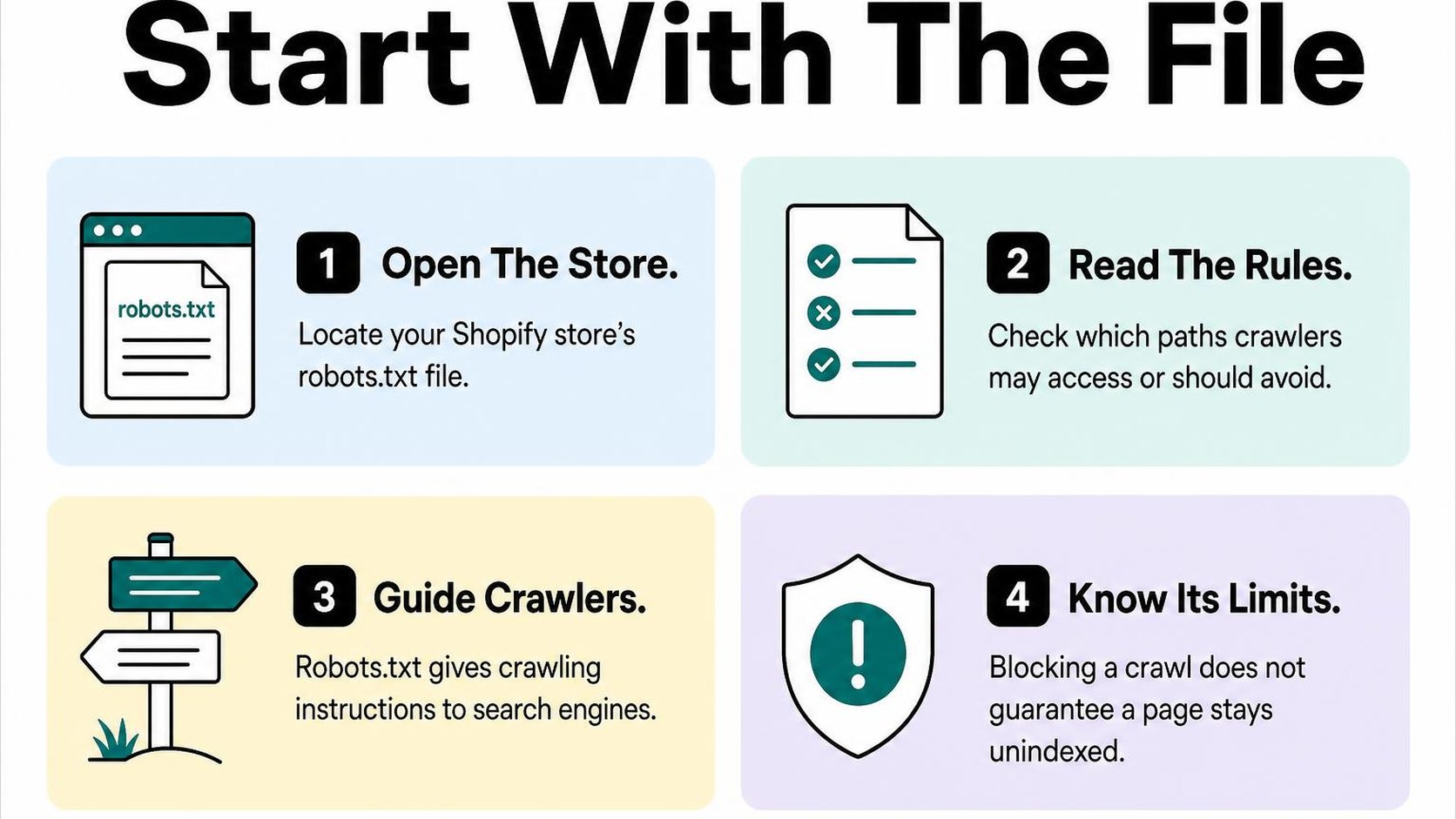
Open the default file at your store’s /robots.txt path
In your browser, enter your store’s primary domain followed by /robots.txt, such as https://yourstore.com/robots.txt. The Shopify robots.txt file is a publicly accessible text file at the root of your domain, separate from the pages shoppers browse.
You should see groups of instructions for crawlers and a sitemap reference. Shopify generates default rules for your store, so finding a working file does not mean someone has manually created or edited it.
- Check the domain: Use your primary storefront domain rather than a preview link or an admin address. This lets you inspect the file served from the hostname you want search engines to visit.
- Read the groups: A user-agent identifies the crawler a group addresses. An asterisk represents crawlers without a more specific matching group.
- Recognize crawl restrictions: A Disallow directive tells matching crawlers not to request URLs that match its path pattern. Shopify’s defaults restrict crawling of areas such as cart and checkout routes.
- Find the sitemap reference: A Sitemap directive points crawlers toward a sitemap location; it does not override a crawl restriction. Use the Shopify sitemap guide to understand which URLs your sitemap helps search engines discover.
Can you edit robots.txt on Shopify? Yes, through the theme’s robots.txt.liquid template, which lets you customize the generated output. You do not need to add that template just to inspect the default file, and you should not replace Shopify’s defaults with a generic ruleset copied from another store.
Learn what robots.txt can and cannot control
Crawling is when a search engine requests a URL to read its content. Indexing is when it processes information about that URL for possible inclusion in search results. Shopify robots.txt rules primarily control the first activity, not the second.
As Google’s explanation of robots.txt crawling limits makes clear, a blocked URL can still appear in search results when Google discovers it through links elsewhere. Blocking a page therefore does not reliably remove it from Google.
If your goal is how to block pages from Google on Shopify, first decide whether you mean stopping crawl requests or excluding pages from search results. A noindex directive requests exclusion from the index, but Google must be able to crawl the page to read it. Adding both a crawl block and noindex can prevent Google from seeing the instruction you need it to follow.
Practical rule: Keep Shopify’s managed defaults unless you identify a specific crawl problem. Use robots.txt to guide crawler access, not to hide customer information, secure private content, or guarantee deindexing.
For now, record the rule affecting your URL and the crawler group it belongs to. That gives you a concrete starting point without changing access for unrelated products or collections.
Step 2: Audit your current Shopify robots.txt rules before changing anything
Open your primary storefront domain with /robots.txt added to the end. Your Shopify robots.txt file shows the instructions crawlers currently receive, so inspect this published output before touching your theme.
Save a plain-text copy with today’s date, your primary domain, and the published theme’s name. If a previous developer already customized the file, this snapshot gives you a baseline for comparing changes rather than relying on memory.
Review the rules for each user agent
A user agent identifies the crawler a group of instructions addresses. A group beginning with User-agent: * applies to crawlers without a more specific matching group; it does not mean every instruction in the file applies to every bot.
Read each group separately and record its Allow, Disallow, and other directives. Google uses its most specific matching user-agent group rather than combining that group with the wildcard group, as explained in Google’s guide to interpreting robots.txt rules.
- General group: Record the rules beneath User-agent: * and where that group ends.
- Named crawlers: Note any crawler-specific restrictions, including rules that differ from the general group.
- Existing customization: Check whether your theme contains robots.txt.liquid, and save a separate copy if it does. The published file shows the output, while the template shows how that output is generated.
Check existing disallow paths and sitemap references
A Disallow directive tells a matching crawler not to request URLs that match its path pattern. Record the exact pattern, including capitalization, query-string characters, and any * wildcard or $ end marker; small differences can change which URLs match.
Check overlapping Allow and Disallow rules rather than treating the first matching line as the winner. For Google, the most specific matching path takes precedence, and an equally specific Allow rule wins over Disallow.
The Sitemap directive supplies an absolute sitemap URL for discovery; it does not grant crawl access or override a block. Check each Shopify robots.txt sitemap reference, open the address, and confirm it returns a sitemap rather than an error page.
- Path evidence: Save each questionable rule alongside a real storefront URL it appears to match.
- Sitemap evidence: Record every Sitemap line and whether its destination loads successfully.
- Unclear intent: Mark unfamiliar restrictions for investigation instead of deleting them because they look unnecessary.
Identify the pages and assets search engines need to crawl
Build a short sample of your homepage, an important collection, an available product, and a useful blog post. Add the CSS, JavaScript, and image URLs those pages need for rendering, then compare their paths against the relevant crawler group.
Separate a confirmed unwanted block from an intentional restriction on cart, account, or internal search routes. Your audit should identify the smallest necessary change, not turn every storefront URL into a crawl target.
Practical rule: Keep a dated baseline, an affected URL, its matching crawler group, and the reason access needs to change. If you cannot connect a proposed edit to a specific problem, leave the rule unchanged.
Step 3: Decide which URLs should be blocked from crawling
Your Search Console report shows hundreds of filtered collection URLs, but only a few bring shoppers to useful products. Before changing your shopify robots.txt rules, separate repetitive crawl paths from pages that deserve search visibility. A long URL list alone does not justify blocking an entire directory.
Prioritize duplicate or low-value crawl paths
Crawl blocking tells compliant search crawlers not to fetch matching URLs. It can reduce time spent on repetitive paths, but it also prevents crawlers from inspecting their content and links. Choose restrictions based on what a URL does, not how untidy it looks.
Start with internal search results, cart-related routes, and filter combinations that reproduce substantially the same product selection. Shopify already restricts many low-value paths by default, so confirm existing coverage before adding Shopify robots.txt disallow rules.
- Repeated combinations: Investigate sorting and filtering URLs that create many variations without a distinct shopping purpose.
- Useful exceptions: Keep a filter landing page accessible when it targets real demand, offers a stable selection, and has deliberate internal links.
- Evidence first: Use crawl reports and, where available, request logs to identify repeated fetching rather than assuming every parameter wastes crawl resources.
Use the faceted navigation SEO guidance to distinguish useful category refinements from combinations that multiply URLs without adding value.
Keep products, collections, assets, and important landing pages accessible
Do not block a whole product or collection path to suppress a handful of duplicates. Broad rules can prevent Google from discovering new stock, following category links, or seeing updated page content. Keep CSS, JavaScript, and images accessible when they support page rendering.
| URL type | Default decision | Reason |
|---|---|---|
| Available products and useful collections | Keep crawlable | These pages support discovery and purchases. |
| Repetitive sorting or filter combinations | Assess before restricting | Some are duplicates; others serve distinct demand. |
| Rendering assets | Keep crawlable | Crawlers need them to understand the rendered page. |
| Campaign landing pages | Decide individually | Search value depends on content, purpose, and longevity. |
A URL appearing in your Shopify robots.txt sitemap reference does not override a blocking rule. Sitemap inclusion and crawl permission serve different purposes; keep both aligned with the pages you want discovered.
Use page-level noindex controls when removal from search results is the goal
If your question is how to block pages from Google on Shopify, first distinguish crawling from appearing in search. Noindex is an indexing directive that tells supporting search engines not to include a page in results. Unlike a robots.txt restriction, it requires access to the page so the crawler can read it.
For a public page you want excluded, use an appropriate page-level noindex implementation and keep it crawlable. Google’s robots meta documentation confirms that Google must crawl the page to see and apply the directive. Do not add noindex as a line in robots.txt.
Practical rule: Restrict crawling for unwanted crawl paths; use crawlable noindex pages for search exclusion. Neither control secures private information, so use authentication when access itself must be restricted.
Step 4: Customize Shopify robots.txt.liquid with a controlled change
You open your theme code editor and find no robots template. That does not mean your Shopify robots.txt file is missing: Shopify generates default output even when your theme has no custom template. Your task is to make one justified change without replacing that baseline with a shorter, incomplete file.
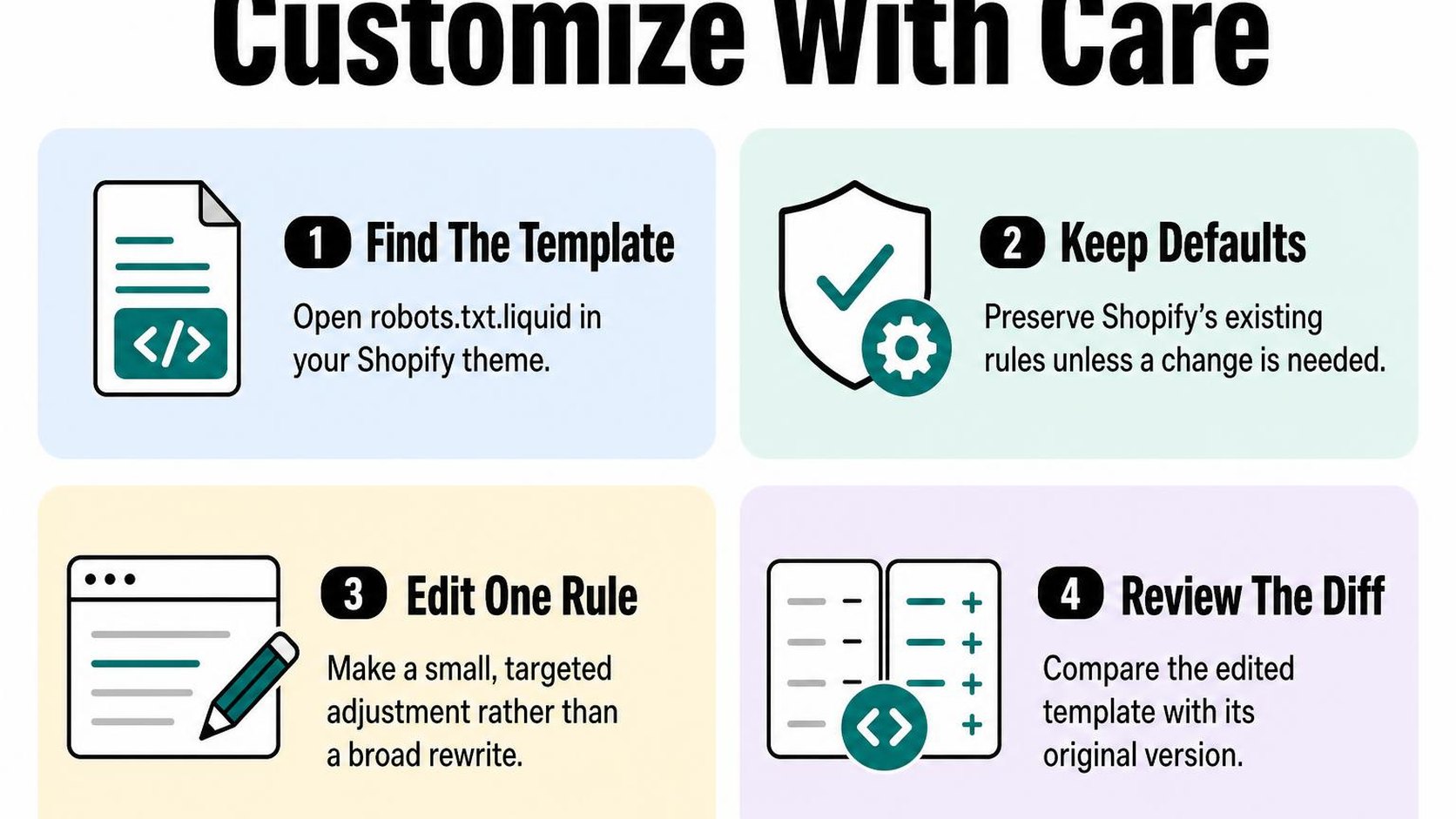
Confirm whether a theme-level robots.txt.liquid template is available
A robots.txt.liquid template is a theme file that controls the robots.txt output served to crawlers. In Shopify admin, go to Online Store, then Themes, and identify your published theme before opening its code editor.
Search the templates directory for robots.txt.liquid. If it exists, read its contents before changing anything; an earlier developer or integration may already have customized your Shopify robots.txt rules.
- Save the baseline: Open /robots.txt on your primary storefront domain and save the current text for comparison.
- Keep a rollback copy: Duplicate your theme and separately save any existing robots.txt.liquid contents before editing.
- Define the change: Write down the exact crawl path and crawler group you intend to affect. Avoid broad cleanup without a specific crawl problem.
Create or edit the template in the Shopify theme code editor
To edit robots.txt on Shopify, use the theme code editor rather than uploading a text file through your store’s Files area. If the template is absent, use the editor’s template-creation option to add robots.txt.liquid under templates. Interface labels can vary, so confirm the resulting filename and location.
Work in the duplicate theme first. If Shopify inserts starter Liquid, inspect it rather than deleting it. If the file starts empty, use the default-preserving example in Shopify’s documentation for customizing robots.txt, which shows how to output existing groups, rules, and sitemap entries.
| Template state | Your next action |
|---|---|
| No custom template | Create one using Shopify’s default-preserving Liquid structure. |
| Existing custom template | Save a copy and identify its changes before adding another. |
Save your draft, but do not assume a theme preview proves what crawlers receive. The public /robots.txt response is the output you must check after the edited theme becomes live.
Preserve Shopify’s default rules while adding only necessary directives
Shopify’s robots.default_groups object provides the default crawler groups for your Liquid template. Preserve the loop that outputs each group’s user-agent, existing rules, and sitemap entry. Hardcoding today’s output instead makes your template less able to inherit future default changes.
Add your directive inside the intended group, not randomly at the bottom of the file. For example, a condition matching group.user_agent.value to '*' lets you place a shared restriction in the existing general group. A directive such as Disallow: /internal-preview/ is appropriate only if that is your actual unwanted path.
Practical rule: Publish one narrow change, then inspect the live /robots.txt. Compare it with your baseline: existing groups, restrictions, and the Shopify robots.txt sitemap entry should remain unless their removal is intentional.
Check representative product and collection paths against your new restriction. If the output differs unexpectedly, restore your saved template or republish the unchanged theme before making another edit.
Step 5: Add Shopify robots.txt disallow rules precisely
You spot unwanted URLs in Search Console, but blocking their entire parent directory can also shut out pages you sell from. Keep your Shopify robots.txt disallow rules narrow: match the unwanted path, then check nearby URLs that should remain crawlable.
Match only the intended URL paths
A Disallow directive tells a matching crawler not to request URLs whose paths match its pattern. It does not delete those URLs or reliably remove them from search results. If your goal is how to block pages from Google on Shopify, distinguish preventing crawling from preventing indexing before choosing a rule.
Path matching starts immediately after your domain and is case-sensitive. A rule without an end marker can match more than one page, so use real storefront URLs rather than guessing from a page title or navigation label.
- Directory boundary: Disallow: /internal-preview/ matches that directory and its descendants, but not /internal-preview-sale. The version without the trailing slash can match both.
- Exact ending: Disallow: /pages/trade-draft$ matches that exact path ending. It does not cover /pages/trade-draft?view=preview, because the query string changes the ending.
- Overbroad prefix: Disallow: /collections blocks collection paths, including URLs you may need crawled. Do not use a whole storefront directory to suppress one unwanted page.
Avoid blocking CSS, JavaScript, images, or essential storefront resources
Your product page depends on more than its HTML address. Stylesheets, scripts, and images help crawlers render the layout and understand the content shoppers see. Blocking resource directories to reduce crawl requests can therefore create a larger problem than the unwanted URLs you started with.
Inspect resource URLs before adding rules for asset folders or file extensions. A restriction in your store’s robots.txt applies to its own host, not automatically to files served from a separate CDN hostname.
- Keep rendering available: Avoid blanket restrictions such as Disallow: /*.js or Disallow: /*.css. These can prevent matching resources on your host from being fetched.
- Protect product discovery: Do not block image paths simply because Search Console lists many image requests. Those files can support product understanding and image search.
Review wildcard and user-agent behavior before publishing
A wildcard is a pattern character: * matches any sequence of characters, while $ marks the end of a URL match. In a path rule, * can span directory separators, so Disallow: /*preview can catch any matching path containing “preview,” not just your intended preview folder.
A user-agent group assigns rules to a crawler. Under Google’s documented rule-matching behavior, a more specific matching crawler group takes precedence over the general * group; Google does not simply combine both. Within the applicable rules, the most specific matching path wins, and an equally specific Allow wins over Disallow.
Practical rule: Before publishing, check each proposed pattern against an unwanted URL, a similar wanted URL, and a resource URL. Review the applicable crawler group too: a narrow path rule in the wrong group does not produce the restriction you expect.
Step 6: Publish the change and test Shopify robots.txt
You save a rule intended to stop crawling filtered URLs, but your main collection pages still need to stay accessible. Testing your Shopify robots.txt means checking both outcomes on the live store, not just confirming that the theme editor accepts your change.
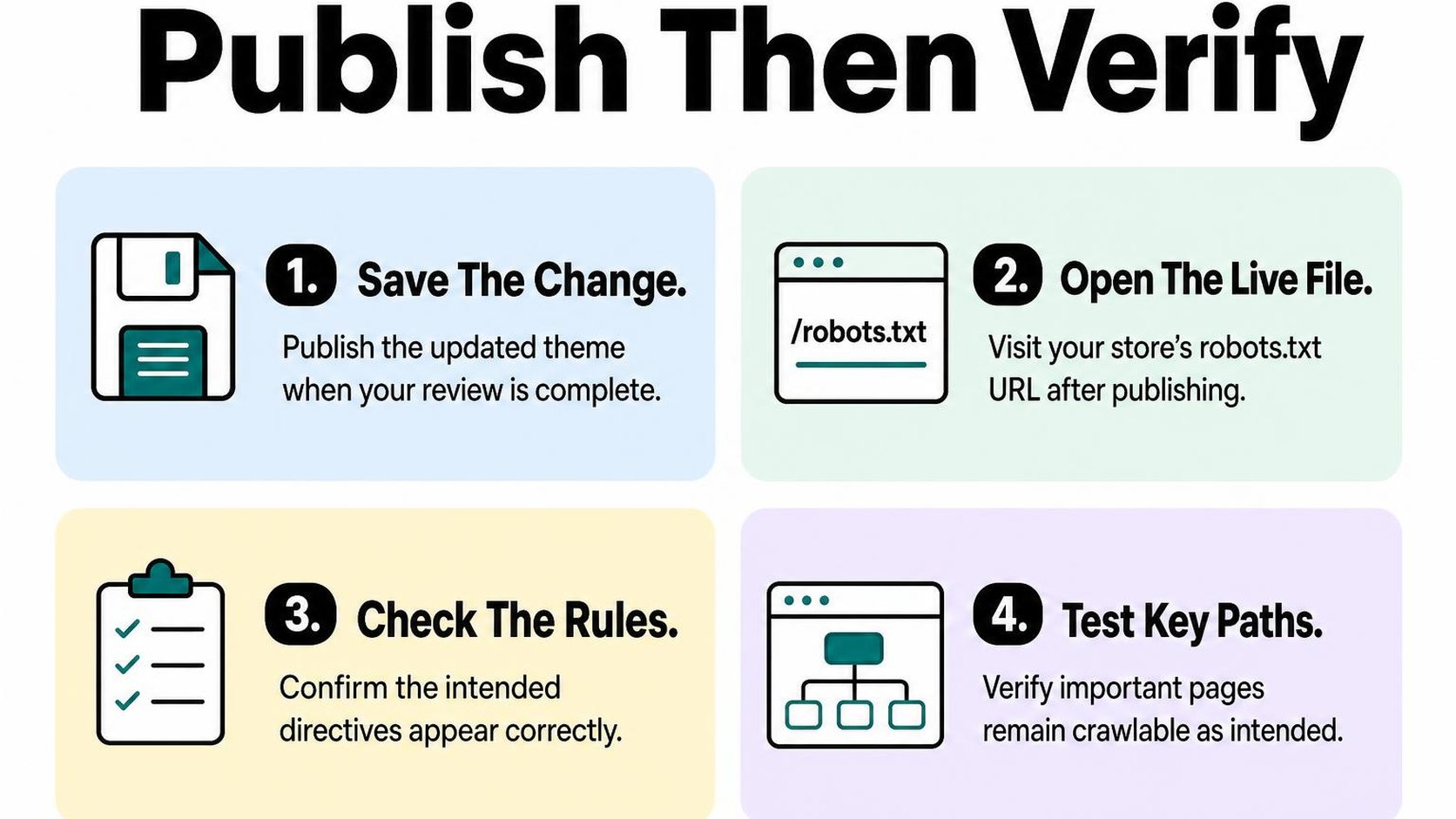
Save the theme change and inspect the live /robots.txt response
Keep a copy of the previous Shopify robots.txt.liquid template before saving. If you edit an unpublished theme, publish that theme only after reviewing its other changes; saving a draft alone does not update your live store’s file.
Open https://your-domain.com/robots.txt on your primary storefront domain in a private browser window. Inspect the generated text rather than the Liquid template: crawlers receive that response, not your theme code.
- Availability: Confirm the address returns HTTP 200 and readable plain text, without a password screen, error page, or unexpected redirect.
- Rules: Check that your intended change appears under the correct user-agent and that existing protections remain intact.
- Sitemap: Confirm the Shopify robots.txt sitemap entry still points to your store’s sitemap.xml unless you deliberately change it.
- Rollback: If the output is blank, malformed, or broader than intended, restore your saved template and inspect the live response again.
Test representative URLs against the updated rules
Build a short test set from actual storefront URLs. Include an unwanted filtered URL, a similar collection URL you want crawled, a product page, and a CSS or JavaScript resource needed to render the storefront.
Use a robots.txt parser or test script that follows Google’s documented matching behavior, selecting the crawler you intend to control. Google’s published-file testing guidance describes checking public access and using its open-source parser library for rule testing.
- Expected block: Confirm the unwanted URL is disallowed by the intended rule, rather than an unrelated restriction.
- Expected access: Confirm your product, collection, and required resource URLs remain allowed.
- Edge cases: Test trailing slashes, query parameters, and similar paths that could accidentally match.
- Recorded result: Save each URL, crawler, expected outcome, and actual outcome with the deployment date.
Practical rule: A page opening in your browser does not prove it is crawlable. Robots.txt gives instructions to compliant crawlers; it does not prevent you or a shopper from loading the URL.
Monitor crawling and indexing signals after deployment
Check Search Console’s robots.txt report for fetch problems, parsing issues, and the last fetched version. Google may retain a cached copy, so do not expect a saved theme change to appear immediately in search tools.
Use URL Inspection on important product and collection pages, running a live test where available to check current access. Over the following days and weeks, review Page indexing and Crawl stats for unexpected changes rather than judging success from one day’s numbers.
Crawl access and indexing are different: a blocked URL can still appear in search, and an allowed page is not guaranteed indexing. Keep your test results alongside your Shopify SEO improvement roadmap, and reverse the change if valuable pages become blocked.
Step 7: Maintain a safe robots.txt change process
A theme update goes live, and your carefully tested crawling rules may no longer match the storefront. Treat shopify robots.txt maintenance as part of every release that changes themes, URL structures, filters, or navigation—not as a file you edit once and forget.
The tradeoff is straightforward: custom rules give you more control, but every exception creates something to maintain. Keep Shopify’s defaults unless you have a documented problem that a specific change can address.
Document each rule and its business reason
Keep a change log, a dated record of each edit and why you made it, alongside your theme backup. Record the actual rule, not just a note saying “fixed crawling.” Someone reviewing it later should understand what the rule protects and which pages must remain crawlable.
- Reason: Describe the observed issue, such as repeated crawling of a particular filtered URL pattern, and the evidence behind the change.
- Scope: Record the affected crawler group, URL pattern, and examples that should and should not match.
- Ownership: Name the person responsible for reviewing the rule and record the deployment date.
- Recovery: Save the previous Shopify robots.txt.liquid contents and identify the exact edit needed to restore them.
Keep private notes outside the public Shopify robots.txt file. Public comments can explain a rule briefly, but they should not contain credentials, customer information, or sensitive operational details.
Recheck rules after theme or storefront changes
Use the same review checklist whenever you publish a theme, change collection filters, or introduce a new URL pattern. A copied template can preserve outdated Shopify robots.txt disallow rules just as easily as a replacement theme can omit your customizations.
- Template: Confirm that the intended robots.txt.liquid template exists in the theme you are publishing.
- Output: Open /robots.txt on your primary domain after publishing and compare the rendered rules with your saved baseline.
- Coverage: Check representative product, collection, and content URLs against every changed pattern, including exceptions.
- Defaults: Verify that your customization preserves the intended default groups and sitemap declarations.
- Review date: Schedule another check after the release and whenever the original business reason changes.
A working sitemap does not cancel a blocking rule. For template behavior and supported customization patterns, consult Shopify’s robots.txt customization reference before changing how the file is generated.
Roll back quickly if important pages become inaccessible
If important pages become blocked for crawlers after an edit, restore the last known-good template rather than adding several speculative exceptions. If shoppers also cannot load those pages, investigate redirects, theme errors, or access restrictions separately; robots.txt does not control shopper access.
Practical rule: Make one explainable change at a time, keep a tested rollback ready, and restore crawl access before attempting a narrower replacement rule.
After rollback, confirm that the public file reflects the restored version and record what failed. These Shopify robots.txt best practices keep future edits small, reviewable, and reversible without promising immediate search recovery.
Yassine Malti is the developer behind this guide, writing from hands-on Shopify store work.
Put this into practice
Start with the store you already have, then use the guides on the blog for the next page that needs the same treatment.
Shopify apps by Yassine Malti
Put this into practice
-

ALT SEO · Image alt text
AI alt text for every product image · 100 images/month free
-

RANKit · Meta titles & descriptions
AI meta titles and descriptions, sized for Google · 50 meta tags/month free
-

TAGit · Product tags
SEO-friendly product tags, generated in bulk · 50 tags/month free