
Most advice on how to delete a Facebook Pixel starts with finding a delete button in Meta's settings. That's the wrong starting point. A missing button doesn't tell you whether your Shopify store, tag manager, or an agency's server is still sending customer events.
Treat removal as an implementation audit instead. Identify the dataset, remove every delivery path, clean up permissions, and test the storefront and server separately. The useful outcome isn't an empty settings screen. It's evidence that the tracking you intended to stop has stopped.
Table of Contents
- What Deleting a Meta Pixel Really Stops
- How to Remove the Pixel From Every Install Path
- Audit a Shopify Store for Hidden Pixels
- Confirm No New Events Are Still Arriving
- Close the Record and Route Data Requests
What Deleting a Meta Pixel Really Stops
Meta doesn't provide a direct button that permanently deletes a Meta Pixel. More, Meta's dataset documentation states that a dataset cannot be deleted or transferred to another business portfolio. The workable approach is deactivation and access removal, not destruction of the underlying history.
That distinction explains why removing something called a pixel can produce different results. Website code sends browser events. A Conversions API integration sends server events. Ad accounts and partners have permissions to use or manage the dataset. A catalog connection serves another purpose again.
What each removal action does and does not erase
| Action | New browser events | Server events | Past data and audiences |
|---|---|---|---|
Remove base pixel code and fbq snippets |
Stopped for those snippets after publication and cache updates | Still sent if Conversions API remains | Kept |
| Disconnect Shopify channel, app, or partner install | Stopped for that integration | Stopped only if that integration owned the server calls | Kept |
| Disable or delete the GTM tag and republish | Stopped for that container | Unaffected | Kept |
| Disconnect an ad account in Business Settings | Unaffected | Unaffected | Access removed; history kept |
| Remove a partner from the dataset | Unaffected | Unaffected | Partner loses management; history kept |
| Delete catalog data source in Commerce Manager | Website pixel may still fire | Unaffected unless the server source is removed | Catalog products can linger for up to seven days, according to PPC Land's Meta Pixel overview |
Read the table by delivery path, not by the apparent importance of the button. Removing an agency may feel like a complete separation, but a script that agency installed can remain in your theme. A server integration can also continue operating outside Shopify's theme editor.
Practical rule: Removing permission to manage tracking isn't the same as removing the implementation that sends events.
Establish the boundary before changing settings
Write down the dataset or pixel ID, connected ad accounts, partner businesses, and current time. Give the shutdown a clear scope: one store, one dataset, or every Meta integration associated with the business.
If you manage several properties, don't disconnect an asset merely because its name looks familiar. Match the ID against the actual installation. A campaign workflow such as advertising books on Facebook is a separate decision from whether its website tracking should remain active.
Keep the distinction between reporting and collection visible throughout the cleanup. You can preserve a record of previous advertising activity while removing the mechanisms that would add new activity.
How to Remove the Pixel From Every Install Path
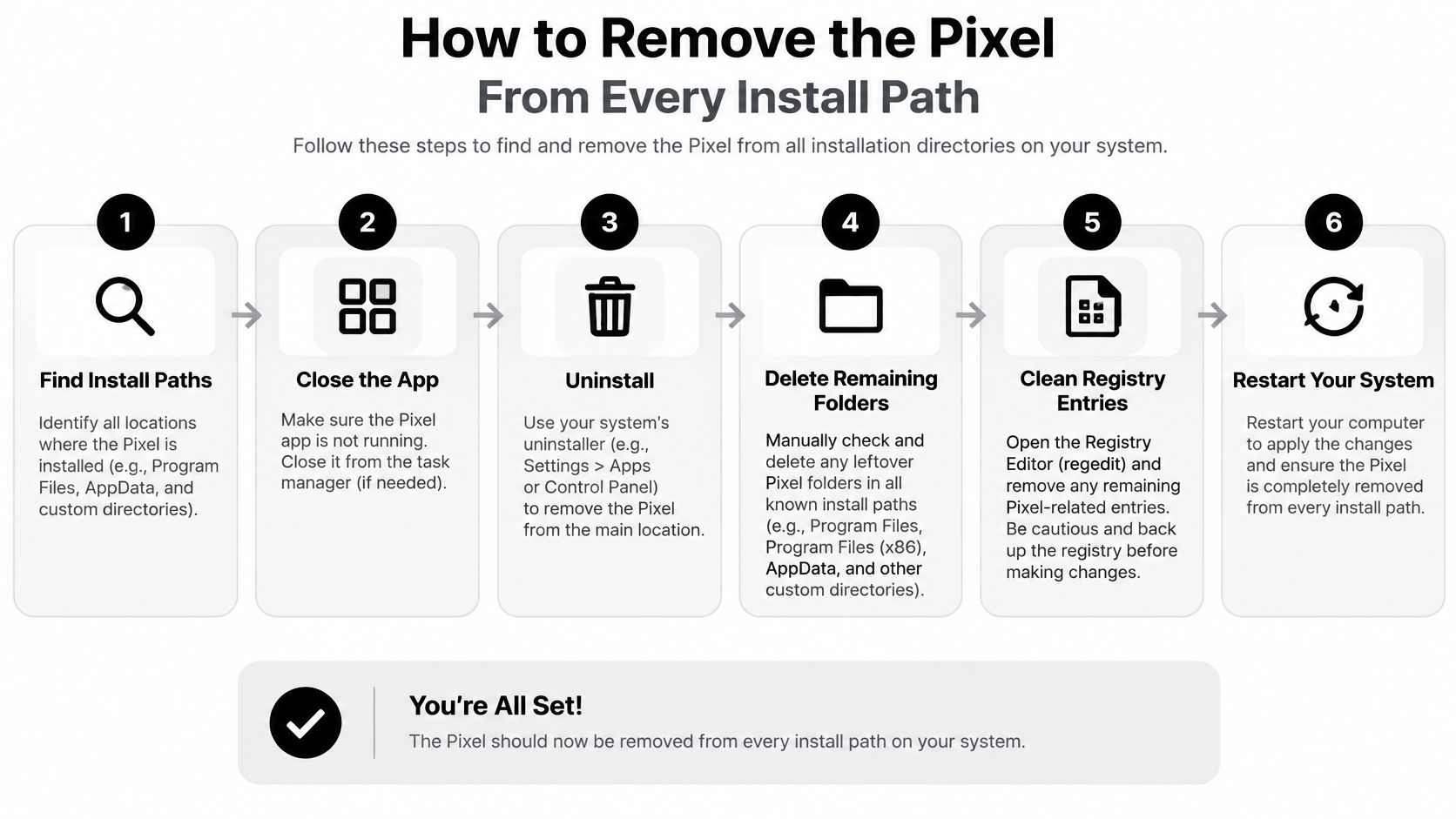
Work from the installation outward. Remove the sending mechanisms first, then clean up access and record the changes. Meta's business help documentation describes data-source management through Business Settings, where the appropriate administrator permissions are required.
Use this visual as a reminder to check more than the website snippet.
Remove the implementations
Identify the correct dataset. Open Events Manager, select the relevant data source, and copy its dataset or pixel ID. List its connected assets and partners before editing anything. Match that ID against your website, integration settings, and tag-manager variables rather than relying on the dataset name.
Delete manually installed code. In your CMS or theme editor, locate the base JavaScript block, typically before the closing
</head>tag. Remove the associated fallback image markup if it's part of that installation, plus event snippets such asfbq('track', ...). Search individual page templates, landing pages, and custom HTML fields for duplicate copies, then save and publish the changes.Disable the Google Tag Manager installation. Open the relevant GTM workspace → Tags, locate Meta Pixel tags, and pause or delete them. Review custom HTML tags as well as named Meta templates. Remove dedicated triggers only if nothing else needs them, then submit and publish the container. An edited workspace isn't a live deployment.
Disconnect partner-managed tracking at its source. Open the relevant sales channel, app, plugin, or integration settings and disconnect the pixel there. Don't rely on theme edits to override an integration that can inject its own code. Save the integration change and check whether browser tracking and server-side sharing have separate controls.
Remove permissions and server delivery
Clean up business access. In Business Settings → Data Sources → Datasets, select the matching data source, remove unwanted partners, and disconnect the intended ad accounts. You'll need full control of the business portfolio for data-source management. Interface labels may differ, so use the recorded ID to confirm you're editing the right asset.
Disable server-side delivery and review traffic permissions. In the app, server, gateway, or automation that sends Conversions API events, turn off the relevant event sender. Remove or revoke the credentials used for that connection where the owning system permits it, coordinating with the credential owner if other services share access. In Events Manager, review traffic permissions for domains that should remain permitted; domain controls aren't a replacement for shutting down the sender.
Save the deployment record. Record who changed each setting, what they changed, and when the change went live. Include the theme publication time, GTM container version, integration disconnection, and server deployment confirmation. Store credential identifiers if needed, not secret token values.
Removing a snippet prevents future browser events from that snippet; it doesn't erase events already stored. Likewise, deleting a catalog connection in Commerce Manager → Data Sources is a separate catalog-management task, not a substitute for removing website and server implementations.
Audit a Shopify Store for Hidden Pixels
Say a store removes its theme code on Monday. On Wednesday, its marketing team still sees fresh activity and assumes Meta ignored the change. The actual leftovers could be a custom pixel and a server credential held by an app, neither of which disappeared when someone edited theme.liquid.
Use a store-wide inspection rather than treating the theme as the whole installation.
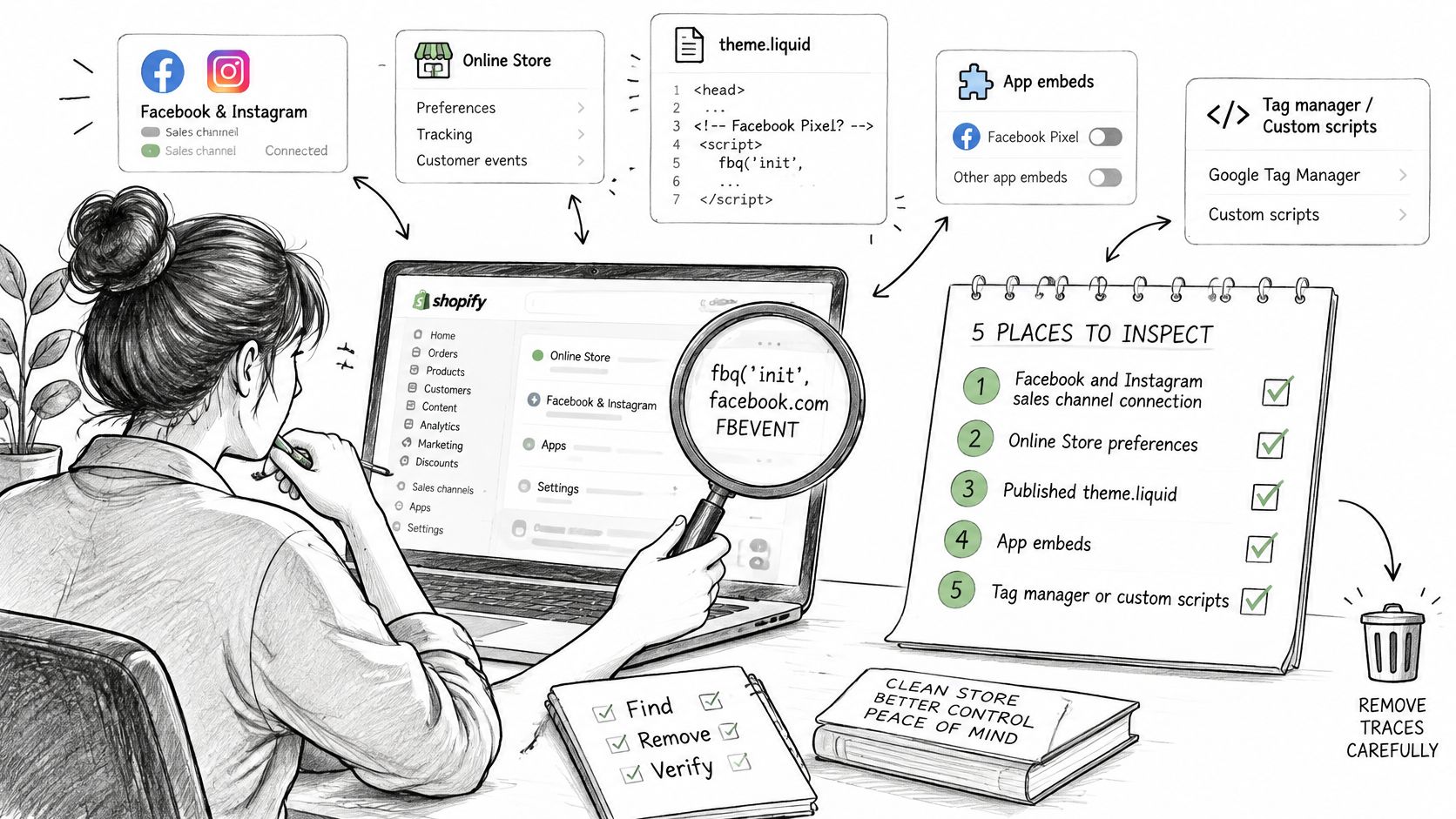
Shopify's Meta Pixel instructions distinguish a connected pixel from code manually added to the theme. Shopify also supports app pixels and custom pixels, with its pixel manager loading pixels according to visitor-permission requirements. A quiet session therefore doesn't prove the installation is gone.
Inspect the Shopify installation points in order
| Place | Inspect | Still sends if missed |
|---|---|---|
| Facebook and Instagram sales channel | Connected pixel, data-sharing settings, and catalog link | Browser and channel events for that connection |
| Online Store preferences | Pixel ID saved in preferences, where that setting is present | Storefront events from the preference install |
Published theme.liquid and layout files |
Base script before the closing head tag and fbq tracking snippets |
Browser events from the remaining code |
| Unpublished or draft themes | The same tracking code that could be published later | Events return when that theme goes live |
| Customer events, app pixels, and custom pixels | App pixel connections, custom pixel code, and related app embeds | Events even when theme.liquid is clean |
| Conversions API and agency tokens | Server credentials outside the theme | Server events beside or without the browser pixel |
Start with the Facebook & Instagram sales channel, then inspect Online Store preferences if your store exposes that setting. Record whether you disconnected the pixel itself or only changed a related catalog connection. These aren't interchangeable actions.
Next, search the published theme and its layout files for the dataset ID, fbq, and recognizable Meta script references. Inspect draft themes too. Remove obsolete tracking from a theme before someone publishes it during an unrelated design update.
Check beyond the theme editor
Open Shopify Settings → Customer events and review both app pixels and custom pixels. Inspect relevant app embeds and consent-management configurations separately. A consent tool can conditionally load a tag, so test the visitor-permission states your store offers.
If you're following a visual walkthrough, keep your own dataset ID beside it rather than copying another store's settings.
Finally, ask the app owner or agency about Conversions API credentials. Don't accept a clean theme search as proof that their backend integration has stopped. If the merchant can't see the server configuration, obtain written confirmation from whoever controls it.
Hand verification a concrete inventory: the dataset ID, every location inspected, its owner, and whether the implementation was removed, disconnected, disabled, or merely hidden. Hidden isn't an acceptable final status for tracking you intend to stop.
Confirm No New Events Are Still Arriving
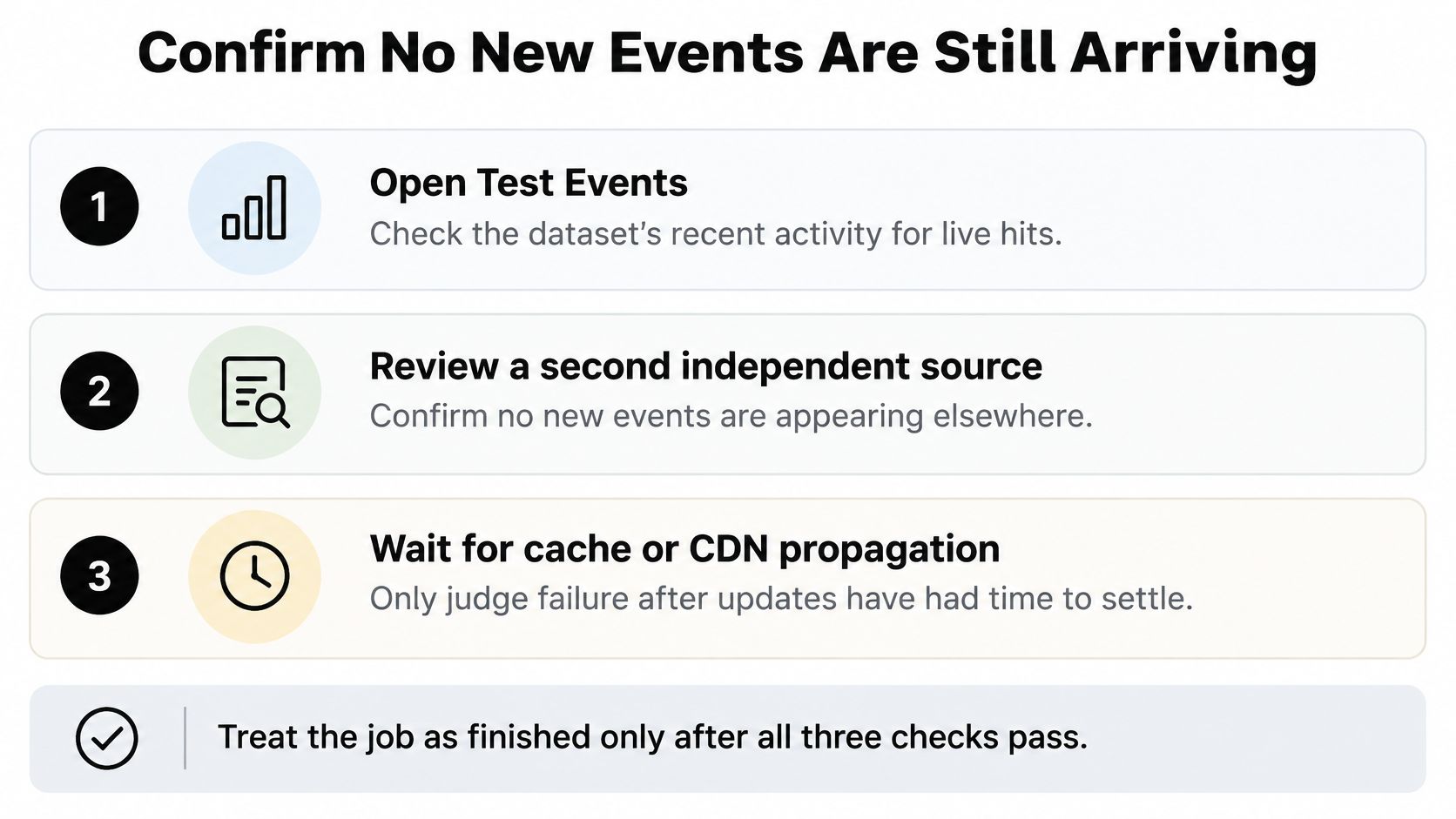
Completion requires independent evidence: no new events in Events Manager, no browser requests to Meta Pixel endpoints, and no Conversions API calls in server or app logs. Allow published changes and cache or CDN updates to propagate before treating continued activity as a failed removal.
Use the same recorded dataset ID throughout. Otherwise, you can inspect a quiet dataset while the store sends to a different one.
Establish the pass conditions
Open Events Manager → Test Events, load the storefront, and inspect the dataset's recent activity. Compare event timestamps with your deployment record rather than assuming every visible entry occurred after removal. Keep pre-change timestamps so older activity doesn't get mistaken for a new test hit.
In the browser, open developer tools and select Network before navigating. Test the home page, a product page, and checkout entry, then inspect requests for Meta Pixel endpoints such as facebook.com/tr. Use a browser session without a tracking blocker so the browser itself doesn't create a false pass.
Ask the server or app owner to inspect outgoing Conversions API requests for the old dataset. A browser test can't establish whether a backend is still posting events.
Use this checklist while collecting the evidence.
Diagnose failed checks by delivery path
| Check | Pass | If it fails, look here |
|---|---|---|
| Events Manager Test Events and recent activity | No new browser or server events after the recorded publication time | Mismatched dataset selection, app pixel, or delayed cache |
| Browser network log on home, product, and checkout | No requests to Meta Pixel endpoints | Theme code, unpublished GTM changes, custom pixel, or consent tag |
| Server or app logs | No Conversions API calls for the dataset | App credential, agency token, or server-side integration |
| Connected assets and partners | Intended accounts only, unwanted partners gone | Business Settings access that was never removed |
Also open Meta Business Suite → Settings → Data sources → Datasets and pixels, select the dataset, and review Connected assets and Partners. Meta's access-management documentation describes disconnecting ad accounts and removing partner access with the required business permissions.
An empty browser network log is only a browser result. Pair it with server-side evidence before signing off.
If requests continue, inspect their initiator in developer tools. That can help distinguish a theme script from a tag manager or app-loaded implementation. If events return after a theme change, compare the newly published theme against your audit inventory.
For a broader review of how apps and servers exchange information, map those connections as part of your customer data integration process. Return failures to the owner of the sending path instead of repeatedly disconnecting the catalog.
Close the Record and Route Data Requests
The technical shutdown and a person's data-deletion request need separate records. One documents changes to your store's tracking systems. The other concerns information already collected and the processes available for handling it.
Shopify's customer data-sharing documentation says sharing can include browsing behavior and, under Enhanced sharing, personal information such as names, locations, email addresses, and phone numbers. It also describes privacy options, including a privacy portal through which customers can request deletion or opt out of Shopify's sharing for advertising purposes. Don't treat a removed pixel ID as a completed response to that kind of request.
Separate the shutdown from the privacy response
For an individual request, first establish which business and services received the relevant information. Route the request through the applicable Shopify and Meta privacy mechanisms, and keep a record of what was submitted and any confirmation received. Don't promise that uninstalling tracking has wiped the person from Meta.
Past campaign reporting, matched audiences, and server events already received are outside the scope of a browser-code removal. Vendor-specific data processes may still apply. Describe the technical action accurately rather than using a broad statement such as all customer data deleted.
The pixel can be operationally off while historical advertising data remains.
Consent withdrawal also deserves its own handling. Removing tracking from the entire store is a business-wide implementation change; honoring one visitor's choice is a different operation. If your store serves multiple markets, make sure the responsible privacy owner reviews how those choices and requests are handled.
Understanding what first-party data is can help your team describe its own collection accurately. It doesn't remove the need to account for information shared with external advertising services.
Write a usable closure record
Create a short document that another developer or marketing manager can understand without repeating the audit. Include:
- Identity and scope: Store domain, dataset ID, business portfolio, and the tracking paths included in the shutdown.
- Implementation changes: Theme files, GTM tags, custom pixels, apps, and server integrations removed or disabled.
- Access changes: Ad accounts and partners disconnected, kept, or awaiting action.
- Deployment evidence: Publication timestamps, container versions, server confirmations, and the person responsible for each change.
- Validation evidence: Last observed event timestamps, the final Test Events check showing nothing new, browser findings, and server-log results.
- Open privacy work: Requests routed to Shopify or Meta, privacy-notice changes, and the person responsible for follow-up.
Label unfinished work plainly. A custom pixel awaiting removal belongs with the Shopify administrator; a draft-theme snippet belongs with the theme owner; an agency-controlled server credential belongs with the agency or backend owner. Give each item a named owner rather than marking the whole job complete because your part is finished.
Prevent an accidental reinstall
Update your privacy notice to reflect the configuration that remains. Don't say Meta Pixel or Enhanced sharing is active if you've disabled it, but don't remove disclosures for another integration that still sends information. Have the privacy owner review the wording against the technical inventory.
Keep the inactive dataset available for legitimate historical reporting where appropriate, or leave it disconnected from the relevant accounts and partners. Avoid renaming it in a way that suggests the underlying history was erased. A clear internal status such as inactive helps the next administrator understand its purpose.
If you later introduce replacement measurement, approve it as a new implementation with a documented purpose, appropriate consent handling, and fresh validation. Don't restore the old snippet from a theme backup just to make an advertising dashboard look active again.
The closure record should let someone answer a practical question: what stopped, when did it stop, and what evidence confirms it? Once that answer is documented, handle outstanding privacy requests through their own workflow rather than reopening the uninstall without a reason.
Yassine Malti builds Shopify apps and custom automations that connect with a merchant's existing tools and workflows. If this audit reveals an app or automation that needs a clearer off switch, visit Yassine Malti to discuss a scoped implementation with documented controls and a testable handover.
Shopify apps by Yassine Malti
Put this into practice
-

PROMPTit · AI photo editing
Five AI image tools for your product photos · 5 images/month free
-

REMOVEit · Background removal
Clean, consistent product backgrounds in bulk · 5 images/month free
-

VEOit · Product videos
AI product videos made from your product images · 5 credits/month free