
Deleting an authenticator app feels like turning protection off. It isn't. The account can still demand a code from a phone you no longer have, and on some services there's no off switch to find at all. That's why a 2 step verification disable search so often ends in a lockout instead of a simpler login.
Whether you can remove the second step depends on the provider's recovery rules, your account type, and whether you still control a trusted device. I would answer those three questions first, then decide if removal is even the right fix. In most cases, replacing an unreliable factor solves the friction without leaving a password as the only barrier.
Table of Contents
- Which Accounts Let You Turn Off Two-Step Verification
- What Turning It Off Removes
- What to Set Up Before You Turn It Off
- How to Turn Off Two-Step Verification on Google, Microsoft and Apple
- When the Disable Option Is Missing or Locked
- Choose a Safer Option Instead of Turning It Off
Which Accounts Let You Turn Off Two-Step Verification
Google and Microsoft personal accounts let you turn off two-step verification; Apple generally does not after the setup window. The available controls vary by provider and account type, so use the table to find the relevant setting before changing anything.
| Provider | Where to find the setting | Can you turn it off? | Key condition |
|---|---|---|---|
| Google account | Security > 2-Step Verification > Turn off | Yes | After turning it off, delete saved backup codes and review app passwords |
| Microsoft personal account | Security > Manage how I sign in > Two-step verification > Turn off | Yes | Microsoft may still request a code after unusual sign-in activity |
| Apple ID | Security settings in your Apple Account | Generally no after setup | The option is available only for about two weeks after enabling it |
| Other services | Account security settings for that service | Depends on provider rules | Check the service's recovery and security settings |
The authenticator app confusion
Removing an authenticator app from your phone does not change the account's sign-in settings. The account may still require a code, leaving you without a way to provide it.
Turning verification off requires changing the setting on the account itself. Google's instructions for turning off 2-Step Verification direct users to Security, then 2-Step Verification, then Turn off. Google warns that removing the second factor makes unauthorized access easier and advises deleting saved backup codes and reviewing app passwords afterward.
For recovery checks and replacement sign-in methods, follow the setup guidance in What to Set Up Before You Turn It Off.
What Turning It Off Removes
Google reported that after automatically enabling 2-Step Verification for more than 150 million users in 2021, account compromises among those users fell by 50%, according to the Google account hijacking report. That's the clearest large scale benchmark for what a second factor blocks.
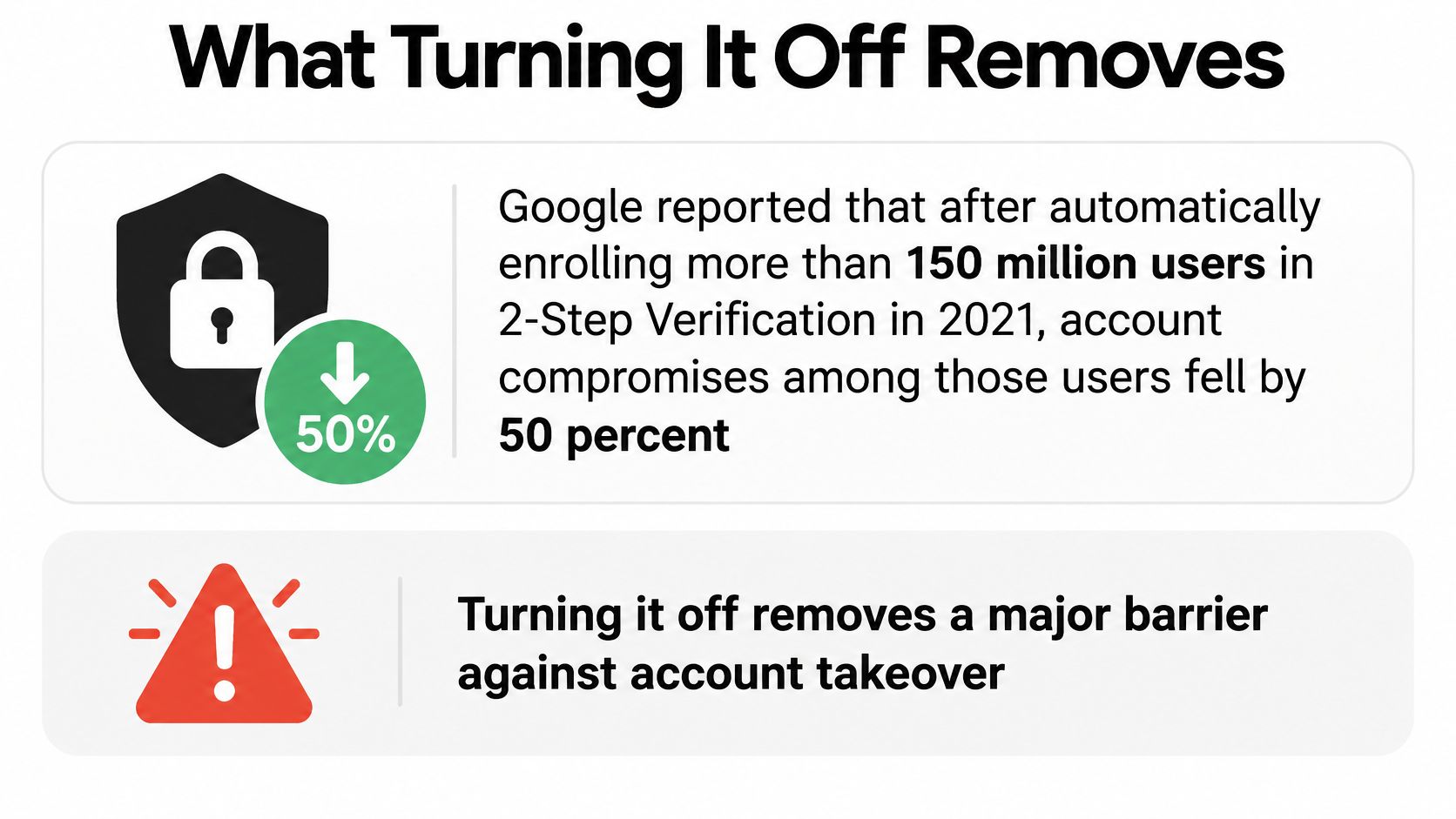
Turn it off and the account drops to password-only sign-in. A stolen, reused, phished, or leaked password becomes enough on its own. For a personal account with nothing valuable attached, that's a modest risk. For an account that controls payments, customer records, advertising, app permissions, or an admin dashboard, one password now reaches everything.
The NIST digital identity guidelines treat multiple factors as the basis for higher assurance authentication and limit consecutive failed attempts for a specific authenticator to no more than 100 before it's disabled. Removing a factor moves you away from that standard, not toward it.
Shared access raises the stakes further, since more people and devices mean more ways for a password to leak. If your team shares tools or subscriptions, the background in two-factor authentication for shared subscriptions is worth reading before you strip a factor from a shared login. The same caution applies to store tools you sign into daily. An app like ALT SEO: AI Alt Text Generator, which creates AI generated alt text to improve accessibility and search visibility, sits behind your store admin login, so weakening that login weakens everything connected to it.
Treat disabling as a security exception that needs a documented replacement, not a convenience toggle you flip and forget.
What to Set Up Before You Turn It Off
Changing two-step verification can leave you locked out if your recovery details are outdated. Check that you can still reach the account and update its recovery options before changing any sign-in settings.
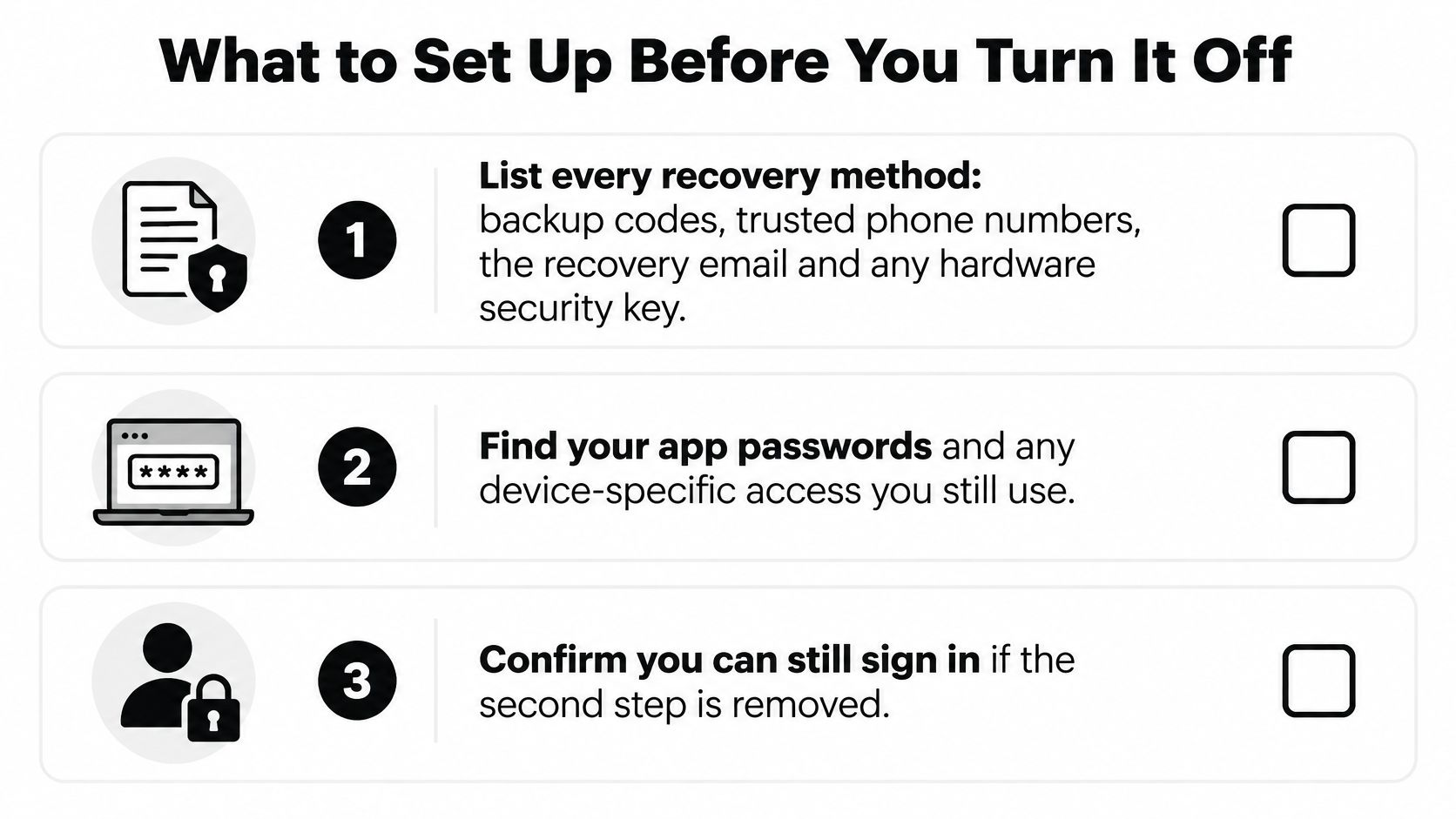
The pre-disable checklist
- Update your recovery details. Check that the recovery email and trusted phone number are current and accessible. If either points to an old number or inbox, correct it while you can still sign in normally.
- Review app passwords. Identify which apps use them, remove ones you no longer need, and keep track of any that must remain in place.
- Review signed-in devices and sessions. Note which phones, laptops, and browsers are active, especially those used to access email, files, or store tools.
- Inventory admin and staff access. For a business account, list the people and services with access to payments, customer data, advertising accounts, or connected apps. A change to one shared login can affect every system that account can reach.
- Record the current settings. Note the registered recovery details and enabled factors, along with the date you checked them. That gives you a clear reference if you need to restore the previous setup.
Keep a dated record of changes. If sign-in problems appear later, you can identify which settings changed.
A realistic scenario
A store owner wants to turn off two-step verification because codes go to a former employee's phone. Start by updating the trusted number and confirming the recovery email while the current sign-in method still works. If the provider requires an administrator or does not allow two-step verification to be disabled, changing the recovery details will not remove that restriction.
If you cannot access the account's recovery options, resolve that access issue before changing its sign-in settings. Removing a factor while recovery details are out of reach can make the account harder to reclaim.
How to Turn Off Two-Step Verification on Google, Microsoft and Apple
Each provider buries this setting in a different place, and Apple doesn't offer it in most cases. Follow the path for your account type only. Steps written for a personal account won't match a work or school account managed by an administrator.
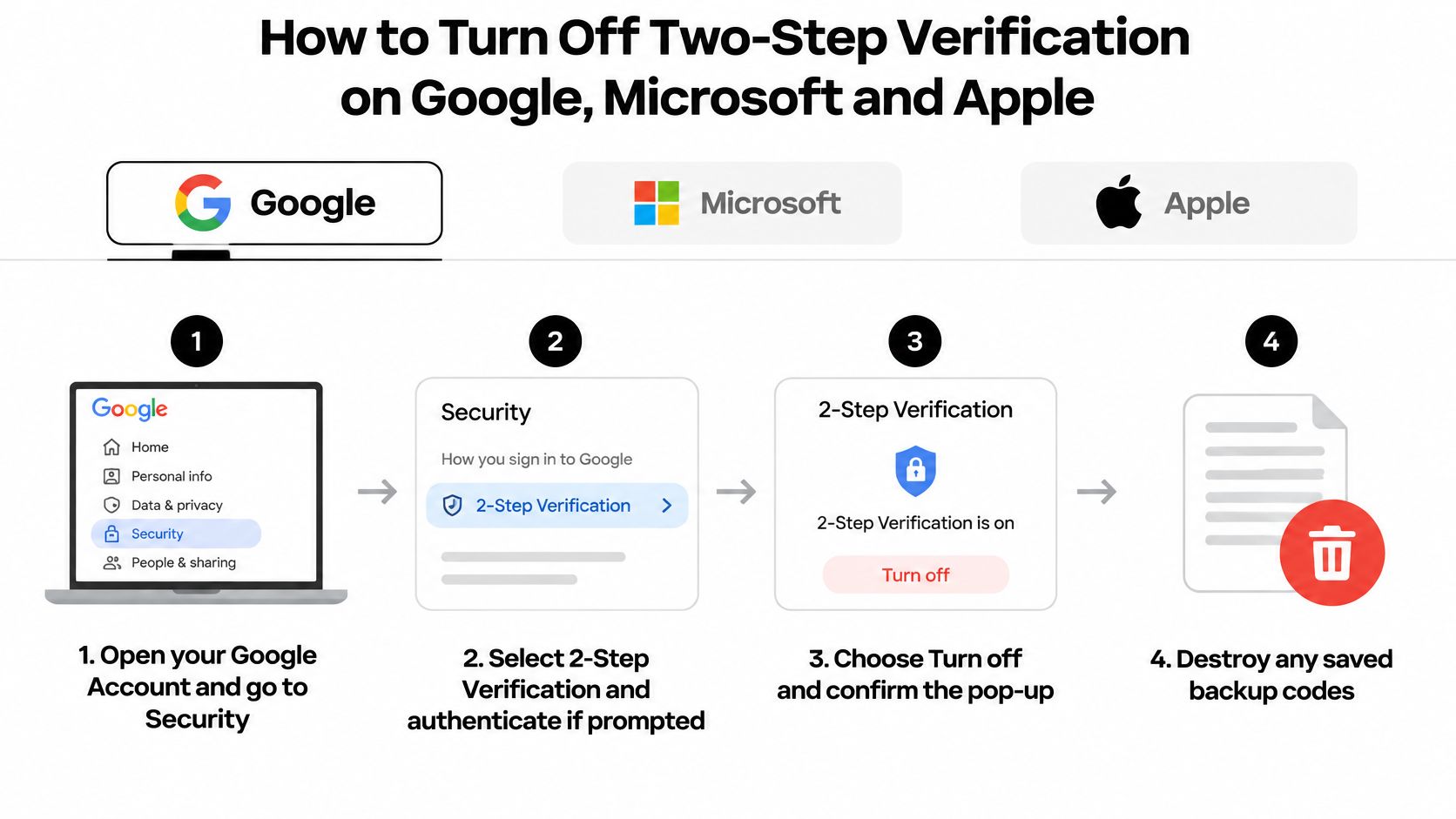
- Open your Google Account and go to Security.
- Select 2-Step Verification and authenticate if prompted.
- Choose Turn off and confirm the pop-up. Google asks you to confirm because this removes a layer that blocks sign-ins with a stolen password alone.
- Destroy any saved backup codes. They no longer protect anything, and leaving them in a drawer or a notes app serves no purpose.
- Open the App passwords area and remove each app password individually. Turning off the second step doesn't clean these up for you, and any you leave behind is a leftover credential tied to your account.
Finish by signing in with your password alone on a device you trust, so you know the change took effect.
Microsoft personal account
The Microsoft support guide for two-step verification sets out the supported workflow for personal accounts:
- Sign in on the account Security page.
- Open Manage how I sign in.
- Find Additional security and Two-step verification.
- Select Turn off and complete the on-screen confirmation.
- Test the change in a private browser session. A normal window may reuse an existing session and make the change look successful when it isn't.
Keep your recovery email, phone, or authenticator available until password-only sign-in is confirmed. Microsoft may still request a security code later when it detects increased sign-in risk, such as an unfamiliar location or device. That doesn't mean your change failed. It means the account can still challenge suspicious sign-ins even with two-step verification off, so don't delete your recovery methods the moment the setting changes.
Apple
Apple generally doesn't let you turn off two-factor authentication once it's enabled. The one exception is a limited window of about two weeks after setup, during which you can still reverse it. After that, there's no Turn off option to find, no matter how deep you dig through settings.
If that window has passed, stop looking for a switch. The practical path is to update your trusted devices and recovery details so the second factor stops being a burden, then use the replacement approach in the final section. I would spend the effort there rather than on workarounds that promise a disable option Apple doesn't provide.
One caution for all three: complete the change on a device and network you normally use. Providers treat unfamiliar sign-ins as risky, and a security change from a strange location can trigger extra checks or a temporary block.
When the Disable Option Is Missing or Locked
A missing Turn off button usually reflects a provider rule or a closed time window. Match the problem to the account's recovery options before changing settings or wiping a device.
| Symptom | Likely cause | Fix |
|---|---|---|
| No Turn off option | The provider does not allow removal for this account, or the setup window has passed | Replace the factor with a passkey or hardware key, or contact support |
| Old phone is lost | The authenticator or phone number is tied to the lost device | Try a backup code or recovery email. Microsoft recovery may involve an extended waiting period |
| Still asked for a code after turning it off | A sign-in from an unfamiliar device or location triggered a risk-based challenge | Keep recovery options current and follow the sign-in prompts |
| Other devices still signed in | Disabling verification did not revoke existing sessions | Review active sessions and sign out of devices you do not recognize |
| Recovery options no longer work | The phone number or email is outdated | Update recovery details before making further changes |
Lost phone, working account
If your old phone is gone, try a backup code or recovery email first. Microsoft recovery can involve an extended waiting period when you have lost access to your security methods, so start the official recovery process rather than repeatedly guessing passwords or codes.
A phone change can also leave account settings tied to the old handset. The guide to remove a Samsung account from your phone covers removing that account from the device. Treat account removal and transferring your verification factor as separate tasks, and complete the transfer before wiping the old phone.
Sessions and repeated attempts
Disabling two-step verification does not necessarily sign you out of other devices. Whether existing sessions remain active depends on the provider, so review the account's session list and sign out of devices you do not recognize.
If sign-in fails, stop after two attempts and wait before trying again. Repeated failures can trigger further account restrictions and make recovery take longer.
Choose a Safer Option Instead of Turning It Off
Those searching for a disable option aren't against security. They're frustrated by codes that arrive late, an authenticator stuck on an old phone, or prompts at the worst moment. Replacing the factor usually fixes that frustration without dropping the account to a password alone.
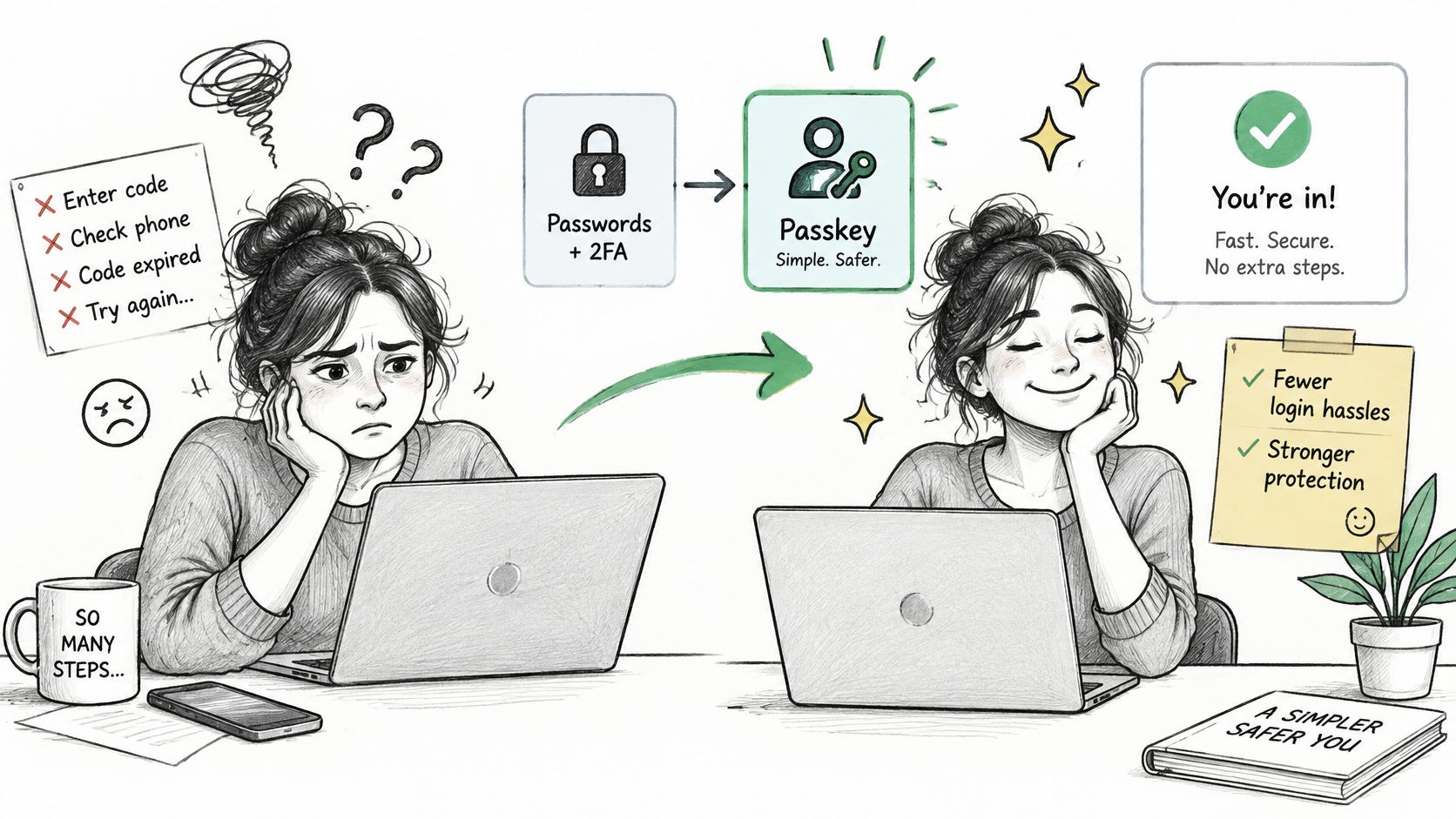
The numbers support replacement over removal. The FIDO 2025 Passkey Index reported a 93% passkey login success rate versus 63% for other methods, and found that more than 35% of people had experienced at least one account compromise linked to password vulnerabilities in the preceding year. It also reported that 47% of consumers would abandon a purchase after forgetting a password, which is exactly the friction merchants worry about. Passkeys cut both the friction and the password exposure at the same time.
| Method | Recoverability | Phishing resistance | Device portability | Support burden |
|---|---|---|---|---|
| SMS codes | Tied to an active phone number | Low | Good while the number stays active | Higher, due to lost or ported numbers |
| Authenticator app | Requires backups or a device transfer | Medium | Moderate | Moderate |
| Hardware security key | Needs a spare key stored safely | High | Good, plugs into devices | Low, unless the key is lost |
| Passkey | Requires access to the sync account | High | Works where your sync provider signs in | Low |
This short walkthrough shows how passkey sign-in feels in practice compared with typing codes:
Match the fix to the account
- Owners and administrators: Keep phishing-resistant sign-in, meaning passkeys or hardware keys, on any account that controls money or customer data.
- Staff and agencies: Replace unreliable SMS or an inaccessible authenticator setup, and remove access people no longer need instead of weakening the shared account.
- Everyone: Store tested recovery codes offline, somewhere you can reach when your phone is dead, lost, or replaced.
The least disruptive option is rarely the off switch. It's a better factor with recovery you've actually tested.
If you still need to disable the second step, do it only after your replacement signs in successfully. Record the date, the reason, and the person responsible, and set a date to turn protection back on. An undocumented exception tends to become permanent, and that's when a temporary troubleshooting step turns into a standing risk.
If you're tightening up the accounts behind your Shopify store, it's worth tightening the store itself at the same time. Yassine Malti builds SEO focused, AI powered Shopify apps and custom automations that help merchants grow traffic, streamline operations, and convert more visitors, from ready made apps to bespoke features built around your existing stack. Visit the site to explore the apps and practical guides, or get in touch for direct, collaborative support on your next build.
Shopify apps by Yassine Malti
Put this into practice
-

ALT SEO · Image alt text
AI alt text for every product image · 100 images/month free
-

RANKit · Meta titles & descriptions
AI meta titles and descriptions, sized for Google · 50 meta tags/month free
-

TAGit · Product tags
SEO-friendly product tags, generated in bulk · 50 tags/month free