You've added a hamburger button to your Shopify header, and the drawer slides perfectly in the desktop preview. Then you open it on your phone: the bottom link sits behind the browser toolbar, the page scrolls underneath, and closing the menu leaves keyboard focus somewhere you can't see.
That's the difference between slider menu CSS and a usable navigation component. CSS handles the position and movement. The complete build also needs an interaction contract: a reliable trigger, predictable dismissal, accessible state, and a deliberate place for focus to go.
Table of Contents
- Build the Slide-Out Menu Step by Step
- Responsive Breakpoints and Viewport Behavior
- Accessibility Checks Every Slider Menu Needs
- Keeping the Slide Smooth on Mobile Devices
- Choosing the Right Drawer Approach for Your Store
Build the Slide-Out Menu Step by Step
Start with three parts: a trigger button, a navigation panel containing real links, and a backdrop. Put the panel outside transformed page wrappers so it doesn't inherit an awkward positioning or stacking context.
For this example, place the navigation after the main content. That keeps it outside the content wrapper and makes background treatment easier, but it also means you must deliberately move focus when the drawer opens.
Core parts of a slider menu
| Building block | Element or property | Job in the slider |
|---|---|---|
| Trigger button | button with aria-expanded |
Opens and closes the panel |
| Panel container | nav with transform: translateX(-100%) |
Holds the closed menu off-screen |
| Open state | .is-open with transform: translateX(0) |
Slides the panel into view |
| Backdrop | Fixed element with a background color and opacity | Dims the page and catches outside clicks |
| Transition | transition: transform |
Animates the slide |
| Breakpoint | A content-driven @media rule |
Switches to a horizontal nav on desktop |
Establish the markup and visual states
Write semantic HTML first.
Use a button for the action and anchors for navigation. Don't make a clickable
divimitate a button, and don't addrole="menu"to ordinary storefront links.This Shopify Liquid example uses existing route objects rather than hard-coded destinations. In a theme, replace the example anchors with links from your configured navigation menu.
<header>
  <button id="menu-toggle" type="button"
    aria-expanded="false" aria-controls="site-nav" hidden>
    Menu
  </button>
</header>

<main id="main">
  <!-- Storefront content -->
</main>

<div class="menu-backdrop" aria-hidden="true"></div>

<nav id="site-nav" aria-label="Main navigation">
  <button class="menu-close" type="button" hidden>
    Close menu
  </button>
  <a href="{{ routes.root_url }}">Home</a>
  <a href="{{ routes.all_products_collection_url }}">Shop</a>
  <a href="{{ routes.cart_url }}">Cart</a>
</nav>
Keep the navigation usable before JavaScript initializes. The trigger starts hidden because a nonfunctional menu button is worse than a visible list of links.
Position the enhanced panel off-screen.
Use
position: fixed, a viewport-aware height, and a transform. Keep the panel rendered during movement; hiding it withdisplay: nonebefore the transition finishes prevents the exit animation.Define the open state and backdrop together.
The following values are example implementation settings, not universal sizing or timing rules. The panel becomes non-interactive immediately when closing, while CSS delays its visual hiding until the slide finishes.
.menu-backdrop { display: none; }

.menu-ready #site-nav {
  position: fixed;
  inset-block-start: 0;
  inset-inline-start: 0;
  box-sizing: border-box;
  inline-size: min(85vw, 22.5rem);
  height: 100vh;
  height: 100dvh;
  padding: 1rem;
  padding-block-end: calc(1rem + env(safe-area-inset-bottom));
  overflow-y: auto;
  overflow-wrap: anywhere;
  background: white;
  z-index: 30;
  transform: translateX(-100%);
  visibility: hidden;
  transition: transform 240ms ease, visibility 0s 240ms;
}

.menu-ready #site-nav:dir(rtl) {
  transform: translateX(100%);
}

.menu-ready #site-nav.is-open {
  transform: translateX(0);
  visibility: visible;
  transition-delay: 0s;
}

.menu-ready #site-nav a { display: block; padding: .75rem; }

.menu-ready .menu-backdrop {
  display: block;
  position: fixed;
  inset: 0;
  z-index: 20;
  background: rgb(0 0 0 / .4);
  opacity: 0;
  visibility: hidden;
  pointer-events: none;
  transition: opacity 240ms ease, visibility 0s 240ms;
}

.menu-ready .menu-backdrop.is-open {
  opacity: 1;
  visibility: visible;
  pointer-events: auto;
  transition-delay: 0s;
}

html.menu-open { overflow: hidden; }

@media (min-width: 48rem) {
  .menu-ready #site-nav {
    position: static;
    display: flex;
    inline-size: auto;
    height: auto;
    padding: 0;
    overflow: visible;
    transform: none;
    visibility: visible;
    transition: none;
  }
  .menu-ready #menu-toggle,
  .menu-ready .menu-close,
  .menu-ready .menu-backdrop { display: none; }
}

@media (prefers-reduced-motion: reduce) {
  .menu-ready #site-nav,
  .menu-ready .menu-backdrop { transition: none; }
}
Choose the desktop breakpoint from the actual links.
The example switches to horizontal navigation when the links have room. If your header also contains search, account controls, and a wide logo, move that breakpoint rather than squeezing everything into an unusable row.
Plan the surrounding layout with the same care as the drawer. This CSS header and footer guide is useful when aligning navigation with the rest of the page shell.
Add the interaction controller
Use one function to synchronize state.
Don't let separate click handlers independently update the class, backdrop, and accessibility attributes. A single state function reduces the chance of an apparently closed panel remaining interactive.
const trigger = document.querySelector('#menu-toggle');
const panel = document.querySelector('#site-nav');
const closeButton = panel.querySelector('.menu-close');
const backdrop = document.querySelector('.menu-backdrop');
const desktop = matchMedia('(min-width: 48rem)');
let opened = false;

function setOpen(next, restoreFocus = true) {
  opened = next && !desktop.matches;

  if (!opened && restoreFocus && !desktop.matches) {
    trigger.focus();
  }

  panel.inert = !desktop.matches && !opened;
  panel.classList.toggle('is-open', opened);
  backdrop.classList.toggle('is-open', opened);
  document.documentElement.classList.toggle('menu-open', opened);
  trigger.setAttribute('aria-expanded', String(opened));

  if (opened) panel.querySelector('a').focus();
}

function syncLayout() {
  const active = document.activeElement;
  if (desktop.matches && (active === trigger || active === closeButton)) {
    panel.inert = false;
    panel.querySelector('a').focus();
  }
  setOpen(false, !desktop.matches && panel.contains(active));
}

trigger.addEventListener('click', () => setOpen(!opened));
closeButton.addEventListener('click', () => setOpen(false));
backdrop.addEventListener('click', () => setOpen(false));
document.addEventListener('keydown', event => {
  if (event.key === 'Escape' && opened) {
    event.preventDefault();
    setOpen(false);
  }
});
desktop.addEventListener('change', syncLayout);

document.body.classList.add('menu-ready');
trigger.hidden = false;
closeButton.hidden = false;
syncLayout();
Make dismissal deliberate.
The controller handles the trigger, an internal close button, backdrop clicks, and Escape. It also clears mobile state when the viewport crosses the desktop breakpoint, preventing a resized window from retaining locked scrolling.
This is a non-modal navigation drawer. It doesn't trap focus or declare the rest of the page inert; if your design requires a modal drawer, add a tested modal focus strategy rather than assuming the backdrop provides one.
Validate scrolling on a real phone.
The root scroll lock is a starting point, not a guarantee across every theme and browser. Test it against sticky headers, cart drawers, and any existing theme scroll-lock utility, and preserve the page's scroll position if a platform-specific workaround becomes necessary.
Build rule: Keep one owner for menu state. Mixing a theme controller with a second custom controller is a reliable way to produce conflicting focus and scroll behavior.
A working build stays off-screen and untabbable when closed, slides in when activated, and returns focus when dismissed. Without the enhancement script, the original navigation remains available.
Responsive Breakpoints and Viewport Behavior
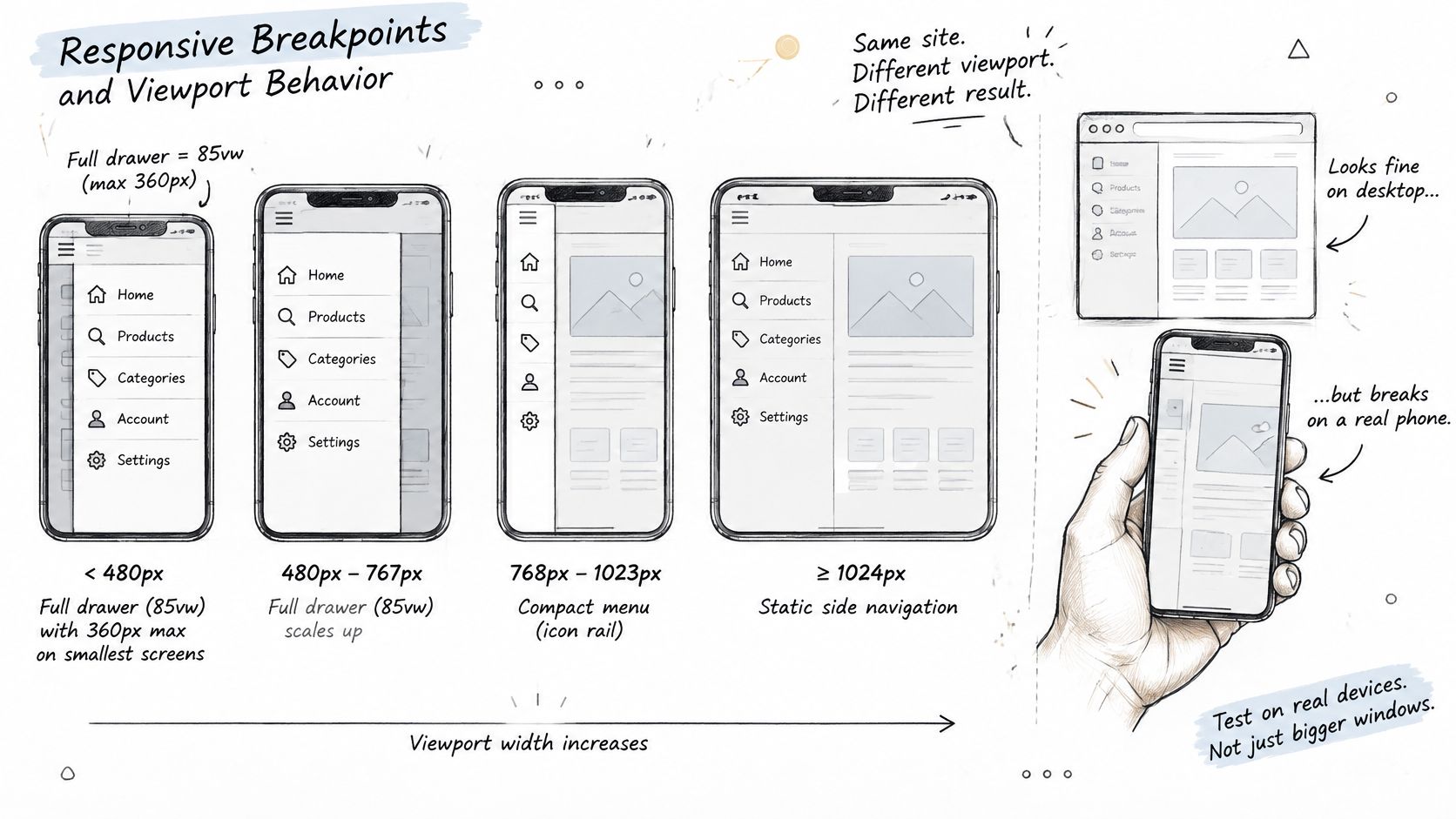
The first phone failure is often a missing bottom link, not a broken animation. A drawer sized against the wrong viewport can extend beneath browser controls, especially when those controls expand during scrolling.
Use this visual as a sizing reference, then let your actual content determine the final breakpoint.
Size the drawer around its contents
The following table describes a hypothetical storefront configuration, not device standards. It's an alternative to the simpler desktop switch in the build example; if you adopt it, update both the CSS breakpoint and JavaScript media query together.
Viewport bands for the drawer
| Viewport | Panel width | Layout |
|---|---|---|
| Under 480px | 85vw, maximum 360px |
Compact slide-out drawer |
| 480px to 767px | 70vw, maximum 420px |
Wider drawer |
| 768px to 1023px | Content-tested width | Drawer or compact top bar |
| 1024px and up | Available header width | Horizontal navigation, trigger hidden |
100dvh follows the dynamic viewport, while 100vh can produce a panel taller than the currently visible area when mobile browser controls are present. Retain the older declaration as a fallback, then let the dynamic unit override it.
Give the panel its own vertical scrolling. Long collection names should wrap inside the drawer rather than force its width outward, so combine overflow-y: auto with an appropriate wrapping rule and avoid fixed-height link rows.
Handle edges, direction, and stacking
Logical positioning such as inset-inline-start handles the placement edge, but it doesn't reverse translateX() automatically. The RTL transform override in the example supplies that missing direction change.
Safe-area padding belongs at the bottom of the scrolling panel so the final link clears a device's inset area. For nested submenus, inspect the drawer's stacking context before raising individual link layers: increase the panel's layer when appropriate, or relocate it outside the ancestor that traps it.
For a moving demonstration of the navigation pattern, use the video alongside your own device tests.
For overlay-heavy themes, native top-layer rendering can avoid some ancestor stacking problems; Chrome's Web UI recap discusses popovers and the development of anchor positioning. Anchor positioning is useful for trigger-relative dropdowns, but a viewport-edge drawer generally doesn't need that additional positioning machinery.
For this example, test widths of 320px, 375px, 768px, and 1280px, plus a rotated phone. Repeat with long labels and enlarged text, because an empty drawer proves very little.
Accessibility Checks Every Slider Menu Needs
A polished slide isn't evidence of an accessible menu. A translated panel can look closed while its links remain in the keyboard sequence, and a visible panel can open without telling a screen reader that anything changed.
The University of Washington keyboard accessibility guide emphasizes logical keyboard operation and keeping focus out of hidden content. Treat those as acceptance criteria, not finishing touches.
Check the interaction contract
Use a real button with an accessible name, aria-expanded, and aria-controls. Native button behavior supplies Enter and Space activation without custom key handlers.
The closed drawer must be unavailable to keyboard users. In the example, inert supplies that state immediately, while delayed visibility handles the visual end of the transition; support for older target browsers needs its own fallback testing.
These are the core checks to keep beside your implementation.
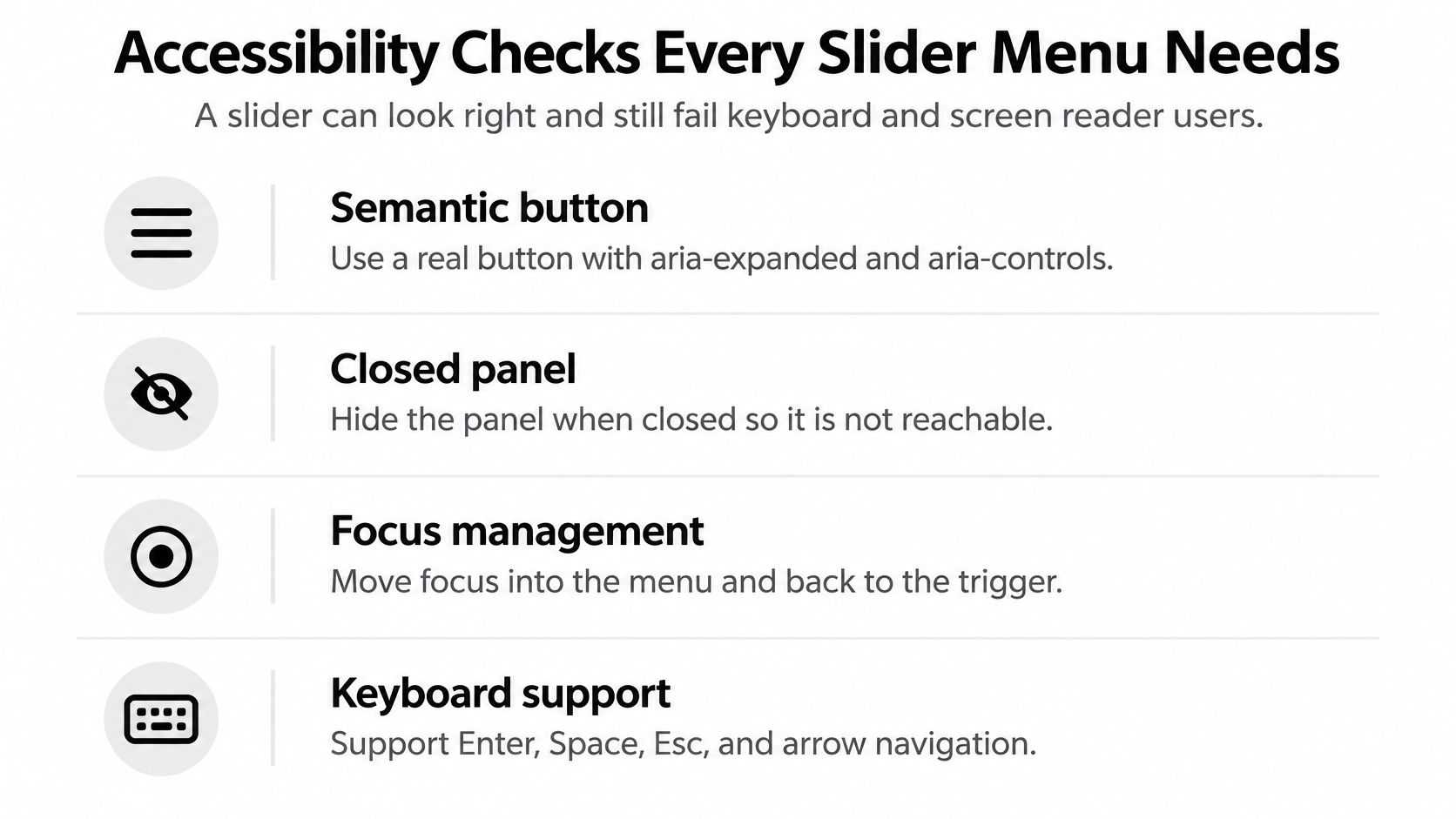
Move focus before hiding its current location. If focus remains inside the drawer when it closes, return it to the trigger before applying inert or making the panel invisible.
Ordinary site navigation should use Tab and Shift+Tab, not a partial imitation of application-menu controls. Arrow keys belong only in a complete, documented menubar interaction, including consistent directional behavior and Home and End support; the infographic's arrow-navigation reminder applies only to that pattern.
Test behavior rather than appearance
Accessibility test matrix for a slider menu
| Test | How to run it | Pass condition |
|---|---|---|
| Mouse open and close | Click the trigger to open, click again to close | Panel opens and closes and aria-expanded updates |
| Keyboard open | Tab to the trigger and press Enter | Focus moves to the first menu link |
| Escape dismissal | Press Escape while the panel is open | Panel closes and focus is not lost |
| Focus restoration | Close the panel, then check where focus lands | Focus returns to the trigger button |
| Screen reader announcement | Test with NVDA or VoiceOver | Expanded or collapsed state is announced |
| Zoom | Test increased browser zoom, including strong magnification | Every link stays reachable without losing content |
| Narrow width | Use a narrow responsive viewport with long navigation labels | No link is hidden behind other content or cut off |
Run the keyboard test without touching the mouse. Watch where focus goes after the final link, after dismissing the drawer, and after changing viewport orientation.
Never remove the focus outline just because it clashes with the design. Replace it with an equally clear indicator that survives the drawer's background and active-link colors.
A bare outline: none can make an otherwise functional drawer impossible to use visually. Coordinate focus styles across links, buttons, and search fields; this CSS input styling guide is relevant when the drawer contains search or account forms.
Image accessibility is a separate task. ALT SEO: AI Alt Text Generator can generate and customize Shopify image descriptions, but it doesn't repair keyboard navigation or focus management.
For a Shopify storefront, these checks protect access to collections, account links, and the cart. If shoppers can't leave a drawer or find the focused link, they can't reliably continue toward checkout.
Keeping the Slide Smooth on Mobile Devices
Animate transform and, where needed, opacity, not left, width, or margin. Moving the panel with a transform avoids repeatedly changing its layout geometry during the slide.
MDN's CSS performance guidance explains that browsers can optimize CSS animations and transitions, while larger or more numerous animations increase processing demand. That doesn't mean every transformed element is free to animate.
The movement should stay simple enough to inspect and measure.
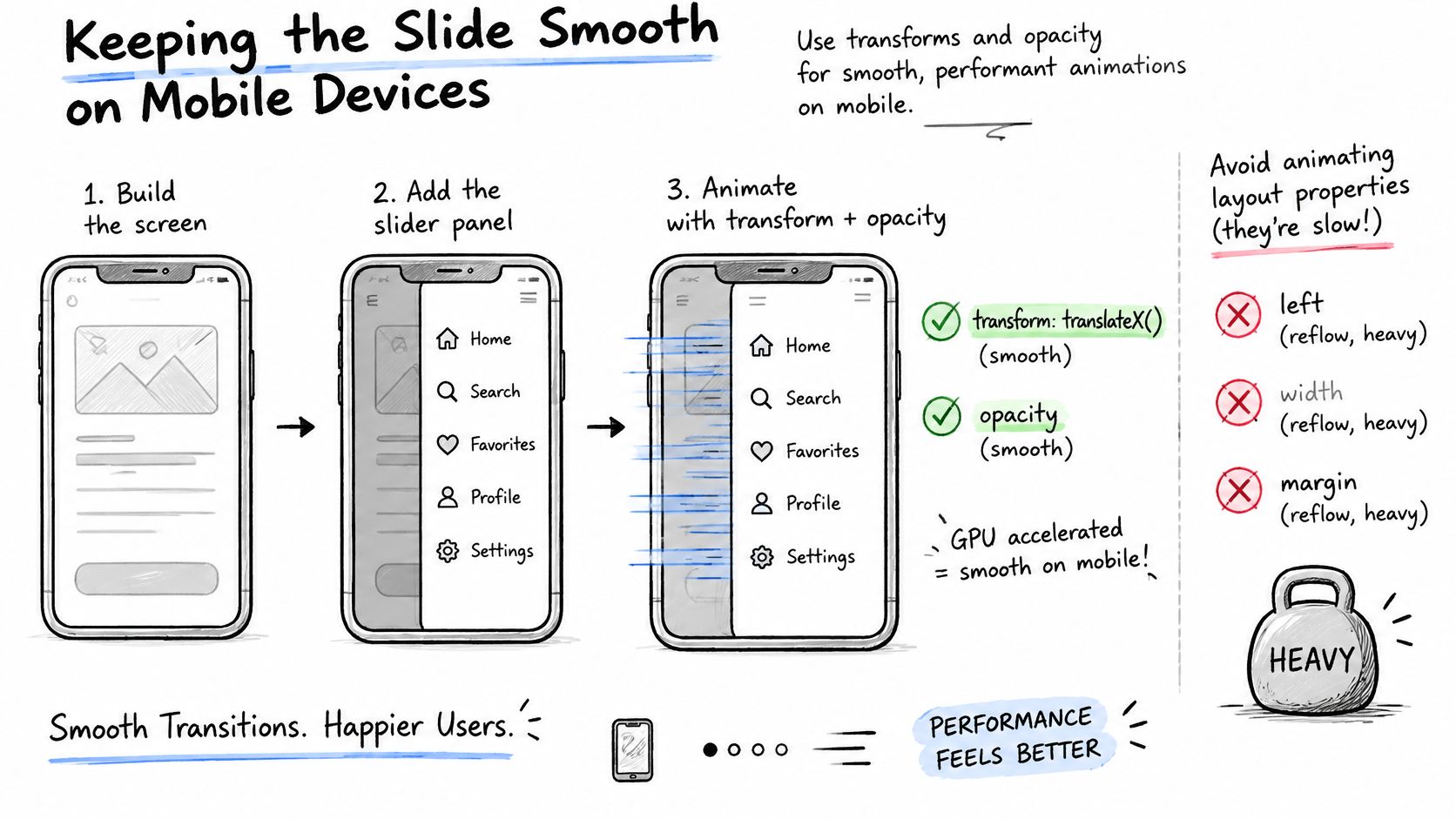
Avoid expensive work around the animation
The delayed visibility change in the build prevents the panel from disappearing halfway through its exit. Keep that delay aligned with the movement duration, and remove it when reduced motion removes the transition.
Don't leave will-change: transform on every submenu and link. If profiling shows a benefit, apply it to the moving drawer shortly before interaction and remove it afterward; permanent compositing hints can increase memory use without improving the result.
Watch for these common problems:
- Oversized effects: A full-screen backdrop with blur or elaborate shadows can cost more than the drawer itself.
- Forced layout reads: Changing a class and immediately reading geometry such as
offsetWidthcan force synchronous browser work. - Hidden composited content: Promoting every nested submenu wastes resources even when shoppers can't see those elements.
- Competing animation: Moving the page, drawer, header, and backdrop together makes the interaction harder to keep responsive.
A simple opacity fade on the backdrop is a reasonable starting point. If a lower-end phone still struggles, remove that fade before adding more rendering hints.
Profile the actual interaction
Record cold load, first open, and repeated opening and closing in browser performance tools with a throttled mobile profile. Compare the filmstrip with main-thread activity and layout recalculations, then confirm the result on physical hardware.
A desktop preview shows whether the drawer moves. A constrained mobile test shows whether shoppers can use it while the rest of the storefront is busy.
Keep the no-animation version fully functional. With reduced motion enabled, shoppers should get the same controls, readable content, and dismissal behavior without waiting for a decorative slide.
Evaluate menu work alongside the broader storefront using this mobile site SEO guide. CSS-only isn't automatically faster: heavy paint effects, competing theme scripts, and fragile scroll-lock workarounds can make a tiny drawer feel slow.
Choosing the Right Drawer Approach for Your Store
Choose between a CSS-driven custom drawer, native popover behavior, and a more complete JavaScript component. Anchor positioning is a separate layout tool, not a replacement for any of those interaction controllers.
Drawer approaches compared
| Approach | Focus and Escape handling | Positioning | Best fit |
|---|---|---|---|
| CSS-only drawer | You write focus and Escape code yourself | Fixed-position off-canvas panel | Simple menus with few links |
| Native Popover API | Built-in light dismiss and focus handling | Top-layer rendering | Modern browsers, with a fallback for older devices |
| Anchor positioning | Supplied by the component it is paired with | Trigger-relative placement | Dropdowns anchored to a button, not full drawers |
| JavaScript component | Full control with more code to maintain | Any layout you define | Complex mega menus with many states |
Match the behavior to the storefront
The CSS-only label needs qualification. CSS can control the visual states, but once you add custom focus restoration, Escape handling, and state synchronization, you're building a CSS-driven component with JavaScript, not a purely CSS interaction.
A checkbox hack might demonstrate the slide, but it doesn't naturally communicate the semantics of a navigation disclosure. I'd rather maintain a small explicit controller than conceal application state in a form control that shoppers aren't using as a checkbox.
The MDN Popover API documentation describes native light-dismiss behavior, focus handling, and invoker relationships, and reports availability across current devices since January 2025. That makes popovers worth evaluating, but older devices still need a fallback.
Native behavior still needs product decisions
A popover isn't automatically a modal drawer. Decide whether shoppers may interact with the page underneath, whether the background should scroll, and where initial focus belongs, then test the chosen behavior rather than assuming the browser supplies your entire specification.
For a Shopify theme, also inspect existing components before introducing another library. Reuse a proven theme controller when it meets your requirements, and avoid attaching competing handlers to the same navigation button.
Use these decision rules:
- Small, flat navigation: Keep the implementation lean, with semantic links, CSS movement, and the minimal tested behavior controller.
- Nested collections and search: Consider a popover-backed drawer with JavaScript managing submenu state and application-specific focus.
- Complex mega menus: Choose a maintained component with documented keyboard behavior and budget for integration tests.
Whatever you choose, preserve a usable baseline when enhancement fails. The right solution is the smallest one that satisfies the full interaction contract, not the one with the fewest lines of JavaScript.
Yassine Malti builds Shopify apps and custom automations, including bespoke features that integrate with an existing store's technology. If your navigation needs theme-specific behavior or integration with search and other storefront tools, visit Yassine Malti to discuss the requirements and scope a maintainable implementation.
Shopify apps by Yassine Malti
Put this into practice
-

ALT SEO · Image alt text
AI alt text for every product image · 100 images/month free
-

RANKit · Meta titles & descriptions
AI meta titles and descriptions, sized for Google · 50 meta tags/month free
-

TAGit · Product tags
SEO-friendly product tags, generated in bulk · 50 tags/month free