font-display: swap is a CSS descriptor inside @font-face that lets the browser show fallback text immediately, then replace it with your brand font when the file arrives. If your Shopify product photos appear while the title and price remain blank, it's a practical place to start investigating.
Table of Contents
- The Blank Price That Waits on a Font File
- How Swap Compares With Every Font Display Value
- Why Swap Changes Speed and Layout Shift
- How to Add Swap in a Shopify Theme
- What the Shopper Sees When the Brand Font Arrives
- Why the Same Rule Looks Different on the Next Visit
- Ship Swap on Body Text and Recheck the First Visit
The Blank Price That Waits on a Font File
You open a product page on your phone. The image appears, the page background settles, but the space beside the product is strangely empty. Then the title, price, and Add to cart label appear together.
The content might already be in the HTML. The browser could be waiting for the custom font before showing the letters.
That waiting interval is the block period. It's easy to mistake it for a slow product template or delayed app content because the visible symptom is the same: shoppers can't read something they need.
Readability before brand polish
With swap enabled, that same product page can show its title and price in an available system font while the custom file downloads. The shopper gets the information first; the branded letterforms arrive afterward.
That doesn't make the font download faster. It changes what the browser does while the download is unfinished.
For a merchant, the distinction matters:
- Product information: A readable price is more useful than an empty space reserved for perfect typography.
- Navigation: Shoppers should be able to identify collections before the brand face finishes loading.
- Purchase controls: Button labels shouldn't become another dependency in the buying process.
Practical rule: Treat readable product information as a requirement, and the initial appearance of the brand font as an enhancement.
The decision isn't just whether you like the temporary system font. It's whether the replacement preserves the layout, whether your theme loads the intended face, and whether a new mobile visitor gets the same usable experience as your development browser.
How Swap Compares With Every Font Display Value
Think of font loading as a timeline with separate periods, not a single instruction to download a file.
During the block period, the browser may reserve the text's space without displaying its letters. During the swap period, it displays fallback text and can replace it when the requested font becomes available. During the failure period, it treats that font load as unsuccessful for rendering and continues with fallback.
According to MDN's font-display documentation, swap has an extremely short block period and an unlimited swap period; the JavaScript FontFace API expresses this as a 0-second block period and an infinite swap period.
The important consequence is that a late font can still replace the fallback. Swap doesn't set a deadline after which your brand face is rejected.
Font-display periods and what the shopper sees
Browser timing details aren't a universal stopwatch. Use the behavioral distinctions below to choose a policy rather than relying on a precise delay across browsers.
| Value | Block period | Swap period | If the font is late | Shopper sees |
|---|---|---|---|---|
auto |
Browser-chosen | Browser-chosen | Browser chooses the loading policy | A possible blank interval, then fallback or the web font |
block |
Short | Unlimited | Text stays hidden until the font arrives or the block ends | Blank text, then fallback if necessary, then the web font |
swap |
Extremely short, effectively immediate fallback | Unlimited | Fallback paints now and is replaced when the file arrives | Immediate fallback, then a possible snap to the brand font |
fallback |
Extremely short | Short | Fallback remains after the swap window closes | Brief potential blank, a limited chance to swap, then stable fallback |
optional |
Extremely short | None | The face must be available within the initial window to be used | Fallback for the page view unless the font is available in time |
Choose a policy for the text's job
Auto delegates the decision to the browser. Don't assume it means swap, and don't use a successful local reload to infer what every shopper sees.
Block gives the custom face an initial opportunity to appear without exposing fallback letters. If it misses that period, the browser can show fallback and replace it later.
Swap makes immediate readability the priority while retaining the possibility of branded typography afterward. It's a sensible starting policy for product copy.
Fallback limits how long a replacement can happen. Optional goes further by avoiding a later replacement after its initial window.
The declaration belongs inside the font's @font-face block as font-display: swap;. It doesn't belong on a product-title selector alongside font-size, and adding it to body won't change the loading policy of an existing font face.
Why Swap Changes Speed and Layout Shift
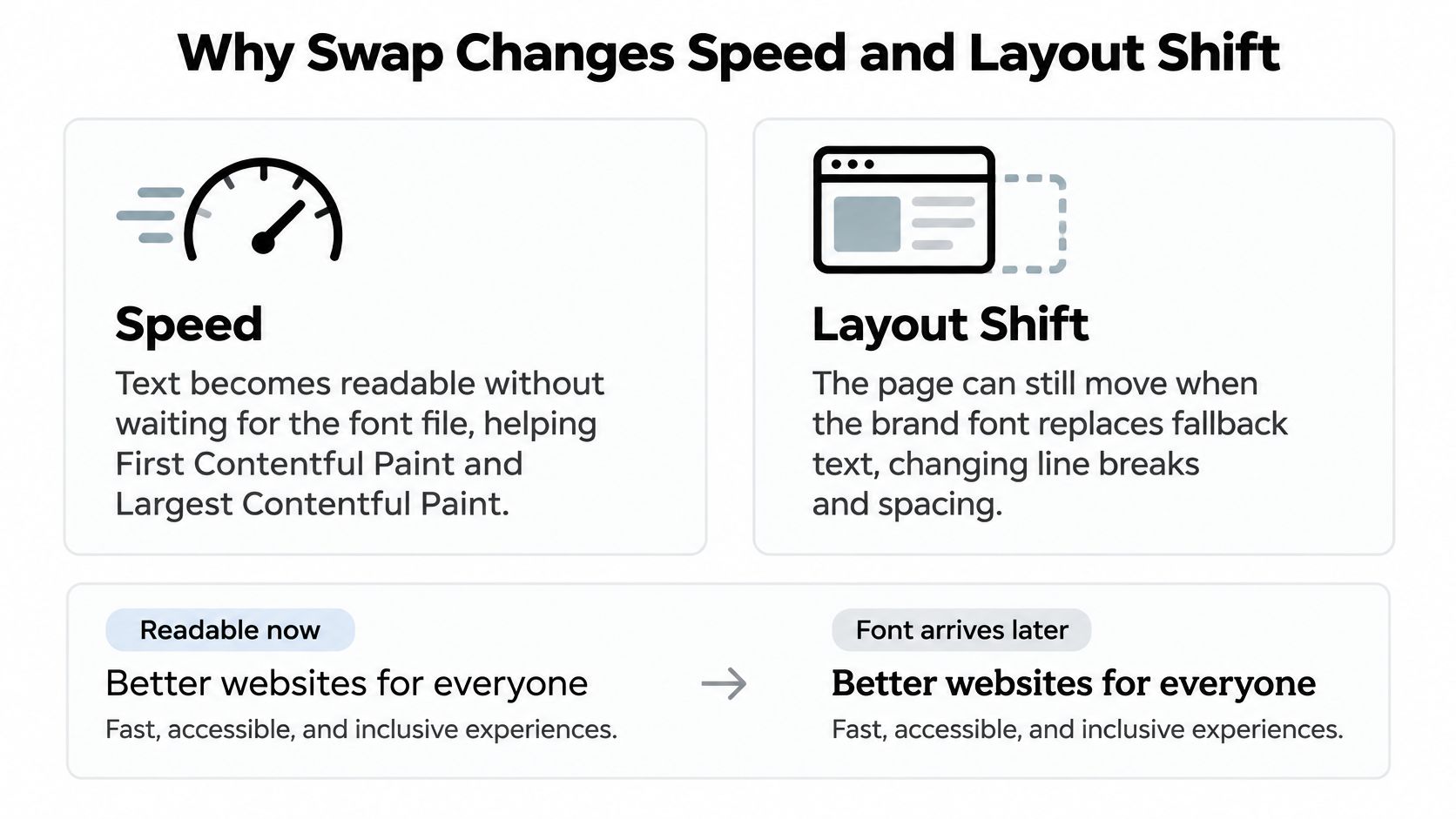
Swap can make text readable sooner without making the page stable. Those are two separate measurements, and improving one does nothing automatic for the other.
First Contentful Paint tracks the first visible content. Largest Contentful Paint tracks the largest eligible element, which could be a heading or a block of text rather than your product image. If font loading was delaying those paints, swap removes that wait. An image bottleneck stays an image bottleneck.
Cumulative Layout Shift measures movement after rendering. The fallback font works like a substitute teacher holding a class until the regular teacher arrives: lessons start on time, yet the room still rearranges itself when the handover happens. If the brand face changes a title's dimensions, the page moves after the shopper already started reading.
A common technique with a separate stability problem
In 2024, the HTTP Archive Web Almanac reported font-display: swap on 44% of desktop pages and 45% of mobile pages worldwide. Adoption at that scale makes swap a standard loading policy.
In a January 2024 analysis of the HTTP Archive's top million websites, Paul Calvano found that 81.5% used at least one custom web font, with sites loading an average of 238 KB of fonts. Those figures describe a web-wide sample rather than Shopify stores specifically, yet they explain why font requests deserve a close look on your theme.
Now the concrete failure. Say your fallback has narrow letters and the brand face has wider ones. A product title that initially fits on one line can wrap onto a second when the brand font arrives, pushing the price and purchase controls down while the shopper is deciding.
Fix the geometry, not just the visibility
Start with a fallback whose proportions resemble the final font. When no system font gets close enough, a developer can declare an adjusted local fallback in its own @font-face block: size-adjust scales the fallback's overall size, while ascent-override, descent-override, and line-gap-override tune its vertical metrics. Matching both width and line height keeps the title's line count and the price's position steady when the font loads.
- Inspect the title: Watch whether its line count changes during replacement.
- Inspect the buy box: Check whether the price or primary button moves.
- Inspect other assets: Fonts aren't the only resources affecting the first screen.
That last point matters. VEOit AI Bulk Videos Generator for Shopify, for example, creates product videos from existing product images. If you add generated video to a template, assess its loading separately from the font policy rather than attributing every performance change to typography. A broader Shopify page-speed review that protects SEO should distinguish these causes.
Judge the result the way a first-time shopper experiences it. A warm desktop reload can hide swap completely because the font may already sit in the browser cache. Test on a mobile connection with a cold cache, where the font file competes with your theme's script files and dynamically loaded sections for the same bandwidth. If the title stays put through that visit, the geometry work held.
How to Add Swap in a Shopify Theme
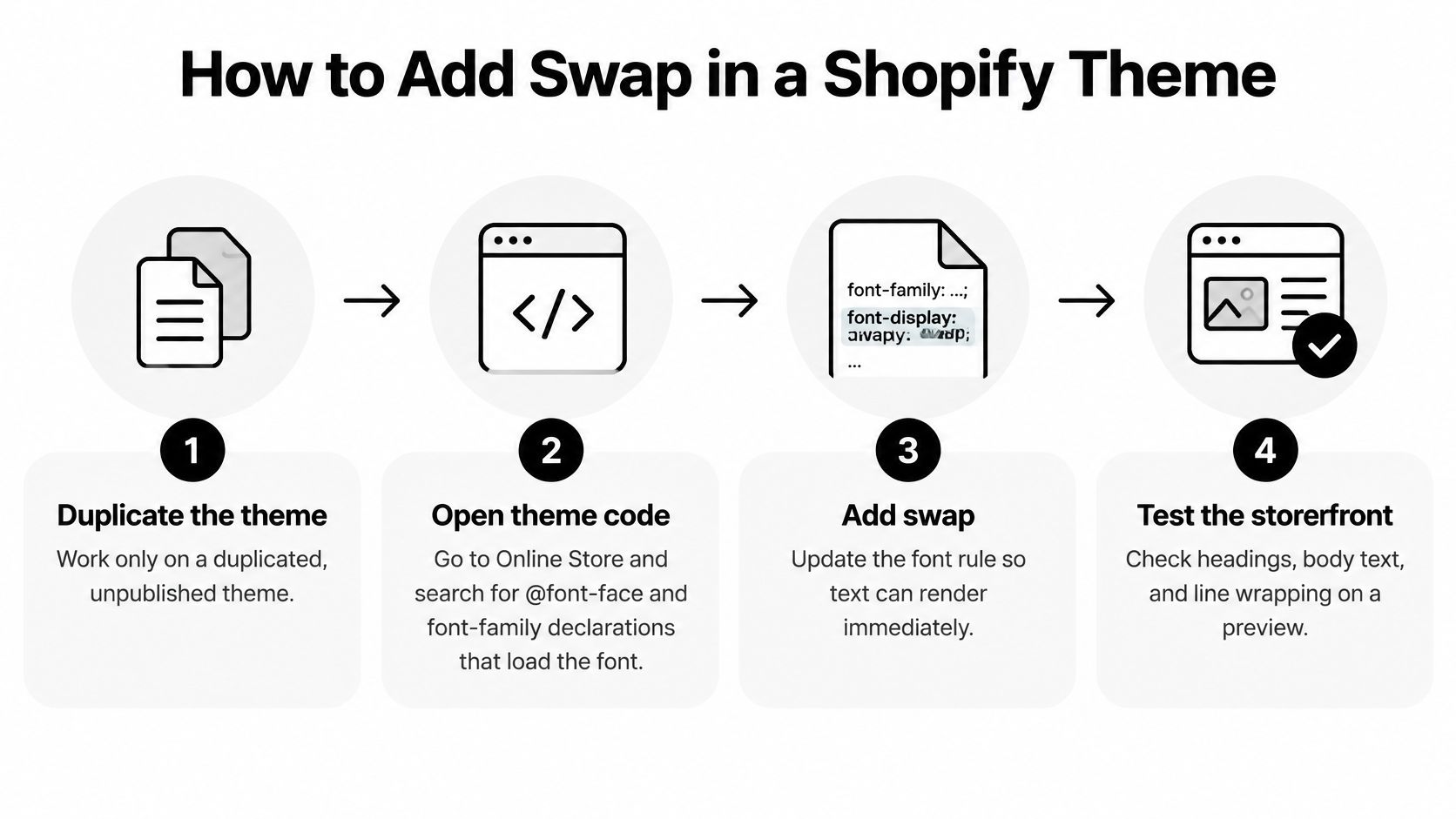
Work on a duplicated, unpublished theme. Font changes can affect the header, product templates, cart drawer, and localized pages, so a preview is safer than editing the live storefront.
The workflow is straightforward, but identifying who generates the font rule matters more than adding another stylesheet declaration.
Update the rule that actually loads the face
Find the source in the theme code. In Shopify, open Online Store → Themes, duplicate the theme, and choose Edit code on the duplicate. Search for
@font-face,font-family, andfont_face. Inspectlayout/theme.liquid, relevant snippets, and stylesheets such asassets/base.cssorassets/theme.cssif your theme has them. File names differ, so follow the search results rather than assuming a particular structure.Edit each relevant custom face. For a manually declared font, add
font-display: swap;inside its existing@font-faceblock, conveniently aftersrc. Preserve the family, style, weight, and source descriptors. Don't create another face pointing to the same file just to add swap, and don't change unrelated icon-font rules without checking their fallback behavior.Check font-picker output before changing it. A theme using Shopify's font picker may generate its declarations through Liquid rather than a handwritten CSS block. If you find a
font_facefilter, inspect whether it already passesfont_display: 'swap'; where appropriate, update that filter's argument. Confirm the resulting browser CSS rather than trusting the template alone.Set a compatible fallback stack. Find the selectors or CSS variables assigning body, heading, and button fonts. Keep the brand family first, followed by an appropriate local fallback and generic family, such as
system-ui, sans-seriffor a compatible sans-serif design. A script heading needs a more deliberate fallback than borrowing the body stack.Save and inspect the unpublished preview. In Chrome DevTools, open Network, enable Disable cache, apply mobile network throttling, and reload with DevTools open. Inspect the rendered font and the downloaded stylesheet to verify that the face you edited is the face the page uses.
Hold publication until the first-visit checks pass. Test the relevant product template, header, drawer, and localized content. Keep the original theme available so you can compare or roll back.
Avoid an override pile
A normal selector like body { font-display: swap; } cannot override an @font-face descriptor. If generated CSS uses another policy, modify its generator where possible; otherwise replace the complete relevant face declaration carefully, preserving its matching descriptors and avoiding duplicate competing definitions.
For header and navigation styling, understanding how CSS controls Shopify headers and footers helps you trace the consuming selectors. That's separate from locating the font-loading rule itself.
A theme edit only controls the font rules it reaches. Identify the owner of an injected rule before trying to override it.
App-controlled styles, embedded content, and checkout branding may require their own configuration. A font introduced by JavaScript after initial rendering can also arrive late despite having swap enabled; clean up that loading path rather than stacking more CSS.
What the Shopper Sees When the Brand Font Arrives
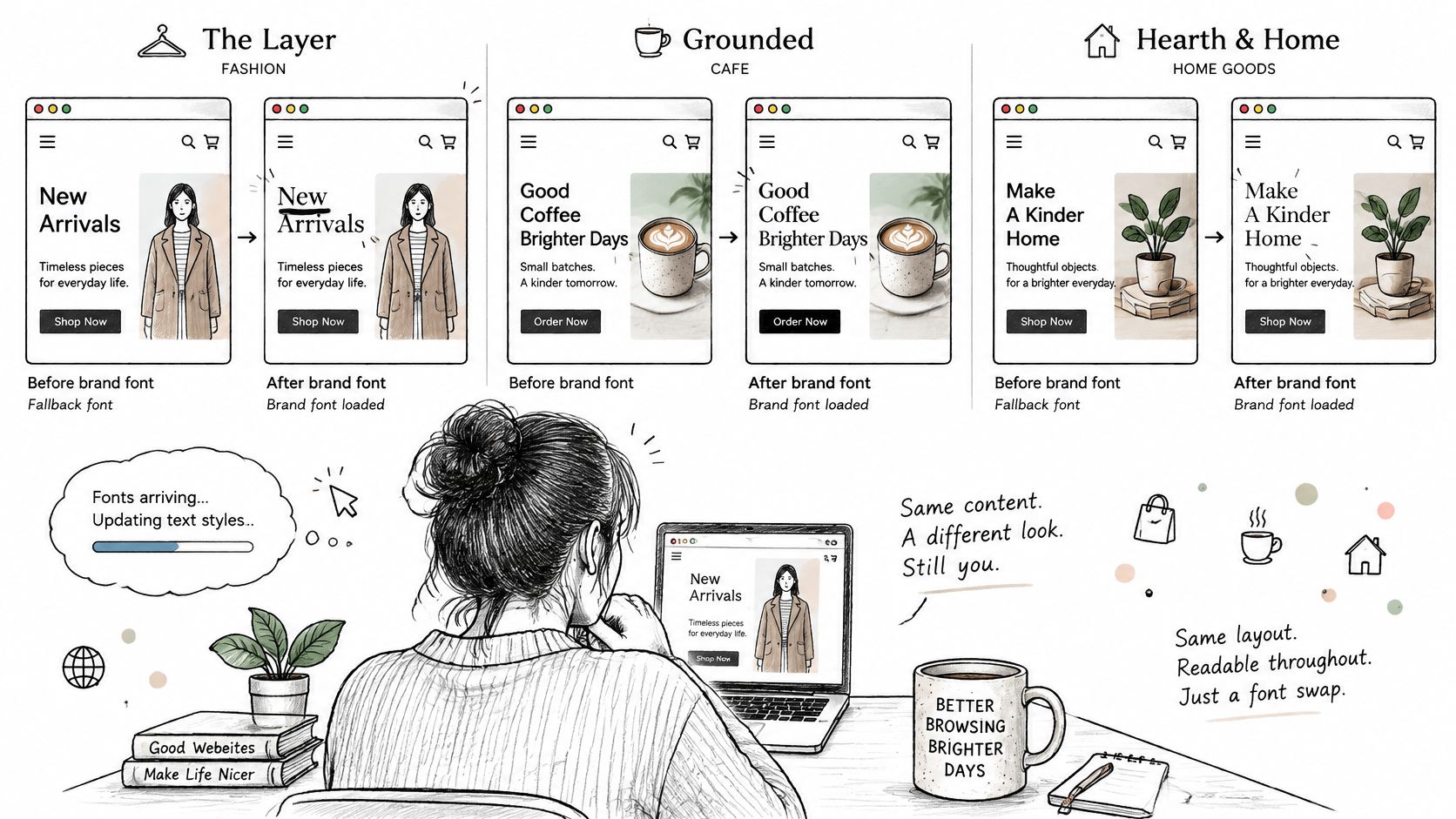
The visible change from fallback letters to branded letters is called a flash of unstyled text, or FOUT. The text stays readable the whole time, but its shape, spacing, and line wrapping can shift under the shopper's eyes.
This illustration shows the distinction between temporary typography and the final face.
Body copy and purchase information
A straightforward sans-serif body font paired with a similar system fallback produces an unobtrusive transition. Product descriptions stay legible, and the surrounding layout barely moves. The shopper reads a sentence, the letters gradually become the brand's version of themselves, and nothing jumps.
A condensed display heading is the harder case. Say a product title initially fits across a compact text block, then becomes taller after replacement. The price beneath it slides down even though its own font never changed. On a cold mobile connection, where the custom face arrives well after first paint, that shift happens mid-read and the shopper may tap the wrong element as the page reflows.
The fix for that geometry problem was covered in the editing section: tuned fallbacks and metric overrides on the @font-face rule. What matters here is the decision it leads to. If the heading's replacement shift is still noticeable after tuning, the question is no longer technical. It's whether that heading earns its swap at all.
Decorative type deserves a narrower decision
A handwritten or logo-like face can change the page's character dramatically. Use it where its temporary absence won't make the offer confusing, and keep labels a shopper needs in a face that renders immediately.
| Type role | Starting choice | What to validate |
|---|---|---|
| Body descriptions | swap |
Paragraph height and readability |
| Prices and purchase controls | swap with a close fallback |
Price width, button label fit, and position |
| Decorative campaign heading | Evaluate separately | Whether a missed custom face is acceptable |
Holding text invisible can hide the typographic transition, but it also hides the message. If you'd rather a shopper read the price in plain lettering than wait, the decision for that price is already made.
The following video provides an additional visual reference for font loading.
For a poster-like campaign page, fallback or optional may be reasonable for a decorative face if the design still works without it. A small, preloaded file can improve the chance that the face is ready, but preloading doesn't guarantee availability on a first mobile visit.
Keep one face per job as a design discipline: reliable body and interface typography, with a deliberately limited display treatment. A decorative exception shouldn't become the loading policy for the whole storefront.
Why the Same Rule Looks Different on the Next Visit
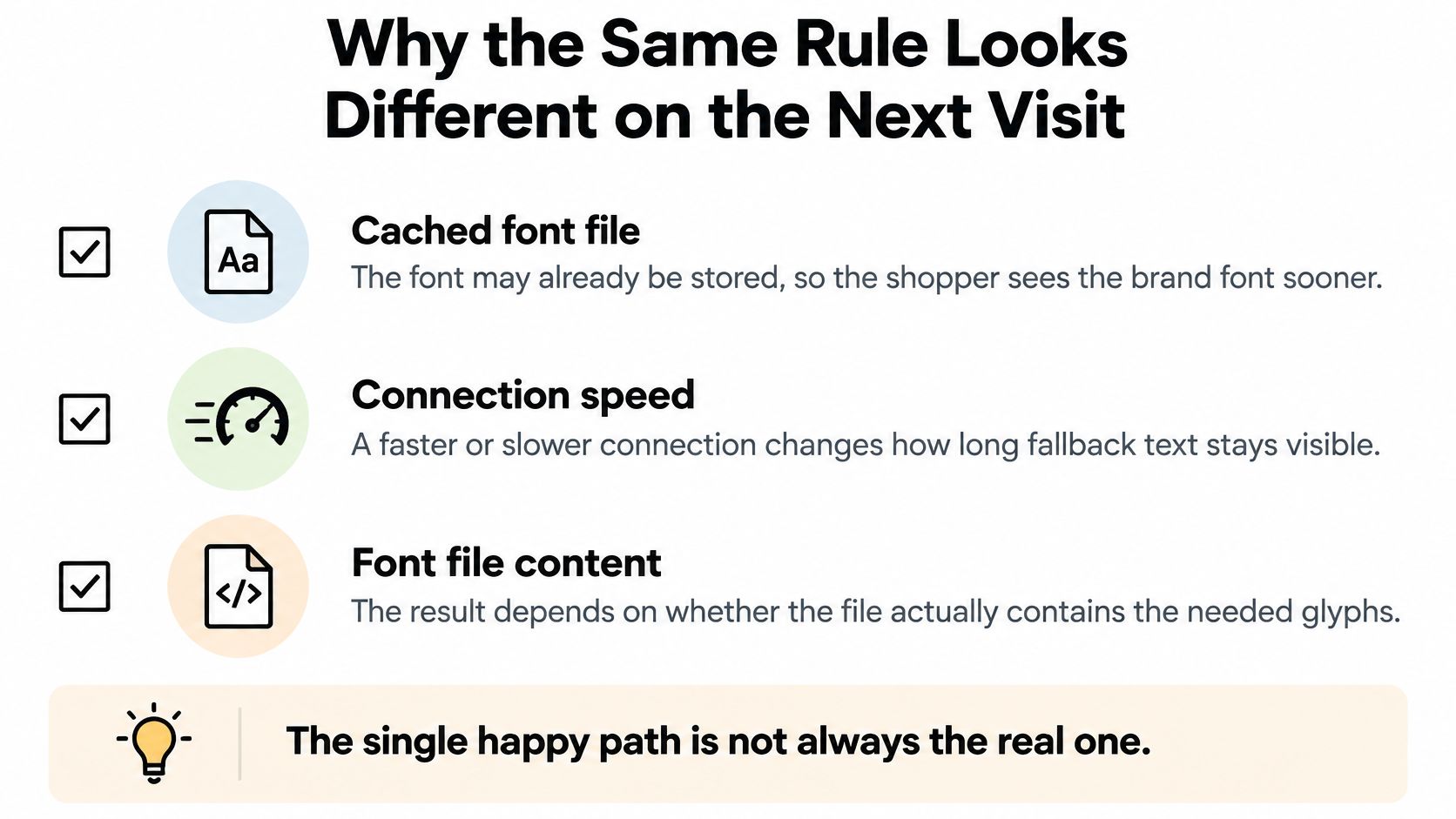
A successful desktop reload is weak evidence if your browser already has the font. With a warm cache, the branded face can be ready before you notice any fallback at all.
A first-time mobile visitor doesn't necessarily get that experience. The loading lifecycle described in MDN's font-display reference allows fallback followed by replacement, but the visible result also reflects cache state, delivery speed, and the characters the requested font can render.
Those differences are summarized below.
A loaded Latin font isn't proof of complete coverage
A font file can be available without containing every glyph on the page. A storefront might render English text with its Latin subset while another unicode-range file is still needed for a different script.
Arabic, Cyrillic, CJK, and mixed-language titles therefore need their own checks. Some characters may use another face, and replacement can happen in parts rather than as a single clean event.
Dynamic content creates a related blind spot. Opening a cart drawer or mounting a recommendation section can introduce text that wasn't present when you recorded the initial page load.
First-visit checks before you trust font-display swap
| Check | How to load it | What usually differs | Record |
|---|---|---|---|
| Cold-cache mobile | Throttled phone profile with an empty cache | Fallback appears before the brand face | Text readable at first paint; movement of price and primary button |
| Repeat visit | Same page with a warm cache | Swap may be invisible | First-paint readability; movement, noting that a warm pass can conceal first-visit problems |
| Non-Latin script | A product title in Arabic, Cyrillic, or CJK used by your store | An additional subset may arrive later | First-paint readability, including missing glyphs; later reflow |
| Anonymous storefront | Logged-out buyer with an empty cache | Initial font request without account-specific interface | First-paint readability; button and navigation stability |
| Logged-in or dynamic section | Account session, cart drawer, recommendations, or personalized block | Text appears after initial font activity | Readability when text appears; movement after the section mounts |
Keep the same device profile and network throttle across comparable runs. For cold-cache cases, empty the cache; for the repeat-visit case, deliberately retain it so cache state is the variable you're testing.
Record a load in the DevTools Performance panel and inspect layout-shift entries around the font's arrival. For dynamic sections, continue recording while opening the drawer or triggering the relevant content.
WebPageTest is another option for repeatable throttled page-load comparisons. Whichever tool you choose, retain the same conditions for before-and-after tests rather than comparing a throttled baseline with an unrestricted preview.
A warm desktop pass confirms that the cached experience works. It doesn't confirm that the first visit works.
Pass the theme when cold-cache mobile text is readable from its initial render and the purchase controls don't jump when typography settles. Investigate missing glyphs and additional reflows separately instead of marking the entire page complete because the main Latin font loaded.
Ship Swap on Body Text and Recheck the First Visit
Ship font-display: swap on body copy, navigation, prices, and buttons when the fallback preserves a usable layout. A brand-face first paint can stay imperfect while the offer remains readable and the purchase controls keep their place.
Judge the publication decision by the preview's behavior, and confirm the declaration is active. A desktop warm-cache reload can hide swap because the file is already local; the proof is a first-visit mobile run, plus any section that mounts text after the initial font activity.
Make publication an acceptance decision
Use these checkpoints to turn the change into a controlled release:
- Confirm the active declaration: Inspect the rendered text, its font family, and the matching
@font-facerule in the unpublished theme so an app embed or second stylesheet is not supplying the face shoppers see. - Run the first-visit case that can fail: Clear state for the cold mobile run, then exercise the cart drawer, account area, or recommendation block while typography is still settling.
- Publish when the offer stays usable: The rendered price and primary button keep a stable position while the fallback gives way to the brand face.
After publishing, repeat the key check against the live storefront. Preview and production can differ in enabled app embeds or template assignments, so verify the result shoppers receive rather than assuming the preview carried over unchanged.
Know when to stop editing CSS
If an app injects the font, script subsets arrive unevenly, or duplicate face declarations compete, stop adding overrides. A Shopify developer handling performance work can trace which request owns the file, collapse duplicate rules, and test the templates where shoppers buy.
Font loading also belongs within a broader mobile-site SEO workflow. A stable text layer will not rescue an unusable navigation drawer or a purchase panel pushed aside by other late content.
The release gate is concrete: first-visit text is usable immediately, the purchase area stays put through the font change, and production behaves like the approved preview.
Yassine Malti builds custom Shopify features, apps, and automations with an emphasis on simplicity and performance. If your font-loading fix involves injected styles or competing theme rules, visit Yassine Malti to discuss a focused custom implementation and the first-visit checks it needs.
Shopify apps by Yassine Malti
Put this into practice
-

VEOit · Product videos
AI product videos made from your product images · 5 credits/month free
-

ALT SEO · Image alt text
AI alt text for every product image · 100 images/month free
-

RANKit · Meta titles & descriptions
AI meta titles and descriptions, sized for Google · 50 meta tags/month free